Security: logins, trusted networks and API tokens
From 0.5.32 (#457)
Everything on this page is in the bridge from 0.5.32 (#457). Client certificates and other ways to sign in are later.
This page describes the bridge's optional security (#457). It follows the Modbus Bridge's users and roles, and adds an HTTPS port, trusted networks and long-lived API tokens.
In short
- Upgrading? Nothing changes. Security stays off, port 8101 works as it does today, and every network is trusted. You can turn Security on when you want it.
- New install? Security is on. Home Assistant's sidebar panel works without a bridge login. Everything else (a browser on your network, a phone, an API caller) uses the new HTTPS port and signs in.
- Security can always be turned off.
Home Assistant add-on or standalone: two separate ways
Sign-in and accounts are set up one of two ways, decided by how the bridge is installed. The two never mix: what one has, the other doesn't. Settings → Admin → Security says which way yours is.
| Home Assistant add-on | Standalone (Docker or pip) | |
|---|---|---|
| Home Assistant users | Sign in through the sidebar; their HA group sets the role (admin, user or viewer) | None |
| First admin | Made under Settings → Admin → Security, from the sidebar | ADMIN_USERNAME/ADMIN_PASSWORD, the setup command, or a generated password |
setup command and bridge.env |
No: the add-on's options in Home Assistant | Yes |
SECURITY=off on the first start |
Ignored | Yes |
| Startup banner | No | Yes |
| Custom roles | No | Yes |
Accounts with a password, and API tokens, work the same way on both.
Trusted networks: available now
Settings → Admin → Security → Trusted networks lists the networks that may reach the bridge. A request from anywhere else gets 403 "Your network is not trusted by this bridge", for pages and the API alike, and the bridge writes one log line per address every 10 minutes.
- An upgraded install starts with Any network ticked: nothing changes.
- A new install starts with the private ranges and loopback:
10.0.0.0/8,172.16.0.0/12,192.168.0.0/16,127.0.0.0/8, and for IPv6fc00::/7,fe80::/10and::1. A phone on your home Wi-Fi gets in; an address on the internet, or a VPN range such as Tailscale's100.64.0.0/10, does not until you add it. - Always allowed: Home Assistant's sidebar panel (on the add-on, requests from the
ingress proxy with HA's ingress header) and
/api/live, the health check.
To change the list, untick Any network, enter one network (192.168.1.0/24) or
address (10.0.0.5) per line, and Save. The section shows your address as the bridge
sees it. A list that doesn't include it is refused ("saving it would shut you out"),
unless you are in Home Assistant's sidebar panel, which always gets in.
If you shut a browser out anyway, open the bridge from Home Assistant's sidebar, or from a machine on a trusted network, and add its network.
The HTTPS port: available now
The bridge serves the same web UI and REST API over HTTPS on port 8102, next to 8101, on every install. Trusted networks apply to it the same way. With Security on, it asks for a sign-in (or an API token). With Security off, it adds encryption only.
- Home Assistant add-on: the add-on publishes 8102. Change the host port, or turn it off, in the add-on's Configuration → Network section.
- Docker: publish it with
- "8102:8102"indocker-compose.yml.HTTPS_PORTsets another number inside the container;HTTPS_PORT=0turns it off. - pip:
HTTPS_PORTas above.
Settings → Admin → Security → HTTPS port shows whether it is running, the certificate in use, its SHA-256 fingerprint and when it runs out, and has Download certificate. If the port can't start (a certificate that can't be read, or the port already taken), the reason shows there and port 8101 carries on.
Upgrading install vs new install
The bridge decides once, on its first start of the new version: an existing data directory means an upgrade.
| Upgrading install | New install | |
|---|---|---|
| Security | Off | On |
| Port 8101 | Unchanged: web UI and REST API, no login | HA ingress and the Supervisor watchdog's /api/live; everything else is redirected to the HTTPS port |
| HTTPS port (8102) | Available, but you don't have to use it | The only way in from outside Home Assistant: web UI with a login, REST API with a token |
| Trusted networks | Any | Private ranges (10.0.0.0/8, 172.16.0.0/12, 192.168.0.0/16) plus loopback |
| HA ingress (sidebar panel, Open Web UI) | Always allowed | Always allowed |
/api/live (watchdog) |
Always allowed | Always allowed |
| Logins and tokens | Not asked for | Required on the HTTPS port |
A request from a network that isn't trusted gets 403, and the bridge writes a log line (rate-limited, so a scan can't flood the log).
Turning Security on (upgrading install)
The switch is under Settings → Admin → Security, with the users, roles, API tokens, trusted networks and the certificate. Only an admin sees it. The steps:
- Create an admin account for the HTTPS port (see The first admin).
- Check Trusted networks. Narrow any to the networks your browsers and API callers actually use.
- Open the bridge on the HTTPS port and sign in, so you know the login works.
- Turn Security on. From now on port 8101 answers HA ingress and
/api/live, and redirects everything else to the HTTPS port. - Move any API callers (scripts, Home Assistant REST sensors, other tools) to the HTTPS port with a token.
Turning Security off (new install)
Turn the same switch off, or (Docker and pip) run franklinwh-direct-connect-bridge setup
with the bridge stopped and answer n. Port 8101 then serves the web UI and REST API to every trusted
network without a login, as an upgraded install does. Accounts and tokens are kept, so
turning it back on restores them.
Who gets in, and as what
Home Assistant users (the sidebar panel)
Opening the bridge through Home Assistant's sidebar or Open Web UI goes through HA ingress. Home Assistant has already signed you in, so the bridge doesn't ask again.
-
Left in the background in the Home Assistant app, the panel's ingress session can end. The bridge never sends an ingress page to its sign-in page: Home Assistant renews the session when the panel is shown again, and the page carries on (a poll or two may fail first).
-
The bridge trusts ingress only when three checks pass: it is running as an add-on, the request comes from the Supervisor's ingress address (
172.30.32.2), and HA's ingress headers are present. -
Every Home Assistant user can open the panel (the add-on sets
panel_admin: false), and gets the role of their Home Assistant group:Home Assistant group Bridge role Administrators (owners too) admin Users user: view everything, send battery commands, manage schedules, not change settings Read-only viewer
This applies whether Security is on or off. See Roles.
- The Supervisor sends the group (X-Remote-User-Groups) from Supervisor 2026.10.4.
An older one sends none. Then the user is an admin while Security is off, as
before, and a user while it is on, and Settings says so: update Home Assistant, or
sign in with an admin account on the HTTPS port. (From the Supervisor's source code;
the group header is checked on the HAOS test VM at release.)
- The user is named from HA's X-Remote-User-* headers, so logs and the audit trail
show which HA user did what.
- No bridge account is created or stored for HA users. The name is read on each
request and used only for display and logging.
Who is an admin of the bridge is therefore decided by Home Assistant's own users: make someone an HA administrator, or not.
On the add-on, the first admin account is made in the sidebar by an HA administrator.
The first admin
The HTTPS port needs a bridge account.
- Home Assistant add-on: you are already an admin in the sidebar panel. Create the admin's username and password there, under Settings → Admin → Security, before you use the HTTPS port. No password goes into the add-on options or the log.
- Docker and pip: set
ADMIN_USERNAMEandADMIN_PASSWORDbefore the first start. They are read only while no admin exists; change the password in the bridge after that. If you set none, the bridge creates an admin namedadminwith a generated password, printed once in the startup banner (docker logs, or the terminal it runs in). It is never kept in the bridge's Logs tab, its stored log or a support bundle; a copy an older version stored is masked on upgrade. - The setup command (Docker and pip):
franklinwh-direct-connect-bridge setup, run with the bridge stopped, asks for the aGate's address, the ports, Security on or off and, optionally, the first admin's username and password (Enter = generate one, shown once; skip it and the first start makesadminand shows its password in the banner). The address and ports go intobridge.envin the data folder; the password goes only into the bridge's accounts. Run it again to turn Security on or off. With Security on it keeps the HTTPS port on, as sign-in needs it. - The startup banner (Docker and pip): before the web server starts, the bridge prints the addresses to open, whether Security is on, and a generated admin password on the one start that makes it.
- Quick start (Docker and pip): set
SECURITY=offon the first start and a new install starts with Security off: no sign-in, and no admin is created. Trusted networks stay the private ranges. Settings → Admin → Security says so; add an admin and turn it on there when you're done trying the bridge.SECURITYis read only on the first start; the add-on ignores it.
Accounts are managed under Settings → Admin → Security → Accounts: add, change the role, set an expiry date, disable, reset the password, delete. Signed in, you can change your own password there.
The last enabled admin can't be deleted, disabled, demoted or given a past expiry date. If you lose the password, run this where the bridge runs (in the add-on's or container's shell):
It prints a new password once, and unlocks and enables the account. A name that doesn't exist yet is created as an admin.
Signing in
With Security on, the HTTPS port shows a sign-in page. Under the form it shows the bridge's version and links to the documentation, GitHub Discussions and Issues. A session lasts 30 days, or until you sign out: click your name in the top bar, then Sign out (or Settings → Admin → Security → Sign out).
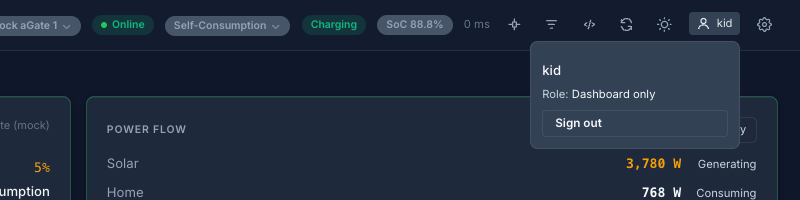
Changing a password, or disabling an account, ends its sessions. Requests to port 8101 are redirected to the HTTPS port; if the HTTPS port isn't running, 8101 answers 503 and says why.
The Security switch can only be turned on when an admin account exists and the HTTPS port is running, so that someone can sign in afterwards.
Roles
| Role | Web UI | Reads | Writes (battery, mode, schedules, settings) | Manages users and tokens | Signs in with |
|---|---|---|---|---|---|
| admin | Full | Yes | Yes | Yes | Password (HTTPS port), or HA ingress |
| user | Full, with Settings read-only | Yes | Battery commands, answering notifications, and schedules | No | Password, or HA ingress (non-admin HA users) |
| viewer | Read-only | Yes | No | No | Password, or HA ingress (read-only HA users) |
| api | None (REST only; reads the API schema at /openapi.json, not the /docs pages) |
Yes | Battery commands and answering notifications | No | Token |
Battery commands are force charge or discharge, release, mode, reserve, off-grid and acknowledging an alert. Everything else that changes something (settings, users, tokens, HA instances, notification devices, smart circuits, the generator) needs admin. A request a role can't make gets 403 "Your role (viewer) can't do this." The web UI doesn't grey those controls out yet; it shows that message.
Custom roles (standalone)
On Docker and pip installs an admin can make roles of their own under Settings → Admin → Security → Custom roles, for example Dashboard only with the Dashboard and System view ticked. A custom role sets:
- the tabs it can open: any of the web UI's tabs, and System view. The other tabs don't appear for it, and the bridge refuses their data (403 "Your role (…) can't do this."), so hiding them is not the only protection;
- what it can change: nothing (read-only), battery commands, schedules, or both. Settings stay read-only for every custom role, and it gets no access to accounts, tokens, backups or exports.
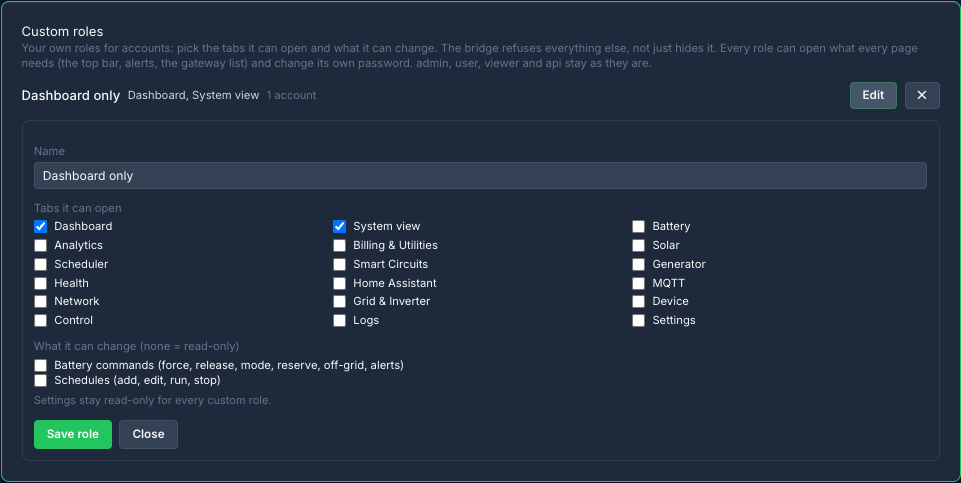
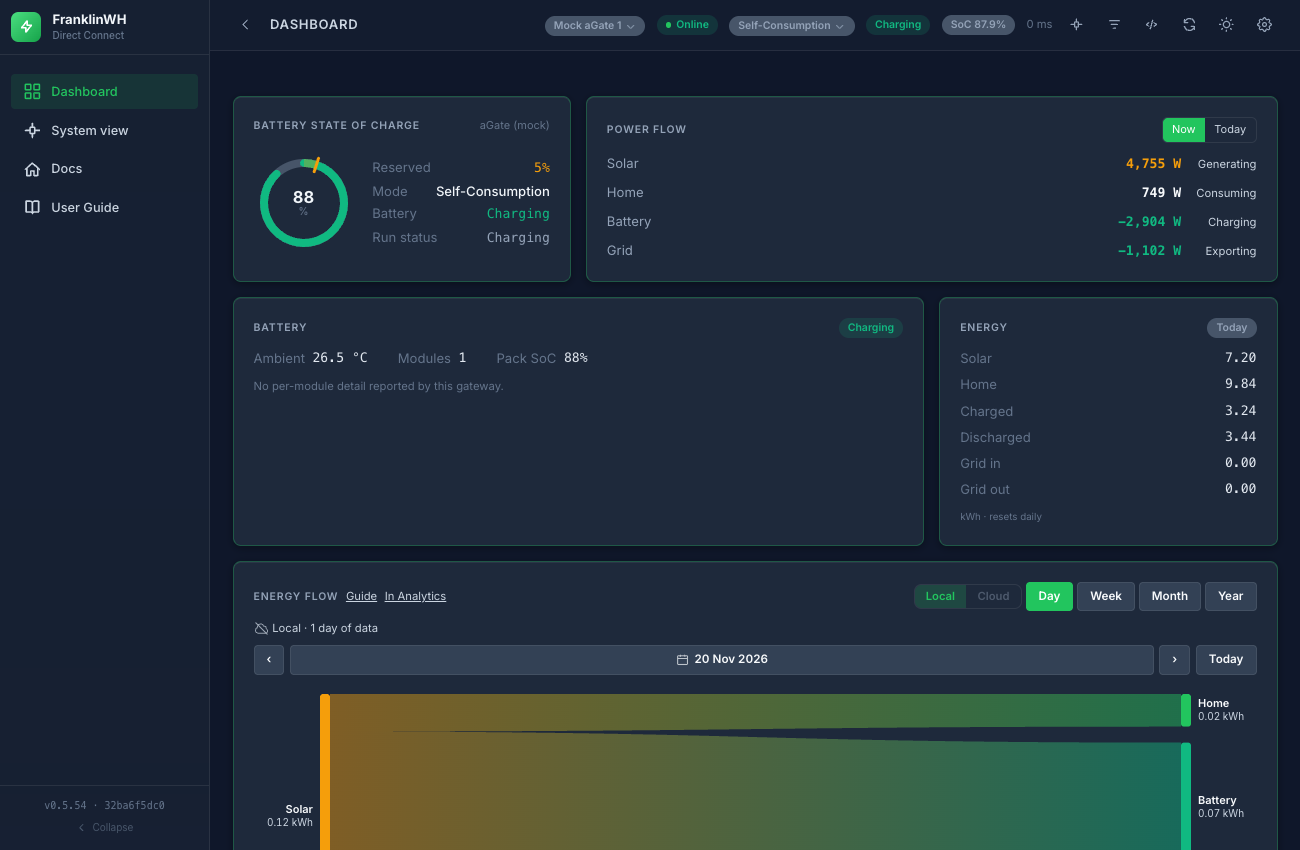
Every custom role can still read what every page needs (the top bar, alerts, the gateway list and status) and change its own password. Pick the role when you add or edit an account. A role can't be deleted while an account uses it, and the setup wizard isn't offered to a role without the Settings tab. The built-in roles above don't change. The Home Assistant add-on has no custom roles: Home Assistant users get their role from their HA group.
Accounts also have:
- an optional expiry date;
- password reset by an admin;
- a sign-in activity log;
- lockout: 5 failed sign-ins in 15 minutes locks the account for 60 seconds.
Passwords are stored as argon2id hashes, never in plain text.
API access: tokens
No API account is created automatically. To let a script or another system call the REST API:
- An admin adds an account with the role api (Settings → Admin → Security → Accounts, no password: it can't sign in or use the web UI).
- Under API tokens, the admin picks the account, names the token after what will use
it, picks 30, 90 or 365 days, and presses + New token. The token (it starts
fwhdc_) is shown once; copy it then. The bridge keeps only a hash and the last four characters, to tell tokens apart. - The caller sends it on every request, on the HTTPS port only:
A token carries its account's role: an api account can read everything and send battery commands (force, release, mode, reserve, off-grid, acknowledging an alert), not change settings or schedules, and gets no web pages. A token for another account has that account's role. Each token has an expiry and a last-used time, and an admin can revoke it at any time. Disabling or deleting the account stops its tokens too. A wrong, expired or revoked token gets 401 "Invalid or expired API token.", even with a signed-in browser session. Port 8101 ignores tokens: with Security on it redirects to the HTTPS port, and with Security off it needs none.
curl --cacert franklinwh-bridge.crt -H "Authorization: Bearer fwhdc_…" \
     https://<bridge>:8102/api/summary
--cacert trusts the bridge's own certificate (Download certificate in the same
section), so curl checks it rather than skipping the check with -k.
Docker and Python (pip) installs
There is no Home Assistant ingress outside the add-on, so:
- Security off (an upgrade, or turned off): nothing changes. Port 8101 serves the web UI and REST API to trusted networks without a login.
- Security on: port 8101 serves
/api/live(for a health check) and redirects every other request to the HTTPS port, so old bookmarks still land in the right place. The web UI and REST API are on the HTTPS port, 8102 by default, with a login or a token. Publish it indocker-compose.yml; set another number withHTTPS_PORT.
The new-install default (Security on) applies here too; a data directory that already exists keeps Security off.
HTTPS certificate
The HTTPS port serves HTTPS only.
- Your own certificate: set
ssl_certfileandssl_keyfile(PEM files), for example a Let's Encryptfullchain.pemandprivkey.pem. On the add-on these are options in its Configuration tab, and a bare file name is looked up in Home Assistant's/sslfolder, so the add-on can use the certificate Home Assistant uses. On Docker and pip they areSSL_CERTFILEandSSL_KEYFILE, full paths. Set both or neither. - Otherwise: the bridge makes a self-signed certificate in
tls/in its data directory, for its host name,localhost, loopback and its LAN address. It is valid for 825 days, the longest iPhones accept, and is made again 30 days before it runs out or when the bridge's address changes. A new certificate has a new fingerprint, so a phone that trusted the old one must trust the new one. Settings → Admin → Security shows its fingerprint, so you can check that the certificate your browser warns about is the bridge's own.
Trusting the self-signed certificate on a phone
So a phone stops warning, install the bridge's certificate and trust it. Download it from Settings → Admin → Security → Download certificate on the phone, then:
- iPhone and iPad: open the downloaded profile in Settings → General → VPN & Device Management and install it. Then turn it on under Settings → General → About → Certificate Trust Settings.
- Android: Settings → Security → Encryption & credentials → Install a certificate → CA certificate, and pick the file. Menu names vary by maker.
Check the fingerprint shown on the phone against the one in Settings before you trust it. Remove it the same way if you replace the certificate.
How a request is decided
flowchart TD
    A[Request arrives] --> B{Which port?}
    B -- "8101" --> C{Trusted network?}
    B -- HTTPS port --> D{Trusted network?}
    C -- No --> X1["403 untrusted network"]
    D -- No --> X1
    C -- Yes --> E{"HA ingress or /api/live?"}
    E -- Yes --> OK1["Allowed - HA admin is admin, other HA users are user"]
    E -- No --> F{Security on?}
    F -- No --> OK2[Allowed - no login, as today]
    F -- Yes --> X2["Redirect to the HTTPS port"]
    D -- Yes --> G{Security on?}
    G -- No --> OK2
    G -- Yes --> H{"Session or Bearer token?"}
    H -- No --> X3["401 sign in"]
    H -- Yes --> I{Role allows this route?}
    I -- No --> X4["403 role"]
    I -- Yes --> OK3[Allowed]
Not shown: ingress is honoured only when all three ingress checks pass, and a locked or expired account counts as no login (401).
First start of a new install
flowchart TD
    A[First start, empty data directory] --> B[Security on]
    B --> C[Trusted networks: private ranges and loopback]
    C --> D{"Add-on?"}
    D -- Yes --> E["Admin created later, in the sidebar panel"]
    D -- No --> D2{"ADMIN_USERNAME and ADMIN_PASSWORD set?"}
    D2 -- Yes --> E2[Admin created from them]
    D2 -- No --> F[Admin created, password shown once in the startup banner]
    E2 --> G
    E --> G[HTTPS certificate: HA ssl folder or self-signed]
    F --> G
    G --> H[Sidebar panel works through HA ingress]
    G --> I[Browsers and API callers use the HTTPS port]
Upgrading an existing install
flowchart TD
    A[First start of the new version] --> B{Data directory exists?}
    B -- Yes --> C[Security off, trusted networks any]
    C --> D[Port 8101 works as before]
    D --> E{Want Security?}
    E -- No --> F[Nothing to do]
    E -- Yes --> G[Create an admin, check trusted networks]
    G --> H[Sign in on the HTTPS port]
    H --> I[Turn Security on]
    I --> J[Move API callers to HTTPS with a token]
    B -- No --> K[New install: see above]
Later, not in #457
- Client certificates (mTLS) mapped to a user.
- Other ways to sign in.