Scheduler
Direct Connect Bridge. Mirrors the Modbus Bridge page Scheduler section for section, so the two bridges can be compared page by page.
The Scheduler is the bridge's automation engine. Each schedule says when its window opens, whether conditions allow it to act, what to send, which gateway to send it to and when to stop. The bridge checks every schedule every 15 seconds (by default), per gateway, against the values the poller last read.
You find it on the Scheduler tab. It has three views: Schedules (the cards), Timeline and History.
A force command takes the battery out of its own mode
Force charge / discharge / standby writes a SunSpec power setpoint through the Modbus client (this bridge) to the Modbus TCP Server (aGate :502). That overrides the aGate's own mode until the bridge releases it. The aGate does not end a force by itself: the bridge's timer and the window's end do (see Exit and release).
Pages in this section
| Page | What it covers |
|---|---|
| Concepts | The model (trigger → conditions → action → gateway → exit → outcome), the tick, by time / by event / by sensor. Start here. |
| Triggers | Every trigger type, calendar restrictions, Next, what happens to a window that is missed. |
| Conditions | Operators, Value vs Lookup, groups (ALL/ANY), scope, hold, Test, every sensor. |
| Actions | Battery actions, mode, reserve, off-grid and circuits, HA-only schedules, Home Assistant actions and notifications. |
| Targets | Bound and unbound schedules, the default gateway, gateway_scope all. |
| Exit and release | How a window ends, End early when…, release, restore on exit. |
| Priorities and conflicts | Which schedule gets a resource, If busy, manual control. |
| Outcomes and audit | History, runs, retries, the dispatch record, Run now, Stop, Pause and Resume. |
| Restarts and the clock | What a restart does, the site clock, daylight saving. |
| Dependencies and troubleshooting | What each condition and action needs; fixes for "never fires", "always false", "does nothing". |
| Examples | Worked recipes. |
What these pages are based on
The scheduler pages describe the code of this release. Many behaviours have no automated test yet; the Scheduler test plan lists each one with its test status, the Scheduler parity page compares each with the Modbus Bridge, and the pages flag the known problems in warning boxes.
Your first schedule
This walkthrough discharges the battery on weekday evenings, but only if it has charge to spare, and stops at your minimum discharge SoC.
Force commands need the Modbus client (this bridge)
Force charge / discharge / standby goes through the Modbus client (this bridge) to the Modbus TCP Server (aGate :502). If the Modbus client (this bridge) is off, the action is listed as unavailable, with the reason. To try the Scheduler without it, use the Set operating mode action instead.
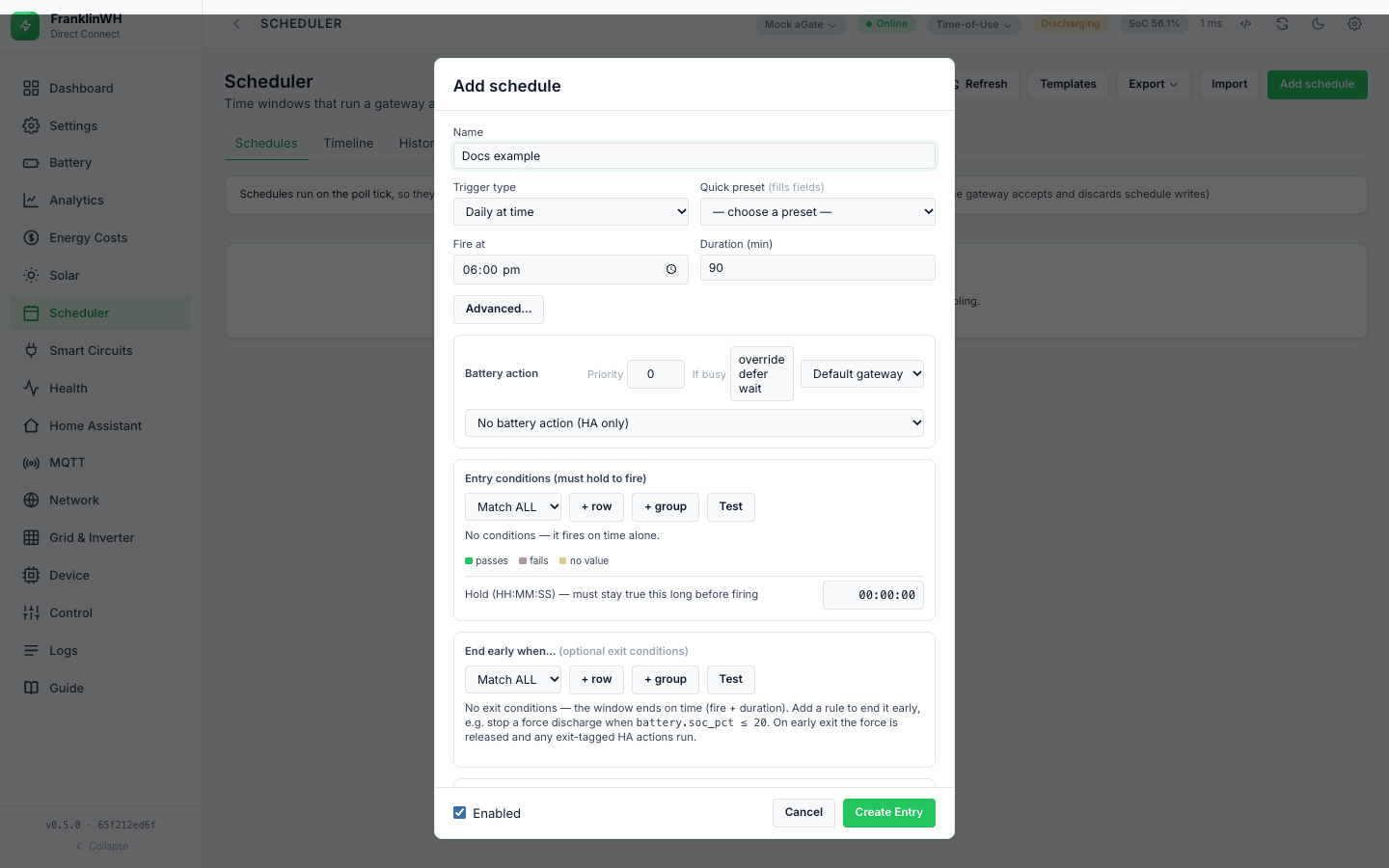
- On the Scheduler tab, press Add schedule.
- Name:
Evening discharge. - Trigger type: Weekly at time. Under Days, tick Mon to Fri (none
ticked means every day). Set Fire at to
17:00and Duration (min) to180. - Battery action: Force charge / discharge / standby. Set Direction to
Force discharge, Power unit to % of inverter power, and Power to
50. Leave Target SoC empty. - Leave Priority at
0, If busy atoverrideand the gateway at Default gateway (the picker appears only with more than one gateway). - Entry conditions (must hold to fire): press + row. Pick Battery SoC (%),
operator
>, value40. - End early when…: press + row. Pick Battery SoC (%), operator
<=, press Lookup, and pick Const: min discharge SoC (%). Set that constant first under Settings → Automation → Automation Constants. - Press Test under each block. Each row is marked pass, fail or no value against the live data.
- Untick Enabled while you try it, and press Create Entry. Tick it and Save Changes when you are happy.
What happens once it is enabled:
- At 17:00 on a weekday the bridge checks the SoC. Above 40 %, it starts the force discharge, with the window's 180 minutes as its time limit. Otherwise it logs gated (once a day) and checks again every tick until 20:00, so it can still start later.
- When the SoC falls to your minimum discharge SoC, the exit condition closes the window and the force is released. The schedule does not fire again until tomorrow's window.
- At 20:00 the window closes and the bridge sends a release.
For a force action, use a trigger with Fire at and Duration
A force stops after the schedule's Duration (min) (#160). A Recurring windows schedule still has that value, although the form hides it, and a new schedule starts with 90. So a force in a three-hour recurring window stops after 90 minutes. Use Daily at time or Weekly at time for force actions.
To check it before the window opens, open the card's ⋮ menu and choose Test against live. It says Would fire or Would not fire, with the reason and each row's live value.
The entry list
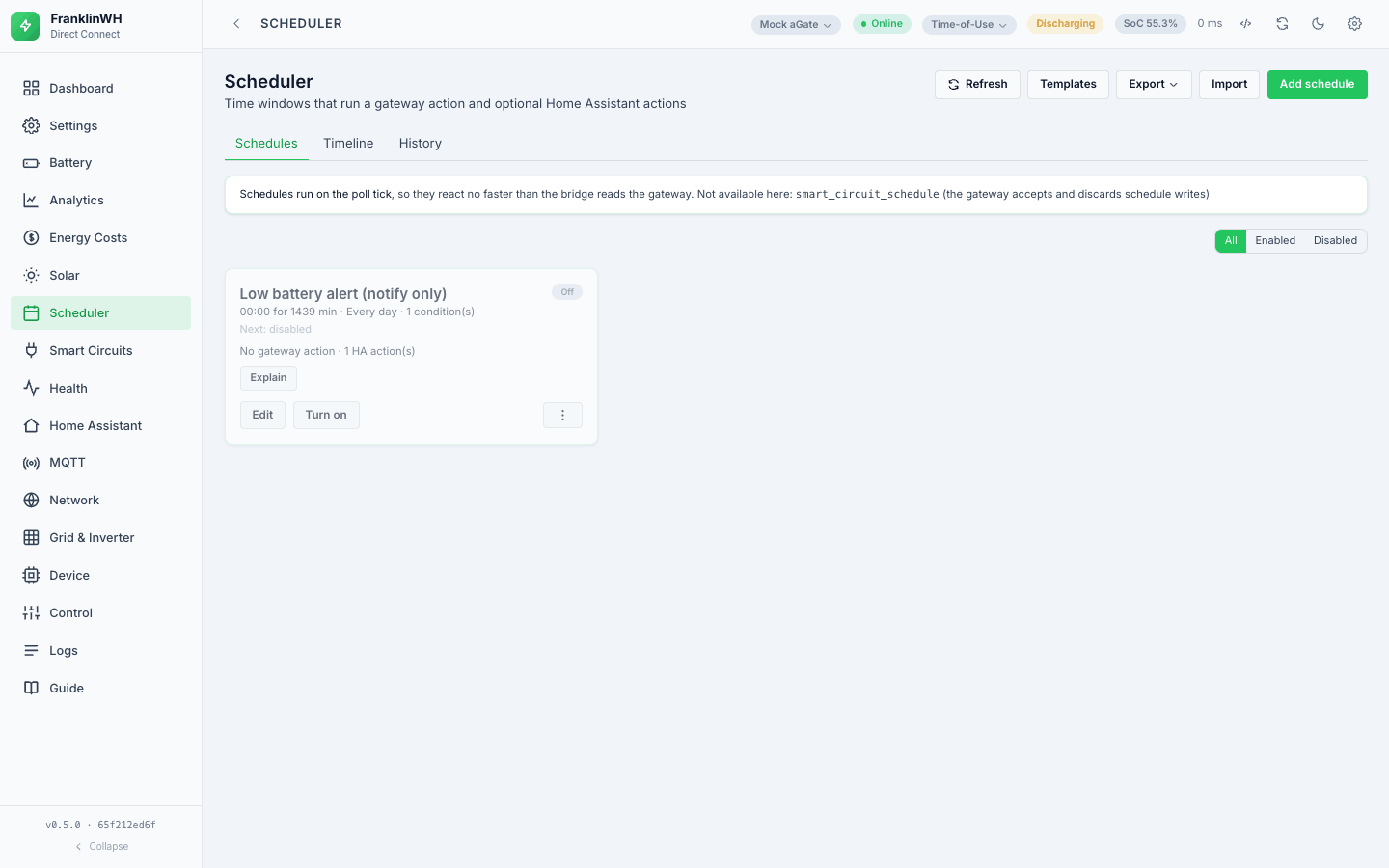
Each schedule is a card. It shows the name; the Fire at time and duration, the recurrence in words and the number of top-level conditions; Next: (see Triggers → Next fire); ● active while its window is open and it has fired; On or Off; the battery action (or No gateway action) and the number of HA actions; and the last result with its occurrence.
| Control | What it does |
|---|---|
| N active now | Counts the cards showing ● active. |
| All / Enabled / Disabled | Filters the cards. A note says how many are hidden. |
| Explain | A plain-language summary of the schedule, at three levels: min, medium and full. |
| Edit | Opens the form. If the schedule is ● active, saving asks first. |
| Turn on / Turn off | Enables or disables the schedule. |
| Stop | Shown while ● active. Releases the force this schedule started; the schedule stays enabled. See Run now and Stop. |
| ⋮ → Test against live | Evaluates the schedule against live values, without acting. |
| ⋮ → Run now | Runs the actions now, ignoring the window and the entry conditions. Asks first. |
| ⋮ → Duplicate | Opens a copy in the form, named "Copy of …", with Enabled unticked. It is saved as a new schedule. |
| ⋮ → Delete | Removes the schedule, after asking. |
The list shows all schedules by default.
Duplicate opens an unsaved copy named "Copy of
Saving a schedule that is ● active asks "This schedule is running now — saving will apply the changes to the window in progress." The change is read by the next tick. A force that is already running is not re-sent: the schedule has fired this occurrence, so a changed power, direction or target SoC takes effect at the next window.
Turn on / Turn off sends only part of the schedule; since 0.5.2 the bridge merges it into the stored schedule, so nothing else changes (#157).
A PUT without enabled turns the schedule on
The form and the toggle always send enabled. An API call that does not, for example one
that only renames a disabled schedule, turns it back on: enabled defaults to true
in the request model. Issue #168.
Templates, export and import
-
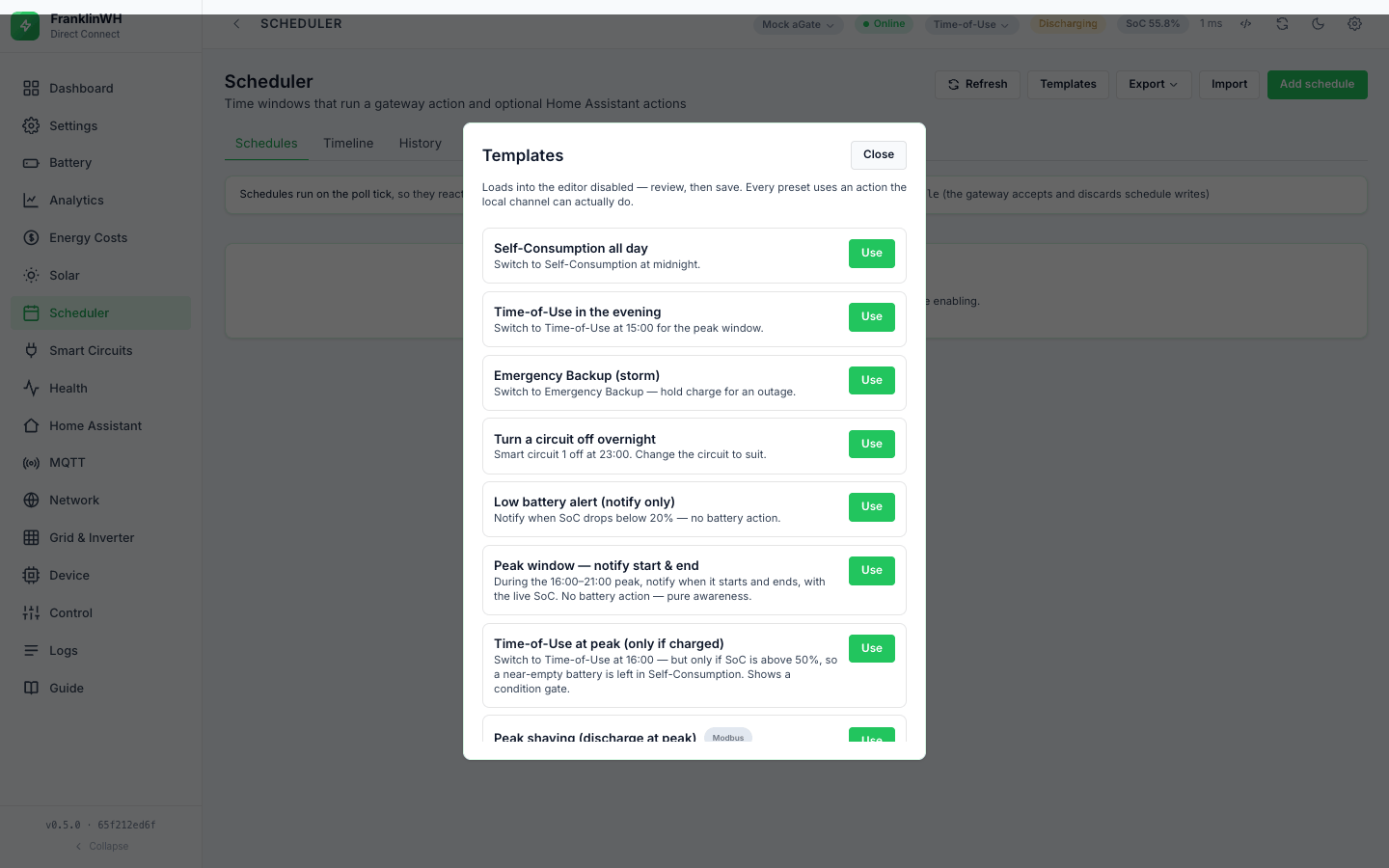
Templates opens a list of presets. Use loads one into the form unticked, for review; nothing is saved until you press Create Entry. There is no prompt to enable it afterwards. Presets marked Modbus use a force action and need the Modbus client (this bridge).
-
The presets: Self-Consumption all day, Time-of-Use in the evening, Emergency Backup (storm), Turn a circuit off overnight, Low battery alert (notify only), Peak window — notify start & end, Time-of-Use at peak (only if charged), and four force presets: Peak shaving, Battery Bonus export (evening), Solar sponge (charge midday) and Off-peak charge (overnight), each with an SoC condition and a target SoC.
-
Export ▾ downloads every schedule, as This bridge (
franklinwh-local-schedules) or Modbus bridge (franklinwh-automations). Through the API,GET /api/schedules/export?ids=<id>,<id>exports some. - Import takes a file. The bridge first validates it (a dry run) and shows, per entry,
errors (a missing name, a Fire at that is not
HH:MM, an unknown action) and warnings (a gateway or notify device that does not exist here). Import valid creates the valid entries disabled. An entry whose gateway does not exist here is pointed at the default gateway. Both bundle types are read; a Modbus bridge bundle is mapped field by field.
Not in this bridge: a per-entry Export in the card menu.
Visual timeline
The Timeline view shows today, 00:00 to 24:00:
- a band along the top coloured by the operating mode the gateway actually ran;
- the battery SoC as a line;
- dashed markers where a schedule fired, exited, was gated or had an error;
- a line at the current time.
Below it, Planned windows lists each enabled schedule's windows for today as a bar ((+1d) when a window wraps past midnight). Every N minutes, Custom cron and Always schedules are not drawn, nor are schedules the calendar excludes today.
A One-off schedule appears only on its date.
The Timeline is not per gateway, and uses the container's clock
The planned windows list every enabled schedule whatever its gateway, the markers come from every gateway's History, and "today" and "now" are the bridge container's clock, not the site's (#161).
Activity Log
Every decision the scheduler makes is written to History, newest first: created, fired, gated, waiting, deferred, exit, error, missed and more. The status list and filter chips are on Outcomes and audit. Times are in the bridge host's zone.
Using schedules from Home Assistant (Direct Connect only)
Everything the Scheduler tab does is also a REST call. Home Assistant can make those calls
with rest_command, so automations and scripts can read, create, update, delete and run
schedules. Home Assistant entities for run, pause and state over MQTT are planned (#128).
The address. From Home Assistant, the add-on is reachable on its internal hostname. The
add-on's Info page shows it (for example 4a12892f-franklinwh-local-bridge). Use
http://<that hostname>:8101. A Docker install uses its own host and port.
The bridge's HTTP API has no login, and writes are not gated (
writes_enabledalways returns true). Anything that can reach it can do all of the below. Keep it on a trusted network.
# configuration.yaml
rest_command:
  fwh_schedule_create:          # body: a full schedule (see "The fields" below)
    url: "http://<hostname>:8101/api/schedules"
    method: POST
    content_type: "application/json"
    payload: "{{ schedule | tojson }}"
  fwh_schedule_update:          # merges what you send (#157); always send name and enabled (#168)
    url: "http://<hostname>:8101/api/schedules/{{ id }}"
    method: PUT
    content_type: "application/json"
    payload: "{{ schedule | tojson }}"
  fwh_schedule_delete:
    url: "http://<hostname>:8101/api/schedules/{{ id }}"
    method: DELETE
  fwh_schedule_run:             # runs its actions NOW, ignoring the window and conditions
    url: "http://<hostname>:8101/api/schedules/{{ id }}/run"
    method: POST
  fwh_schedule_stop:            # releases this schedule's battery dispatch; stays enabled
    url: "http://<hostname>:8101/api/schedules/{{ id }}/stop"
    method: POST
Update merges. PUT changes only the fields you send (since 0.5.2, #157), but always
send name (required) and enabled: without enabled the schedule is switched on
(#168).
Reading. A rest sensor on GET /api/schedules lists every schedule with enabled,
next_fire and active_now (container clock, #161). GET /api/schedules/runs and
GET /api/schedules/log give what ran and why.
Pause vs disable: they are different.
| You want | Call |
|---|---|
| Release a battery dispatch this schedule started, and leave the rule enabled | stop |
| Stop the rule from firing at all until further notice | PUT with "name" and "enabled": false |
| Hold the current run and resume it later | pause / resume exist, but do not work as intended; see the warning |
Pause and Resume do not hold a run
POST /api/schedules/{id}/pause only finds a run that has not yet succeeded (pending
or failed). For a force that is running it answers "no run is open for this schedule"
and does nothing. For a failed run it marks it paused, but the next tick retries it
anyway: the tick does not check for paused. Use stop or disable the schedule. Issue
200; see Outcomes and audit.
Run means real actions. run does what the schedule does: a mode change, a smart
circuit, off-grid, or a battery force. Test a new rule with POST /api/schedules/{id}/test
first: it evaluates the conditions and says what would happen, without acting.
The fields are those of the Scheduler tab's form. A minimal rule that switches to Self-Consumption at midnight:
{"name": "Self-Consumption all day", "enabled": true,
 "fire_at": "00:00", "duration_min": 0,
 "action": {"kind": "set_mode", "mode": "self"}}
For anything more involved, build it in the Scheduler tab and export it
(GET /api/schedules/export): each entry is the exact JSON the API accepts.
Where the old sections went
The Scheduler used to be two pages. Their sections now live here:
| Old section | New place |
|---|---|
| Concepts | Concepts |
| How a schedule is evaluated | Concepts → The tick |
| Your first schedule | above |
| The schedule list | The entry list |
| Timeline | Visual timeline |
| History | Outcomes → Activity Log results |
| 1. Trigger | Triggers |
| Calendar restrictions | Triggers → Summary |
| How fast can a schedule react | Concepts → The tick |
| Which clock | Restarts and the clock → The clock |
| 2. Conditions | Conditions |
| Operators | Conditions → Operators |
| Value or Lookup | Conditions → Value and Lookup |
| ALL / ANY, and nesting | Conditions → Groups and items |
| The rule that matters most | Conditions → Rules for every condition |
| What you can gate on | Conditions → Every sensor in the picker |
| Gating on Home Assistant | Conditions → Home Assistant entities |
| 3. Hold, and conflict resolution | Conditions → Hold for, Priorities and conflicts |
| 4. Actions | Actions |
| The force action in detail | Actions → Force Charge and Force Discharge |
| Home Assistant actions | Actions → Home Assistant actions |
| 5. Exit | Exit and release |
| 6. Working with schedules | Templates, export and import, Conditions → Test Verification |
| Run now, Stop, Pause and Resume | Outcomes → Run now and Stop |
| When a run fails, is missed, or the bridge restarts | Outcomes → Retries, Restarts and the clock |
| Not available in this bridge | the Not in this bridge notes on each page, and Scheduler parity |
| 7. Using schedules from Home Assistant | above |
| Multi-gateway behaviour | Targets |