History, costs and tariffs
The bridge keeps its own history in a local SQLite database, and prices it against a tariff you describe. This page covers what is stored, what the numbers mean, and how much to trust them.
What is stored, and for how long
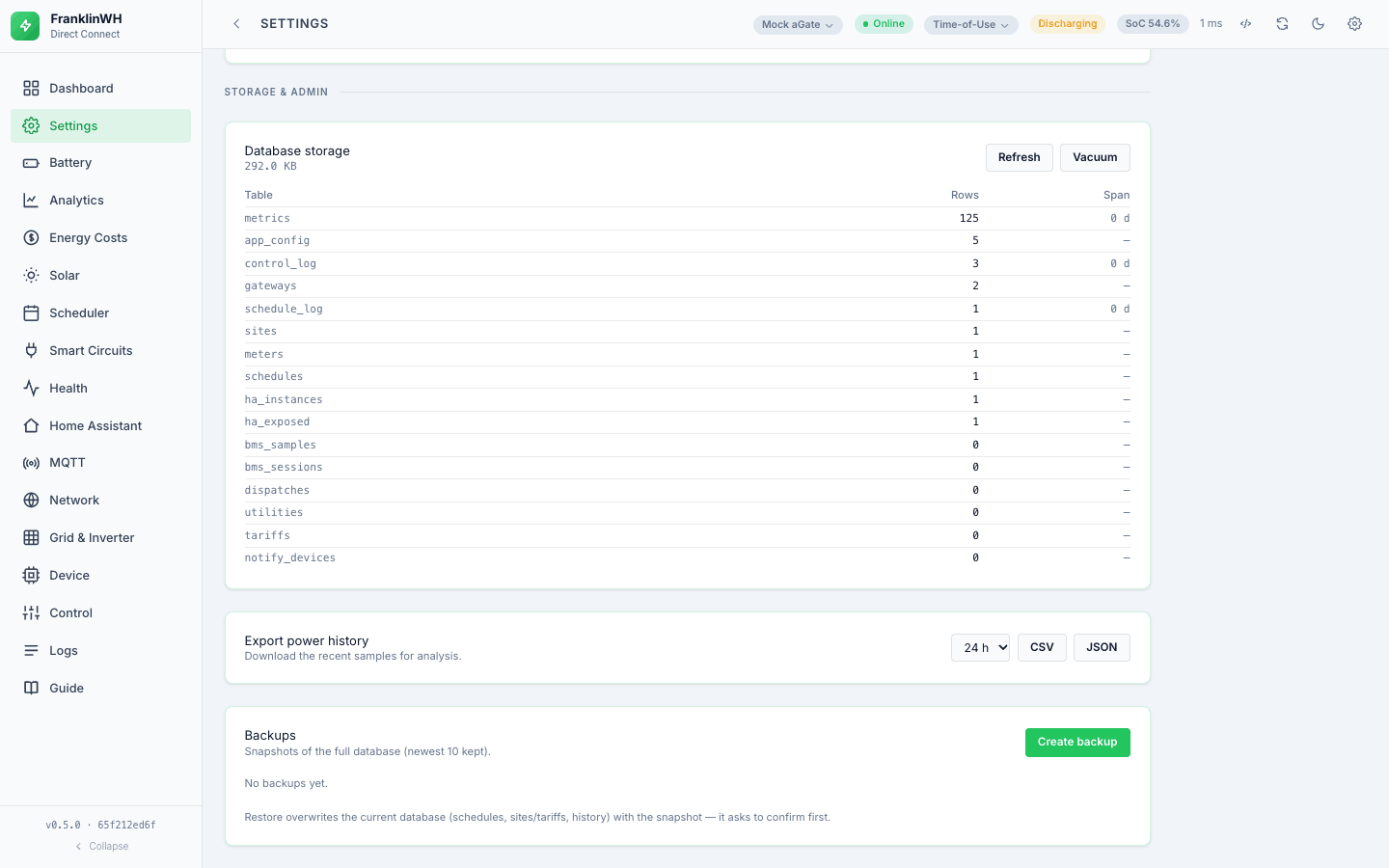
| Store | Retention |
|---|---|
| Power / metrics samples | METRICS_RETENTION_DAYS, 365 days by default |
| Application log | the newest 50,000 rows |
| Hourly link-health buckets | 90 days |
A year of samples at a 30-second poll is about 130 MB — the measurement recorded in the code is 0.35 MB per day, rising to roughly 0.67 with the tariff-tier column. Keeping a year locally is deliberate: it removes the only reason the gateway's own history (about 105 days) looked like the longer record.
History is automatically off in one specific case
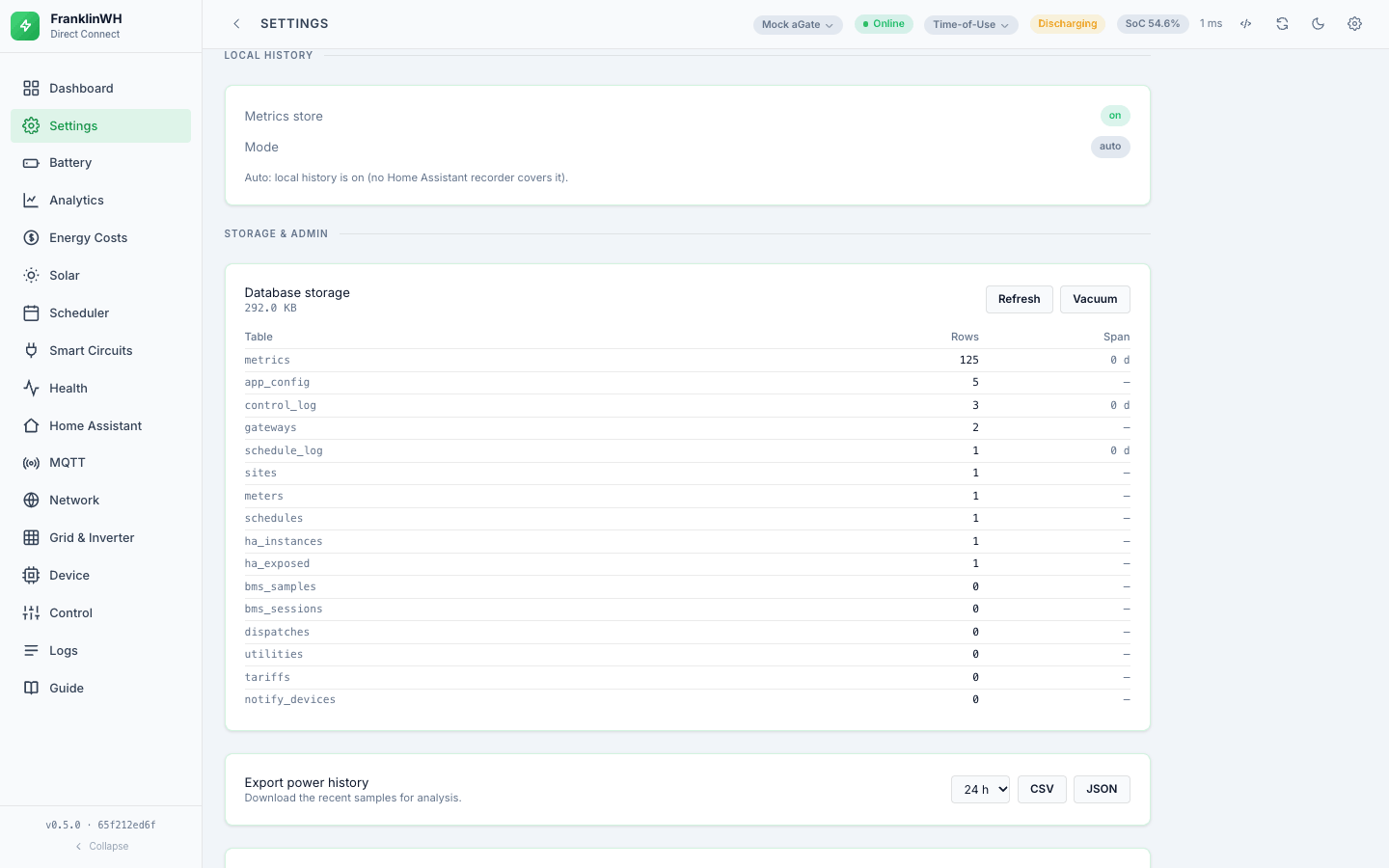
When the bridge runs as a Home Assistant add-on and MQTT is enabled, the local store
is off by default — Home Assistant's recorder is already storing the published
entities, so a second copy would be redundant. Everywhere else it is on. Set
METRICS_ENABLED to true or false to decide explicitly; an explicit value always
wins.
If the store is disabled, the features built on it degrade honestly rather than pretending: the Logs tab falls back to an in-memory ring, and the endpoints that need the store answer 503 "metrics store is disabled".
Analytics
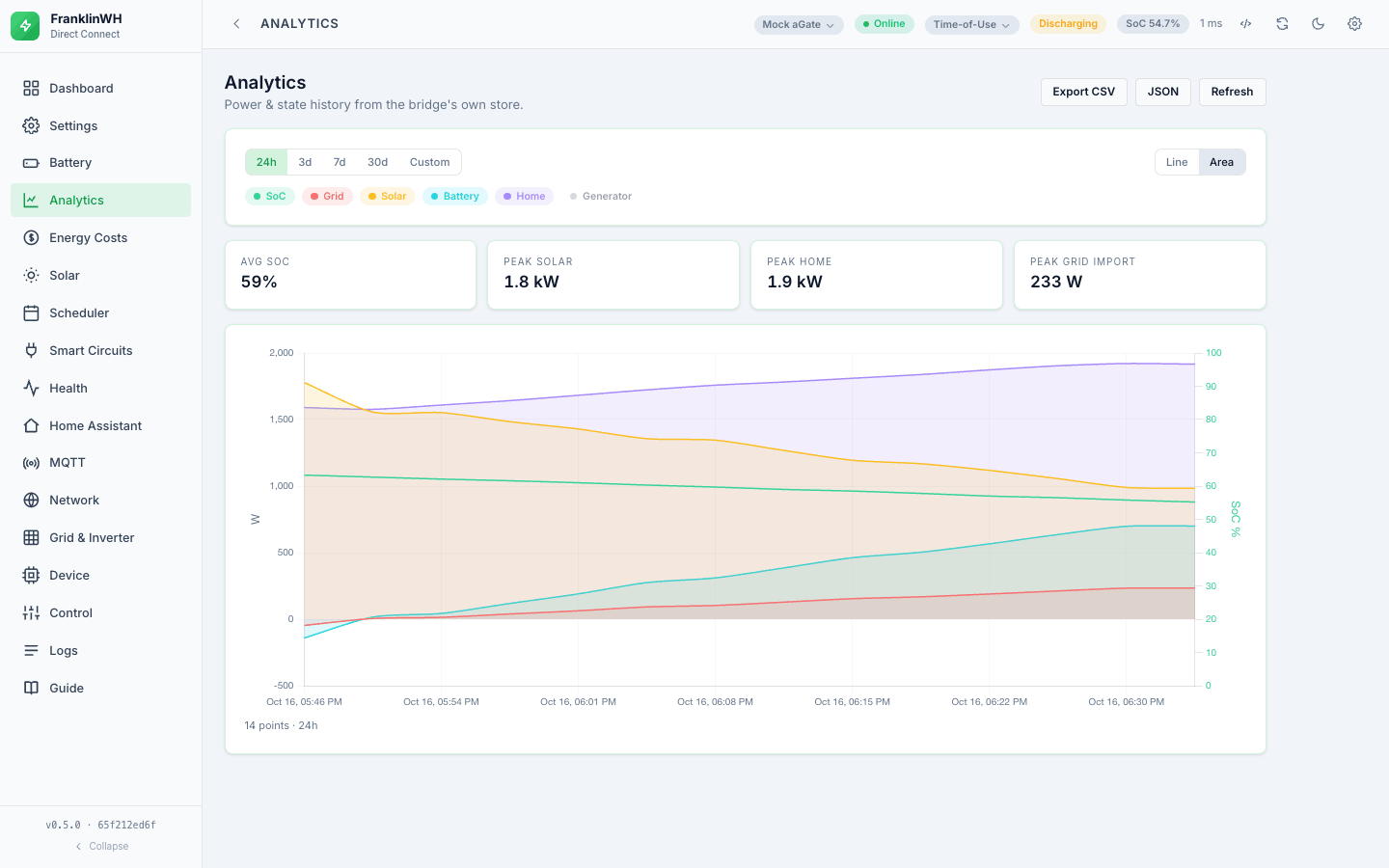
Longer-horizon charts over the stored samples — power, battery, energy — with a selectable range. This is the bridge's own record, so it survives a gateway reboot and goes back further than the aGate's.
The energy-flow Sankey
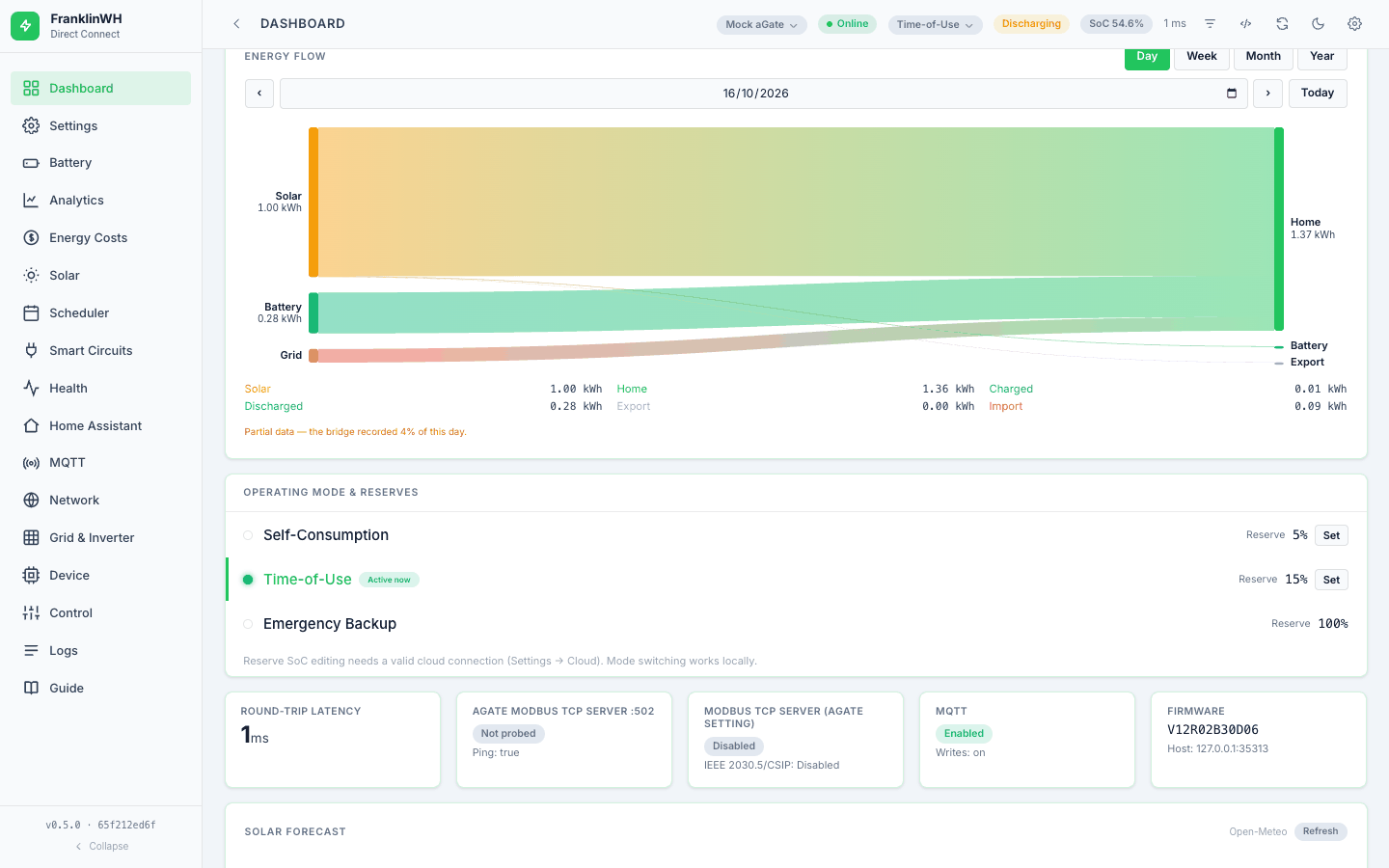
On the Dashboard. It shows directional flows for a local day: solar to home, solar to battery, solar to grid, battery to home, battery to grid, grid to home, grid to battery.
Be clear about what this is. The gateway reports node totals — how much solar, how
much import — and never the arcs between them. The bridge reconstructs the arcs from its
own power samples by a merit-order split. It is a well-founded estimate, not a meter
reading. The response carries a quality.coverage figure saying how much of the span
actually had samples, and the UI surfaces it; a low coverage means a gap in polling, and
the numbers should be read accordingly.
Energy Costs
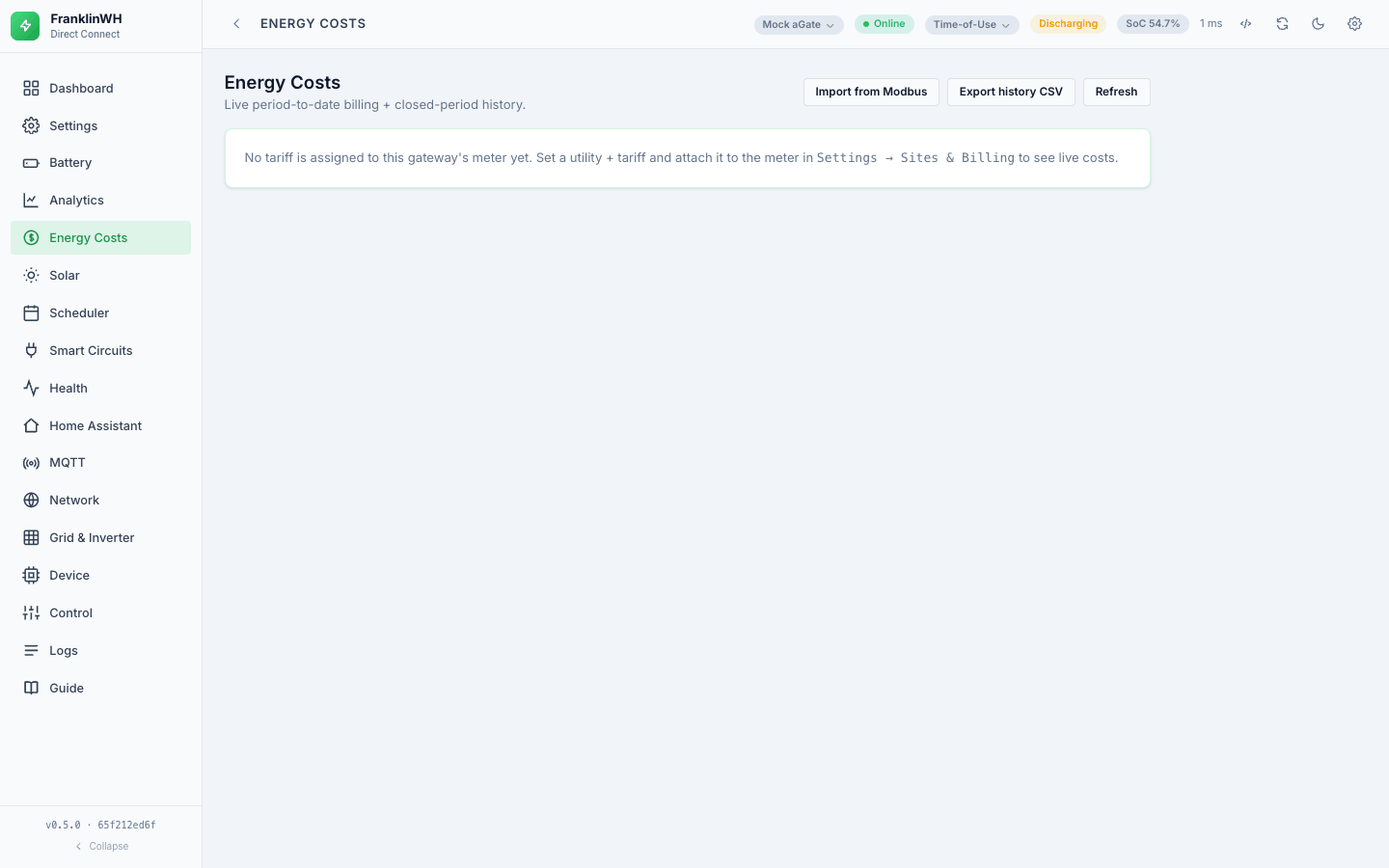
The Energy Costs tab shows live period-to-date billing and closed-period history: net cost this period, peak kW, retailer and plan, and a table of closed periods. You can export the history as CSV, import history, or import from a Modbus Bridge if you have one with a longer record.
The cost is computed by integrating your grid import and export against the rate in force at the time, plus demand charges, export charges, battery-export bonuses and standing charges where your tariff defines them. It is an estimate for your own use — not a revenue-grade meter, and not a substitute for your bill.
Tariffs
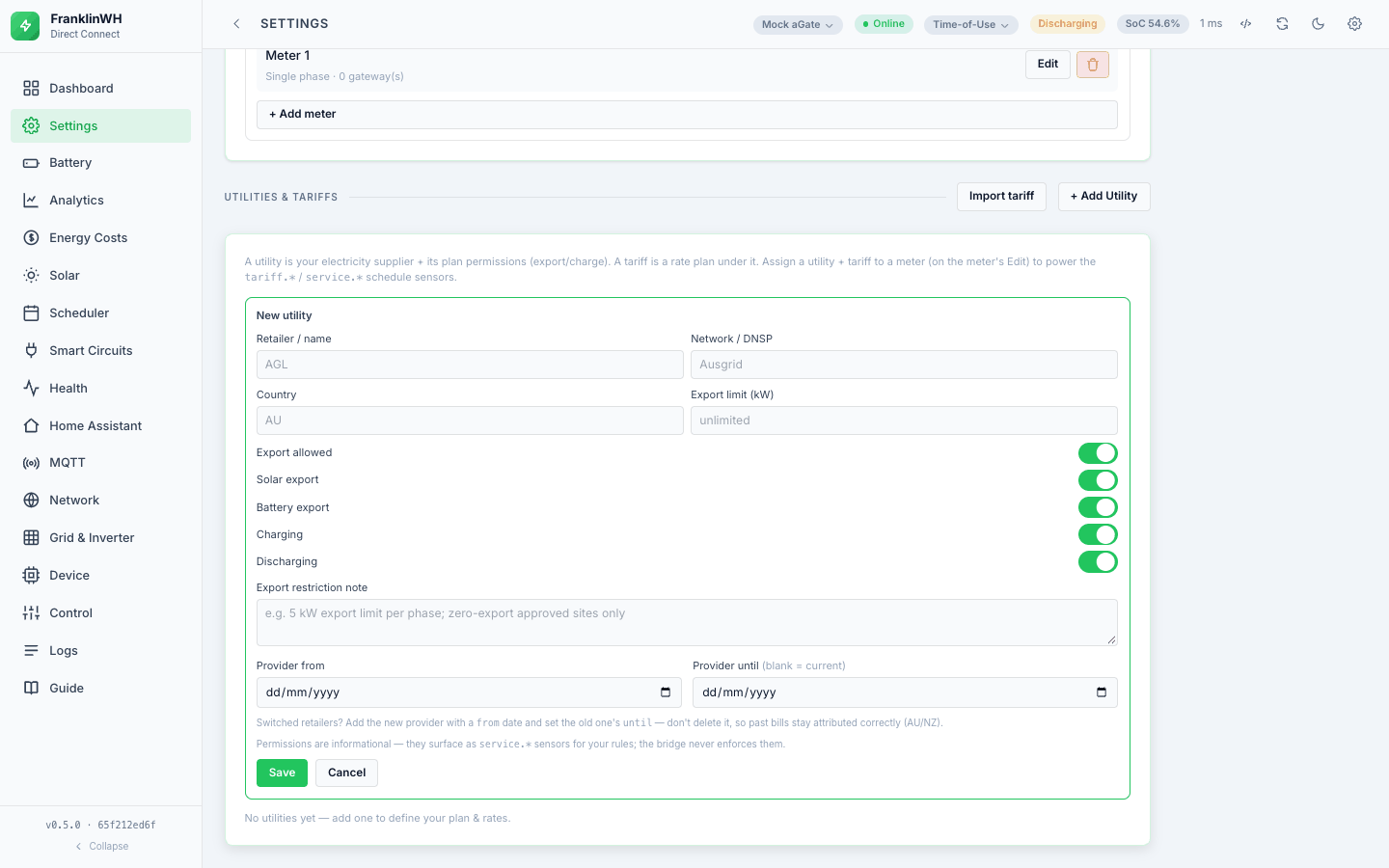
Set up under Settings → Sites & Billing → Utilities & Tariffs. A tariff belongs to a utility and is assigned to a meter; the meter is what a gateway connects to. (See Multi-gateway and sites for why the tariff hangs off the meter rather than the gateway.)
Static or dynamic
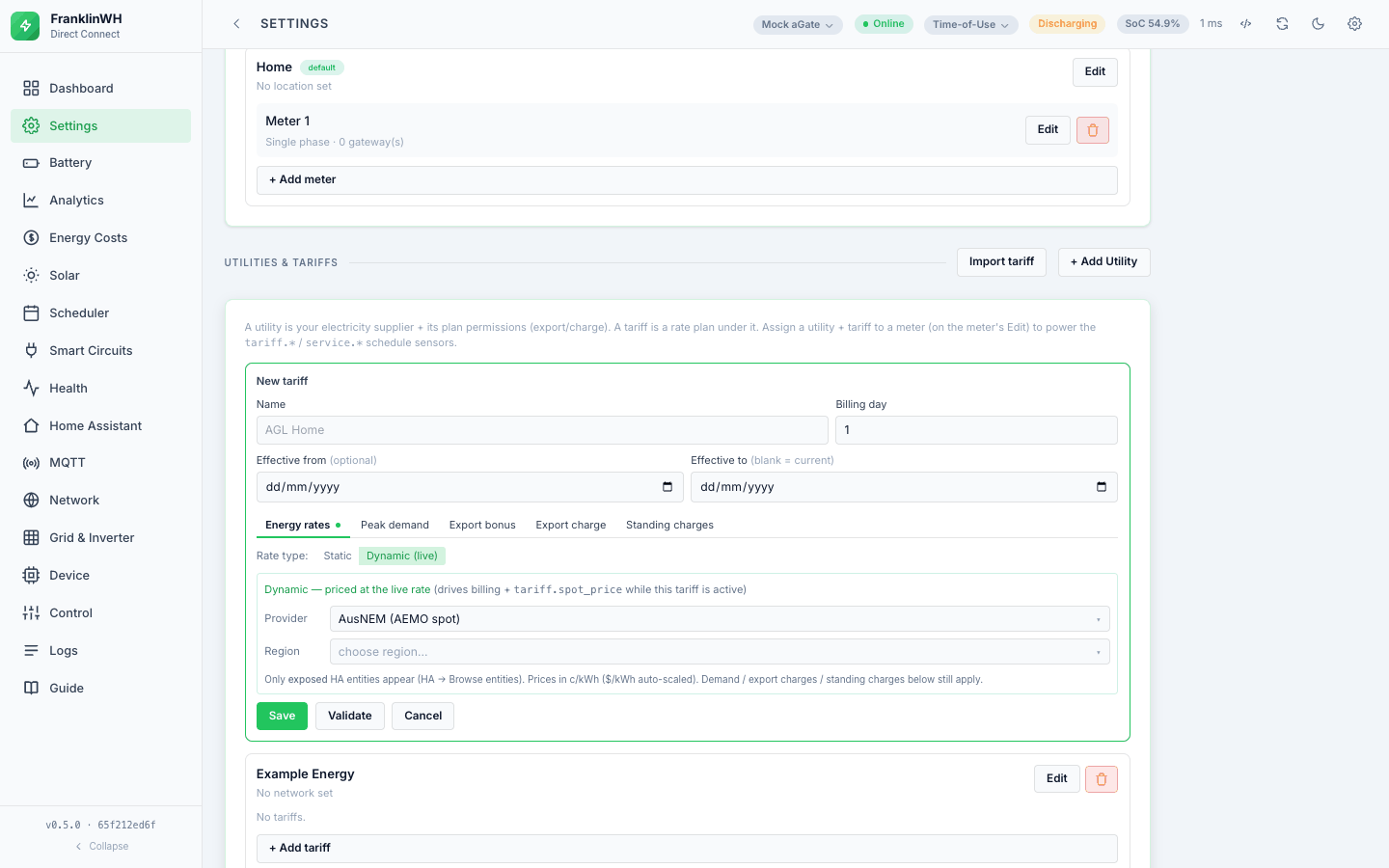
The editor's Rate type toggle offers two, and only two, options:
- Static — your plan as written. A default buy and sell rate, which may itself be a tier ladder rather than a single number, plus optional seasons and time periods. Time periods are defined as periods rather than as prices, so import and export boundaries can differ, and a tiered price inside a time-of-use band needs no extra concept — a time period with a tiered price is the hybrid plan. A plain flat or tiered tariff is complete with no seasons and no periods at all.
- Dynamic (live) — priced at the live wholesale rate while this tariff is active. Two providers:
- AusNEM (AEMO spot) — set your NEM region (
NEM_REGION: NSW1, QLD1, SA1, TAS1, VIC1). - Home Assistant price entity — point at an HA entity for the buy price and optionally another for the feed-in price. Values in dollars are auto-detected and scaled to c/kWh.
When both are configured, the HA price entity wins over NEM.
A dynamic tariff drives two things at once: the billing figures on the Energy Costs tab,
and the tariff.spot_price / tariff.feed_in_price sensors available to the
Scheduler — so a rule can charge when the price is negative without you
wiring the price in twice. GET /api/tariff/spot shows both providers side by side.
Tariffs can be exported, imported and validated one at a time, so a plan can be moved between installs or shared.
Solar forecast
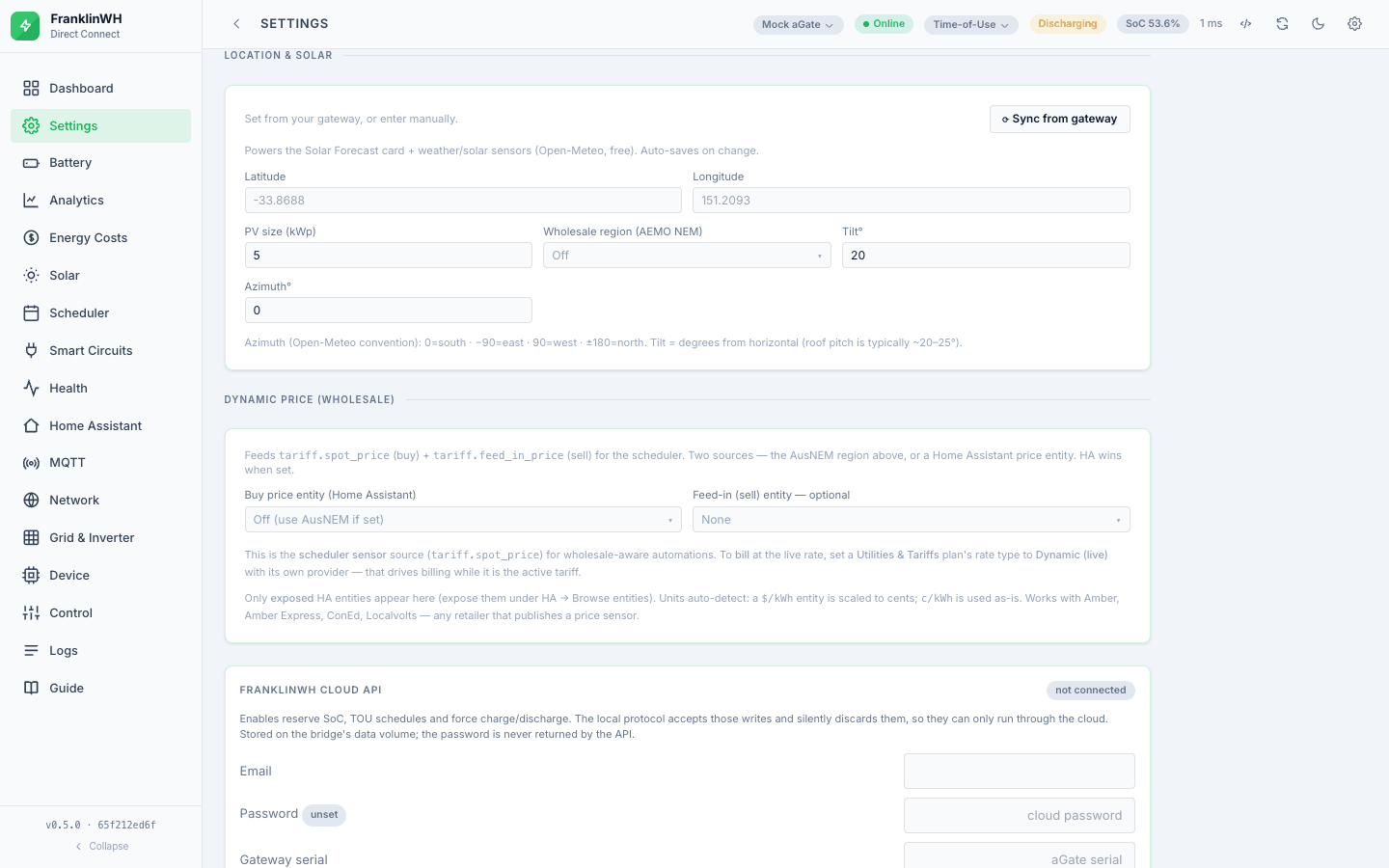
Optional, and off until you give the bridge a location. Under Settings → Integrations → Location & Solar: latitude, longitude, array size in kWp, tilt, and azimuth. The forecast comes from Open-Meteo.
Azimuth uses Open-Meteo's convention, which is not the one most people assume:
0 is south, -90 is east, 90 is west.
With a location set you get the Solar Forecast card on the Dashboard (not on the Solar tab): hourly forecast bars for today and tomorrow, the current weather, actual PV generated today against the forecast, and an ahead/behind figure versus the forecast to now. Hours are shown in the PV location's local time, aligned to now by the forecast's own offset, so it reads correctly from any timezone. The server caches the forecast for about 15 minutes.
The same data becomes scheduler sensors: today's forecast kWh, today's peak kW, remaining kWh today, tomorrow's kWh, and two solar-tracker sensors comparing actual generation against the forecast (percentage of today's forecast reached, and percentage versus forecast-to-now, where above 100 means ahead of schedule).
Rather than typing coordinates, Sync location reads the aGate's own configured
location (cmdType 1201) and saves it — no cloud account needed. If the gateway has no
location configured it says so (422) instead of guessing.
Storage and backups
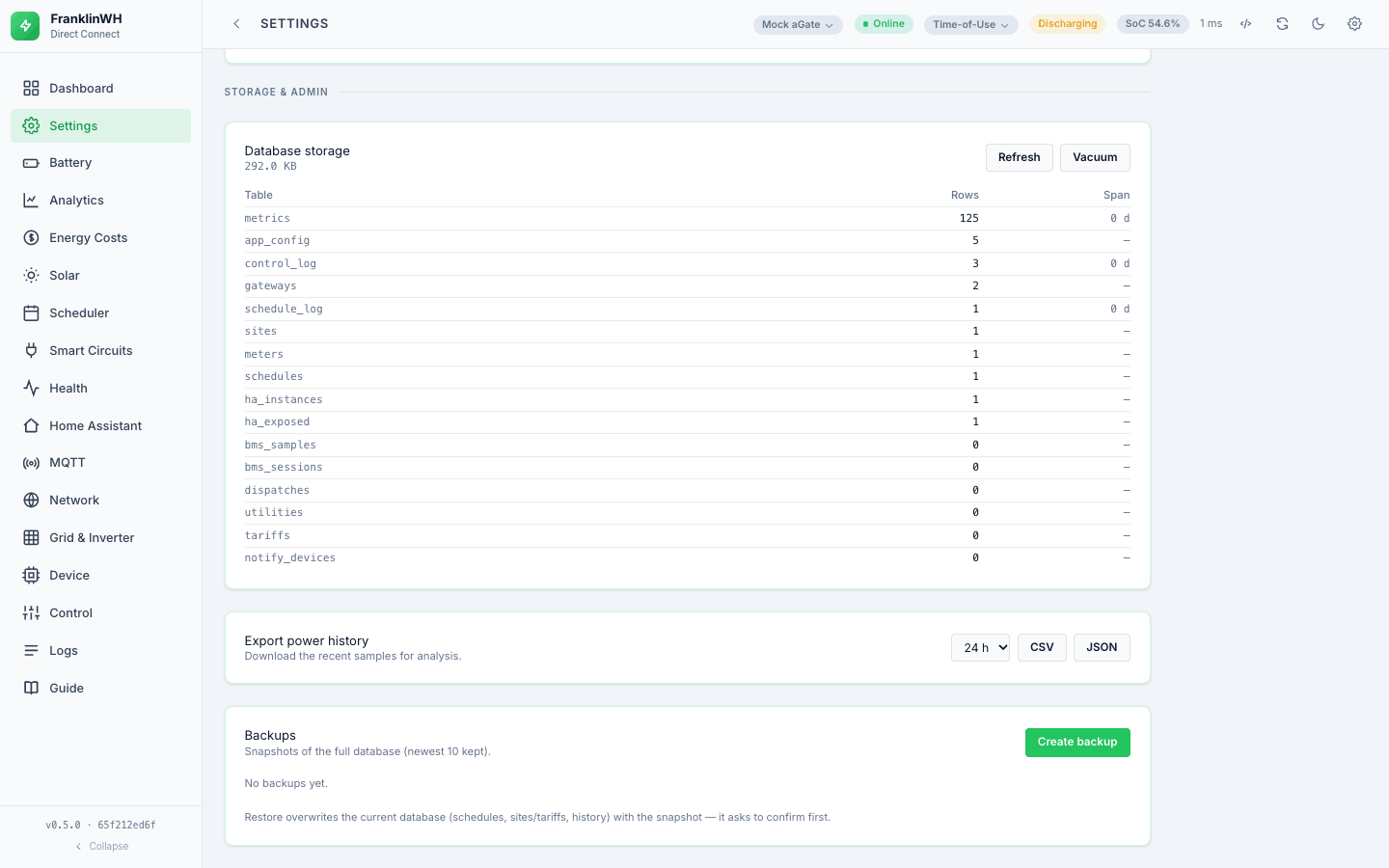
Settings → Admin.
- Storage — how much the database is using.
- Vacuum — reclaim space after a retention prune.
- Back up — write a backup, list them, download one, delete one.
- Restore — replace the live database from a backup. It needs an explicit
confirmation, because it is destructive. (
allow_writesno longer blocks it; see Control.) - Export metrics — a windowed export of raw samples.
One caution from this project's own history: in a container deployment the data directory is a mount, and the database in it is the real one. Treat a restore as the destructive operation it is.