Tour of the UI
First run: the setup wizard
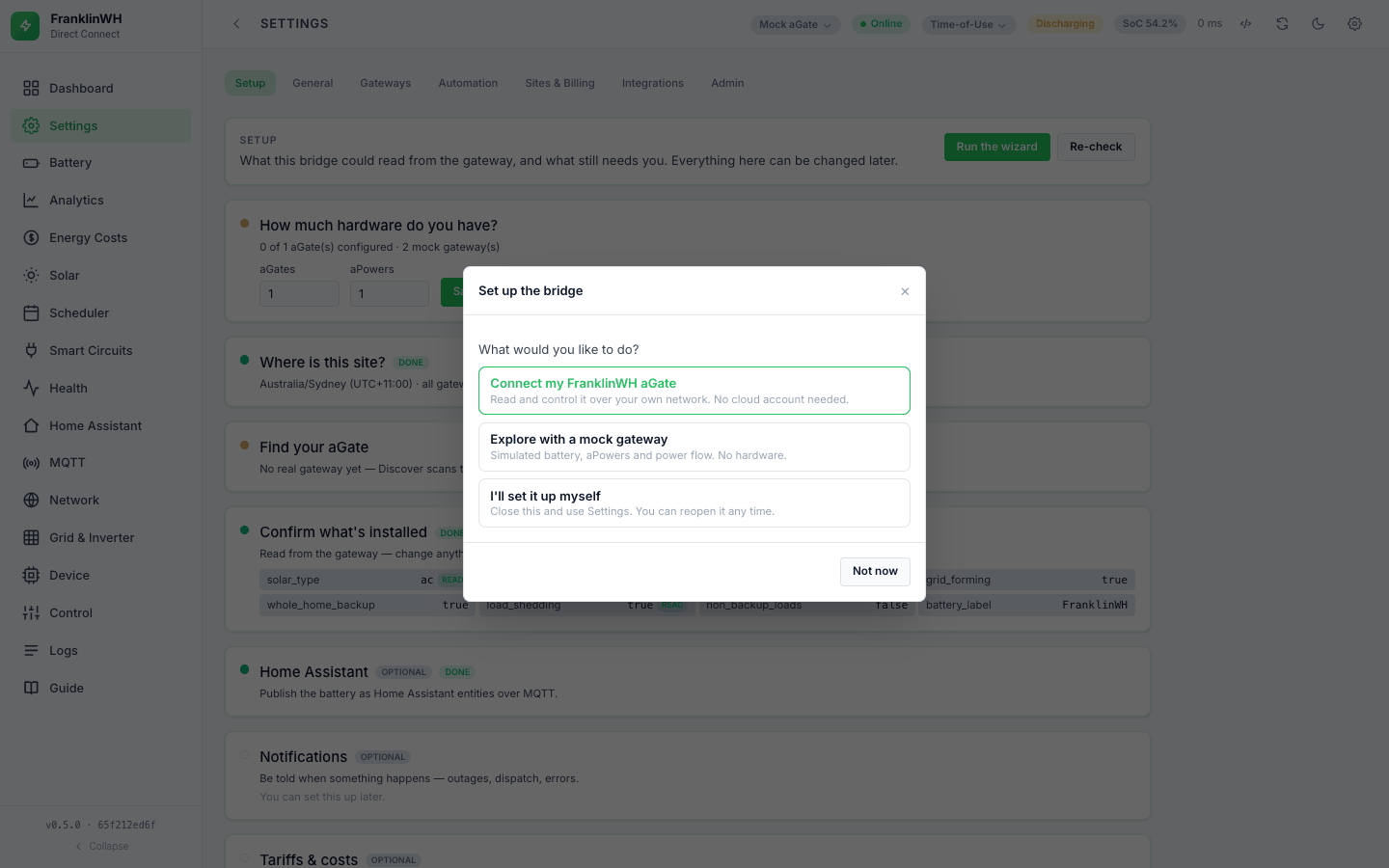
The first time you open a bridge with nothing configured, a modal walks you through the essentials. It waits for the legal disclaimer, and you can close it at any point — closing records "skipped", which stops the prompt and disables nothing.
- What do you want to do — connect a real aGate, explore with a mock gateway, or set it up yourself.
- How much hardware — how many aGates and aPowers you have. Both default to 1. This is what the bridge expects to find; it changes nothing on your system, and the Setup page later reports what was found against what you declared.
- Where the site is — one timezone for the whole site, defaulting to your browser's. Schedules run on the site's clock, not the container's. Mock gateways are created on this clock; a real aGate's clock is set on the device, and Setup names any gateway whose offset differs rather than pretending to correct it.
- Find it — Discover scans the LAN for aGates on TCP 9000, or you enter the address. On the mock path, one mock per declared aGate is created, numbered, each with the aPower count you gave.
- Confirm — what the gateway reports. Anything wrong is correctable in Settings.
Everything optional — Home Assistant, notifications, tariffs — is deferred and says so.
Settings → Setup is the same content, reachable for ever: every step reports whether it is already satisfied, so a second pass shows current state rather than blank fields.
Getting around
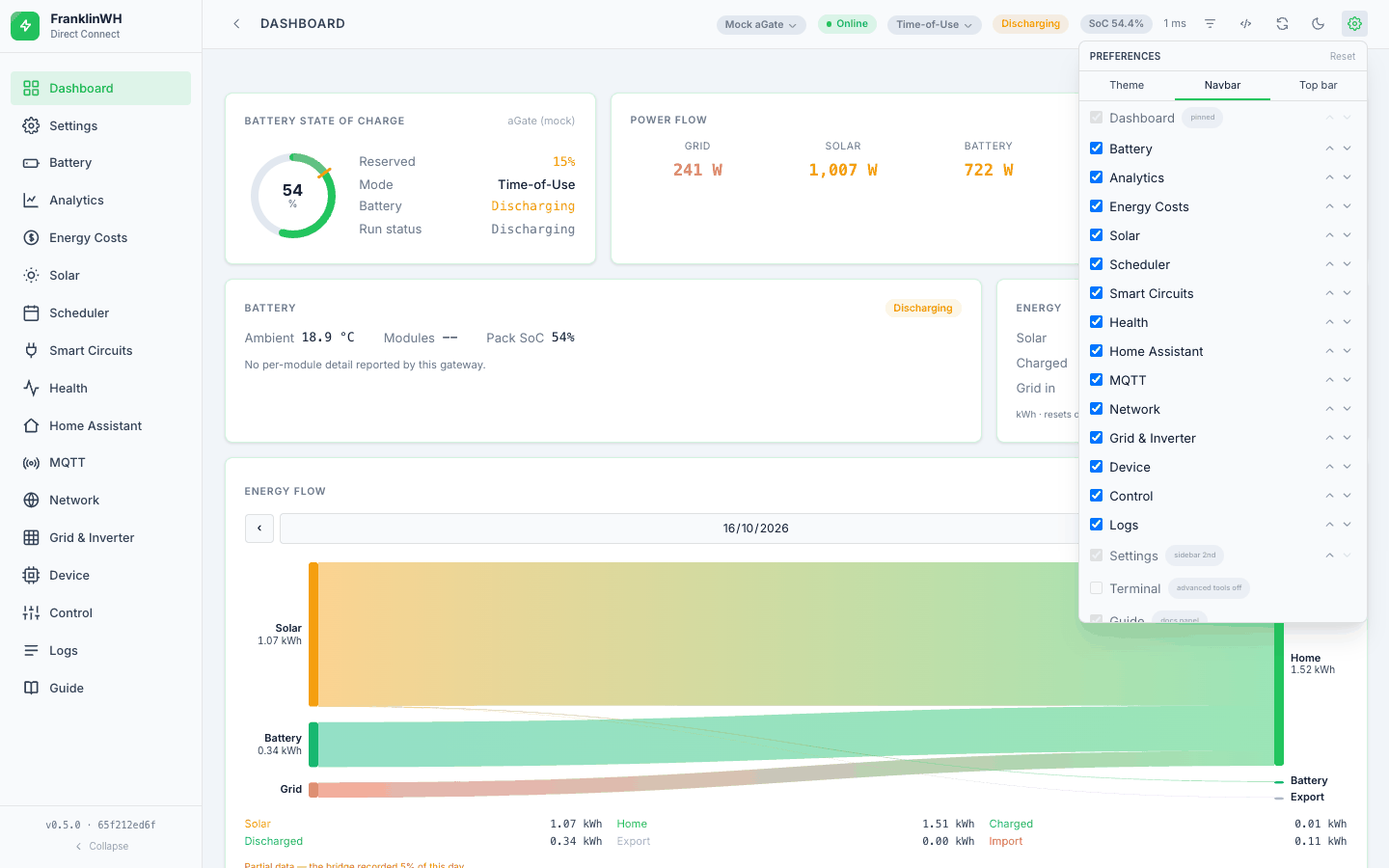
The bridge has one navigation registry and renders it two ways. On a wide screen you get the sidebar; below roughly 768 px you get a bottom bar that fits as many tabs as the width allows (about one per 64 px, minimum four) and puts the rest under More. Both show the same tabs in the same order — they are generated from the same list, so they cannot drift apart.
You can change all of this:
- Settings → General → Navigation —
Auto(by width),Sidebar only, orBottom bar only. - Topbar cog → Navigation — show/hide tabs and reorder them. Dashboard is pinned first everywhere and cannot be hidden; Settings cannot be hidden either and is hoisted to second place in the sidebar (in the bottom bar it floats, because bar slots are scarce). A tab you hide is still reachable under More.
- Clicking the logo collapses the sidebar to an icon rail with hover labels.
Preferences are stored in your browser (localStorage), so they are per-device and not
shared between phone and desktop.
The top bar
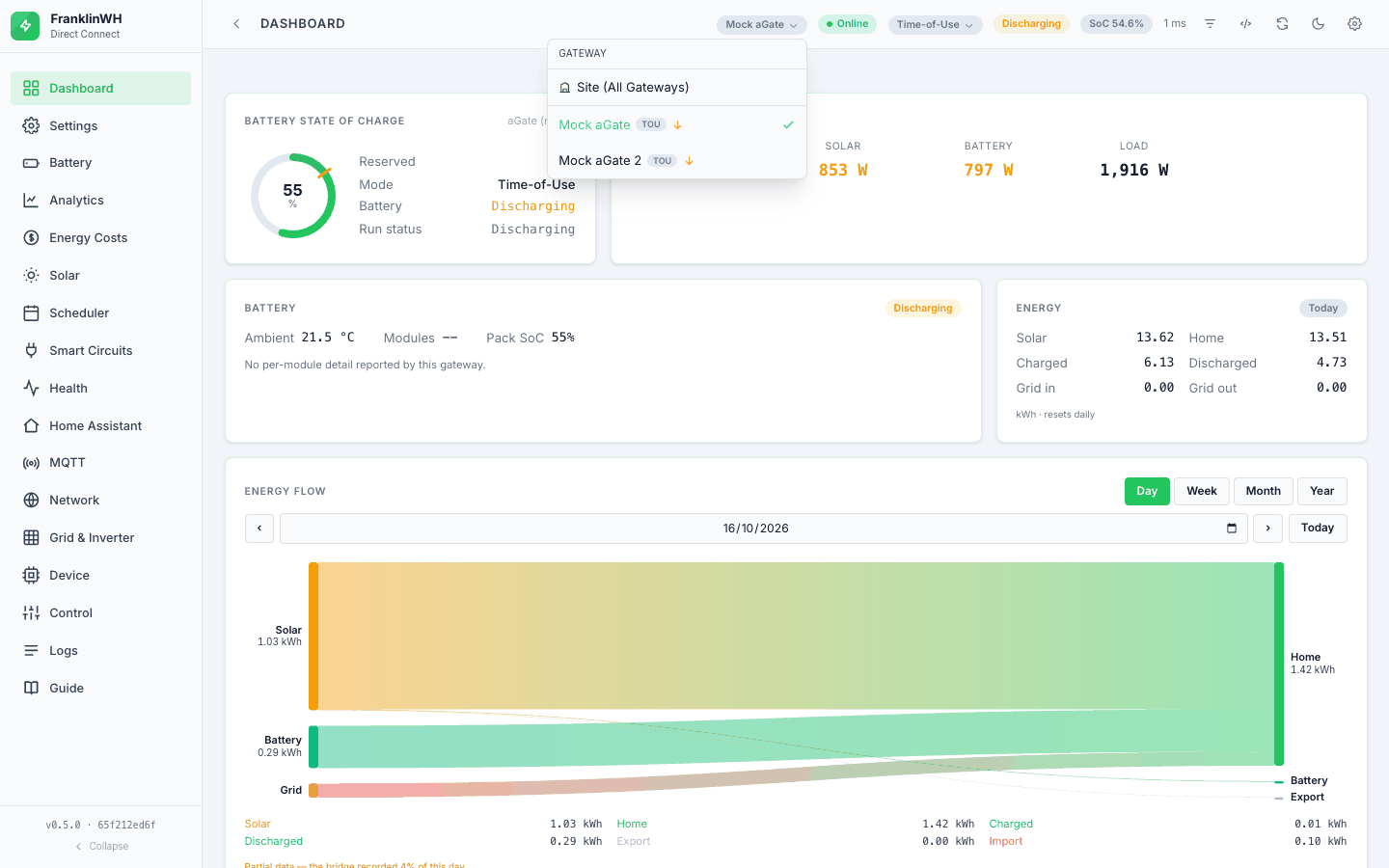
Everything here except the connection chip and the cog can be turned on or off from Topbar cog → Centre indicators / Right buttons.
| Item | What it tells you |
|---|---|
| Gateway selector | Which aGate every tab is scoped to. Only appears when more than one gateway is registered. |
| Connection | Online / offline for the selected gateway. |
| Operating mode | The active mode. Tap to switch. |
| OFF-GRID | Islanded. Distinguishes OFF-GRID · OUTAGE (the grid went) from OFF-GRID · SIMULATED (someone asked for it). |
| VPP | The gateway is under external control. |
| FORCE | A battery force dispatch is running. |
| SUPPORT SESSION | Run status 8 — a FranklinWH remote-support session is live on this gateway. |
| Run status / SoC / latency | Charging / discharging / standby, state of charge, round-trip time to the aGate. |
| Cards | On the Dashboard only: opens the card show/reorder panel. |
</> |
Raw-key toggle — reveals the underlying cmdType behind each displayed value. |
| Release | Appears only while a force dispatch is active, on every tab, so you can stop it from anywhere. |
| Refresh · theme · cog | Re-poll, light/dark and accent, and the preferences popover. |
The tabs
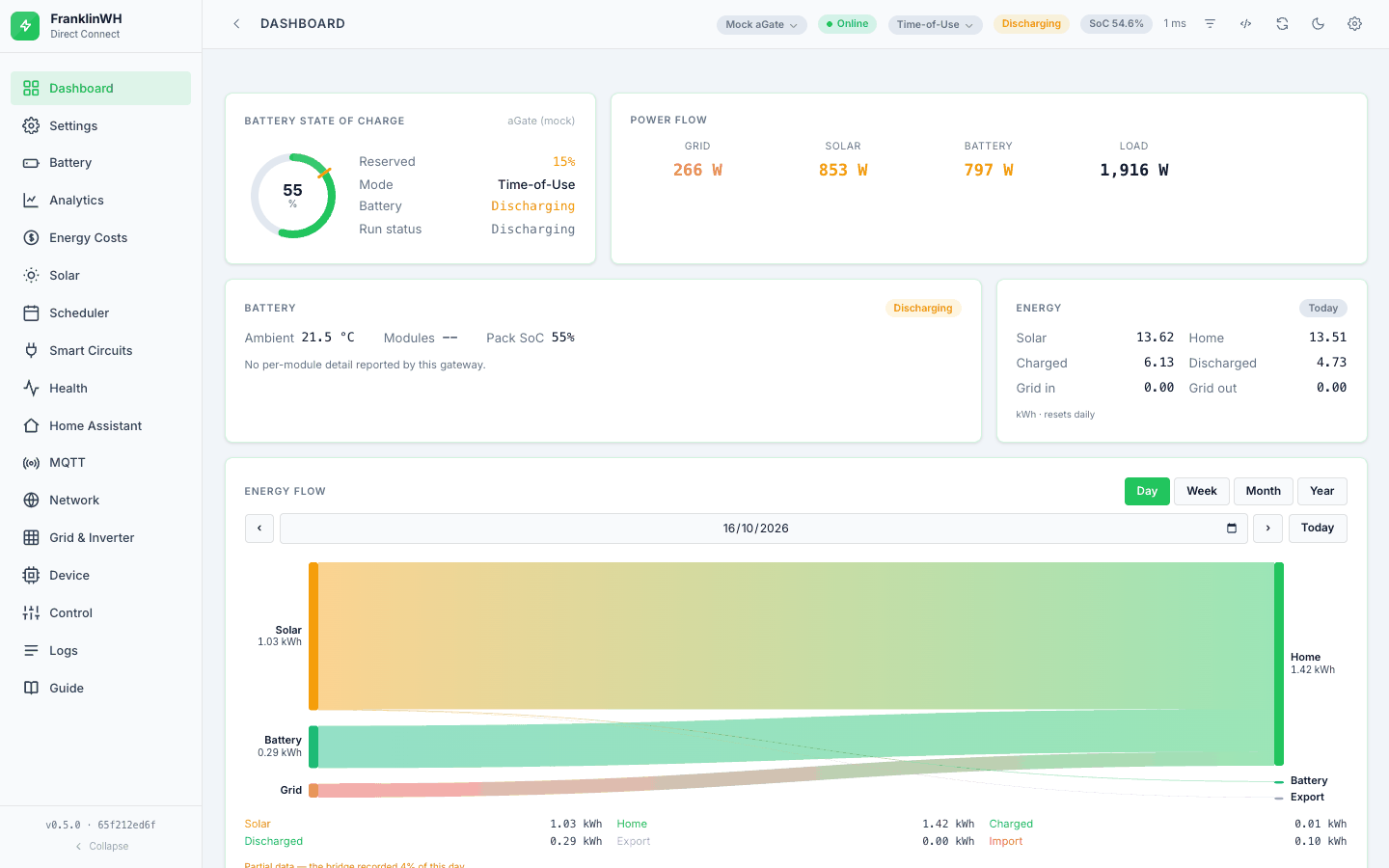
Seventeen tabs, from the registry in static/js/app.js. Two entries in the nav are not
tabs at all: Terminal opens a console drawer, and Guide opens the bundled
protocol documentation.
| Tab | For |
|---|---|
| Dashboard | The at-a-glance view, built from ten cards you can individually hide and reorder: State of Charge, Power Flow, Battery, Energy, Energy Flow (the Sankey), Operating Mode (with the per-mode reserves and a Set button), Diagnostics, Solar Forecast, Power History and Live Points. |
| Battery | Per-aPower BMS detail — cell voltages, temperatures, pack SoC/SoH, electrical and state readings. Can record a short session and chart cells over time. |
| Solar | Solar production detail. The forecast is not here — it is the Solar Forecast card on the Dashboard (see History and costs). |
| Smart Circuits | The aGate's controllable circuits: state now, and on/off control. |
| Generator | Generator status, metrics and configuration. Hidden entirely unless a genset is present — the bridge would otherwise show a permanent 0 W. |
| Analytics | Longer-horizon charts from the bridge's own SQLite history. |
| Energy Costs | Period-to-date cost and closed-period history, priced against your tariff. |
| Scheduler | Time-based automation. See Scheduler. |
| Control | Everything you can do to the selected gateway, in one place, plus the audit trail. See Control. |
| Grid & Inverter | The grid power-plane limits (import/export enables, soft and hard limits). Advanced, and the write is unverified — see Control. |
| Home Assistant | HA instances, which HA entities to expose to the scheduler, notification devices, and a dashboard-card YAML generator. |
| MQTT | What the bridge publishes, which entity groups are enabled, and a scan for other FranklinWH publishers on the same broker. |
| Network | The connection picture end to end: round-trip latency to :9000, :502 Modbus reachability, MQTT, AWS IoT, the CloudFront edge your gateway reaches, link history, missed polls, consecutive failures. The first place to look when something feels slow. |
| Device | Device identity and raw readings — model, firmware, serial — and a browser for individual cmdType reads. |
| Health | A per-gateway connection panel: host, online/offline, round-trip latency, Modbus :502 as Up / Down / Not probed (from the Modbus client's last real connection; nothing probes :502 to show it), ping, whether the host was rediscovered, MQTT, whether writes are enabled, firmware and serials, with a Refresh that forces a fresh probe. |
| Logs | The bridge's own log, stored in SQLite: searchable, paginated, filterable by level and source, with a Live follow mode and an export. Control actions, cloud calls and connection events all land here. |
| Settings | The configuration hub. Sub-tabs: General, Gateways, Automation, Sites & Billing, Integrations, Admin. |
Terminal
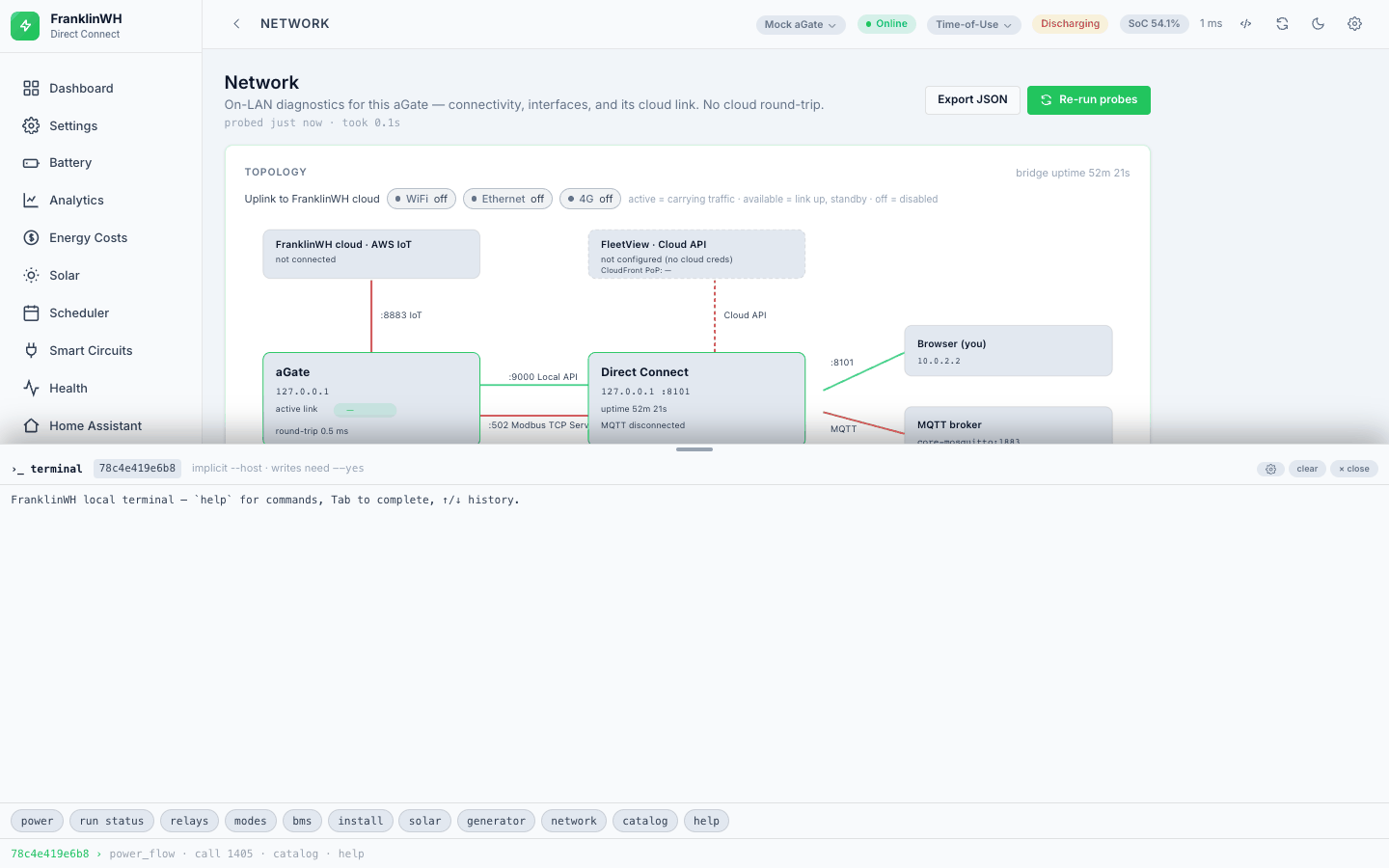
A command console in the browser, for the bridge's CLI-style operations. It is behind the
advanced tools gate, which is off by default and remembered per browser; with the
gate off, the Terminal entry does not appear and the drawer cannot be opened. Commands
get an implicit --host, and anything that writes requires --yes.
Logs
The Logs tab shows the bridge's own log lines, newest first, in bridge-host time. It refreshes every 10 seconds.
- Level tiles — DEBUG, INFO, WARNING, ERROR and CRITICAL, each with its count. Click a tile to show only that level; click it again to clear it.
- Search messages… — filters on the message, source and level.
- All sources and All levels — pick one source (logger) or one level.
- Time range — Last 1h, Last 6h, Last 24h (the default), Last 7 days or All time.
- Live / Paused — click to stop the 10-second refresh, so the view holds still while you read. Click again to resume.
- Export — downloads the lines currently shown, with your filters, as a
.logfile.
The footer says how many lines are shown, and when the range holds more than were loaded. To find a scheduler decision, the Scheduler's History view is usually quicker; see Scheduler → Outcomes and audit.
Sign-in and users
Not available in this bridge. There is no login, no user accounts and no sign-in history. Anyone who can reach the web UI or the HTTP API can use all of it, so keep the bridge on a trusted network.
Settings, by sub-tab
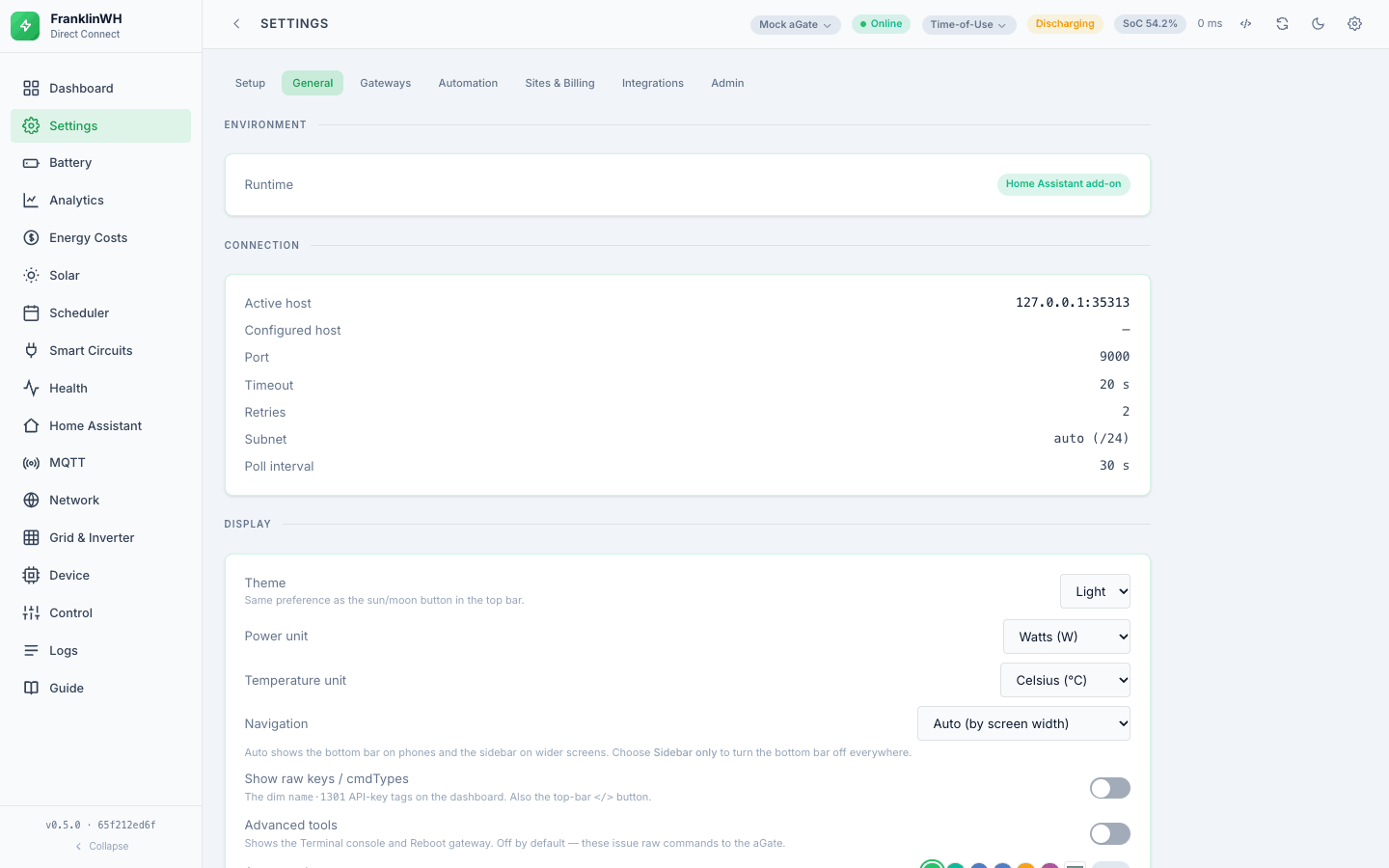
- General — runtime (add-on or standalone), connection (host, port, timeout, retries, subnet, poll interval), display and navigation preferences, log level, the Guide link, the Support info bundle, local history settings, and the legal disclaimer.
- Gateways — add, edit, enable, remove; scan a subnet to discover aGates; add an in-app mock gateway. See Multi-gateway.
- Automation — Automation Constants (min discharge SoC, max charge SoC,
demand-charge min SoC, battery capacity, default operating mode). These are not read
from the aGate; you set them here and they become
const.*sensors in the Scheduler. Also System Setup, the install profile. - Sites & Billing — sites, meters, utilities and tariffs.
- Integrations — MQTT broker, notifications, location and PV array for the solar forecast, the dynamic (wholesale) price provider, battery dispatch, the Cloud API credentials, and Integration → Mapping (below).
- Admin — storage, vacuum, database backup / restore / download.
Support info is worth knowing about before you file a bug: it produces a deliberately redacted snapshot — models, firmware, counts, settings, and explicitly no serials, host, location or credentials — as text, JSON or CSV, to paste into an issue.
Integration → Mapping, and the Probe
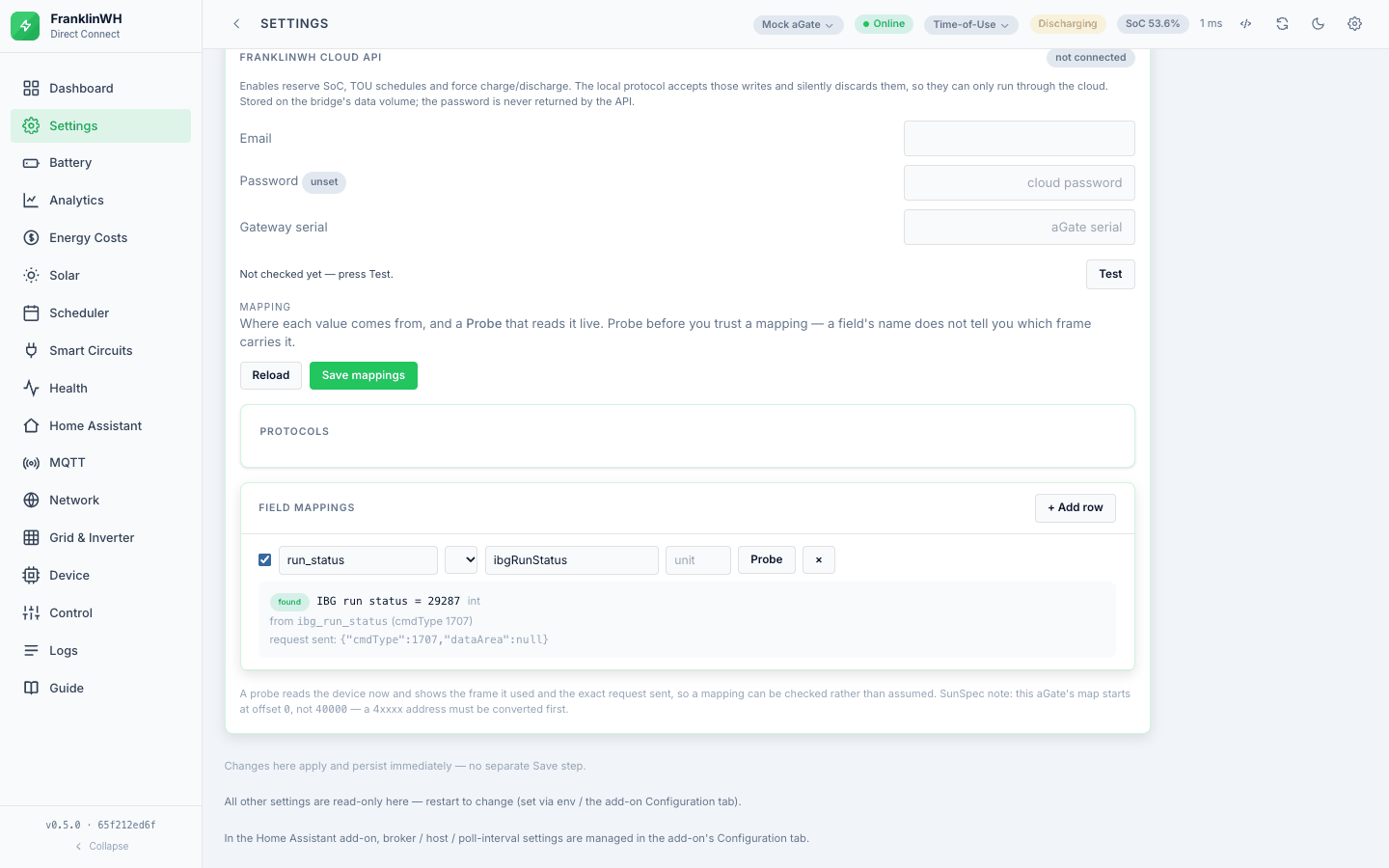
Under Settings → Integrations. A mapping is a name this bridge uses paired with where the value comes from. Three things live here:
Protocols — the transports a mapping can name, each with an honest implemented
flag. Implemented today: Direct Connect (TCP 9000), SunSpec / Modbus TCP, Modbus Bridge
REST, and the FranklinWH Cloud API. Listed as visible placeholders marked "To be
implemented": MQTT, Home Assistant WebSocket and generic REST. A placeholder shows the
intended shape, and the API refuses to save one — so it can never become a stored
configuration that fails at runtime.
The SunSpec entry carries a caveat worth repeating: this aGate's register map starts at
offset 0, not 40000, so a 4xxxx address from a document has to be converted first.
Field mappings — rows of name, protocol, raw field and unit, enabled or not.
Probe — the useful part, and read-only by construction. Type a raw field name
(ibgRunStatus, say), and the bridge finds the frame itself and returns:
- the live value, and its decoded meaning where an enum exists, so a bare
9is not left for you to interpret; - the
cmdTypeit came from, with that command's description; - the field's label, unit and group where the schema knows them;
- the exact request that was sent — the frame itself, not a reconstruction.
Only read methods are reachable, so a probe cannot write. If the field is in no read frame you get a 404 that lists which frames were tried and suggests why (another channel, a different name on the wire, or a field that only appears in some states).
This exists because "which frame carries this field" kept being inferred from field names
and neighbouring code, and the inferences were wrong: VPP was declared absent from the
local API when it is 1707 ibgRunStatus rather than 1301 run_status; gridLineVol was
cited from 1708 when it is 1707; isThreePhaseInstall was read as grid topology when it
is a solar field. Each would have been a two-second probe. If you are about to write down
what a field means, probe it first.