Installing, in pictures
A picture for each step of the three ways to install the bridge. The full text, including prerequisites, upgrading and troubleshooting, is INSTALL.md. Where this page and INSTALL.md disagree, INSTALL.md is the reference.
Back up Home Assistant first
Before installing the bridge, or any major update, take a Home Assistant backup: Settings → System → Backups → Back up now. Keeping copies off the premises is covered in Your phone, notifications and access from away.
Every screenshot here was taken on 2026-10-16 with release 0.5.0 and mock gateways only: no aGate, no MQTT broker, no cloud account. Each install started from scratch.
Home Assistant add-on
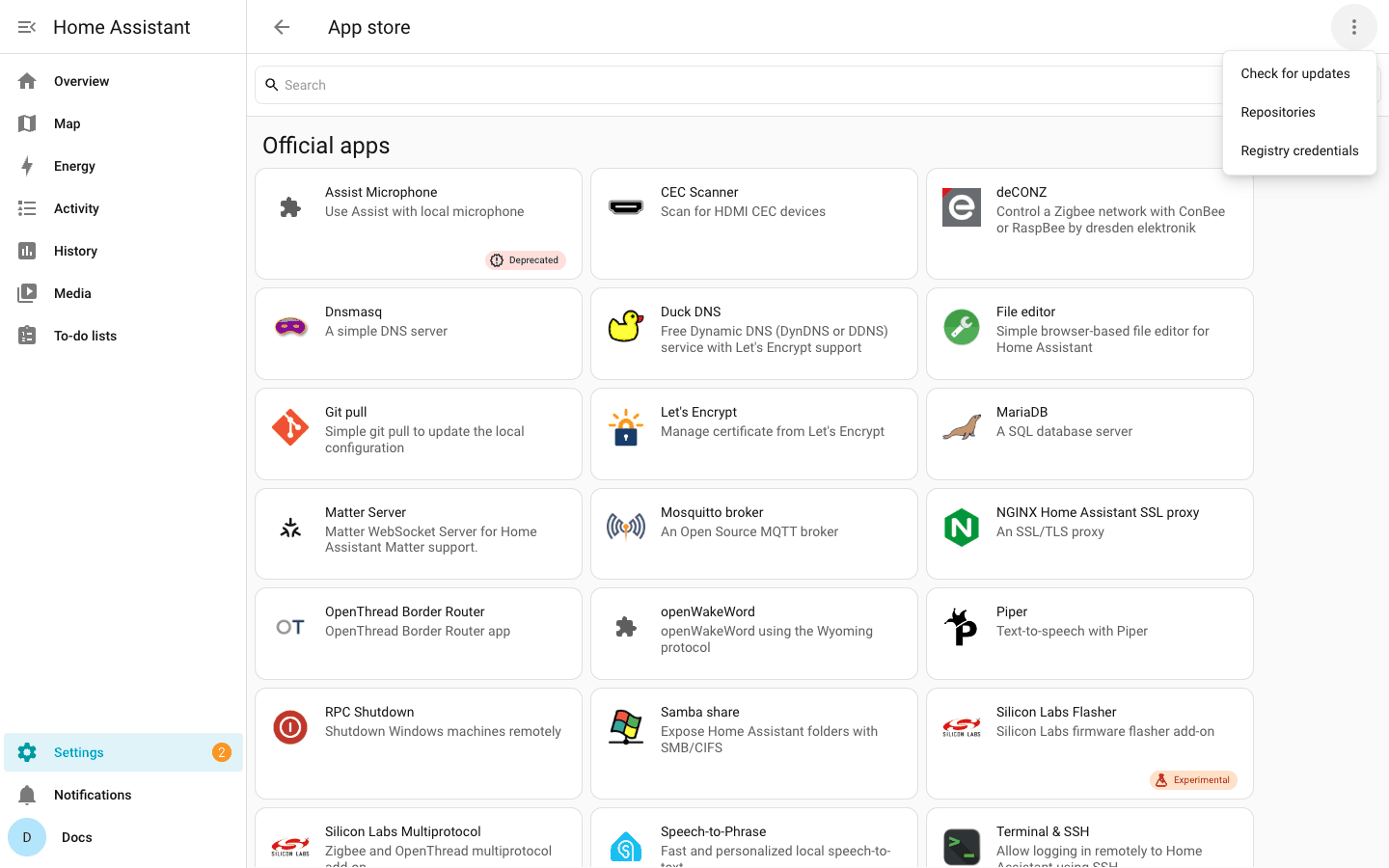
Taken on Home Assistant OS 18.3 (generic-aarch64) in a virtual machine. Home Assistant 2026.10 calls add-ons Apps, so the menus read Apps and App store where INSTALL.md says Add-ons and Add-on Store. Full text: INSTALL.md → Home Assistant add-on.
-
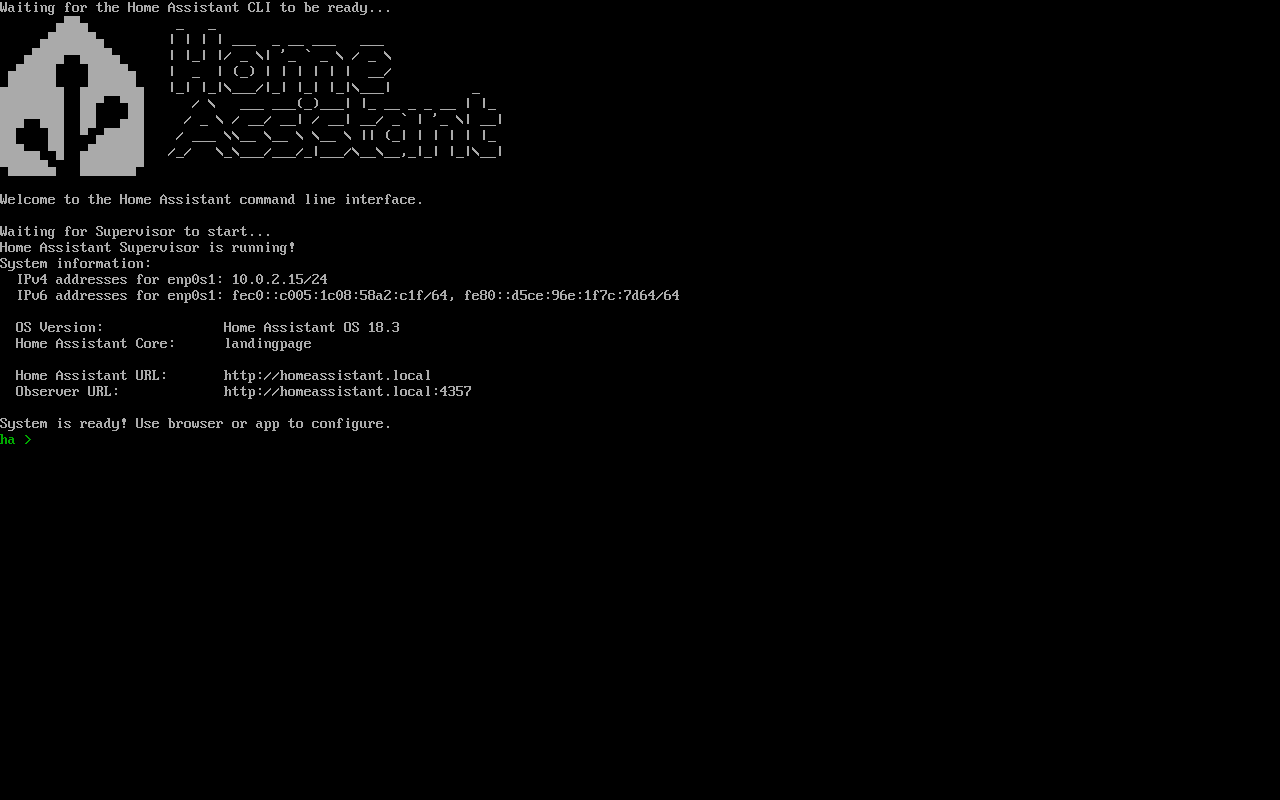
Start from a Home Assistant OS install that has finished booting.
-
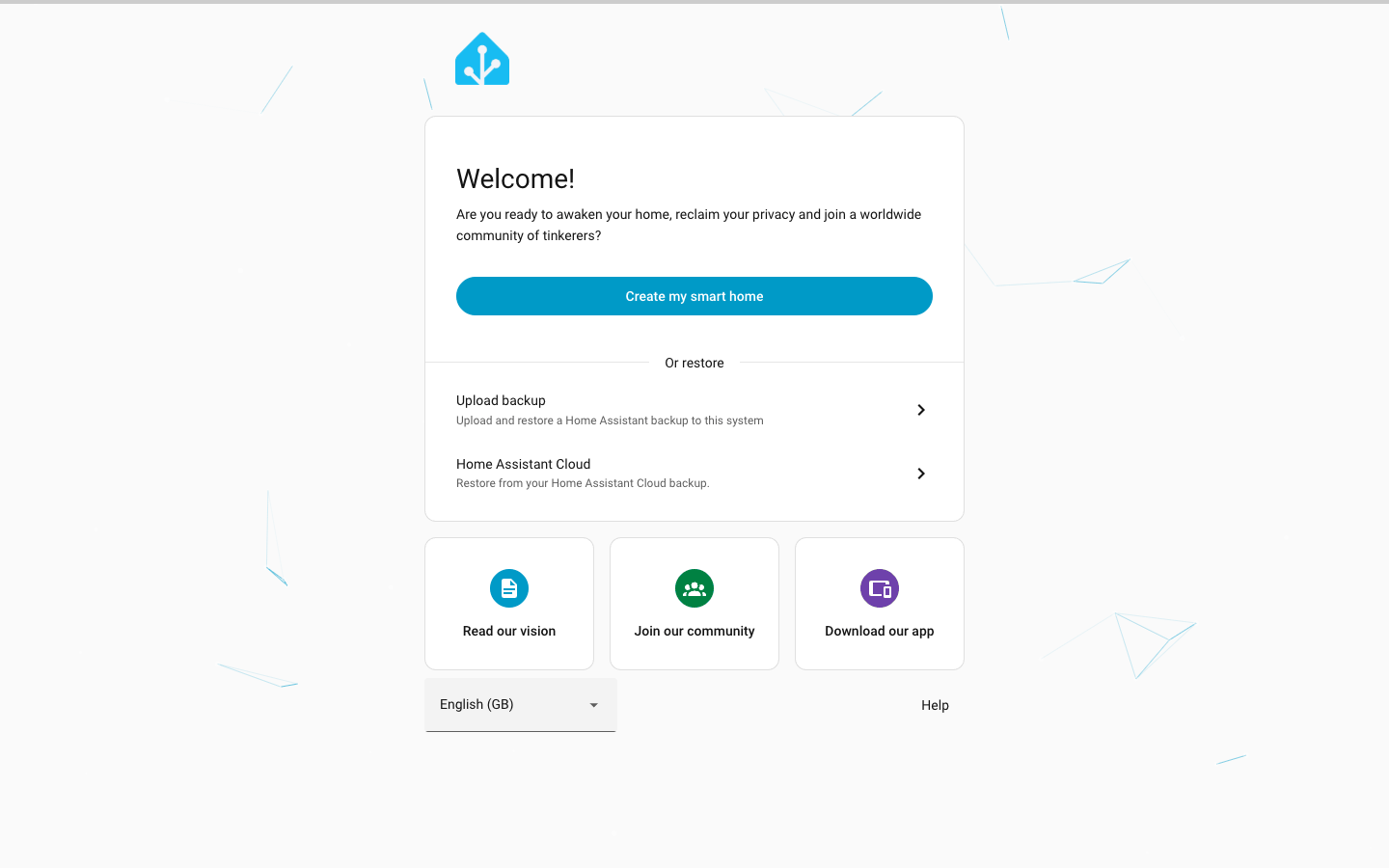
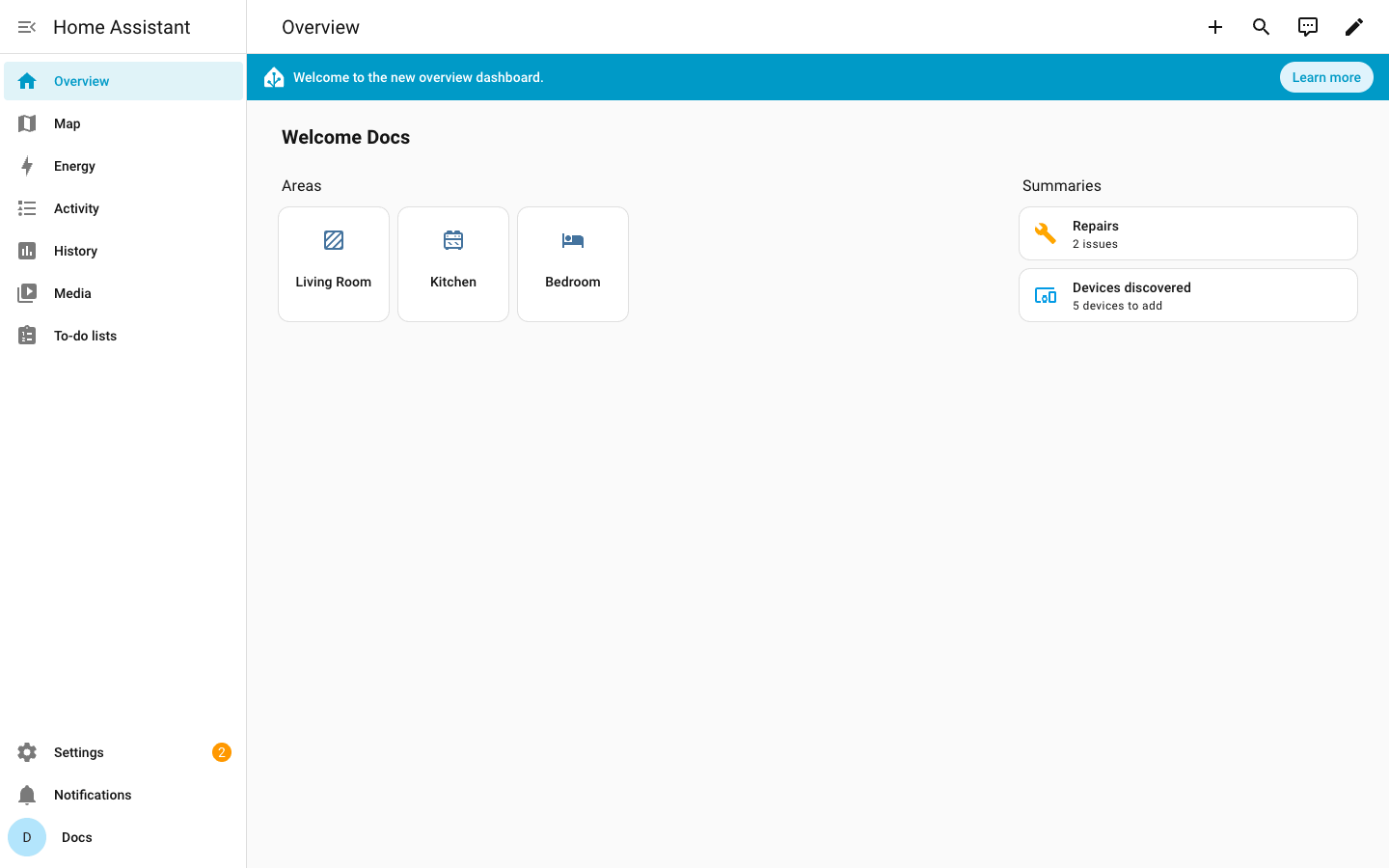
Finish Home Assistant's own onboarding.
-
Open Settings → Apps.
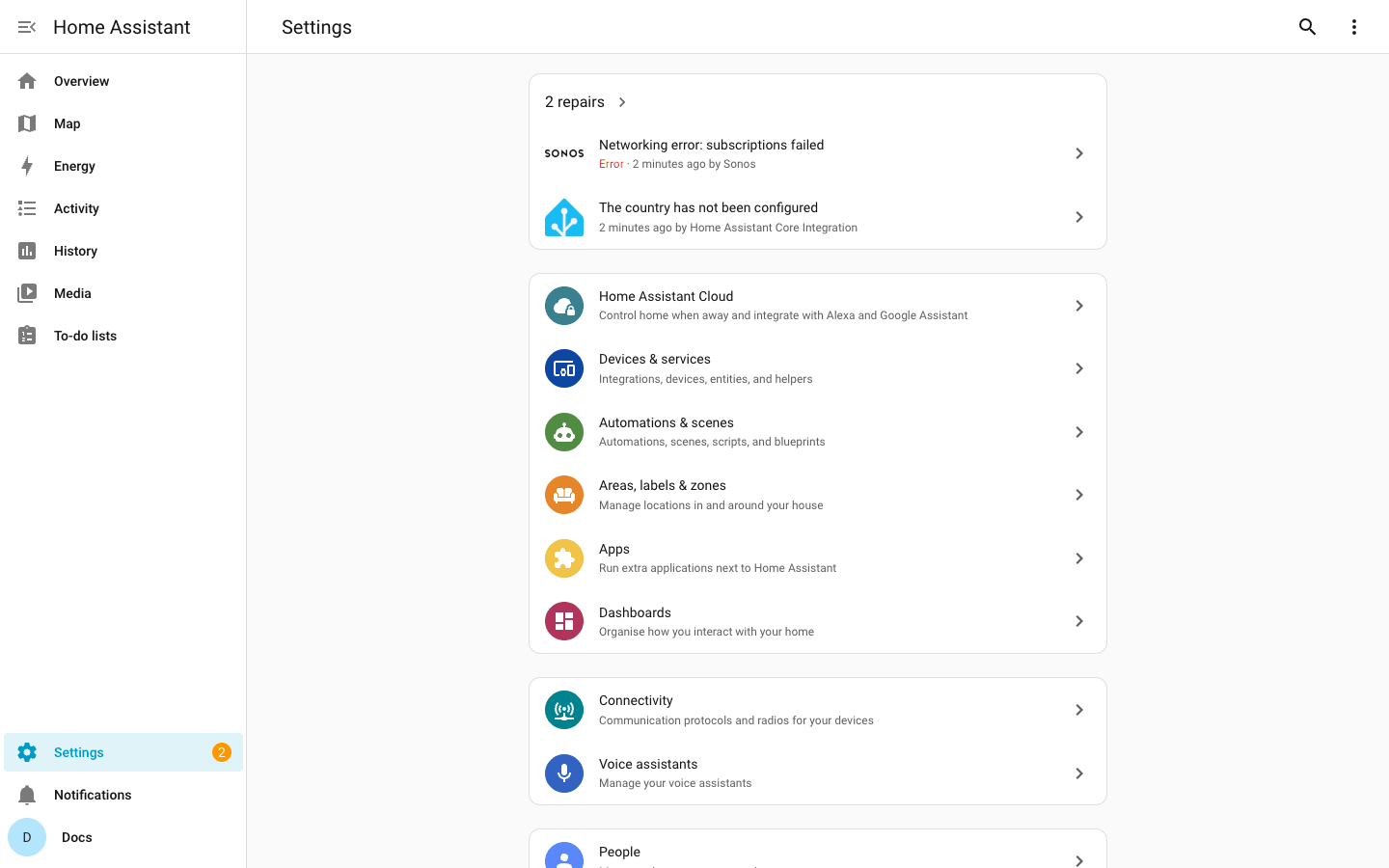
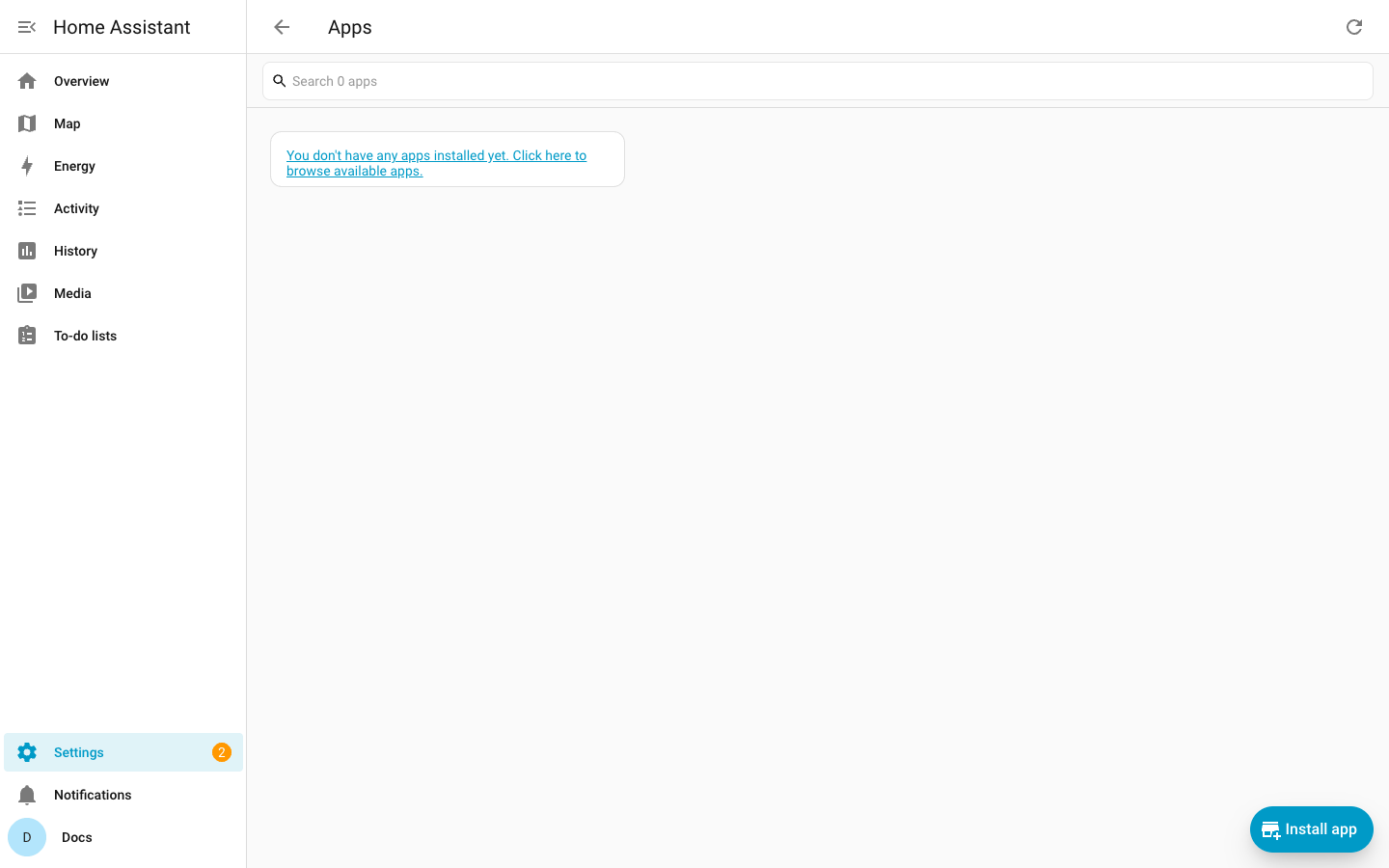
-
In the App store, open ⋮ → Repositories.
-
Select + Add, enter
https://github.com/david2069/franklinwh-direct-connect-bridgeand select Add.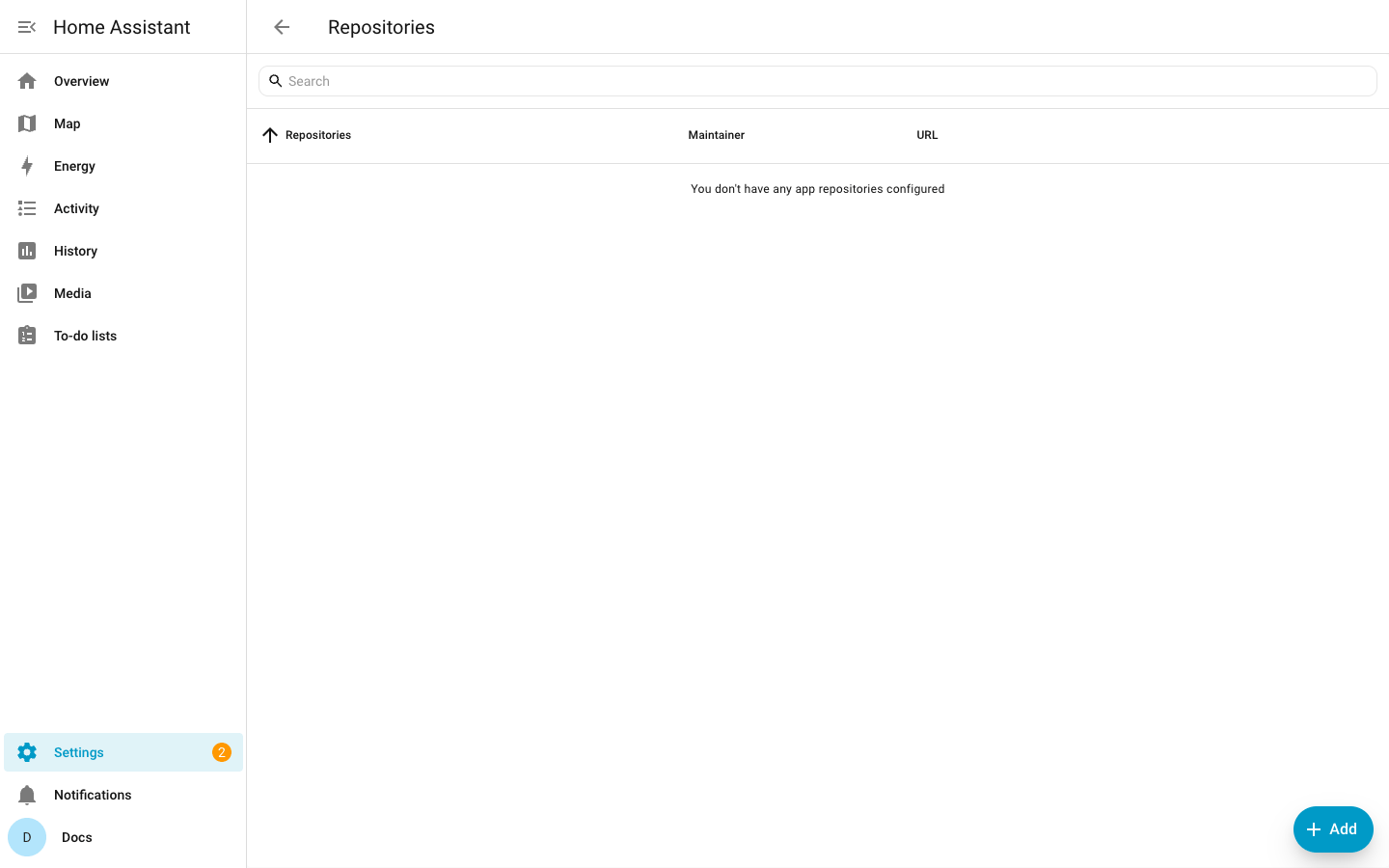
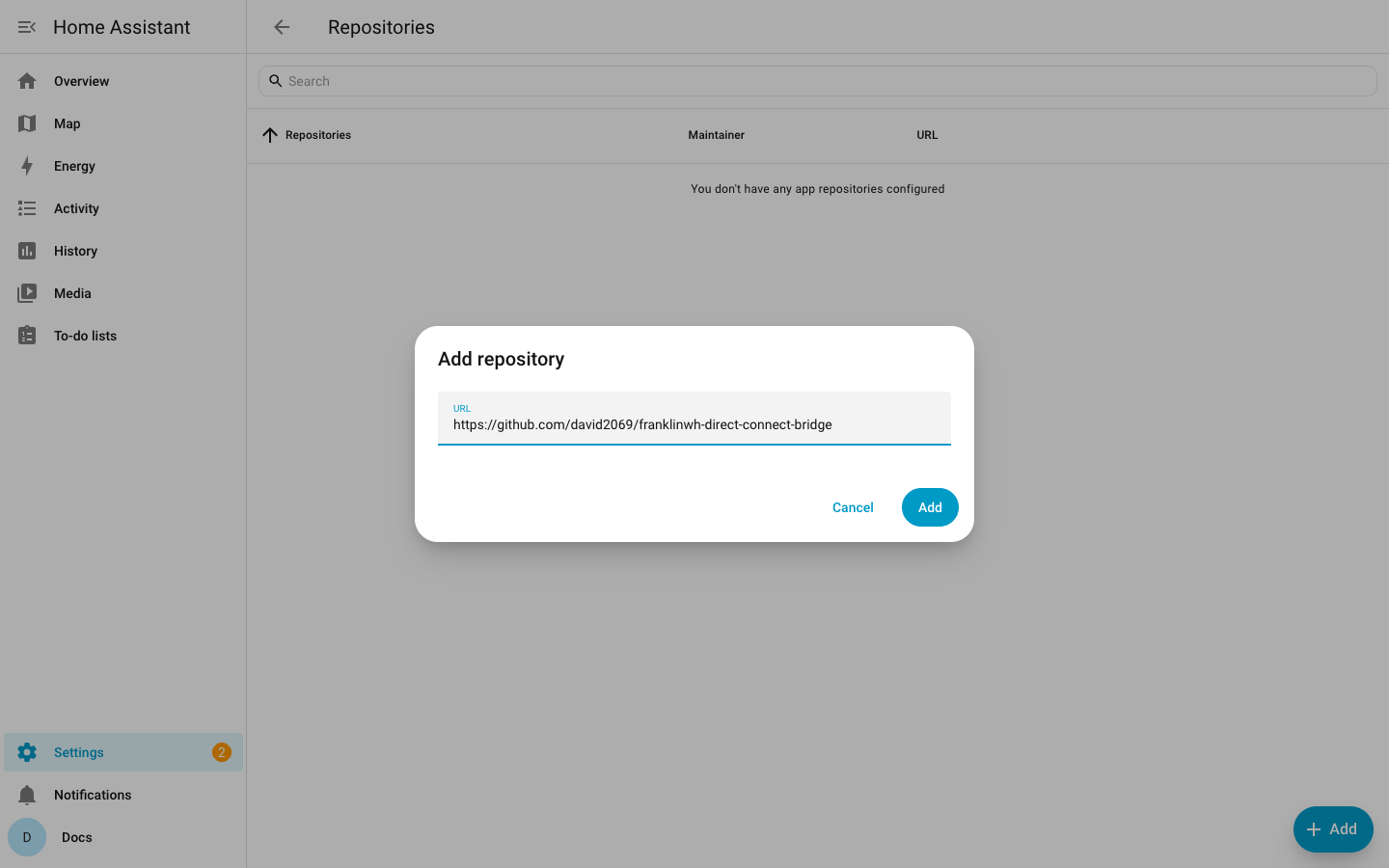
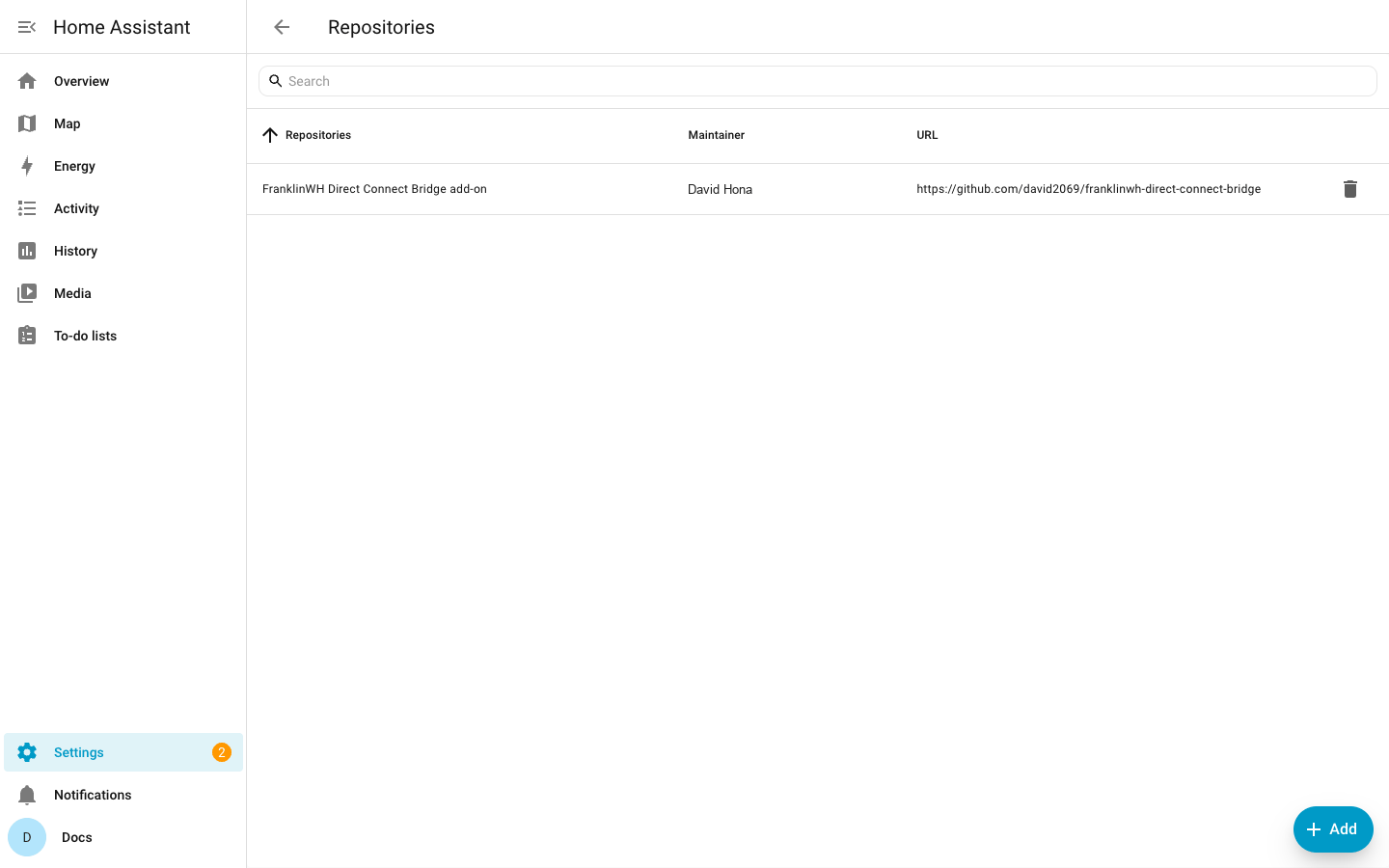
-
Back in the App store, find FranklinWH Direct Connect Bridge.
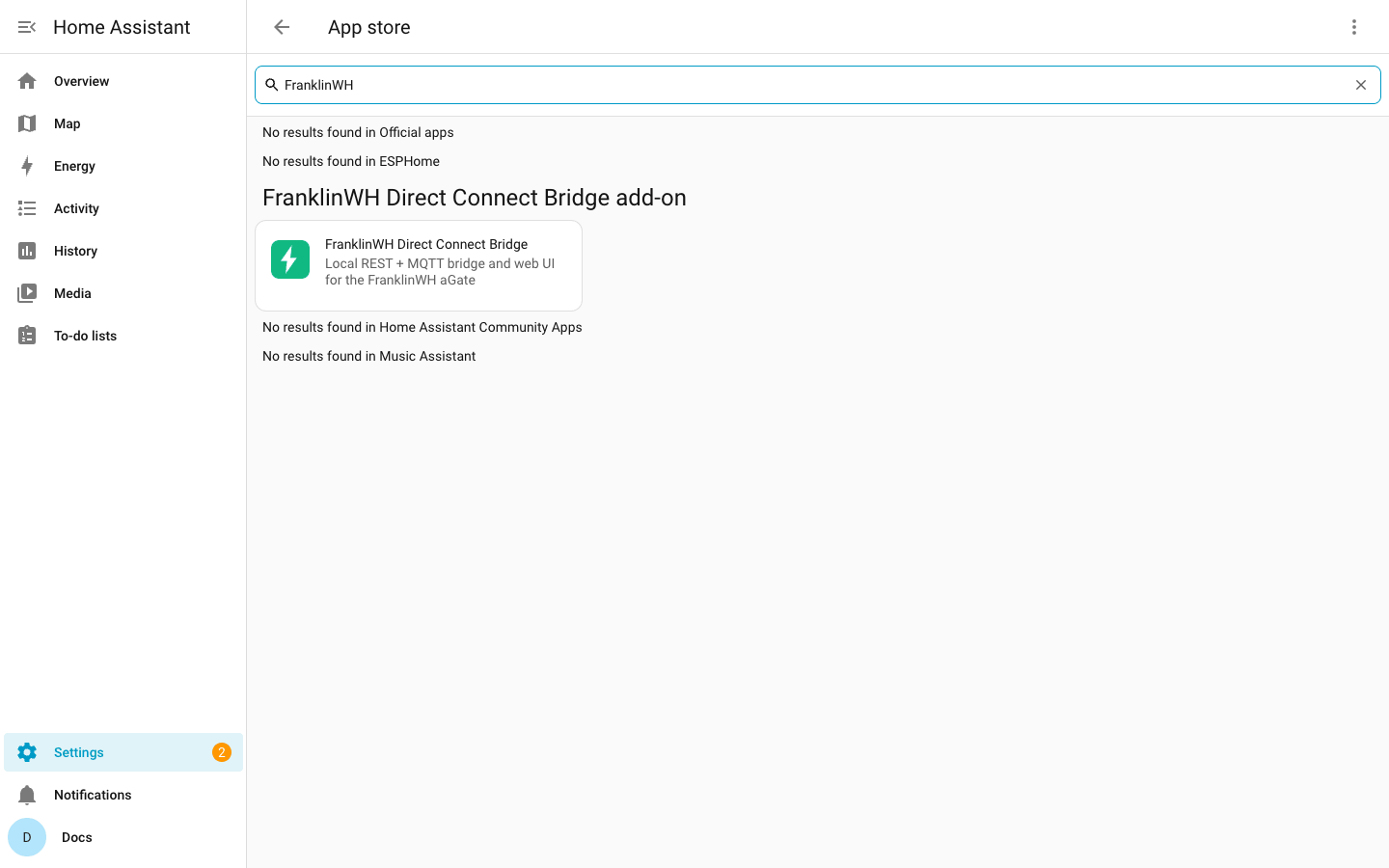
-
Open it and select Install.
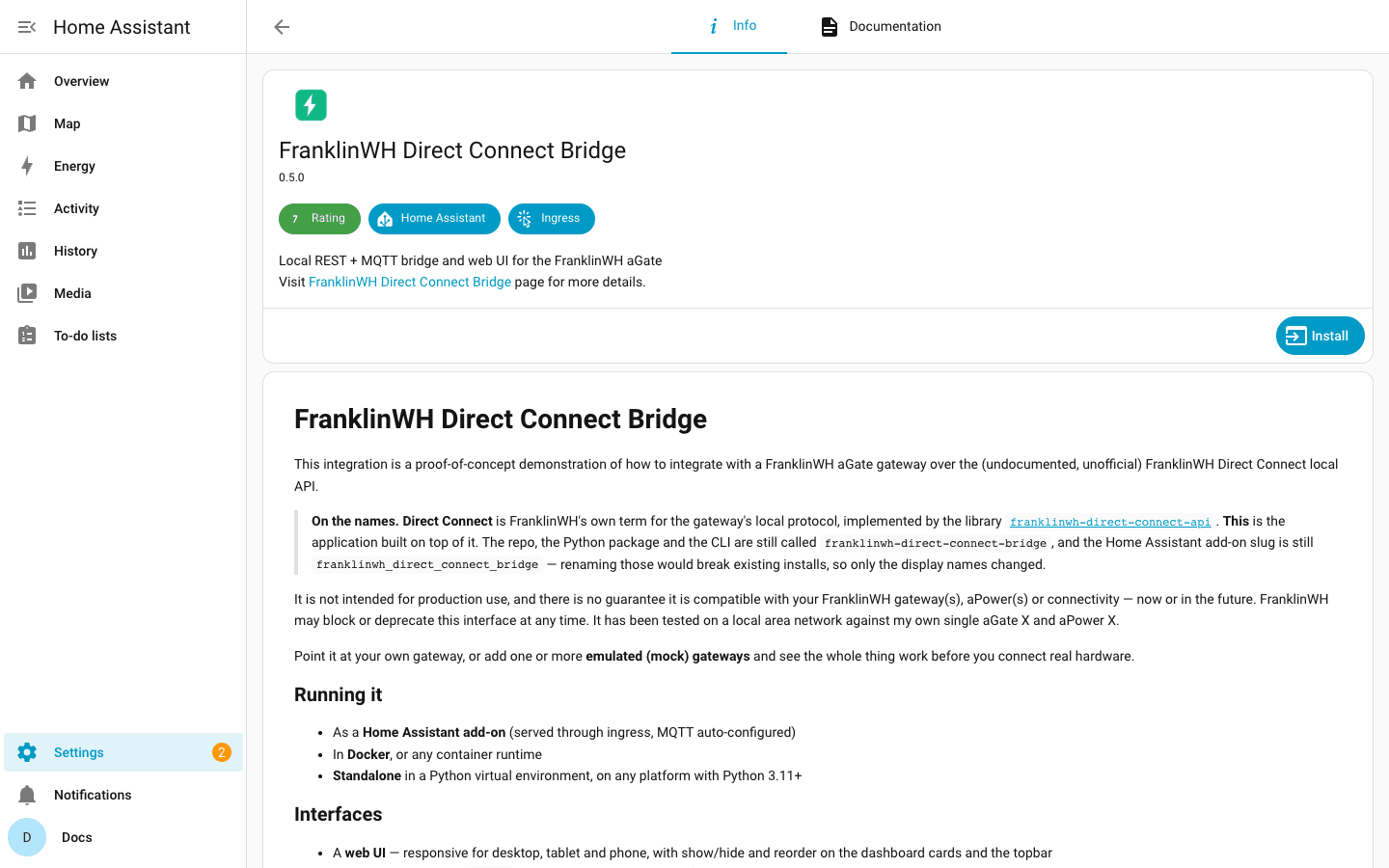
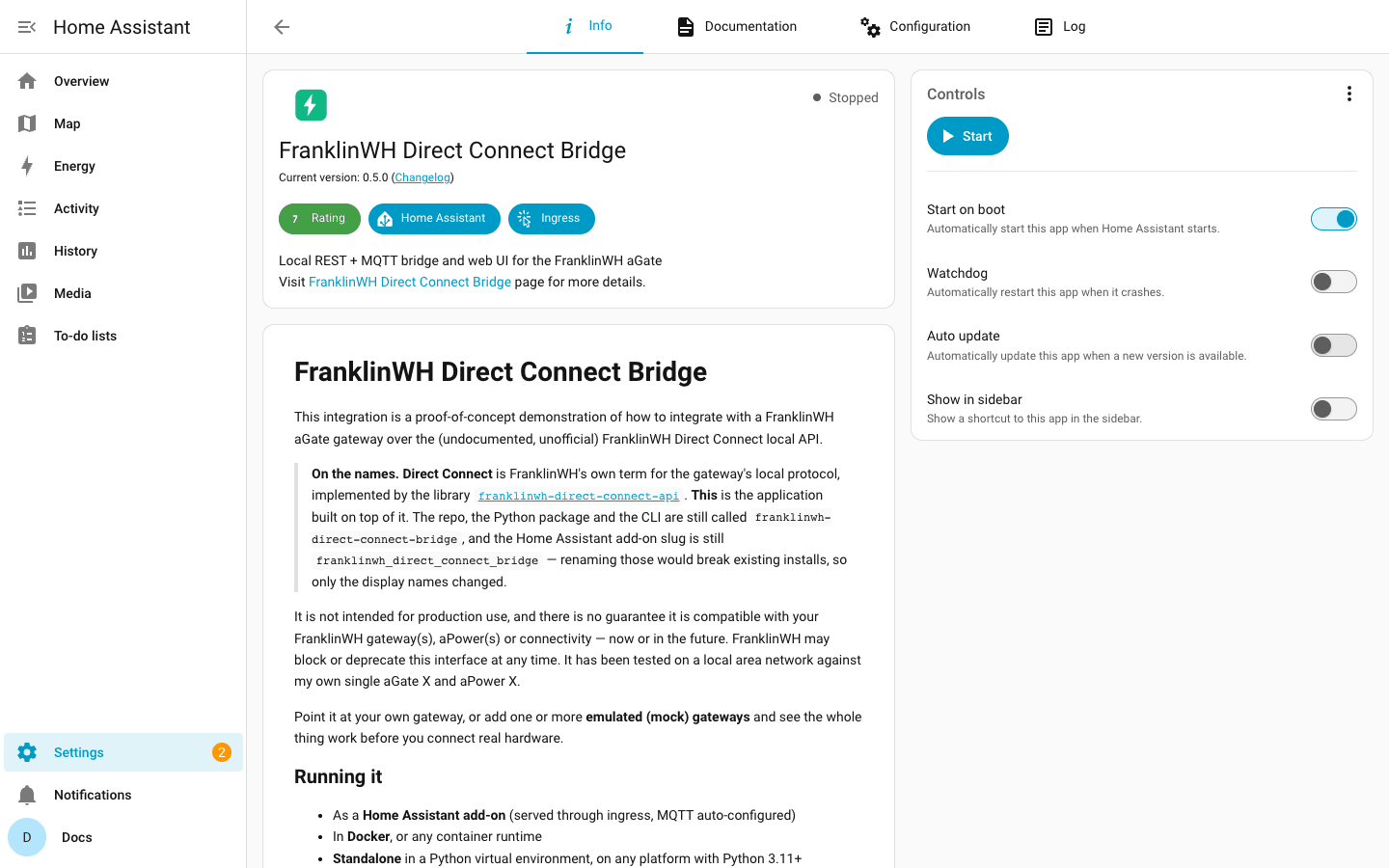
-
Configuration: with a real aGate, set
fwh_hostto its IP address. These screenshots use a mock gateway, sofwh_hostwas left empty and nothing else was changed.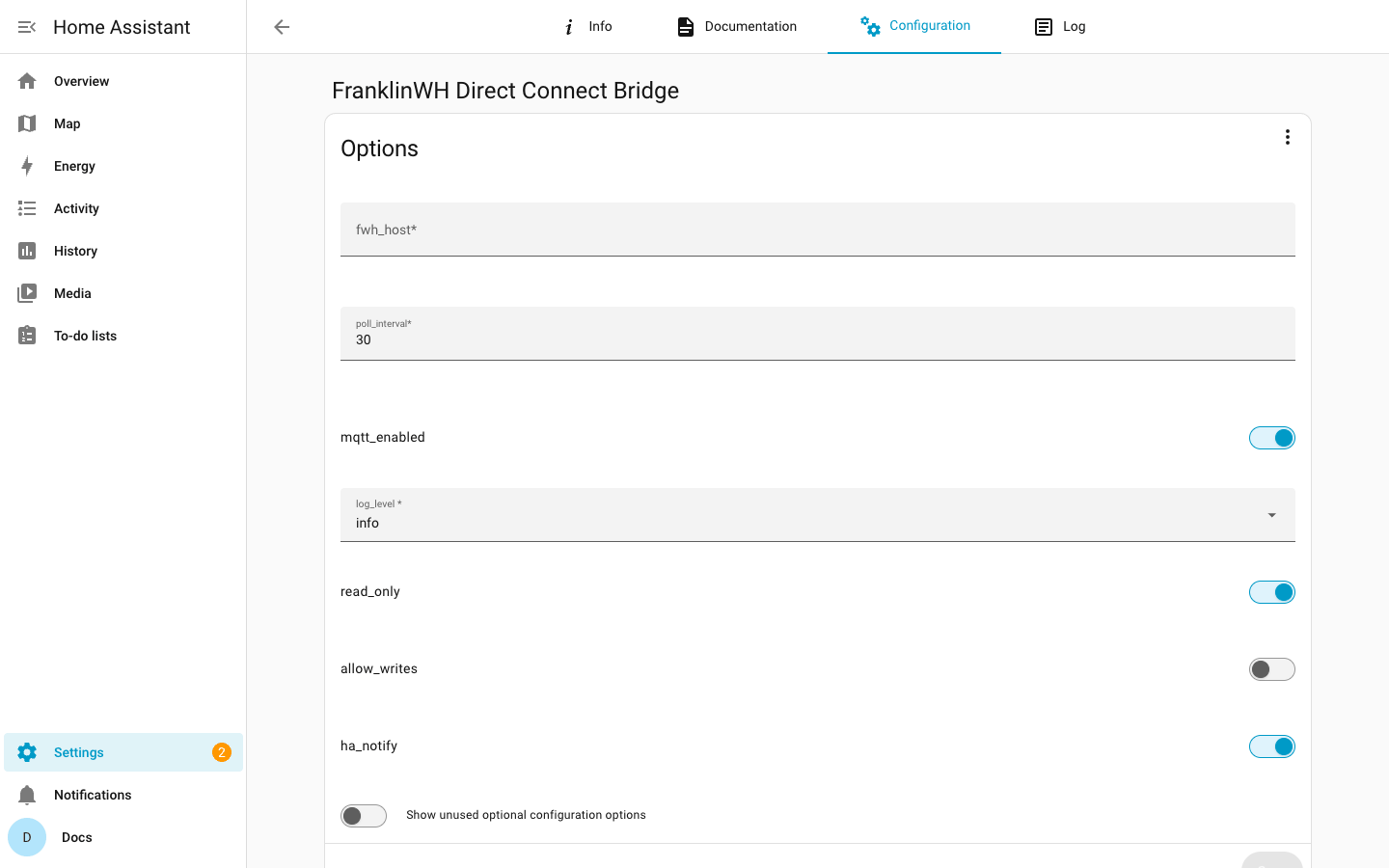
-
Start, then Open Web UI.
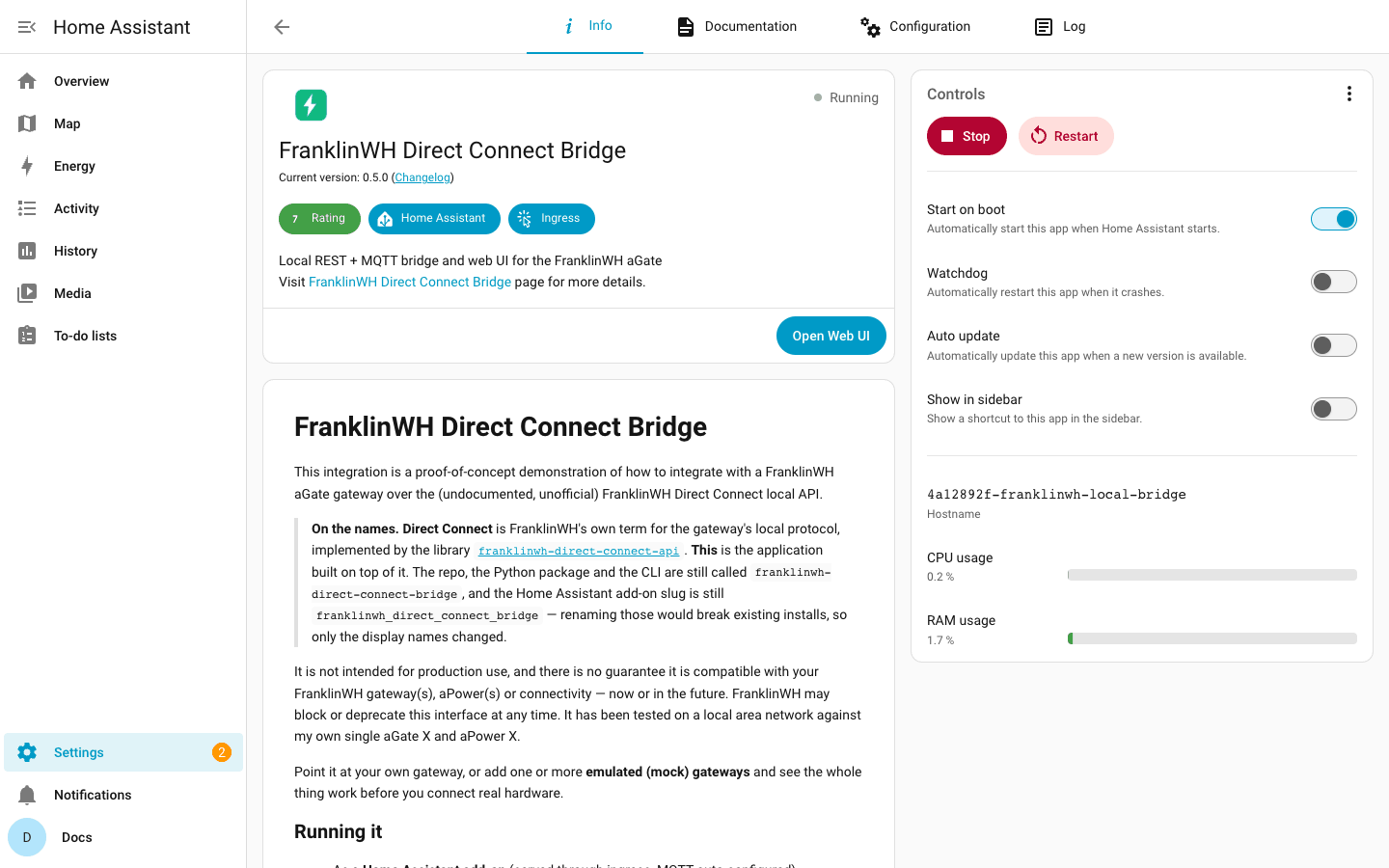
-
Read the disclaimer, tick it, and continue.
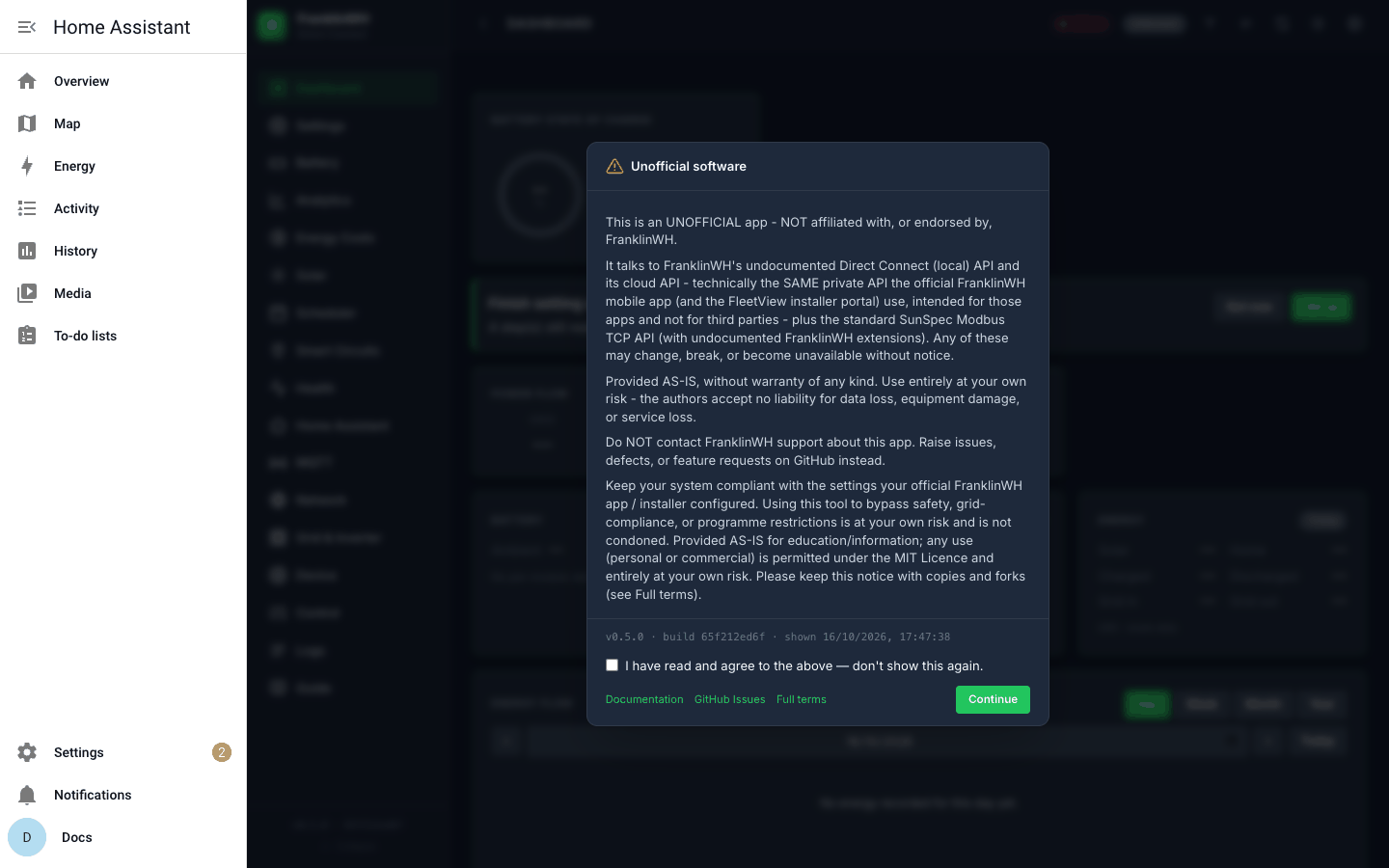
-
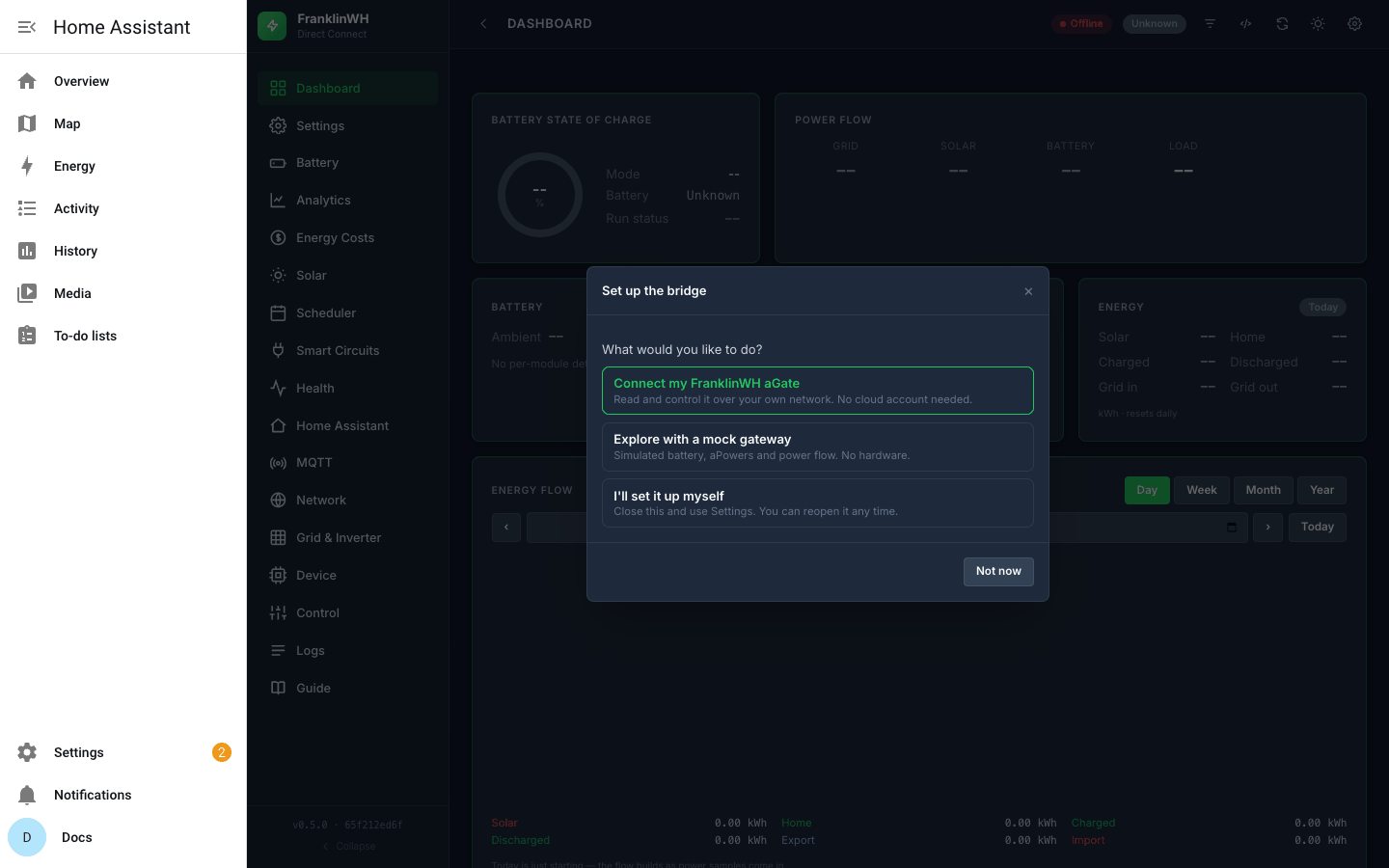
The setup wizard opens. These screenshots take Explore with a mock gateway.
-
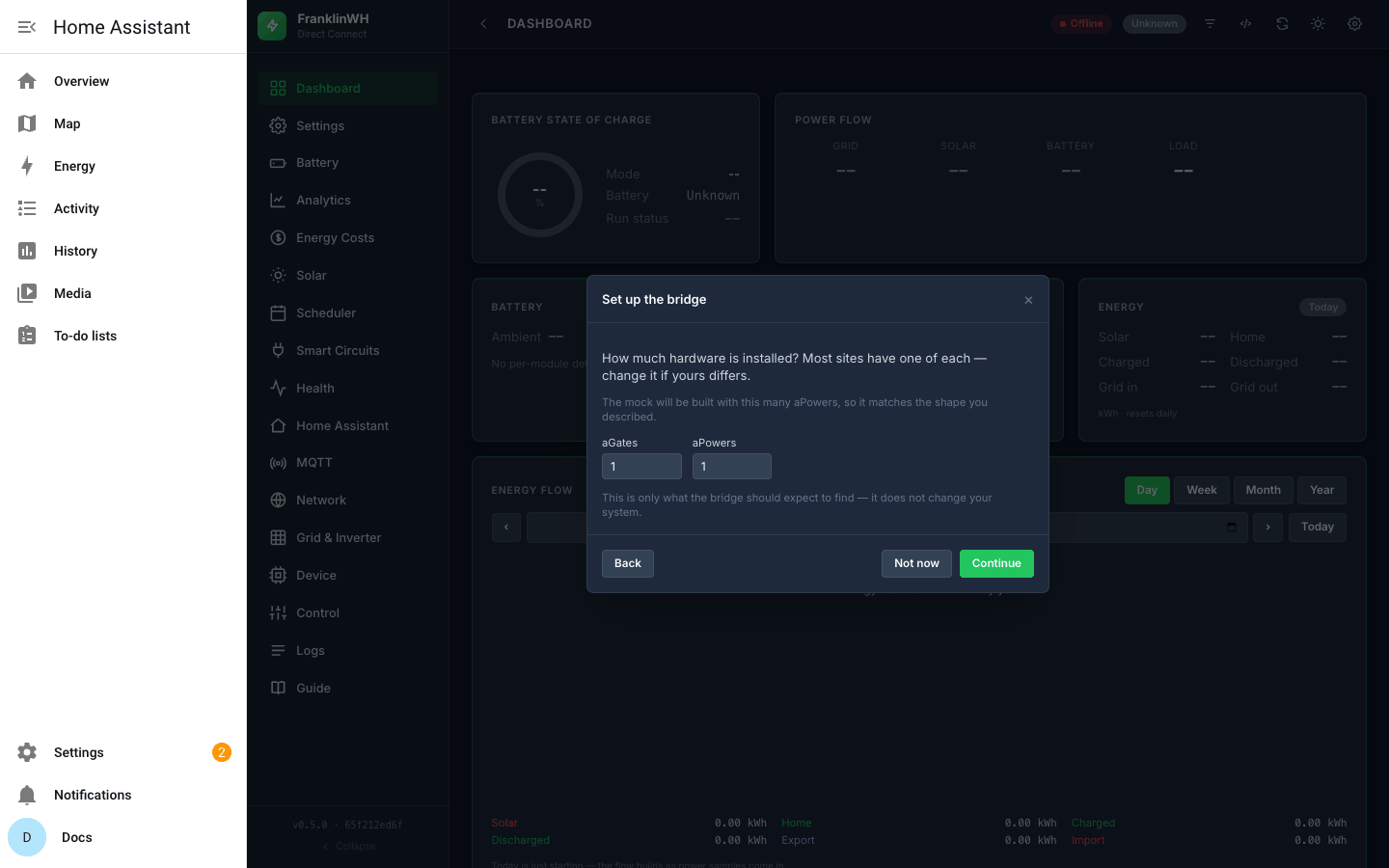
How much hardware: one aGate and one aPower here.
-
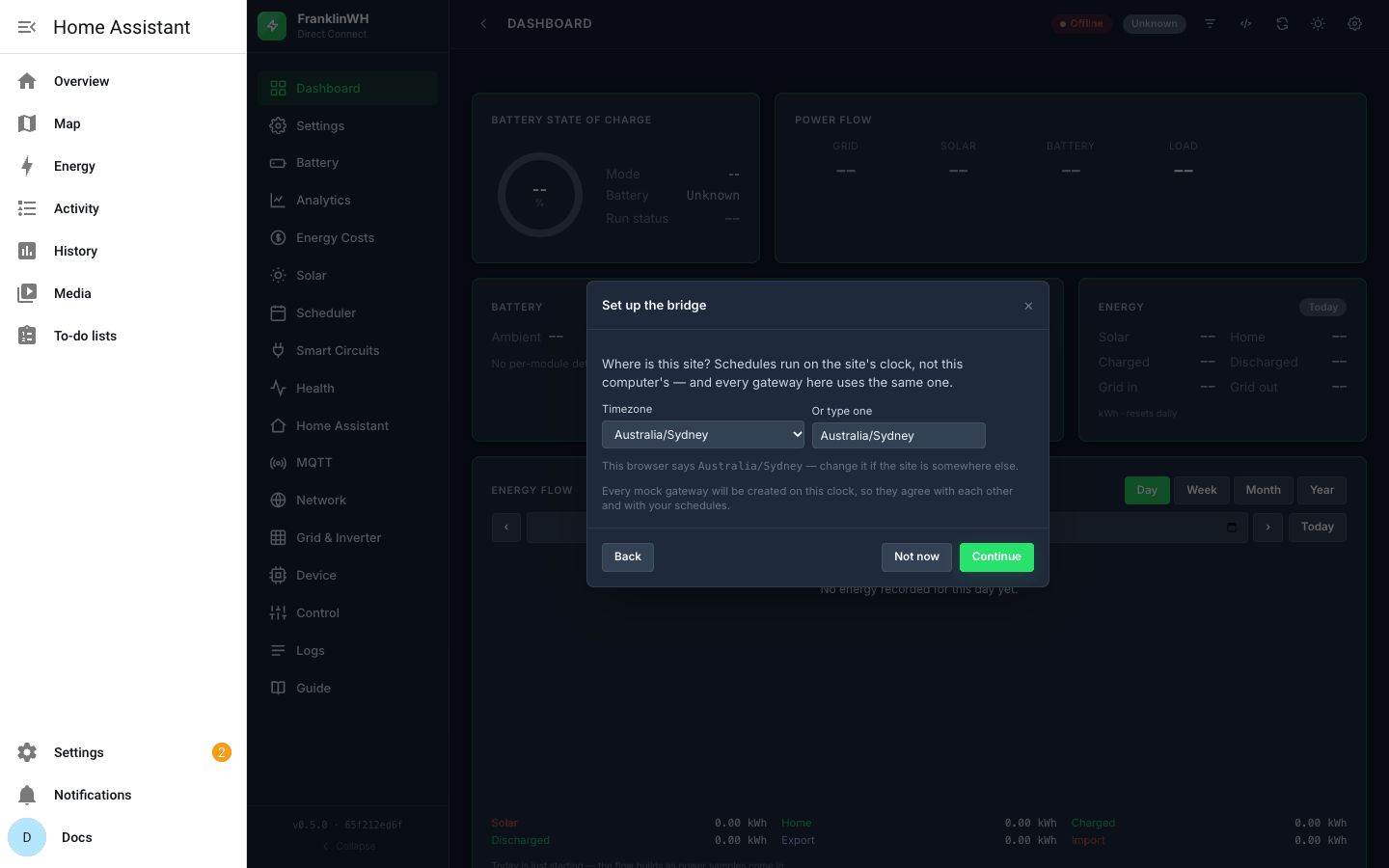
Where is this site: the timezone schedules run on.
-
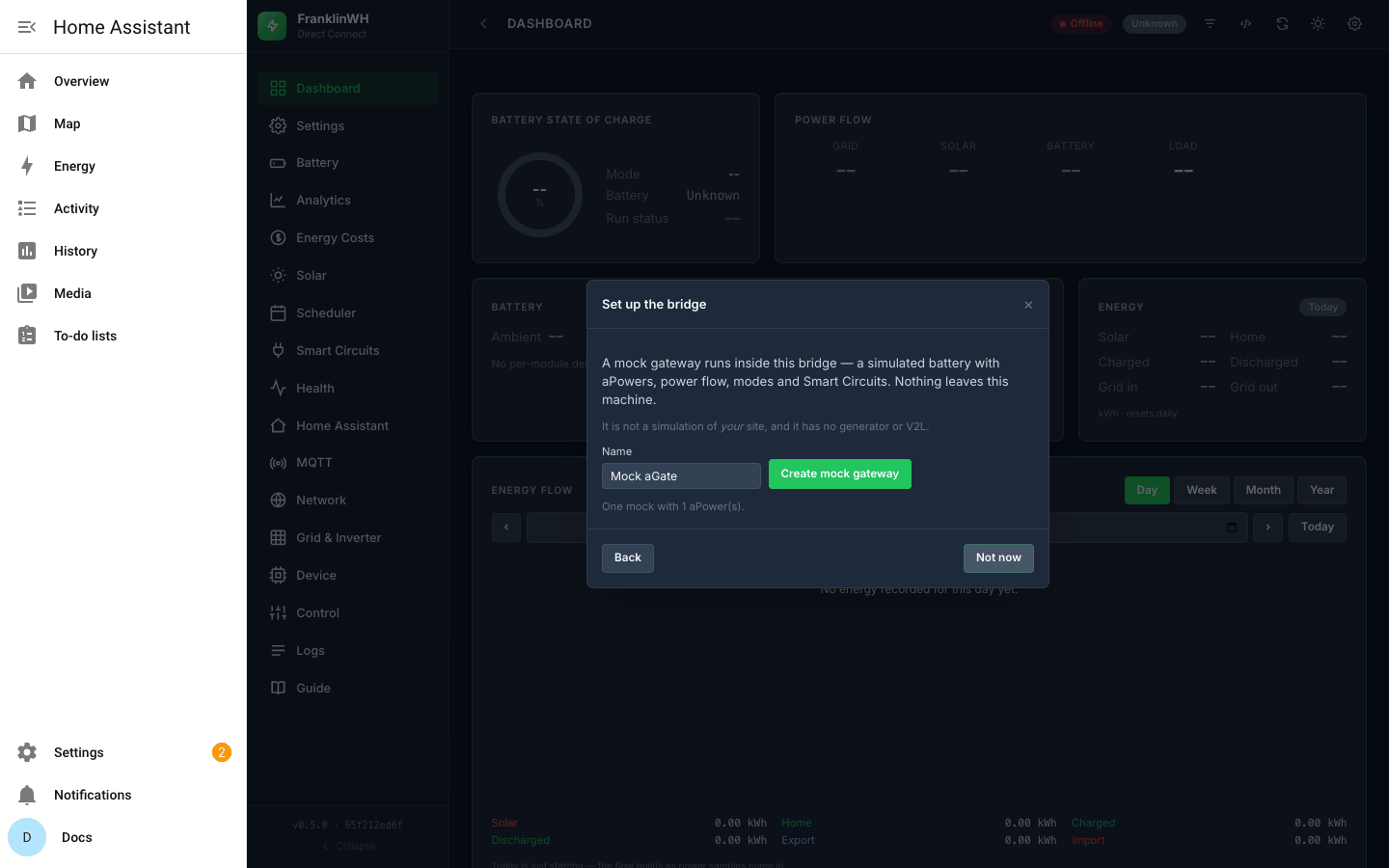
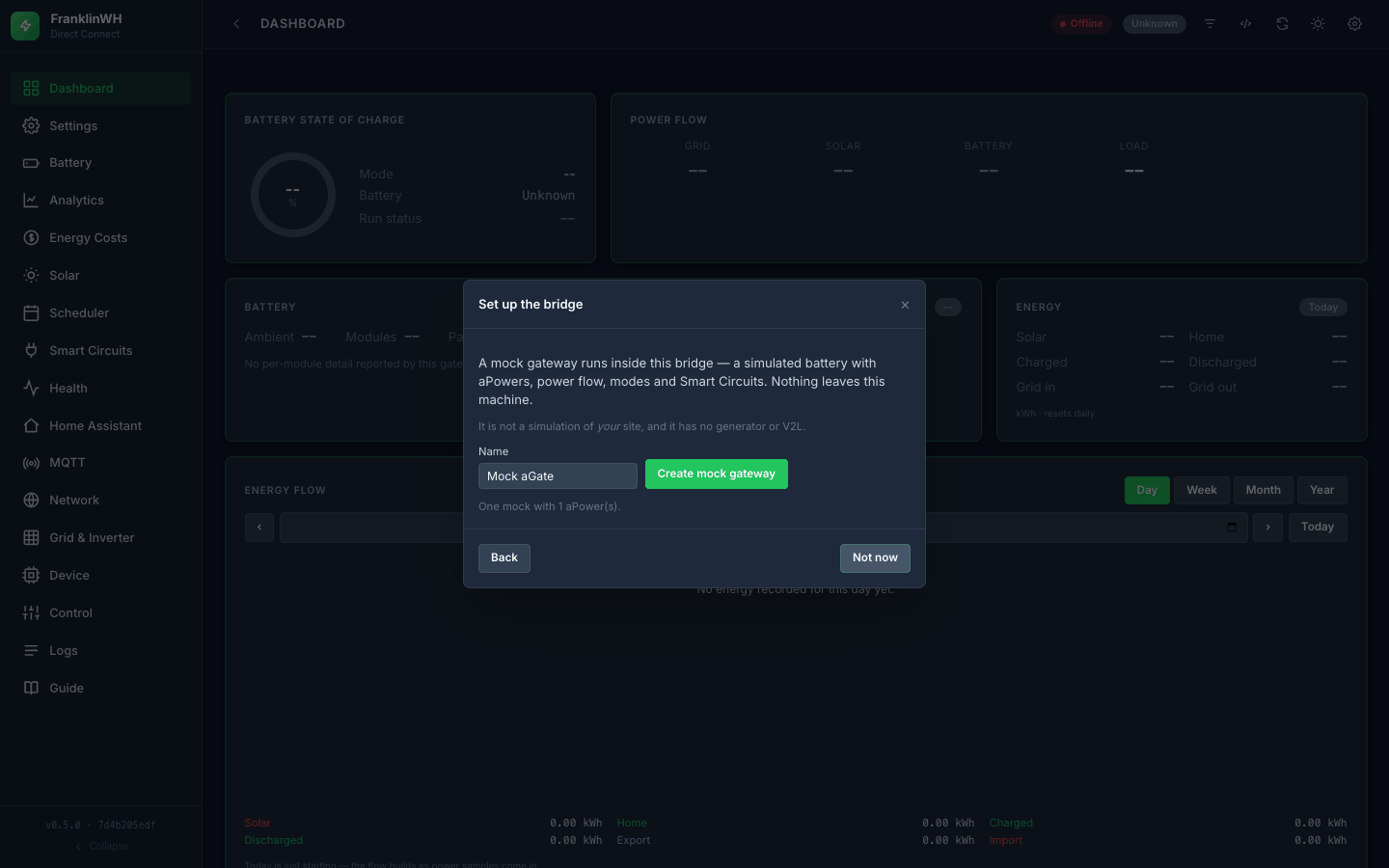
Create mock gateway.
-
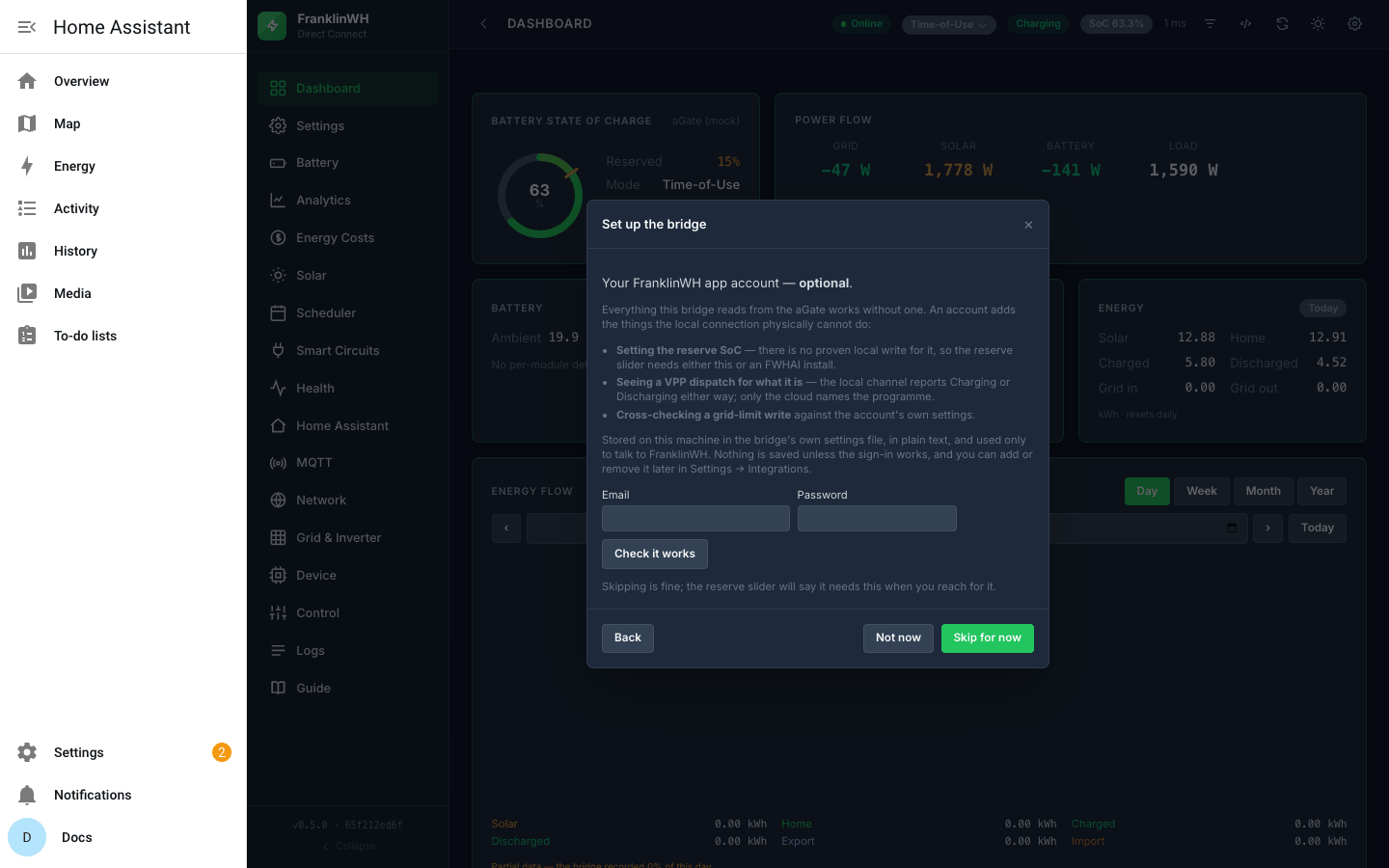
FranklinWH app account: optional. Skip for now.
-
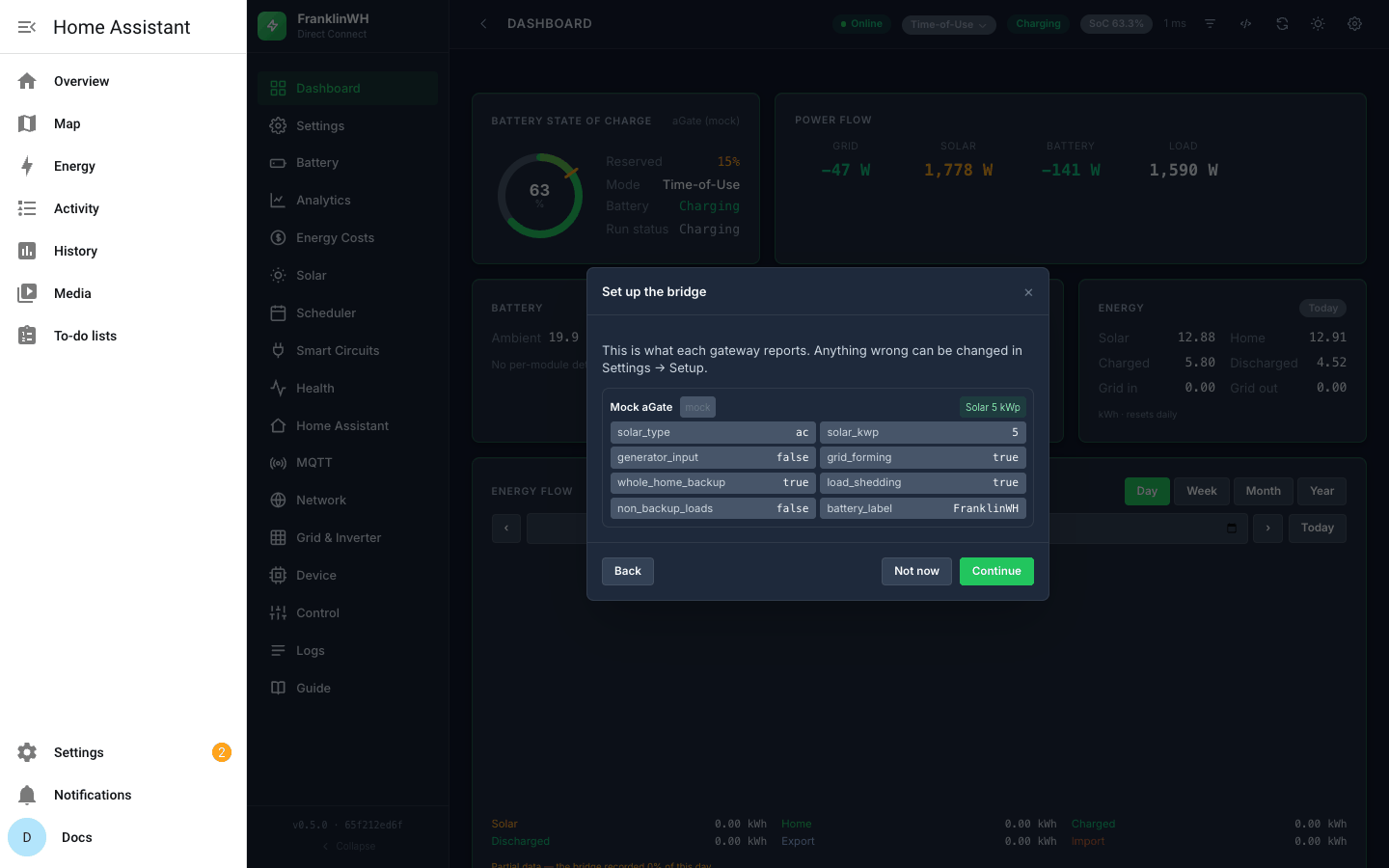
Confirm what the gateway reports.
-
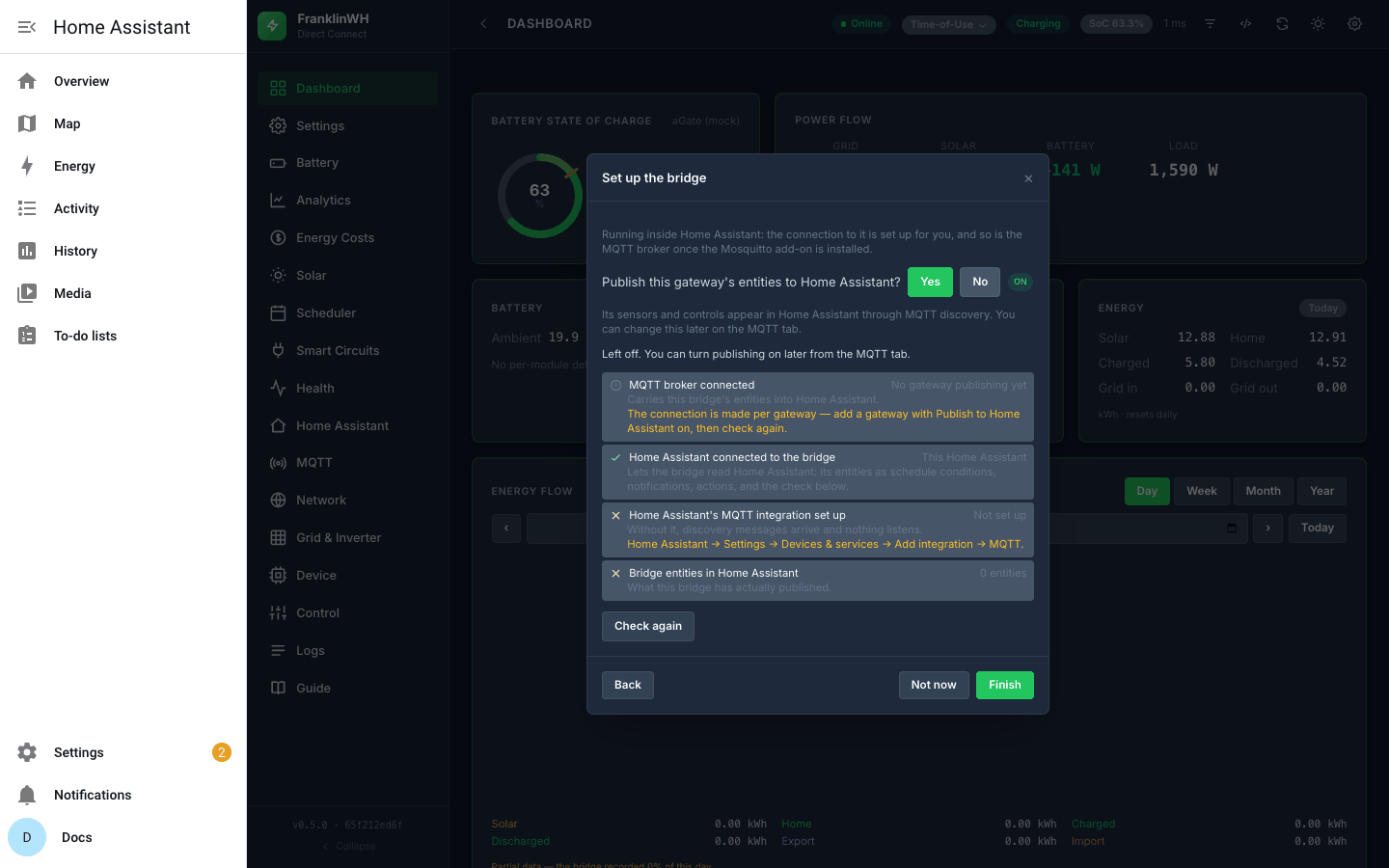
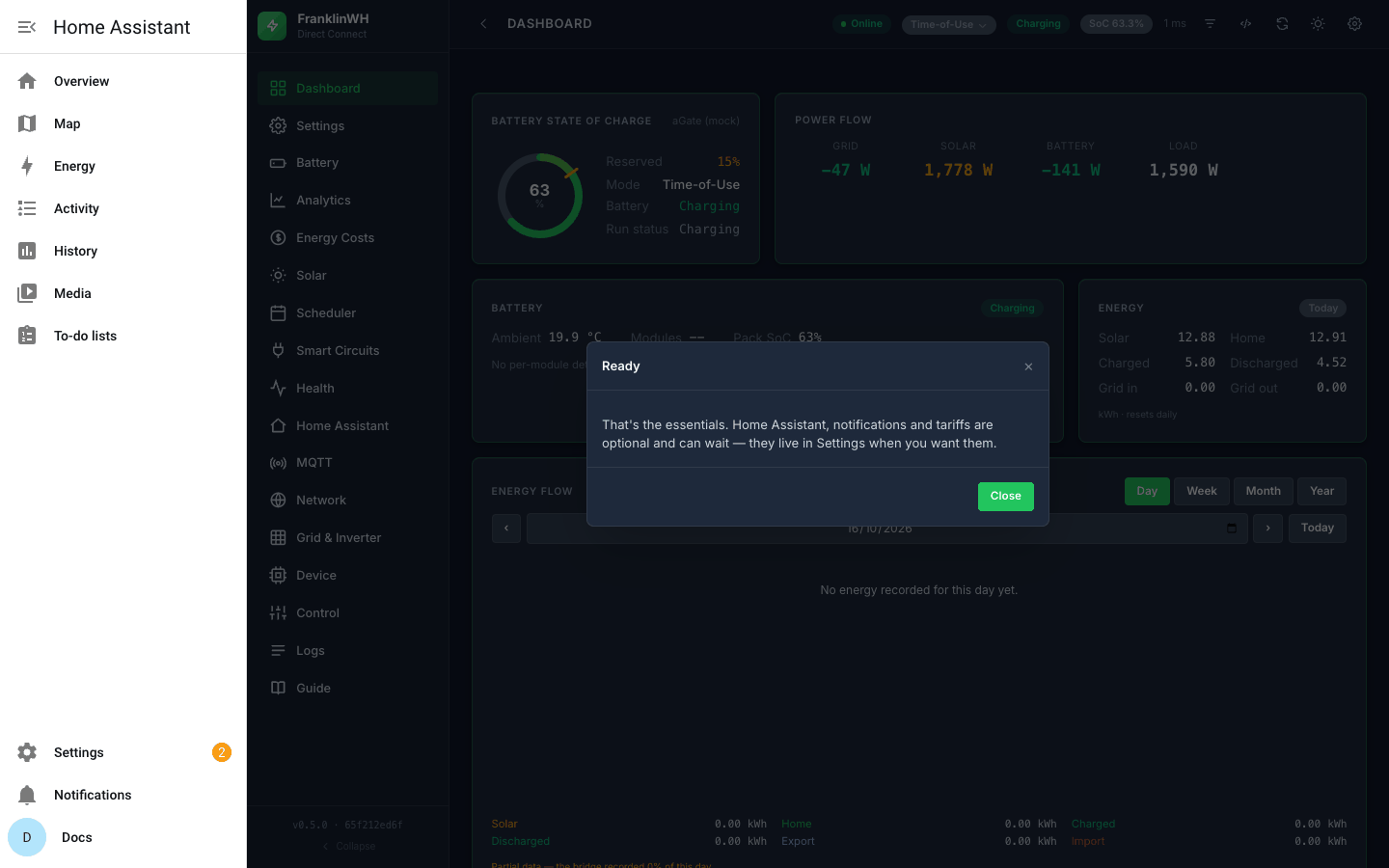
Publish to Home Assistant? No here, because no MQTT broker is installed. It can be turned on later from the MQTT tab. Then Finish.
-
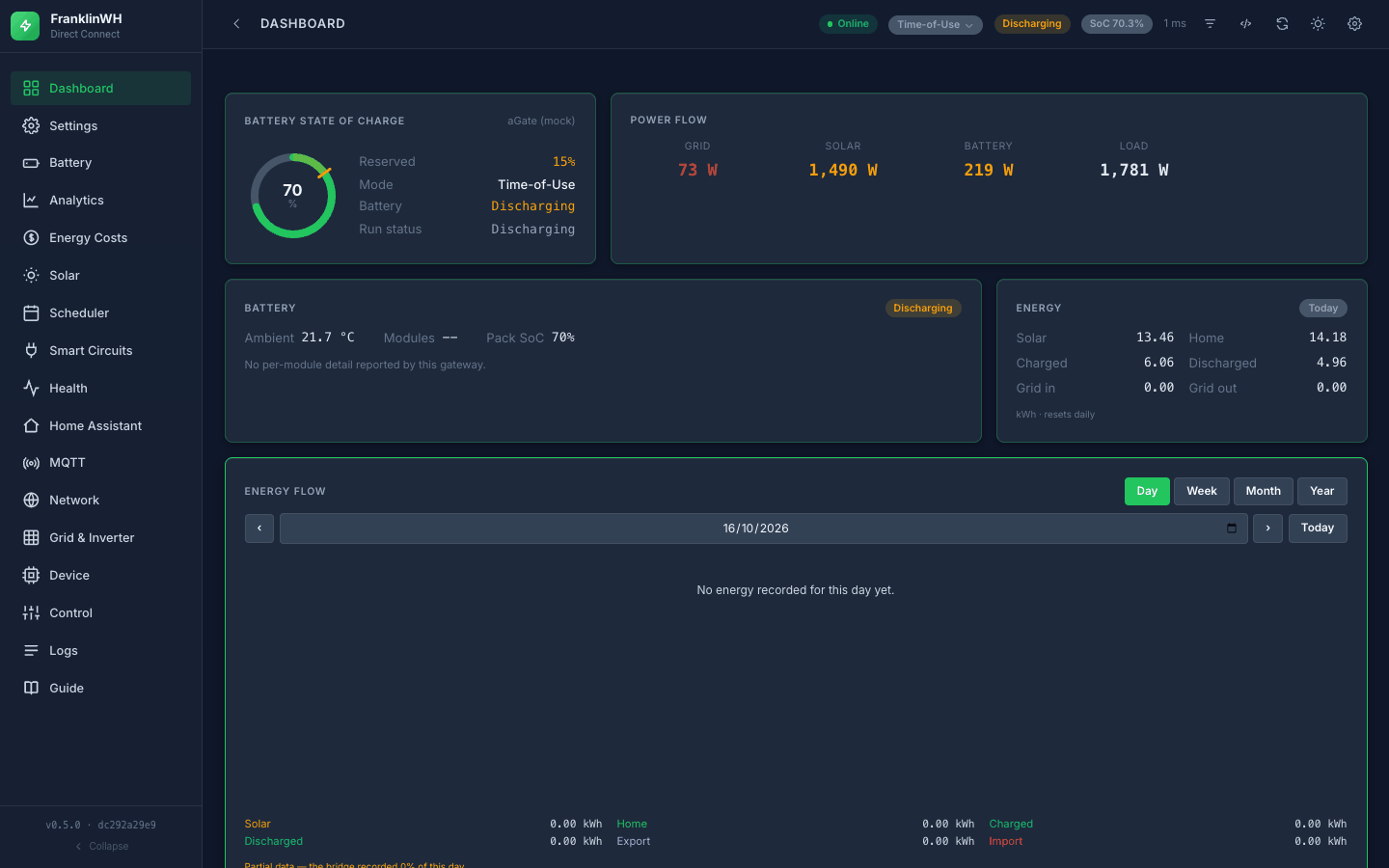
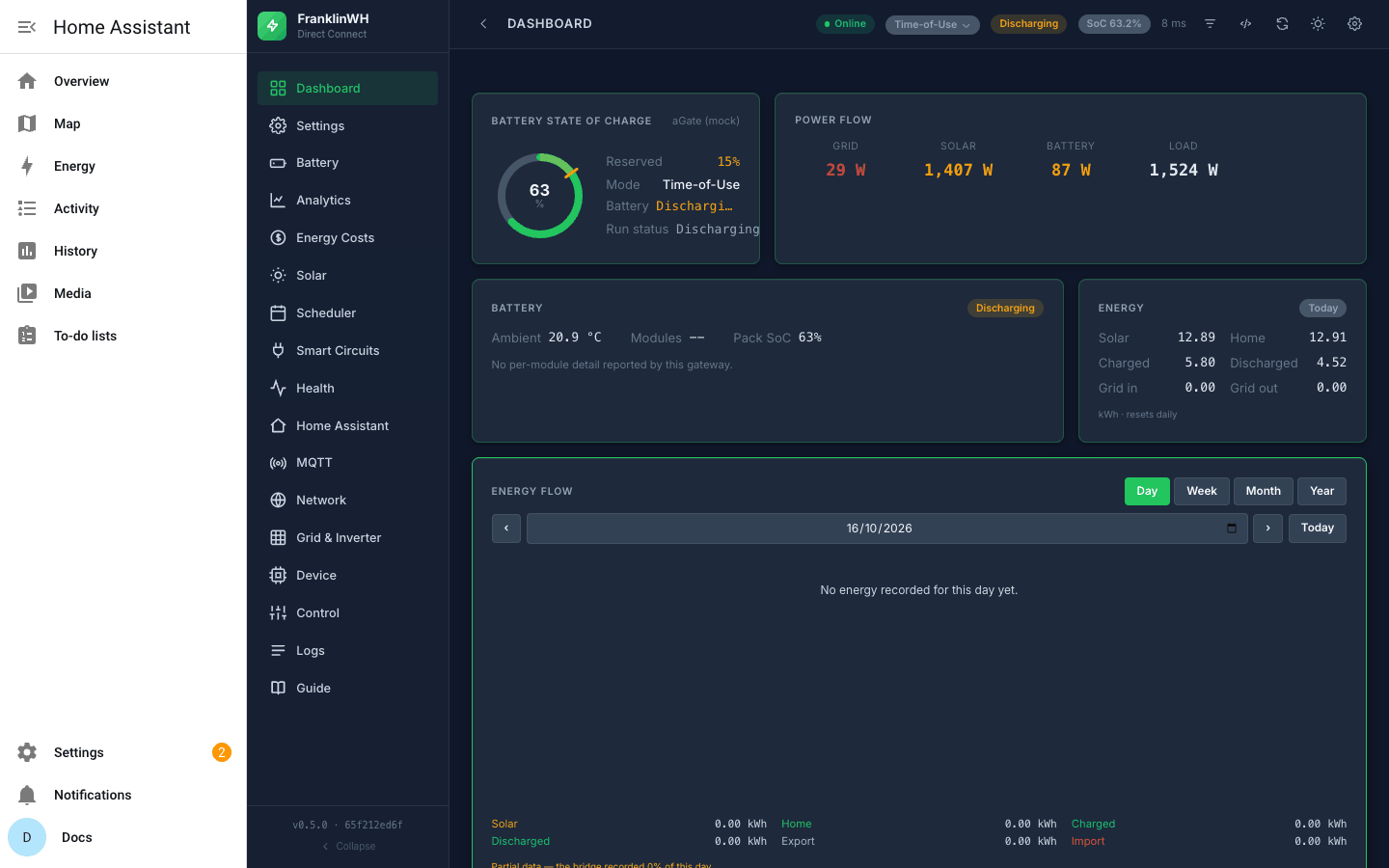
The Dashboard, with the mock gateway live.
Docker
Taken on Debian 12 (arm64) with Docker Engine from Docker's own apt repository. Full text: INSTALL.md → Docker.
-
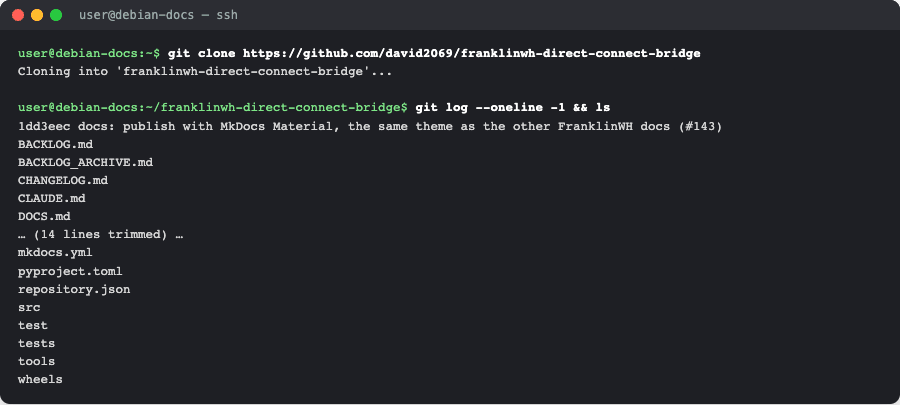
Clone the repository and change into it.
-
Build the image with
docker build -t franklinwh-direct-connect-bridge:dev .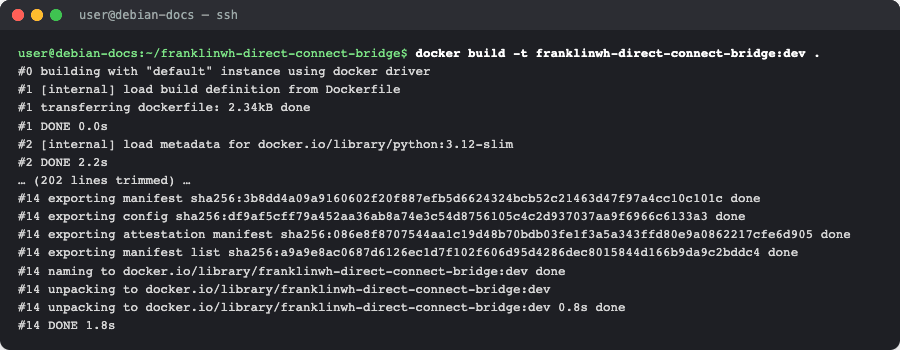
-
Start it with
FWH_HOST=<your aGate IP> docker compose up -d. Here the address is192.0.2.10, a documentation address that stands in for a real aGate.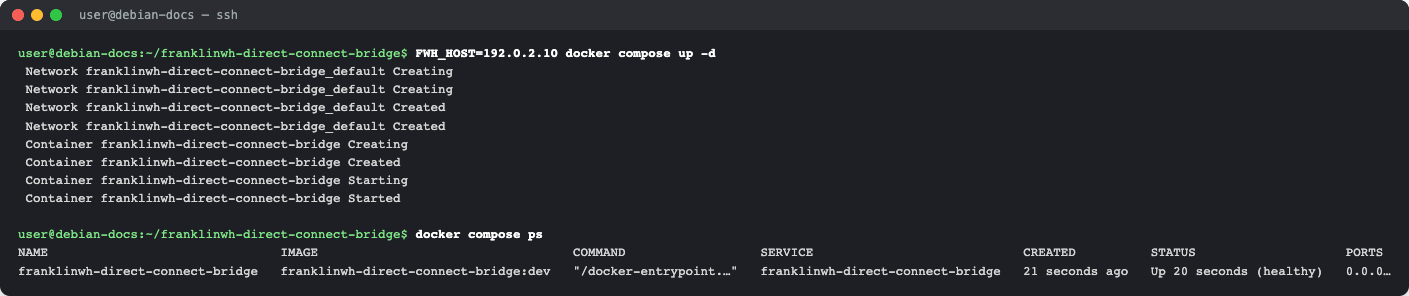
Exploring with a mock instead of an aGate
With
FWH_HOSTset, the bridge registers that address as a real gateway, so the setup wizard does not open on its own.docker-compose.ymlalso falls back to192.0.2.110whenFWH_HOSTis empty. INSTALL.md does not yet describe a no-hardware Docker run. To take the rest of these screenshots, the container was recreated with a fresh./dataand adocker-compose.override.ymlthat setsFWH_HOST=(empty) andMQTT_ENABLED=false.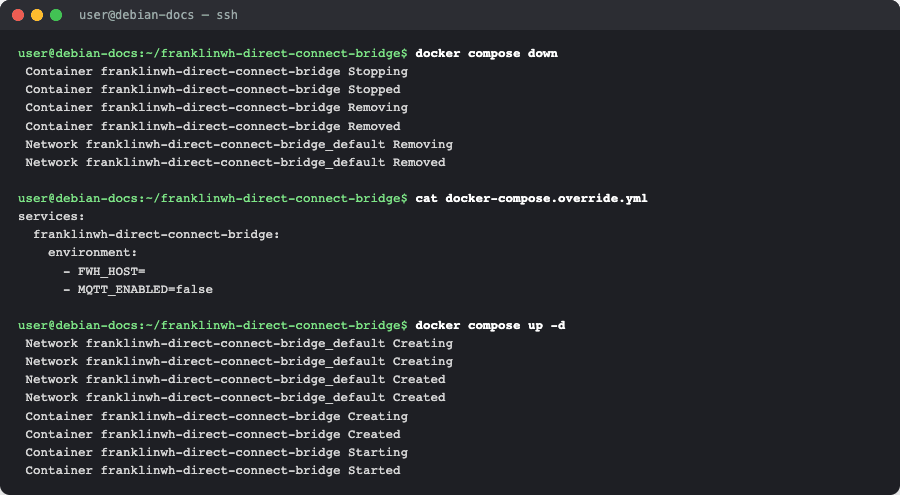
-
Open
http://<host>:8101. The disclaimer comes first.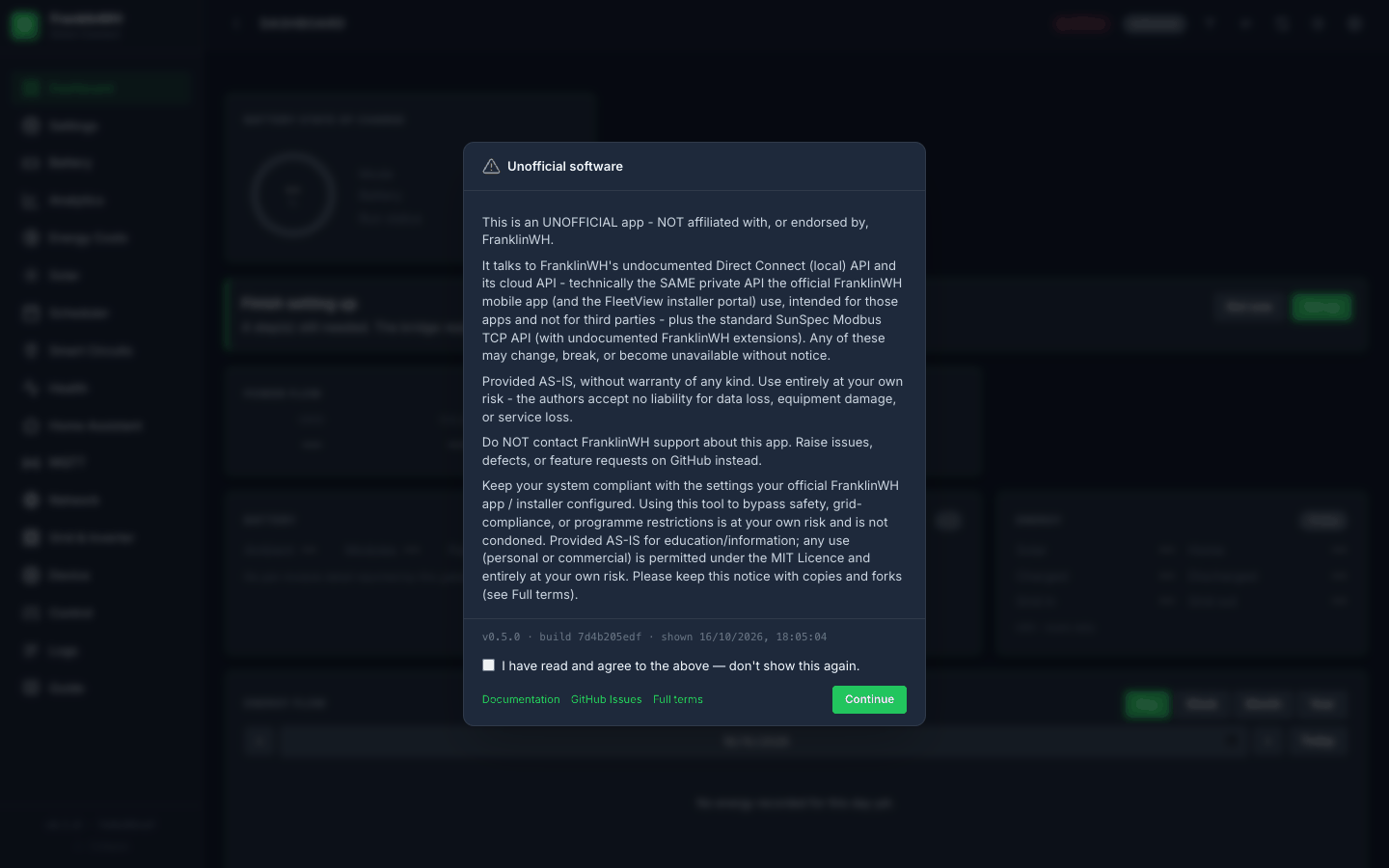
-
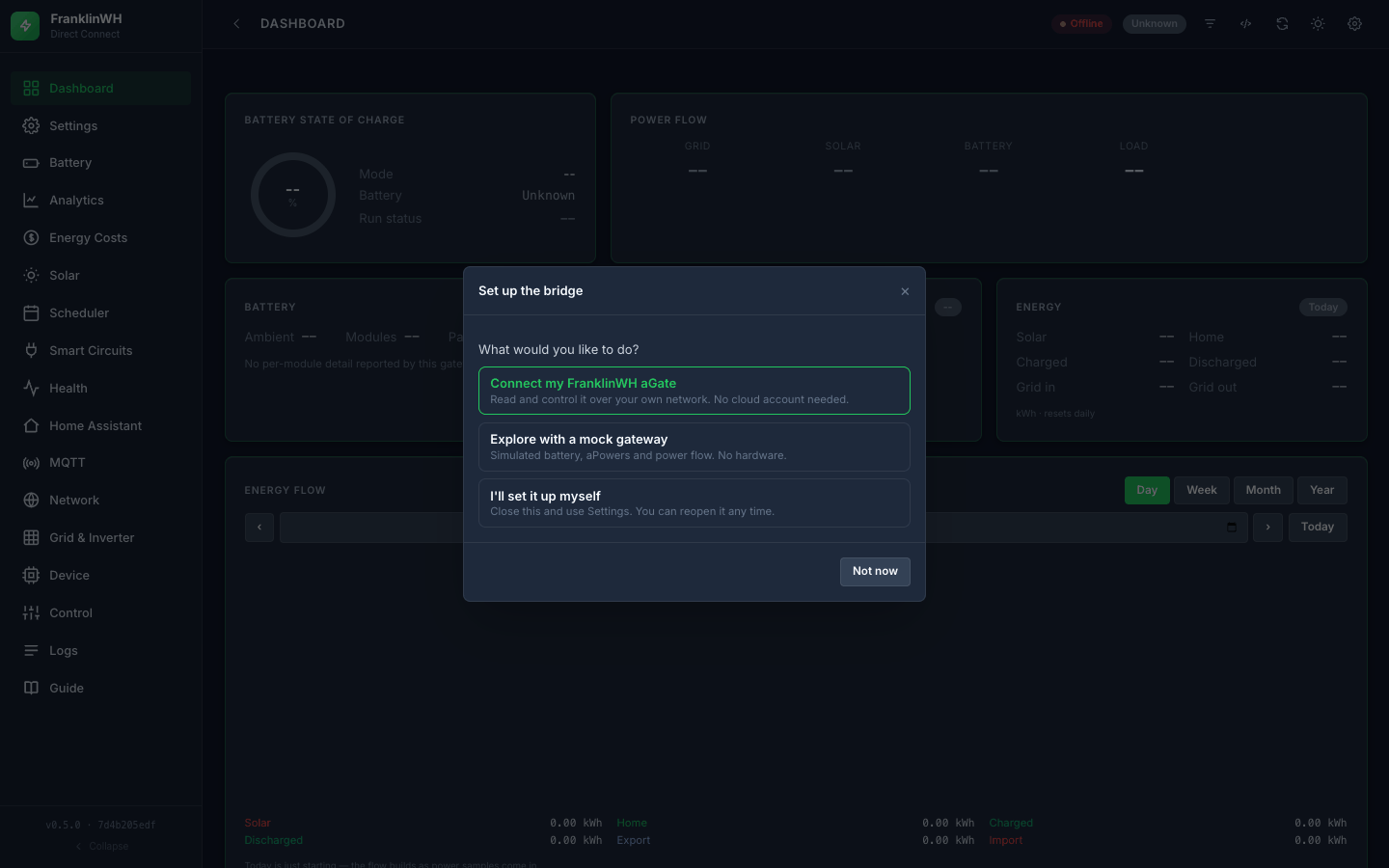
The setup wizard: Explore with a mock gateway, and the same steps as in the add-on section above.
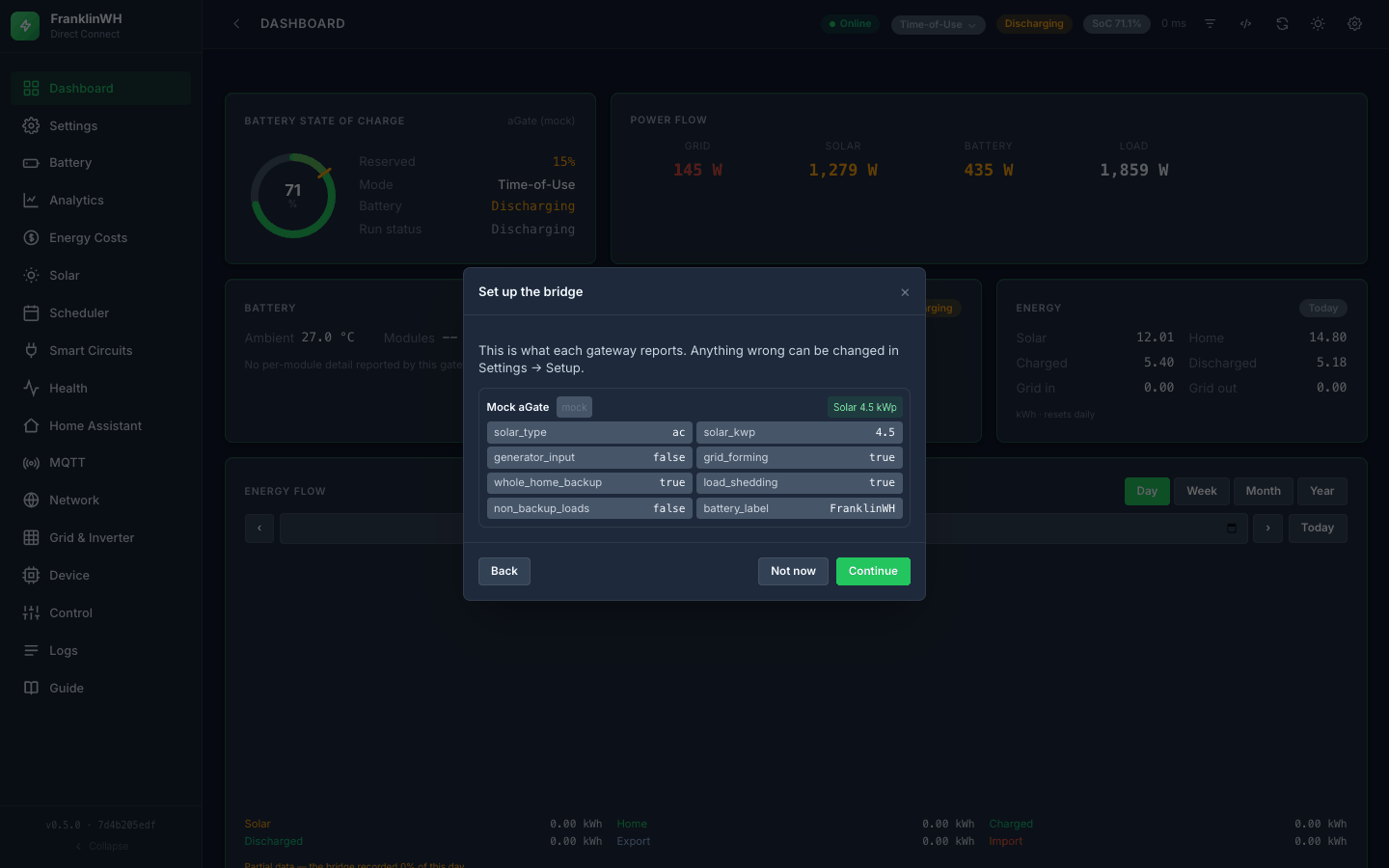
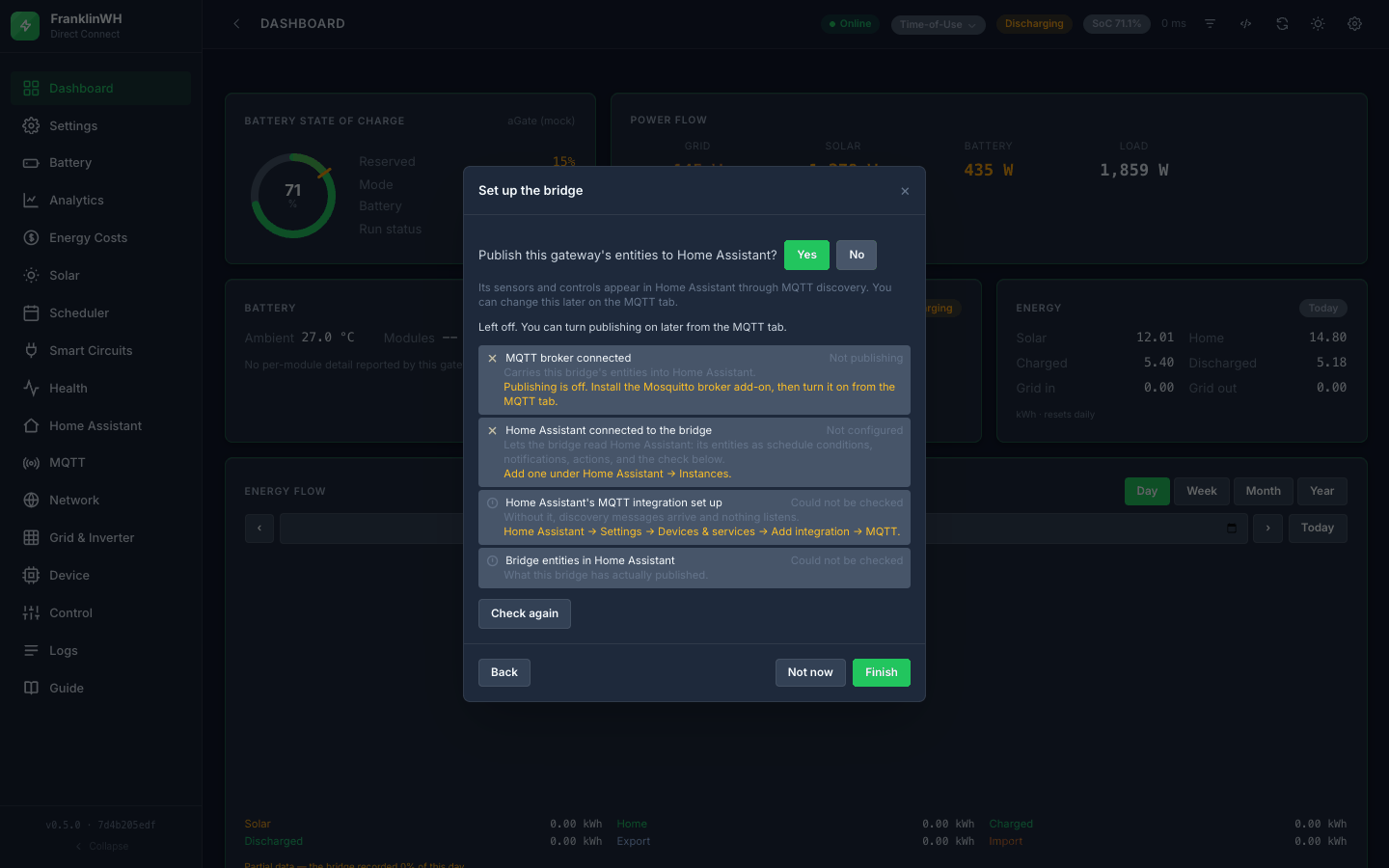
-
The Dashboard, with the mock gateway live.
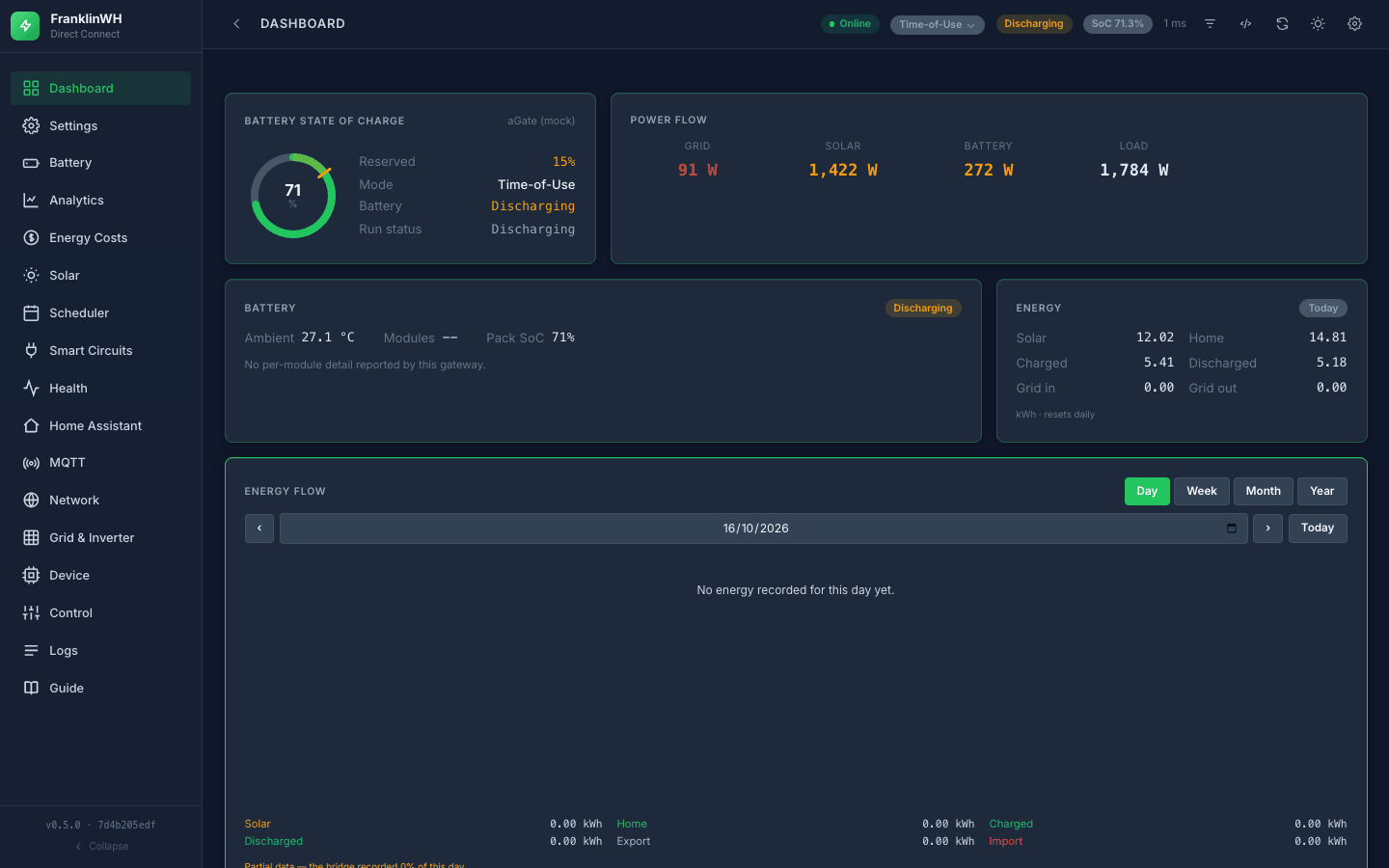
Standalone
Python in a virtual environment, on the same Debian 12 machine, from a fresh clone. Full text: INSTALL.md → Without Docker.
-
Create a virtual environment and install with
pip install ".[cloud]".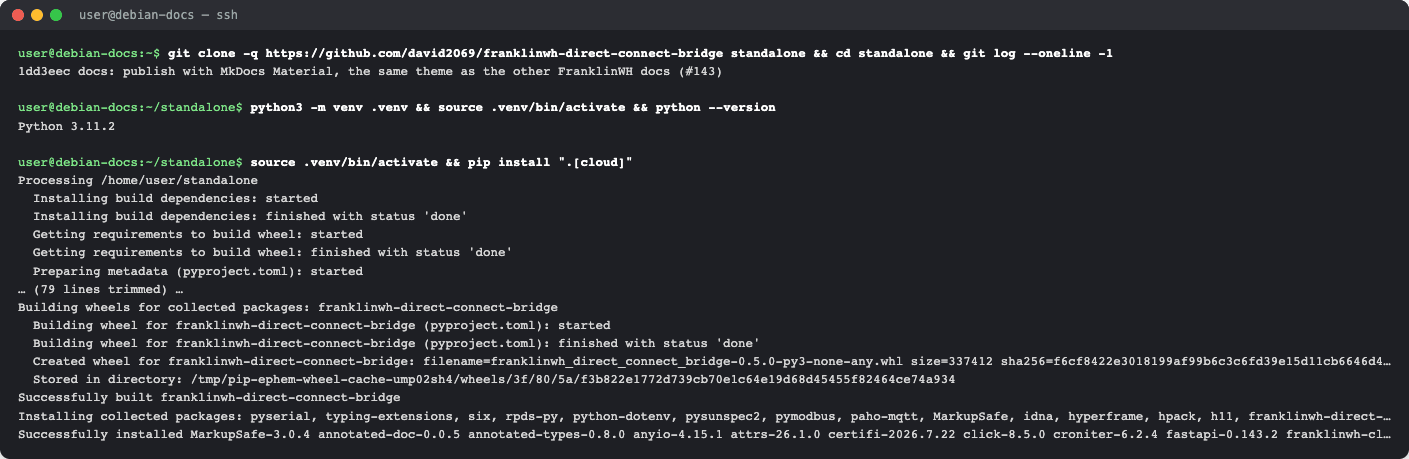
-
Run
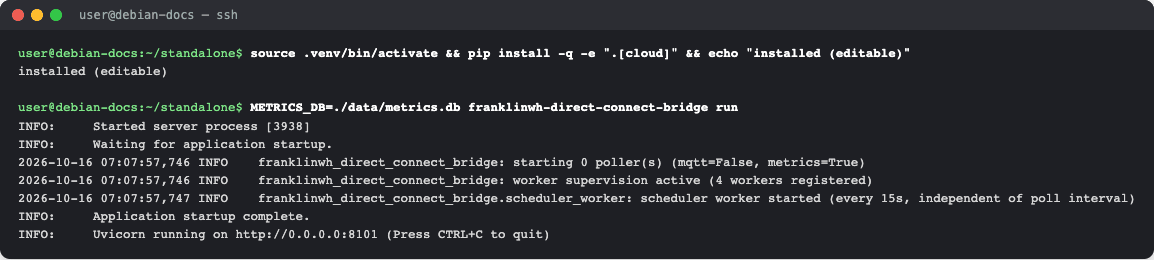
franklinwh-direct-connect-bridge run.Release 0.5.0: the documented commands do not start the web UI
On 0.5.0 this step stops with
PermissionError: [Errno 13] Permission denied: '/data', because the metrics database path defaults to/data/metrics.dboutside a container too. With that worked around, a non-editablepip install ".[cloud]"leaves out the web UI's templates and scripts, and the page answersInternal Server Error. Until this is fixed, the screenshots below used the editable install from INSTALL.md's Development section,pip install -e ".[cloud]", andMETRICS_DB=./data/metrics.db.
-
Open
http://<host>:8101. The disclaimer comes first.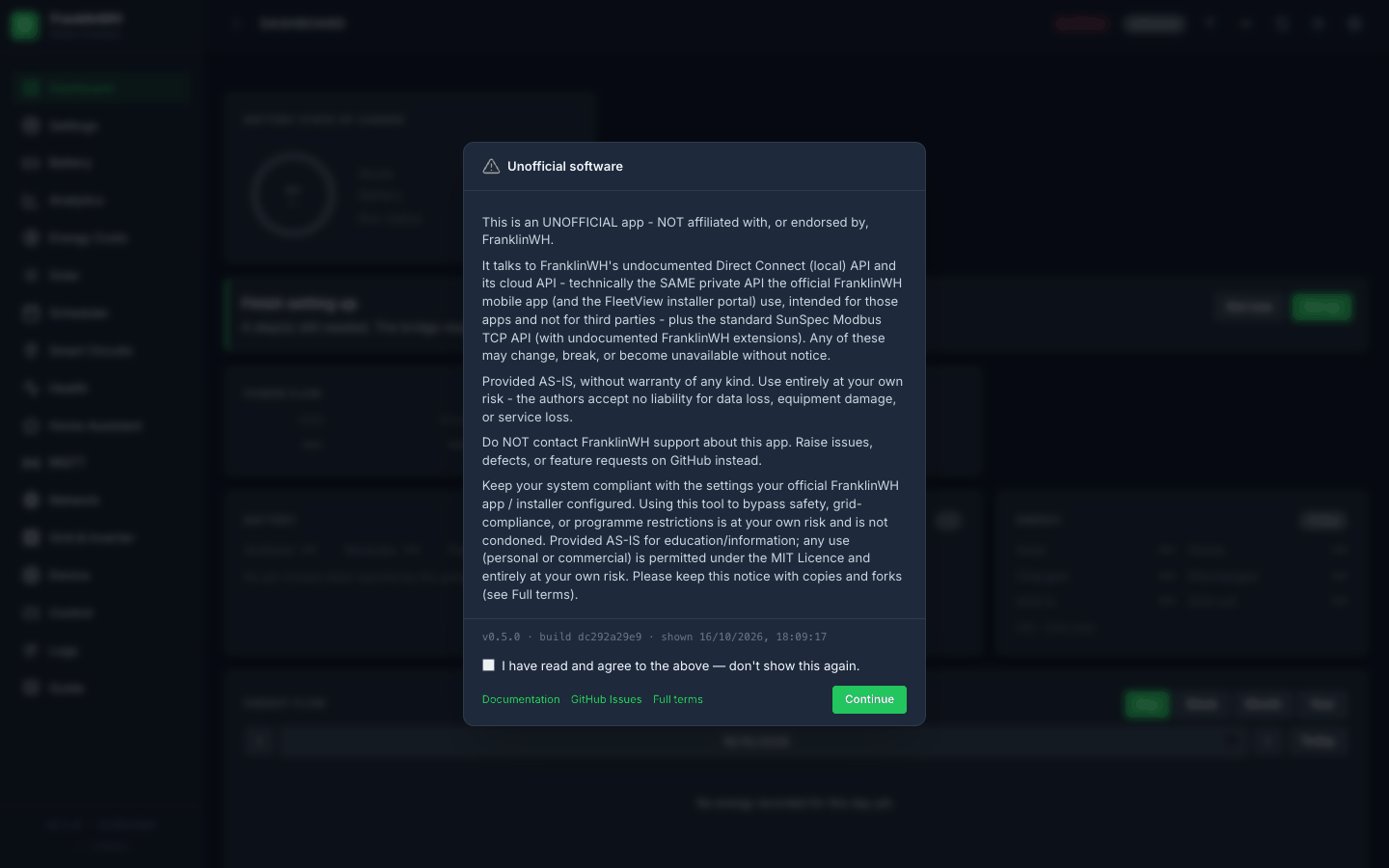
-
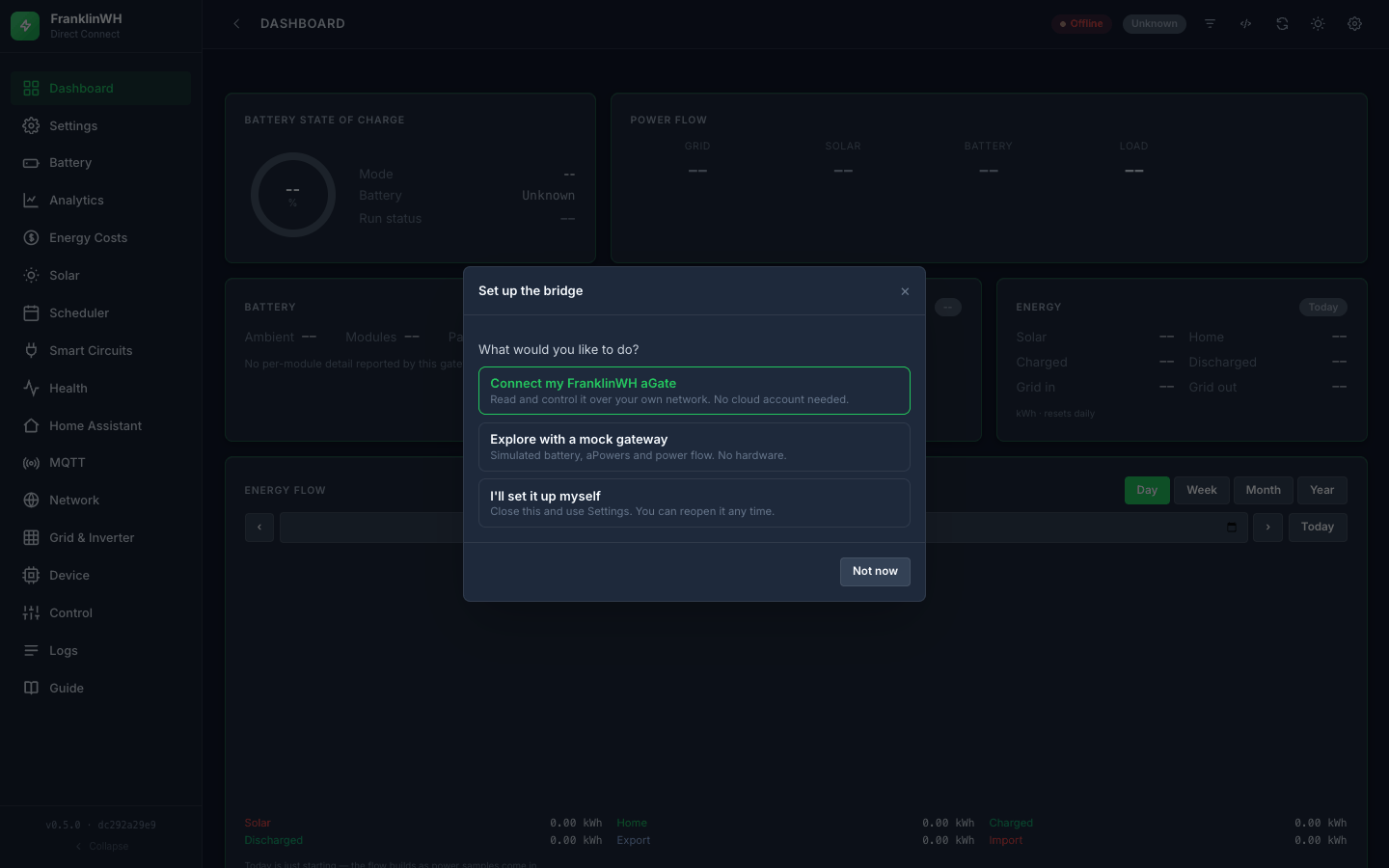
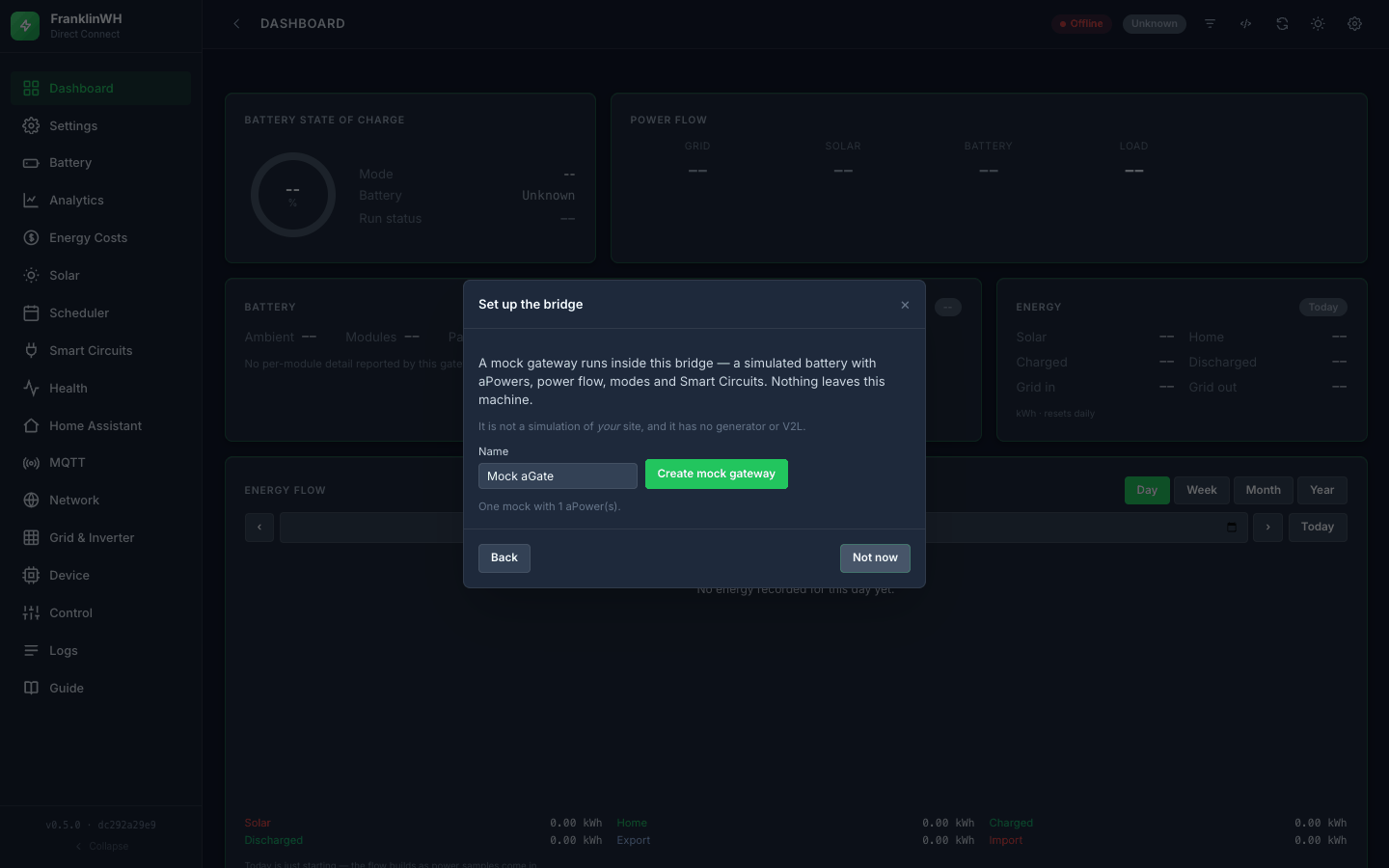
The setup wizard: Explore with a mock gateway, as above.
-
The Dashboard, with the mock gateway live.