Scheduler
The scheduler runs your battery on a plan. Each entry says when to act, whether conditions allow it, what to send, where to send it and when to stop. The bridge checks every enabled entry every 15 seconds and drives each gateway to match.
You find it on the Schedule tab (/?tab=schedule).
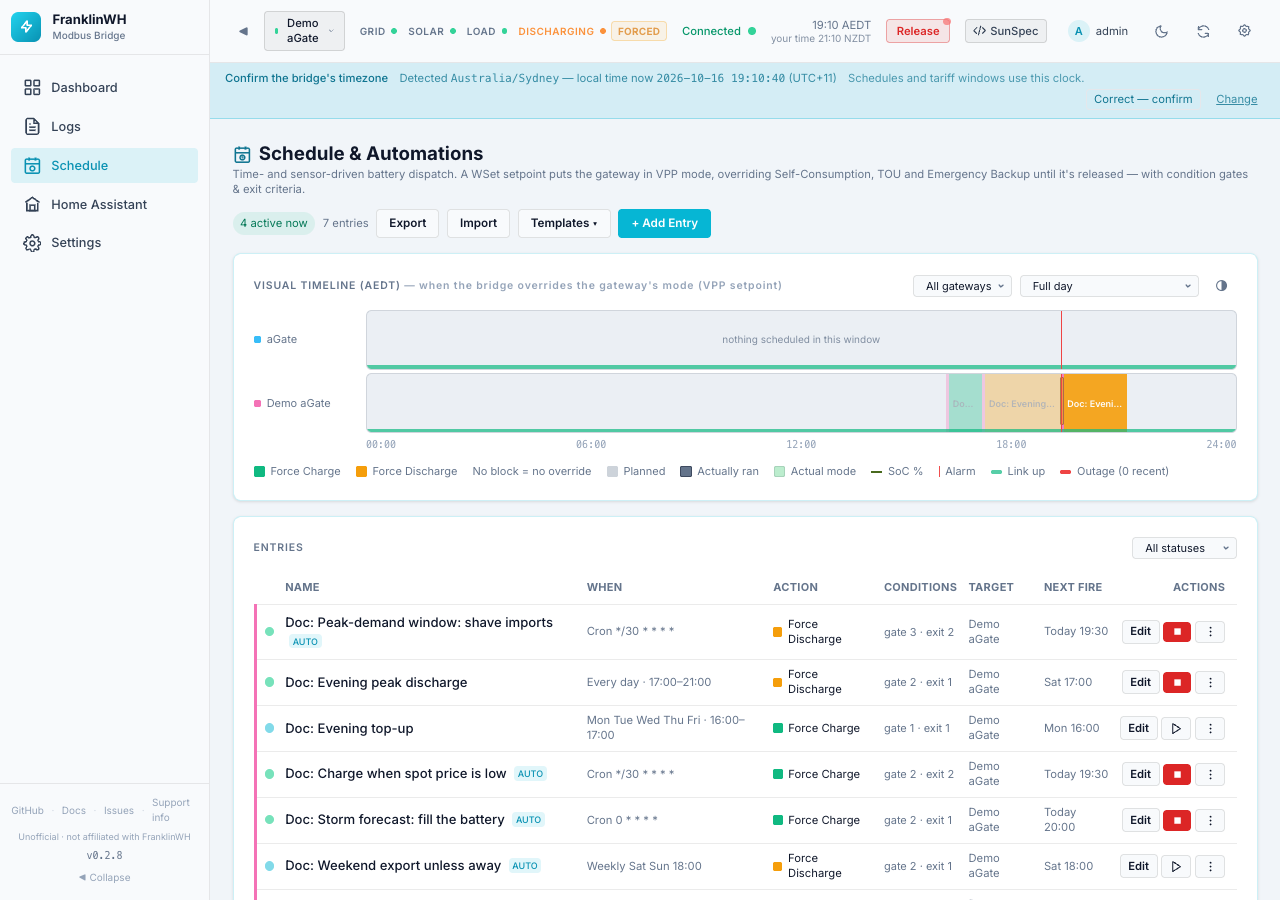
A force command takes the battery out of its own mode
Force Charge, Force Discharge and Force Standby write a WSet setpoint. That puts the aGate in remote-control (VPP) mode, which overrides Self-Consumption, TOU and Emergency Backup until the bridge releases it. While it holds, the FranklinWH app cannot change the mode.
Leave the aGate in Self-Consumption or Emergency Backup and use the Scheduler instead of the FranklinWH app's Time-of-Use: see Battery dispatch: best practice.
Pages in this section
| Page | What it covers |
|---|---|
| Concepts | The model (trigger → conditions → action → target → exit → outcome), the tick, by time / by event / by sensor. Start here. |
| Triggers | Every trigger type, Next fire, catch-up after an outage or restart. |
| Conditions | Operators, Value vs Lookup, groups and items (ALL/ANY), scope, hold-for, Test Verification, every sensor. |
| Actions | Battery actions and sizing, reserve and mode, HA-only entries, Home Assistant actions and notifications. |
| Targets | Gateway, Service and Site; fan-out; entries with no target id. |
| Exit and release | How a run ends, exit conditions, release policy, hold. |
| Priorities and conflicts | Which entry gets a gateway, manual control, who sent what. |
| Outcomes and audit | Activity Log, retries, supervision, dispatch record, notifications, Run now and Stop. |
| Restarts and the clock | What a restart does, the bridge clock, daylight saving. |
| Dependencies and troubleshooting | What each condition and action needs; fixes for "never fires", "always false", "refused". |
| Examples | Worked recipes with screenshots. |
What these pages are based on
The scheduler pages describe the code of this release. Many behaviours have no automated test yet; the Scheduler test plan lists each one with its test status, and the pages flag the known problems in warning boxes.
Your first schedule
This walkthrough charges the battery to 90 % on weekday afternoons, but only if it is below 80 % when the window opens.
-
Open the Schedule tab and press + Add Entry.
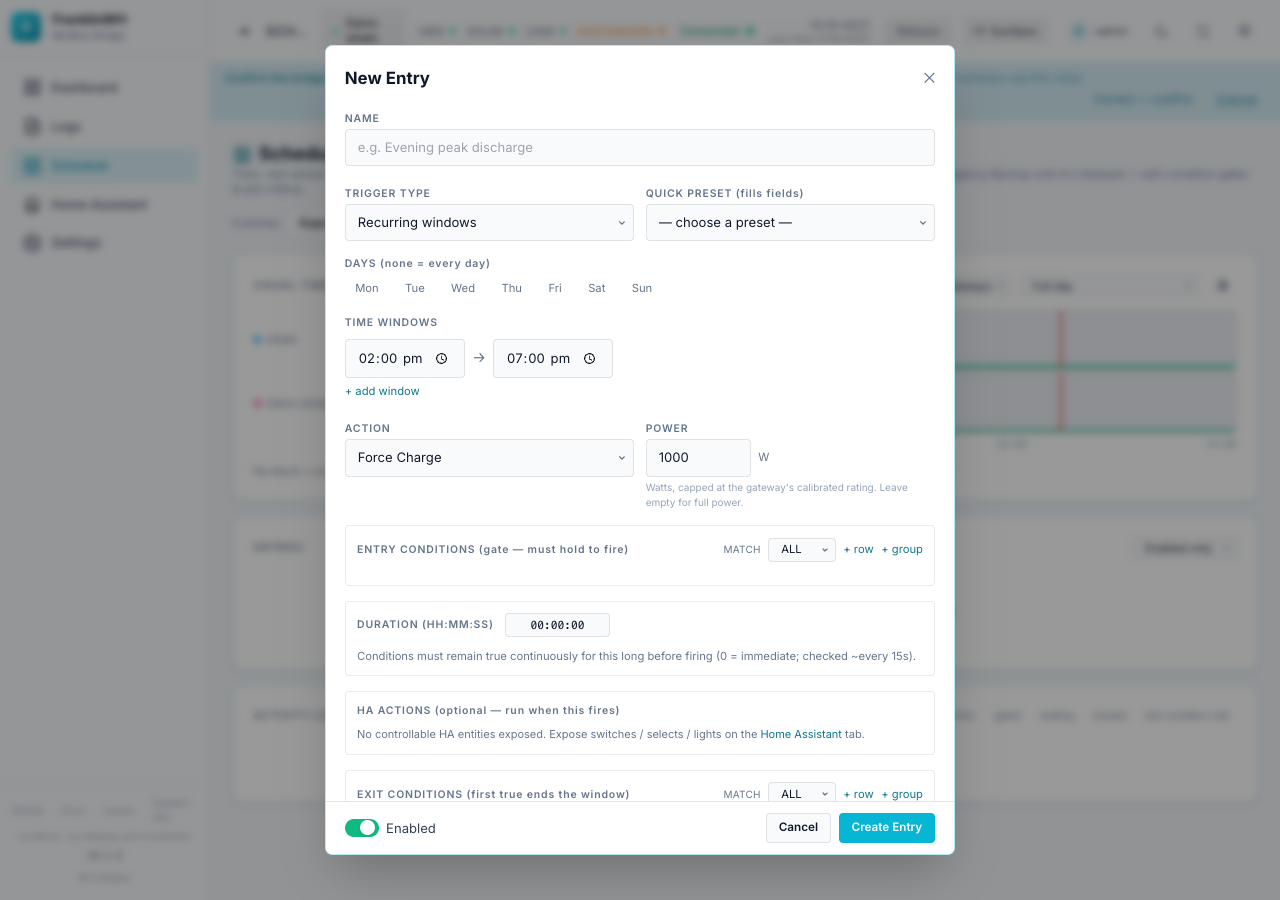
-
Name:
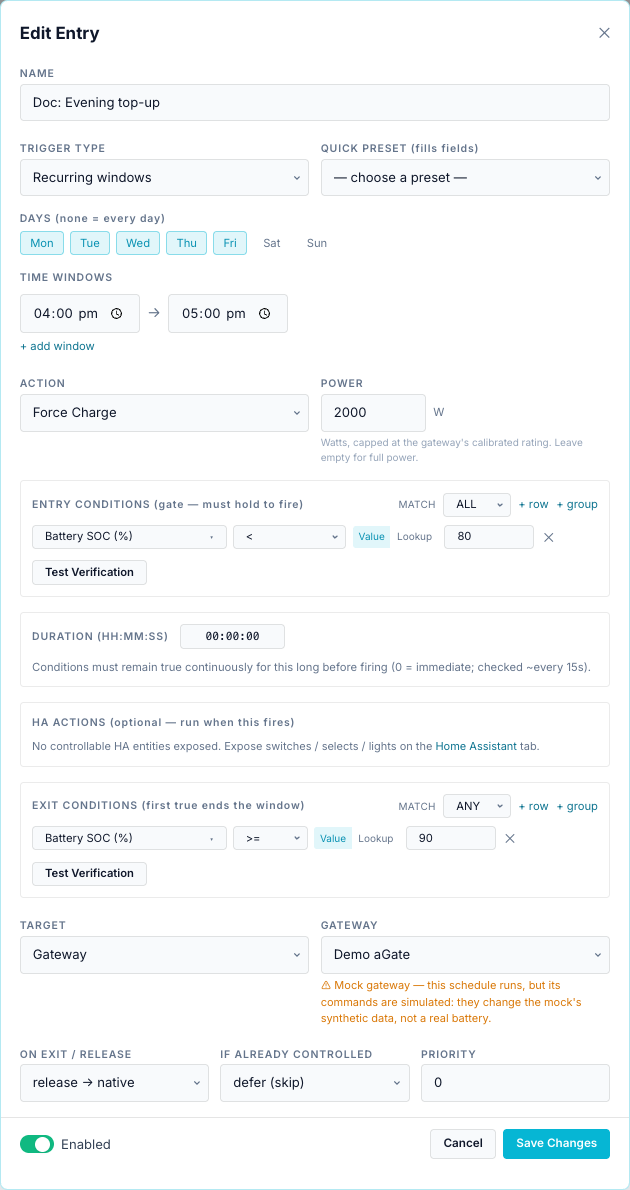
Evening top-up. - Trigger Type: leave Recurring windows. Tick Mon–Fri under Days (none ticked
means every day). Set the time window to
16:00 → 17:00. - Action: Force Charge. Power:
2000W. Leave Power empty to use the gateway's full trusted battery rating (see Actions). - Entry conditions: press + row. Pick Battery SOC (%), operator
<, value80. - Exit conditions: press + row. Pick Battery SOC (%), operator
>=, value90. - Press Test Verification under each block to see whether the conditions hold right now. Each row turns green (passes), red (fails) or amber (no value).
- Target: Gateway, and pick your gateway.
- Leave On exit / release at release → native, If already controlled at defer (skip) and Priority at 0.
- Turn Enabled off while you try it, then press Create Entry.
The finished form:
What happens once it is enabled:
- At 16:00 on a weekday the bridge checks SoC. Below 80 %, it sends Force Charge at 2000 W. At 80 % or more it logs gated and checks again every 15 s until the window closes, so it can still start at 16:20 if SoC drops.
- When SoC reaches 90 % the exit condition releases the battery and the entry is done until tomorrow.
- At 17:00 the window closes and the bridge releases the battery if it is still charging.
Try before you trust it
Use a mock gateway first. Its commands change simulated data only, and the form warns you when the target is a mock.
The entry list
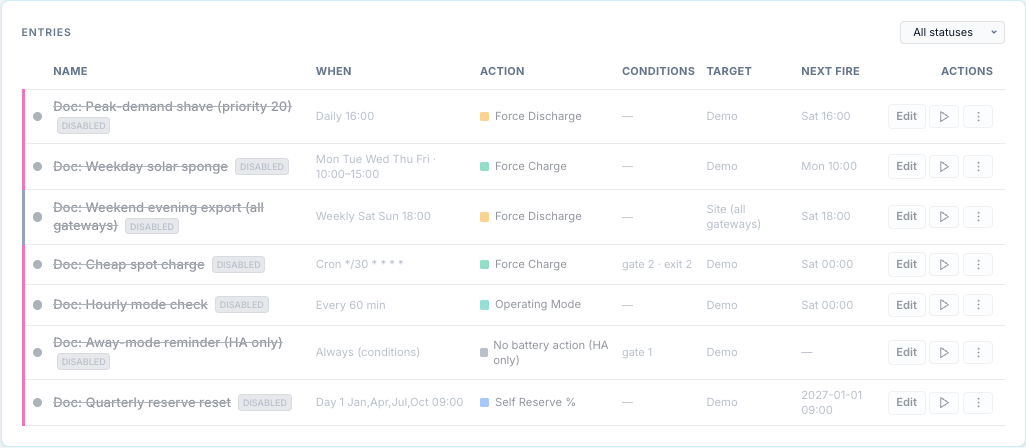
| Control | What it does |
|---|---|
| Dot at the left | Pulsing green = active now (its window is open). Cyan = enabled. Grey = disabled. Click to enable or disable. |
| auto badge | An enabled entry with a fire-based trigger (daily, weekly, interval, monthly, cron, always). |
| When | The window or trigger in words. |
| Conditions | How many top-level entry (gate) and exit items it has. |
| Target | The gateway name, Site (all gateways) or the service. |
| Next fire | The next window start or fire time, on the bridge's clock. "—" for Always entries and triggers that never fire. |
| Edit | Opens the form. Saving an entry that is active asks first, then applies the new settings to the live run. |
| ▶ (Run now) | Shown when the entry is not active. Sends the action immediately. See Run now. |
| ■ (Stop) | Shown while the entry is active. Ends this run; the entry fires again at its next window. |
| ⋯ → Disable / Enable | Turns the entry off or on. Disabling releases a run it owns (see the warnings). |
| ⋯ → Details | Shows the trigger, gate, exit criteria, release policy and missed policy. |
| ⋯ → Duplicate | Copies the entry. The copy starts disabled. |
| ⋯ → Export | Downloads this entry as JSON. |
| ⋯ → Delete | Removes the entry. |
The list shows Enabled only by default. Use the selector above the table for disabled or all entries.

Templates, export and import
-
Templates ▾ opens a pre-filled entry for review: Peak-demand shaving, Battery export bonus, Ausgrid evening discharge (16:00–21:00) and Ausgrid solar sponge (10:00–15:00). Templates open disabled; after saving, the bridge asks whether to enable it.
-
Export downloads every entry as a
franklinwh-automationsJSON bundle. - Import takes a bundle (paste or file). Validate shows errors and warnings per entry,
such as an unknown sensor or a missing Home Assistant instance. Imported entries are created
disabled. An entry whose gateway does not exist here is pointed at the gateway
default.
Visual timeline
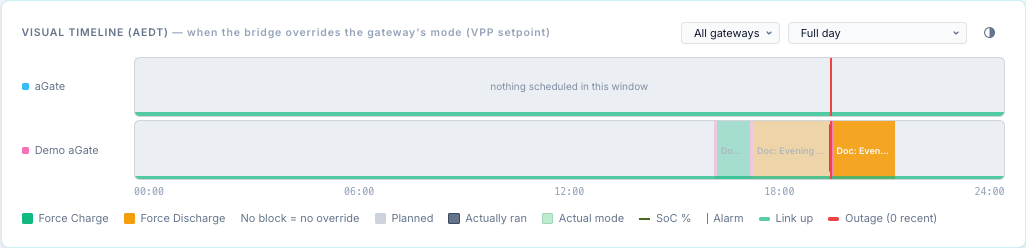
The timeline shows today on the bridge's clock, one track per gateway.
- Coloured blocks are planned windows of enabled entries, coloured by action. Left of the red now line they fade to "planned".
- A solid inner bar marked ran is what actually dispatched, taken from the Activity Log.
- The background tint is the operating mode the gateway actually ran, the line is SoC, thin red marks are alarms, and the strip along the bottom is link state (red = outage).
- Fire-based entries are drawn as fire time plus duration (at least 8 minutes wide), with a top edge. Every N minutes shows at most 96 blocks a day. Monthly, cron and Always entries are not drawn.
- A one-off entry is drawn on every day with the same weekday as its date, including after the date has passed. The timeline is a preview; the date is what the engine uses.
- Use the selectors for one gateway, a zoom range, and the appearance (◐) panel.
Activity Log
Every decision the scheduler makes is written to the Activity Log, newest first. The result list and the filter buttons are on Outcomes and audit.