Top bar
The top bar is on every page of the main UI.

From left to right:
| Item | What it shows or does |
|---|---|
| ◀ / ▶ | Collapses or expands the sidebar. |
| Page title | The page you are on. |
| Gateway selector | Which gateway the page shows. Only appears when there is more than one gateway. |
| Status dots | Grid, Solar, Load and Battery, live. |
| Connected / Disconnected | Whether the browser's last data request to the bridge succeeded. |
| Quality badge | Only appears when the data is stale or bad. Hidden while it is fine. |
| Clock | Time of the last poll, in the bridge's timezone. |
| Release | Opens the battery control state and the Force Release button. |
| SunSpec | Shows or hides the SunSpec source of each value. |
| User menu | Your name and role, and Sign out. |
| Theme | Switches dark / light. |
| Refresh | Fetches live data now, without waiting for the next 10-second refresh. |
| ⚙ (gear) | Top bar preferences: which items show, and in what order. |
Gateway selector
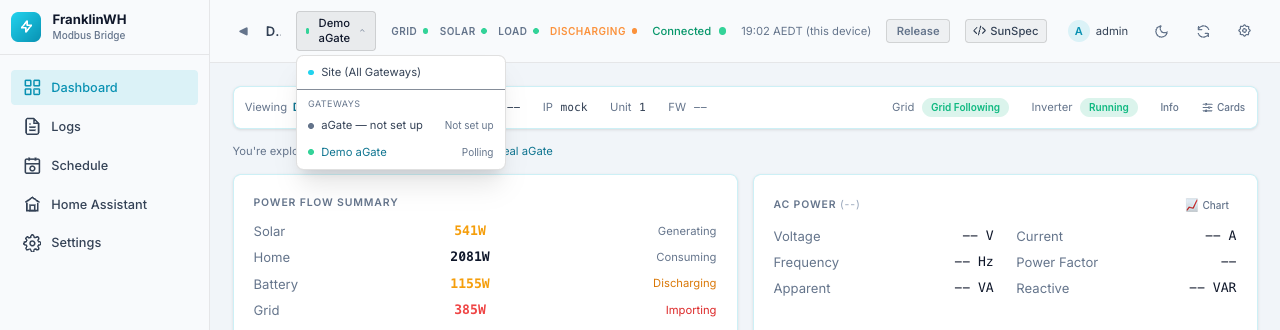
Shown only when the bridge has two or more gateways.
- Site (All Gateways) combines every gateway's data where that makes sense (for example, Power History is labelled Combined).
- Under Gateways, each gateway shows its name and a status: Polling, Connected, Offline, Not set up or Stopped. A gateway with no address yet is shown as aGate — not set up.
Until you pick one, the UI shows a gateway that is actually producing data. So with an unconfigured aGate and the demo gateway, it opens on the demo. Once you pick, it stays on your choice for the rest of the session.
The selection changes the Dashboard cards, Power History, Events and the Energy Flow card. It does not change the simple dashboard.
Status dots
| Dot | Green / lit when | Tooltip |
|---|---|---|
| Grid | The aGate reports the grid as connected | "Grid: connected / not connected". A red Grid dot means the aGate is islanded (off-grid). |
| Solar | Solar power is above 0 W | "generating / not generating" |
| Load | Home load is above 0 W | "consuming / none" |
| Battery | The label is the battery's own state: Charging, Discharging or Standby | — |
When you have sent a force command (from the Dashboard, the simple dashboard or a schedule), an orange Forced badge appears next to the battery state. This is different from the battery's normal charging and discharging.
Nothing in the top bar is hidden because the window is narrow. When it doesn't fit on one line it wraps onto a second (and on a phone a third): page title and gateway first, then the connection, time and buttons, then the Grid / Solar / Load / battery indicators.
The time shows the bridge's timezone, for example 20:18 NZDT. If your device is in a
different timezone, a second labelled line gives your local time too.
Release
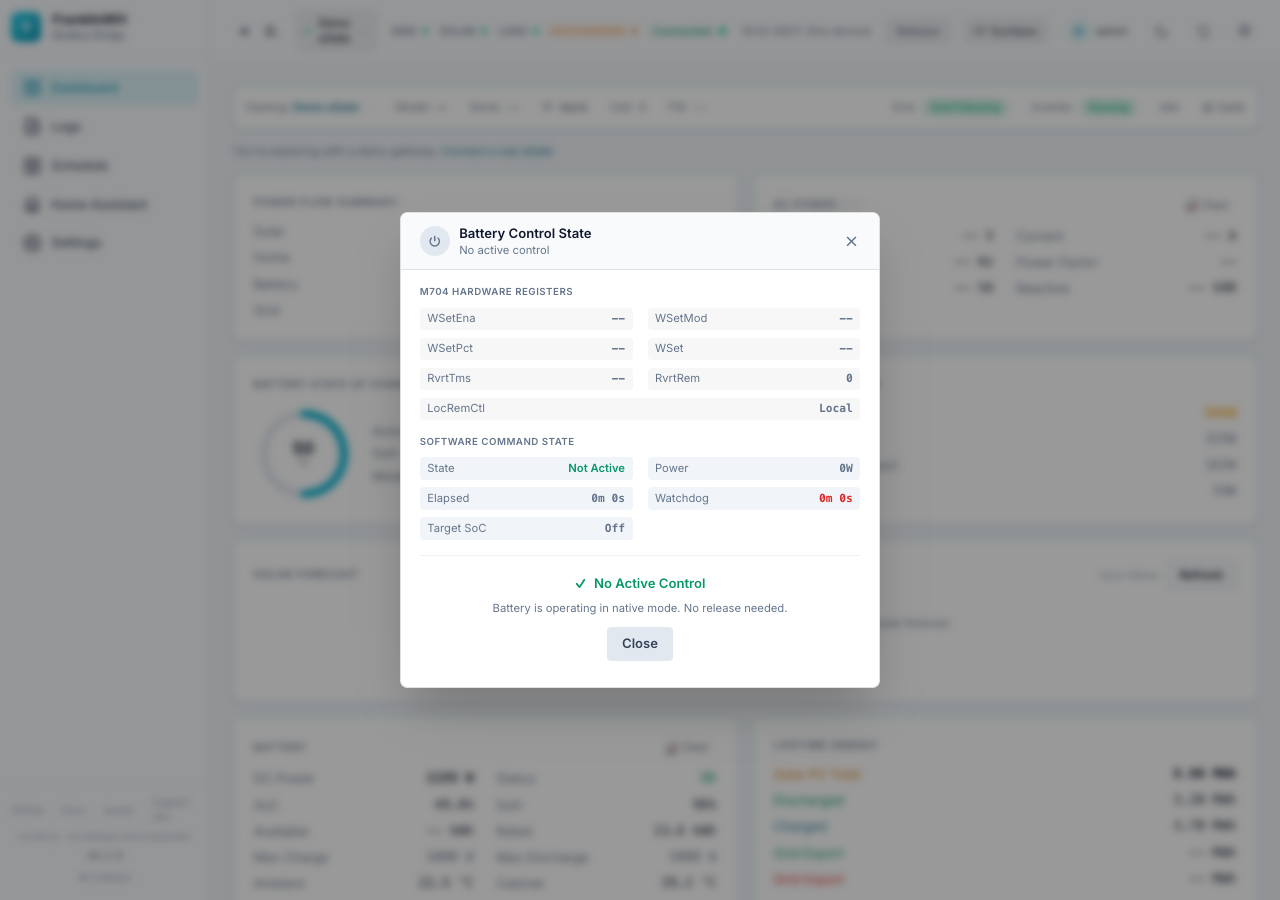
The Release button gets a red dot when a battery command is active. Click it to see the control state, read straight from the aGate and from the bridge.
M704 Hardware Registers (the aGate's own control registers):
| Field | Meaning |
|---|---|
WSetEna |
Power setpoint enabled (1) or not (0). |
WSetMod |
Setpoint mode. |
WSetPct |
Setpoint as a percentage of the aGate's rating (hover for the raw register). |
WSet |
Setpoint in watts. |
RvrtTms |
Hardware revert timer: how long the setpoint lasts before the aGate drops it. |
RvrtRem |
Time left on the hardware revert timer. |
LocRemCtl |
Local or remote control. |
Software Command State (what the bridge has commanded):
| Field | Meaning |
|---|---|
| State | Not Active, Force Charge, Force Discharge or Force Standby. |
| Power | Commanded power in watts. |
| Elapsed | How long the command has run. |
| Watchdog | Time left before the bridge stops the command. No limit means it runs until released or until the target SoC. |
| Target SoC | The SoC that ends the command, or Off. |
If there is active control, Force Release zeroes WSetPct and WSet, disables
WSetEna, clears the revert timer and stops any dispatch. The aGate returns to its own
(native) mode. If nothing is active, the dialog says No Active Control and offers only
Close.
Warning
Force Release stops a dispatch that a schedule started too. The schedule may start it again at its next evaluation if its conditions still hold.
SunSpec button
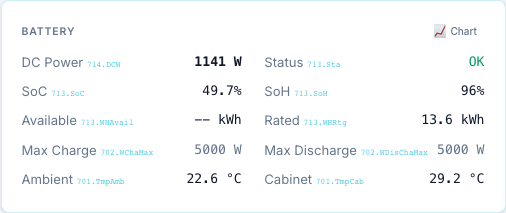
Turns on small grey labels next to values, showing where each one comes from: a SunSpec
model.point (for example 713.SoC) or a FranklinWH extension register (ext.15508).
Useful when you compare the UI with the SunSpec Explorer or report a
wrong value. The setting is stored in this browser.
User menu
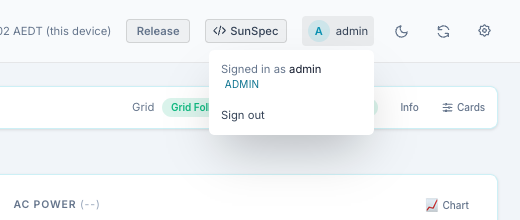
Shows who is signed in and their role. Sign out ends this login.
Top bar preferences
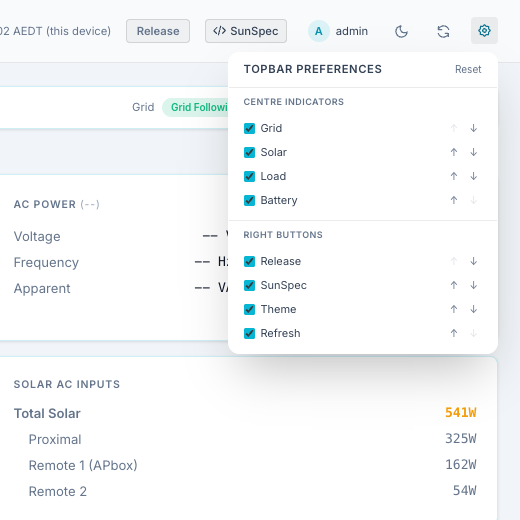
The gear opens Topbar Preferences:
- Centre Indicators: Grid, Solar, Load, Battery.
- Right Buttons: Release, SunSpec, Theme, Refresh.
Untick an item to hide it. Use ↑ / ↓ to change the order. Reset restores the defaults (everything shown, in the order above). These preferences are stored in this browser only.