Settings → Home Assistant¶
?tab=settings§ion=home-assistant — how the bridge publishes entities to Home
Assistant over MQTT, and which Home Assistant instances it reads from.
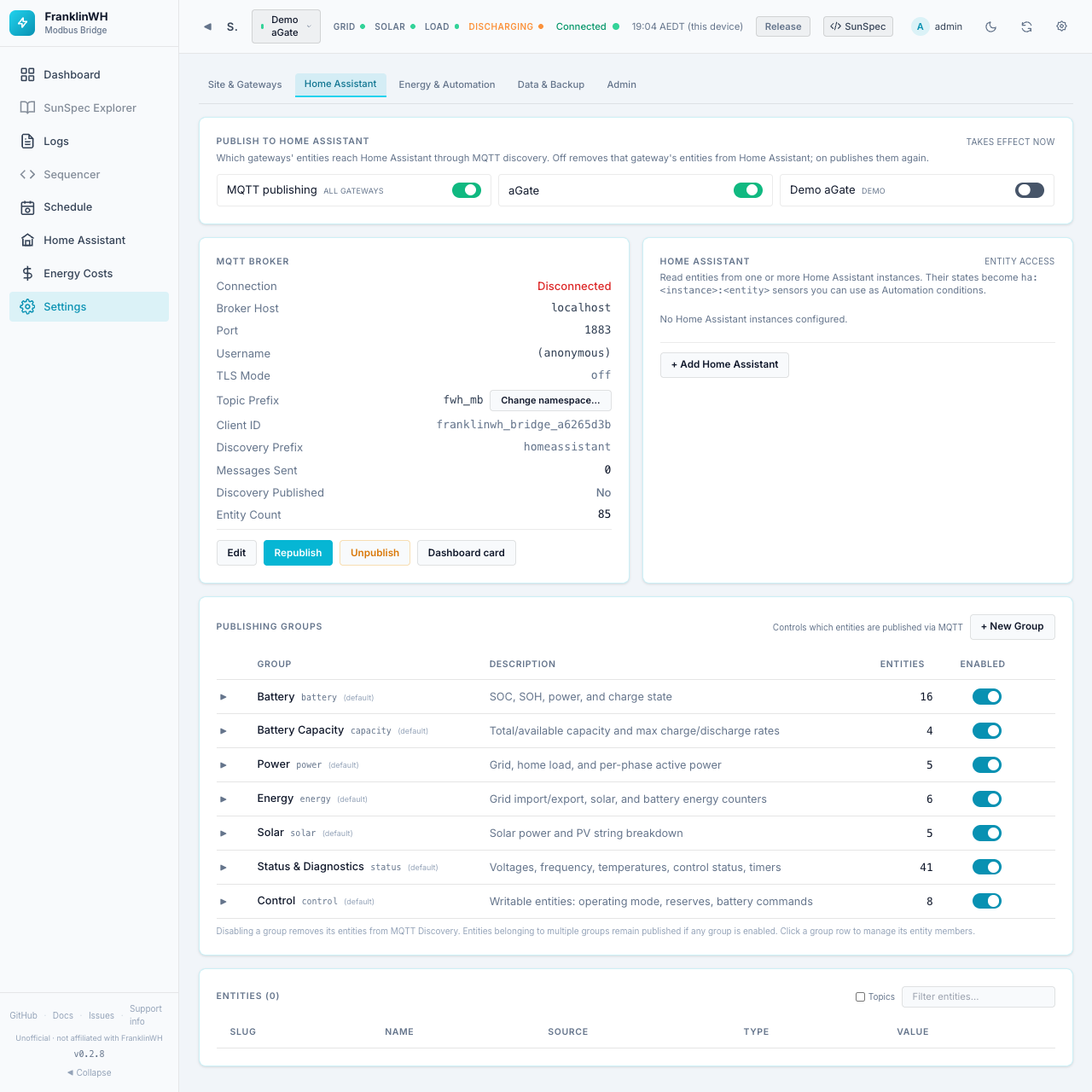
Cards on this page:
How the bridge's entities are named, moved and cleaned up is covered in Fixing, moving and removing entities.
Publish to Home Assistant¶
Switches that decide which gateways' entities reach Home Assistant through MQTT discovery. They take effect at once.
| Switch | Default | On | Off |
|---|---|---|---|
| MQTT publishing (all gateways) | On | The bridge connects to the broker and publishes. | Nothing is published for any gateway. Entities already in Home Assistant show unavailable; they are not removed. Use Unpublish to remove them. |
| One switch per gateway (demo and disabled badges where they apply) | On for real gateways; off for the demo created by the setup wizard | That gateway's device and entities are published. | Its entities are removed from Home Assistant. Switch it on again to re-create them. |
With MQTT publishing off, the card says so: the per-gateway switches have no effect until it is on again.
The per-gateway switch is the same setting as Publish this gateway to Home Assistant in the Edit Gateway dialog.
MQTT Broker¶
The connection to the MQTT broker that Home Assistant listens to.
Depends on: an MQTT broker. On the Home Assistant add-on, install the Mosquitto broker app. The bridge then configures itself from Home Assistant's MQTT service (the card says Configured automatically from Home Assistant's MQTT service). If no broker is installed yet, it says Waiting for a broker with a link to install one; the bridge connects as soon as it is running. With Docker, enter the broker's details here.
| Field | Meaning |
|---|---|
| Connection | Connected, Disconnected, or Disabled (MQTT publishing off). |
| Broker Host, Port | Where the broker is. Default localhost, 1883. |
| Username | Or (anonymous). |
| TLS Mode | off, tls, or tls_insecure (TLS without checking the certificate). |
| Topic Prefix | The bridge's namespace, default fwh_mb. Changed with Change namespace…. |
| Client ID | The bridge's MQTT client ID. |
| Discovery Prefix | homeassistant. Fixed; it must match Home Assistant's. |
| Messages Sent | Since the bridge started. |
| Discovery Published | Yes, No, or Unpublished — Republish to restore. |
| Entity Count | Entities the bridge publishes. |
Buttons: Edit, Republish, Unpublish, Dashboard card.
Editing the broker¶
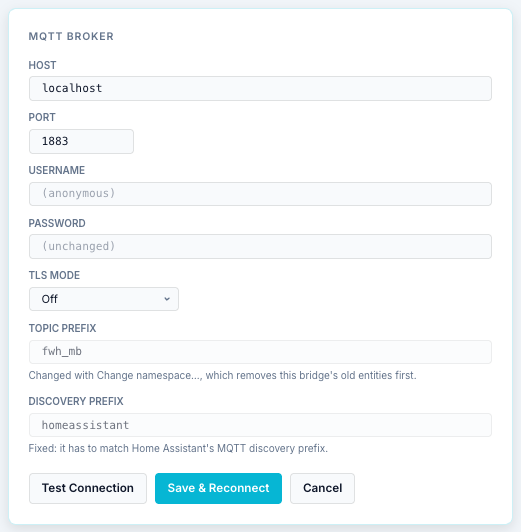
| Field | Notes |
|---|---|
| Host | Broker hostname or IP. |
| Port | 1–65535. |
| Username | Empty = anonymous. |
| Password | Leave empty to keep the stored one. |
| TLS Mode | Off, TLS, TLS (insecure). |
| Topic Prefix | Read-only here. Use Change namespace…. |
| Discovery Prefix | Read-only. |
A field set by an environment variable is read-only, with the variable's name under it: change it where the bridge runs, then restart.
Test Connection tries the settings without saving. Save & Reconnect saves and reconnects. Cancel discards.
Change namespace¶
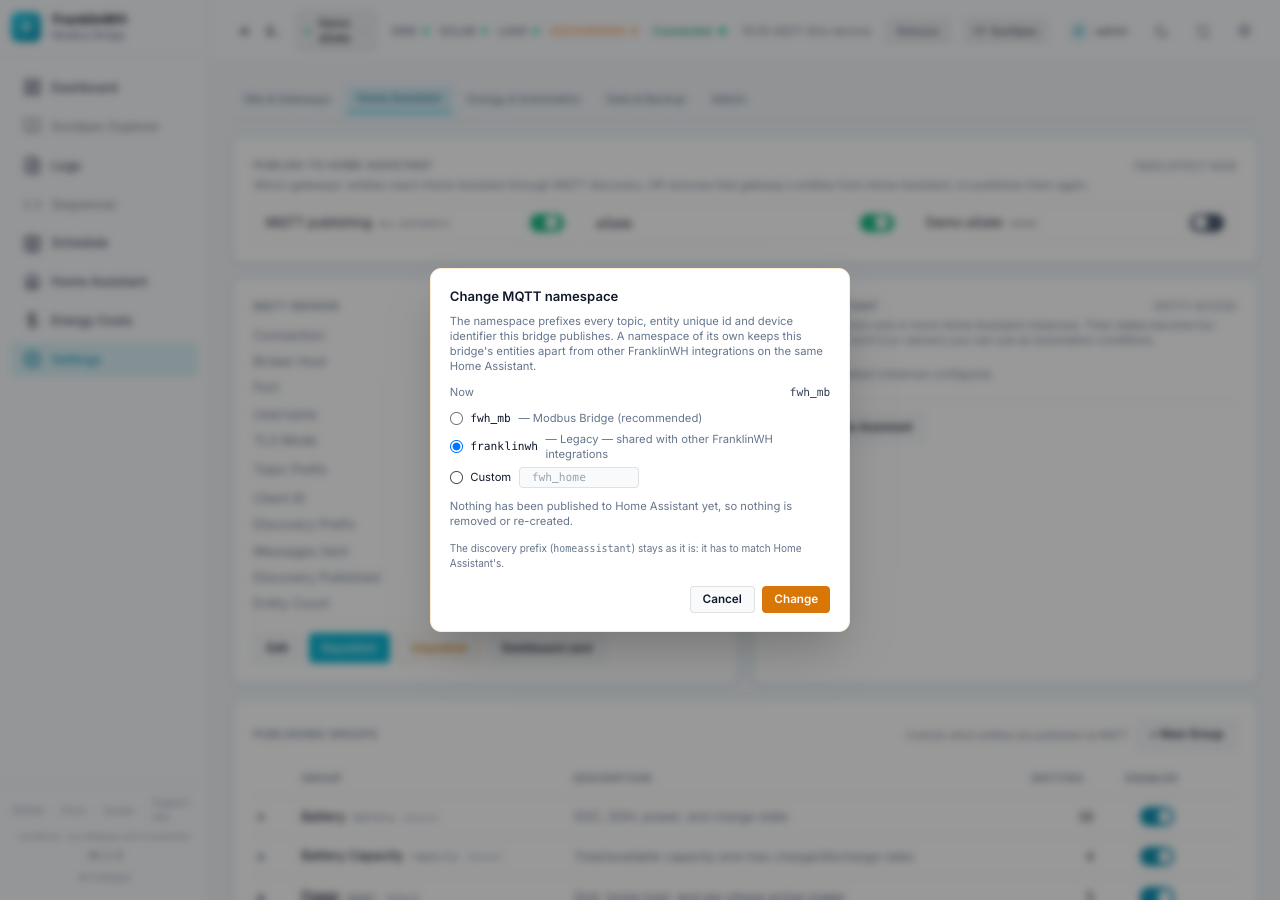
The namespace prefixes every topic, entity unique ID and device identifier the bridge publishes. A namespace of its own keeps this bridge's entities apart from other FranklinWH integrations on the same Home Assistant.
| Choice | Meaning |
|---|---|
fwh_mb |
Modbus Bridge (recommended, the default for new installs). |
franklinwh |
Legacy: shared with other FranklinWH integrations. |
| Custom | fwh_ plus 2–8 lowercase letters or digits, for example fwh_home. fwh_ai, fwh_lb and fwhai are reserved for other producers. |
If entities have already been published, the dialog explains what happens:
- Home Assistant creates new entities and a new device under the new namespace.
- Dashboards, automations and scripts using the old entity IDs need updating.
- Whether Home Assistant carries the old entities' history over is not established — assume it doesn't.
- Only entities this bridge published are removed from the old namespace. Another integration's entities there are left alone.
The button reads Change and re-create entities (or Change if nothing has been published). Afterwards the dialog reports how many old entities were removed and how many belonged to others. The discovery prefix does not change.
Republish and Unpublish¶
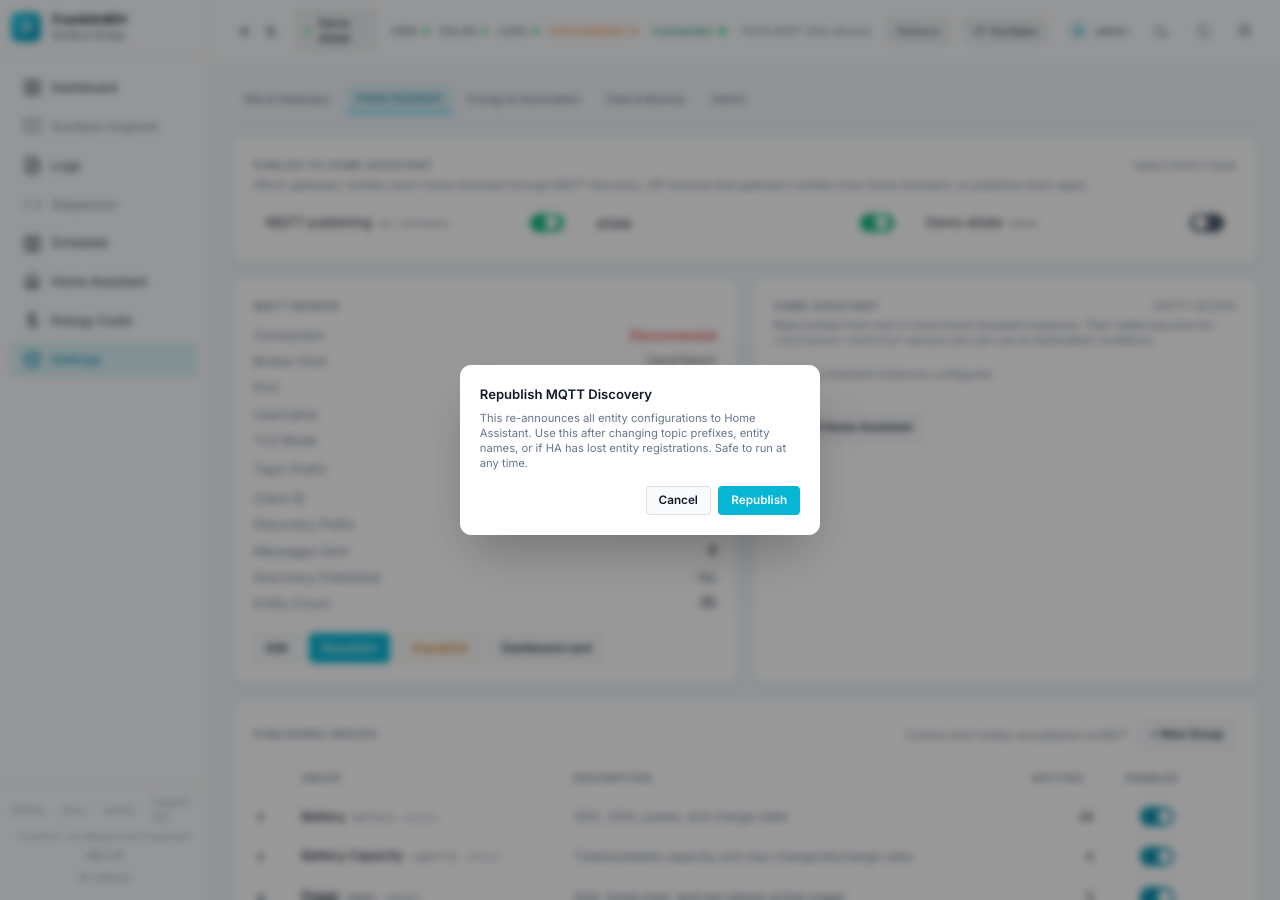
Republish re-announces every entity configuration to Home Assistant. Use it if Home Assistant has lost entities, or after renaming. Safe at any time.
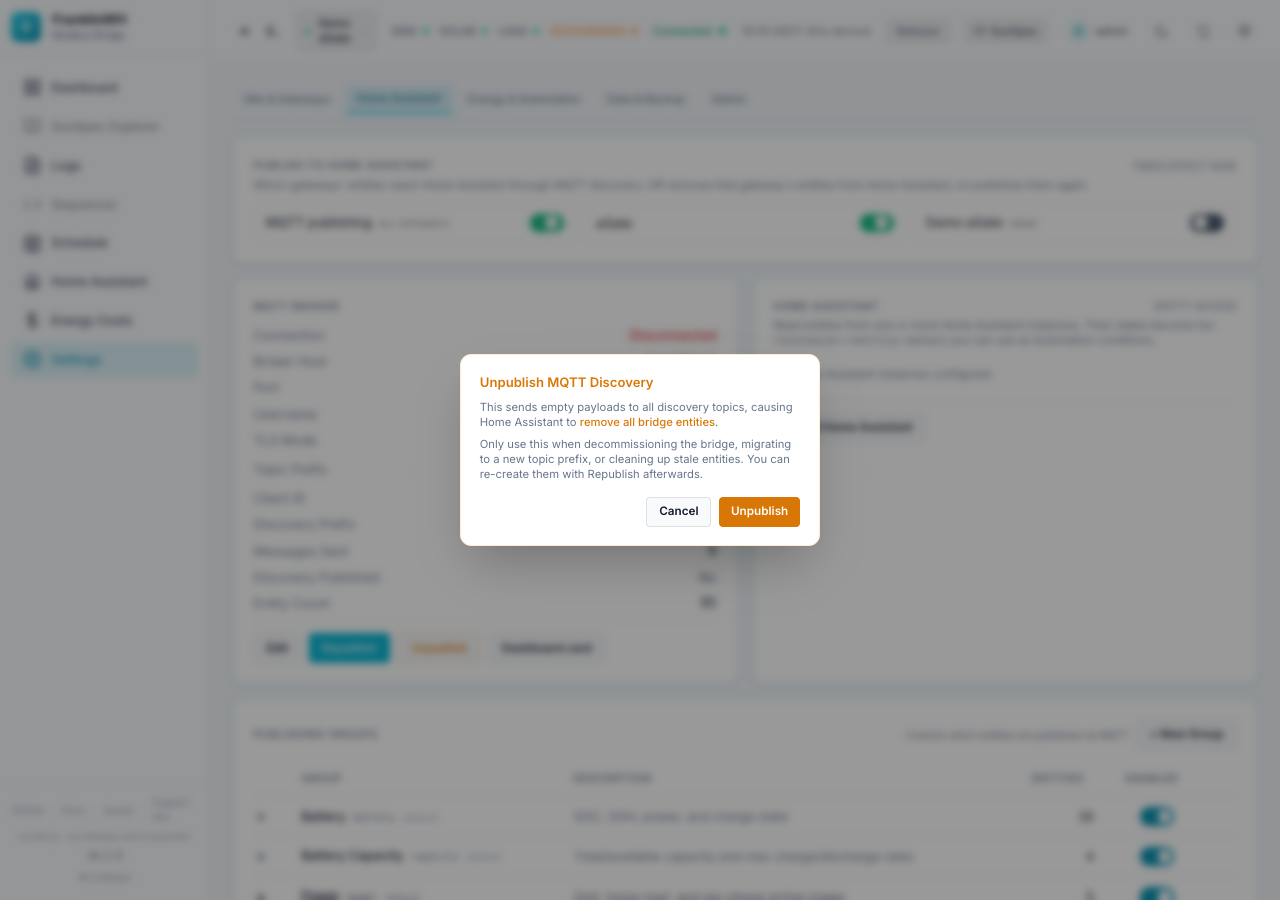
Unpublish sends empty discovery messages, so Home Assistant removes all of the bridge's entities. Use it only when decommissioning the bridge or cleaning up stale entities. The entities stay removed until you press Republish.
Dashboard card¶
Opens the Home Assistant page with the dashboard card YAML dialog. It needs a Home Assistant instance (below).
Home Assistant instances¶
The Home Assistant installations the bridge reads from. Their entity states become
ha:<instance>:<entity> sensors that schedules can use as conditions, after you expose
them on the Home Assistant page. An instance is also used by
Use Home Assistant's location, the dashboard card YAML, and HA price entities.
Each instance shows: name, badges (default, disabled, auto), URL, token (set, none or Supervisor), status (connected · live over WebSocket, connected · poll, or offline with the last error) and its entity count.
On the add-on, the Home Assistant it runs in is added automatically (auto) through the Supervisor. It has no URL or token and cannot be deleted.
Step by step, with creating the token in Home Assistant and sending notifications: Home Assistant setup: instance & notifications.
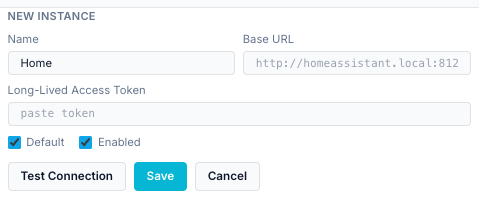
+ Add Home Assistant (or Edit on an instance):
| Field | Notes |
|---|---|
| Name | For example Home. Used in sensor names. |
| Base URL | For example http://homeassistant.local:8123. Not shown for an auto instance. |
| Long-Lived Access Token | Create one in Home Assistant under your profile → Security. Leave empty to keep the stored one. |
| Default | The instance used when none is named. |
| Enabled | Off stops reading it. |
Test Connection, Save, Cancel. The bin icon deletes an instance.
Note
This card uses the same API as the HA Entities feature module. If you switch that module off in Feature Modules, the instance list cannot load.
Publishing Groups¶
Groups decide which entities are published over MQTT. Every entity belongs to one or more groups.
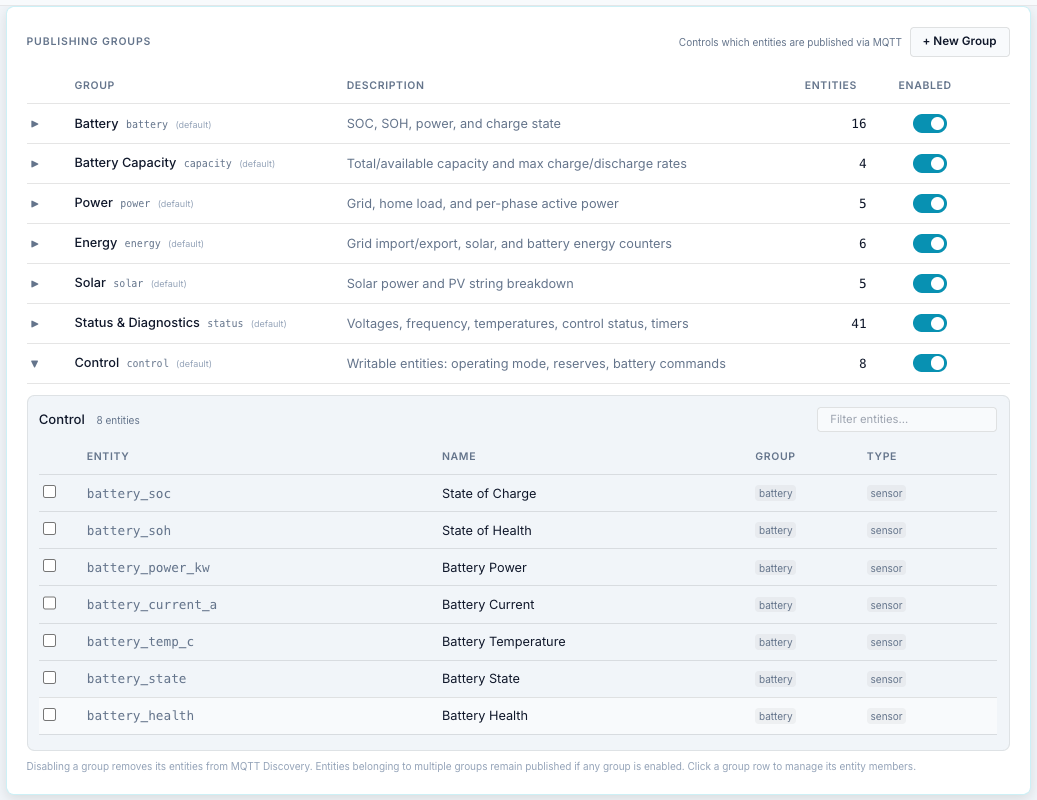
The built-in groups (marked (default)):
| Group | Slug | Entities | Contents |
|---|---|---|---|
| Battery | battery |
16 | SoC, SoH, power, charge state |
| Battery Capacity | capacity |
4 | Total/available capacity, max charge/discharge rates |
| Power | power |
5 | Grid, home load, per-phase active power |
| Energy | energy |
6 | Grid import/export, solar, battery energy counters |
| Solar | solar |
5 | Solar power and PV inputs |
| Status & Diagnostics | status |
41 | Voltages, frequency, temperatures, control status, timers |
| Control | control |
8 | Writable entities: operating mode, reserves, battery commands |
(Counts as in 0.2.8.)
- The Enabled switch turns a group on or off. Disabling a group removes its entities from Home Assistant. An entity in several groups stays published while any of its groups is enabled.
- Click a group row to list its members. Tick or untick entities to add or remove them; Filter entities… searches.
- + New Group: Slug (lowercase, 2–63 characters, letters, digits and underscores), Display Name and Description. Custom groups can be deleted with ✕; the built-in ones cannot.
Tip
Switching off the Control group removes the writable entities (mode, reserves, battery commands) from Home Assistant, and the bridge stops accepting commands on its MQTT command topics, so nobody can command the battery through Home Assistant or MQTT. The web UI and REST API still can.
Entities¶
The full list of entities the bridge publishes, with live values: Slug, Name, Source (the SunSpec point or register), Type (sensor, number, select …) and Value.
- Filter entities… searches.
- Topics adds the MQTT state topic of each entity.
- With more than one publishing gateway, a dropdown picks which gateway's list to show.