Dashboard
The Dashboard (?tab=dashboard) is the live view of the gateway chosen in the
gateway selector. Values refresh every 10 seconds.
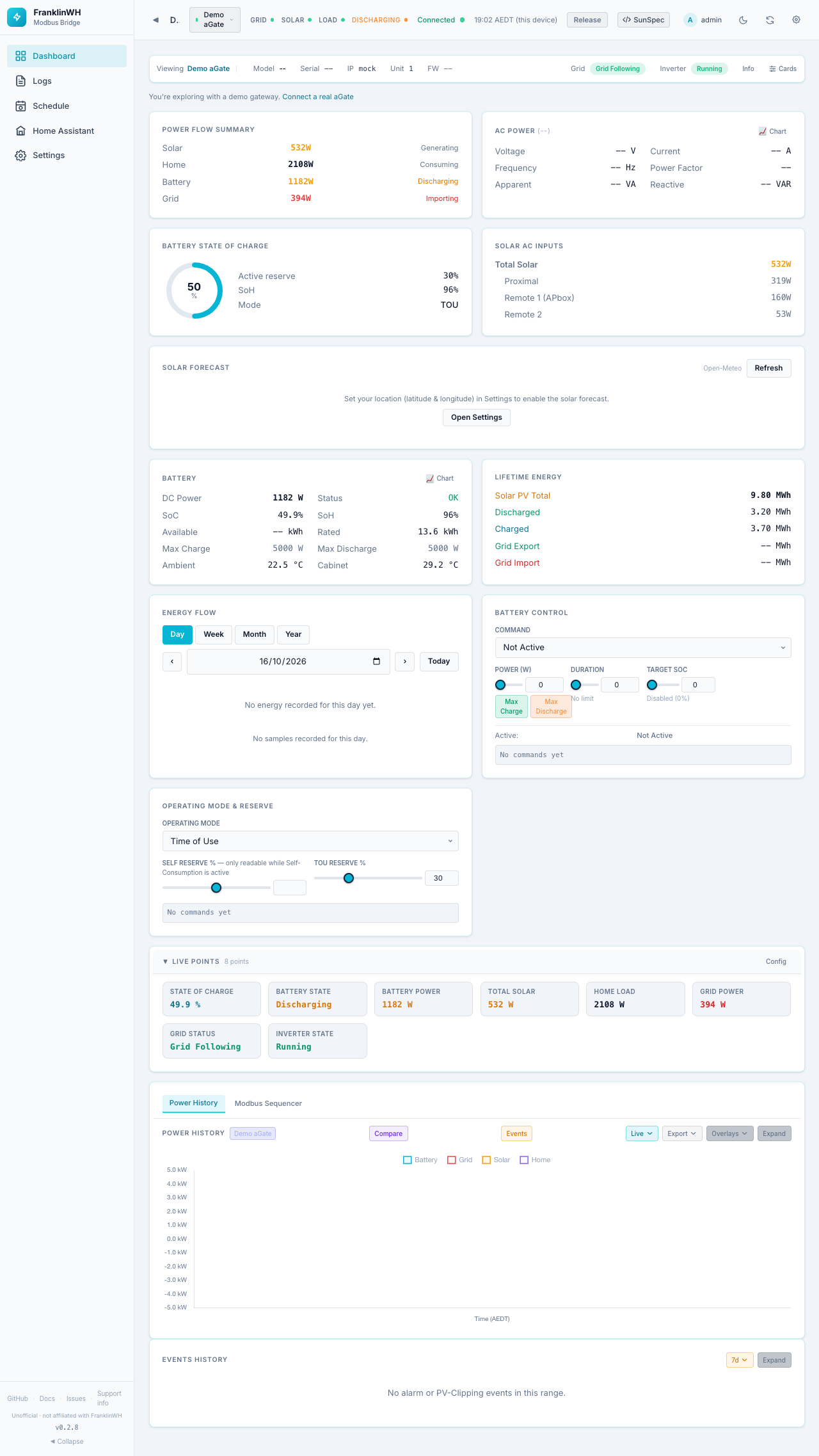
From top to bottom it has:
- a device info bar;
- any banners that need your attention;
- the cards, in two columns (one on a phone);
- the Live Points panel;
- Power History (with a Modbus Sequencer tab);
- Events History.
Device info bar
| Field | Meaning |
|---|---|
| Viewing | The gateway being shown (only with more than one gateway). |
| Model, Serial | Reported by the aGate. -- on the demo gateway. |
| SoC | The battery's state of charge. The firmware version, which this bar used to show, is in Info and in Support info. |
| IP, Unit | The gateway's address and Modbus unit ID from its settings. |
| Grid | Grid mode: Grid Following (on-grid) or Grid Forming (islanded, the aGate is making its own grid). |
| Inverter | Inverter state, for example Running. |
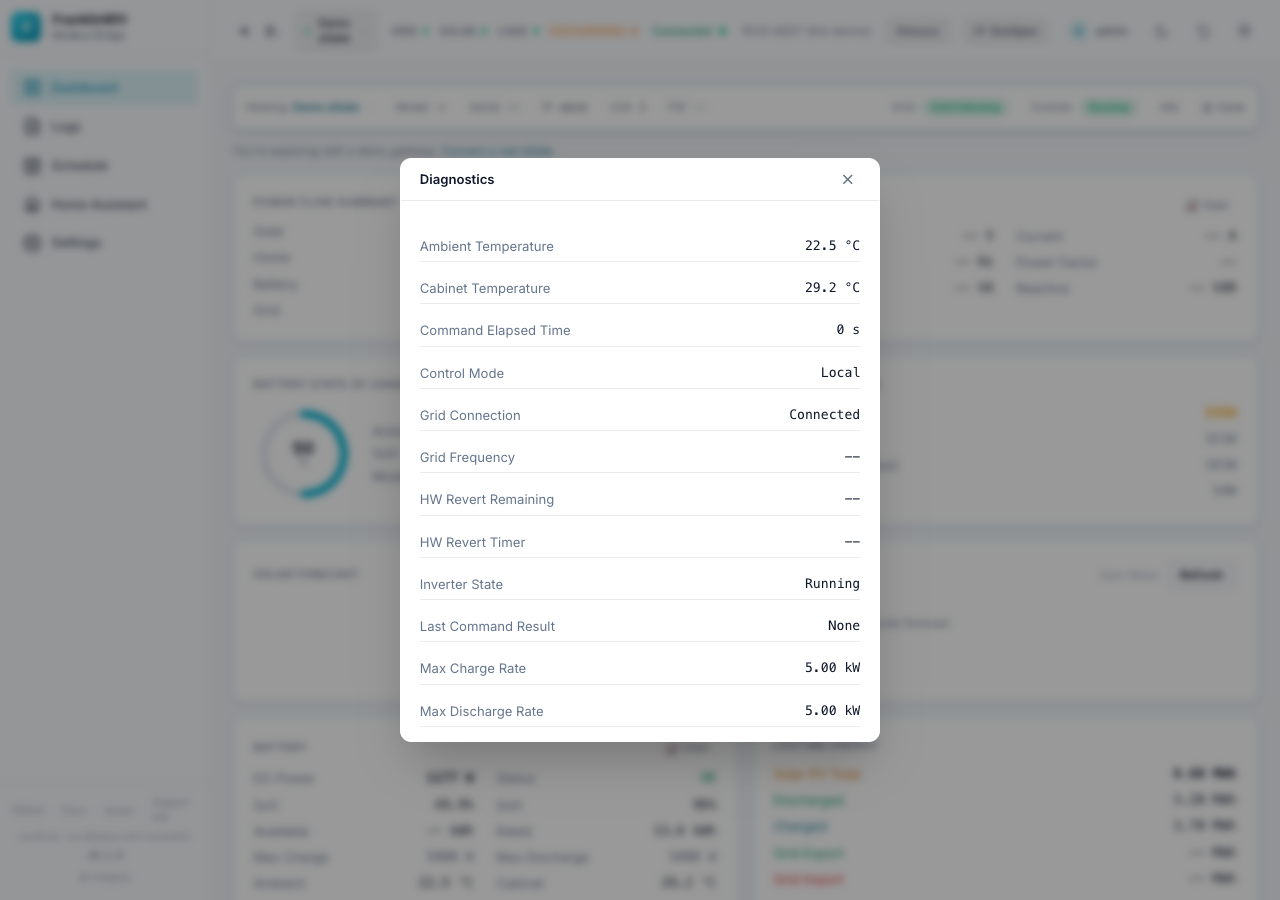
| Info | Opens Diagnostics: about 20 control and health readings in one list (control mode, firmware, setpoints, revert timers, watchdog, last command result, temperatures, capacity). |
| Cards | Opens the card list: show, hide and reorder cards. |
Banners
These appear above the cards only when they apply.
| Banner | When | What to do |
|---|---|---|
| Connect your aGate | No gateway has an address and nothing is polling (a new install). | Set up → starts the setup wizard (admins only). |
| You're exploring with a demo gateway | You chose the demo in the setup wizard and have no real aGate. | Connect a real aGate reopens the wizard. |
| Gateway not running: name | An enabled gateway is not polling. Says Device unreachable or Gateway stopped. | Fix → opens Settings → Site & Gateways. |
| Install an MQTT broker to see entities in Home Assistant | Add-on install with no broker yet. | Install the Mosquitto broker app. The bridge connects by itself; no restart needed. |
Choosing and ordering cards
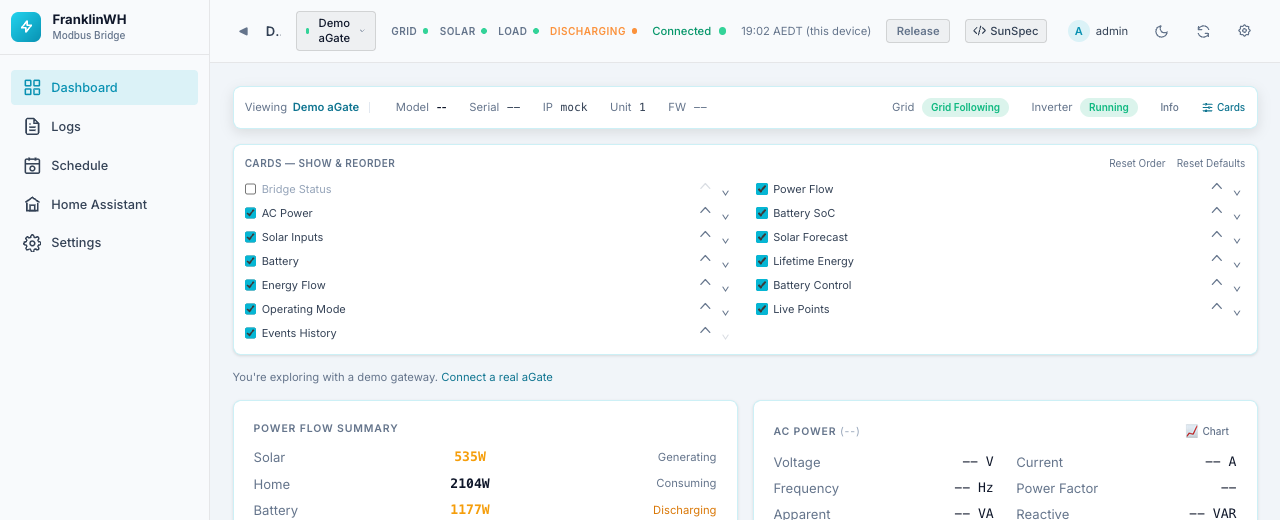
Click Cards in the info bar.
- Tick or untick a card to show or hide it.
- Use the ⌃ / ⌄ arrows to move a card up or down. On a desktop you can also drag a card by its body.
- Reset Order puts the cards back in their default order.
- Reset Defaults restores which cards are shown.
Card choices are stored in this browser only. Another browser or phone keeps its own.
| Card | Shown by default |
|---|---|
| Bridge Status | No |
| Power Flow, AC Power, Battery SoC, Solar Inputs, Solar Forecast, Battery, Lifetime Energy, Energy Flow, Battery Control, Operating Mode, Live Points, Events History | Yes |
Cards
Bridge Status
Hidden by default. Health counters for the bridge process since it started.
| Field | Meaning |
|---|---|
| Uptime | Time since the bridge started. |
| Quality | Share of polls that returned good data, in %. |
| Polls OK / Stale / Error | Poll outcomes. |
| Sanitized | Readings the bridge corrected or dropped as implausible. |
| DB Samples / Rejected | Samples stored in the metrics database, and samples refused. |
| Conn Drops / Recoveries | Modbus connections lost and re-established. |
| MQTT Sent | Messages sent to the MQTT broker. |
| Last Error | The most recent error, or None. |
Power Flow Summary
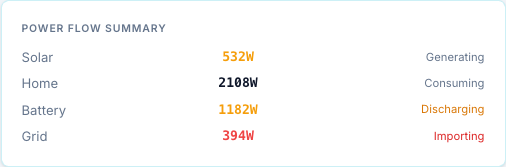
The four main power figures, in watts.
| Row | Sign | Status text |
|---|---|---|
| Solar | Always ≥ 0 | Generating or Idle |
| Home | Always ≥ 0 | Consuming |
| Battery | Positive = discharging, negative = charging | Discharging, Charging or Standby |
| Grid | Positive = importing, negative = exporting | Importing, Exporting or Neutral |
The Home figure comes from the home load register chosen for the gateway (Home Load Register).
AC Power
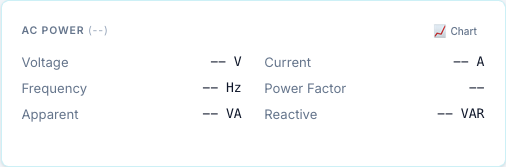
The grid-side AC measurements from SunSpec model 701. The title shows the AC type (single, split or three phase).
| Field | Unit |
|---|---|
| Voltage | V |
| Current | A |
| Frequency | Hz |
| Power Factor | (0–1) |
| Apparent | VA |
| Reactive | VAR |
On a split-phase or three-phase aGate a Per-Phase button opens a table with each value per line (L1, L2, L3), plus line-to-line voltages.
Chart opens the AC metrics chart.
Battery State of Charge
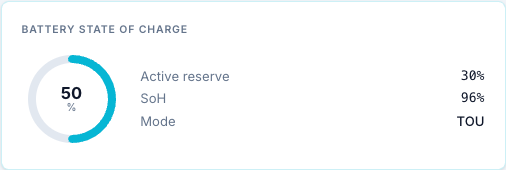
A ring with the battery's state of charge, plus:
| Field | Meaning |
|---|---|
| Active reserve | The reserve of the operating mode in force now, in %. |
| SoH | State of health, in %. |
| Mode | The aGate's operating mode: Time of Use, Self-Consumption or Emergency Backup. |
If you set a Battery Label in System Setup, the card title becomes "<label> — State of Charge".
Solar AC Inputs
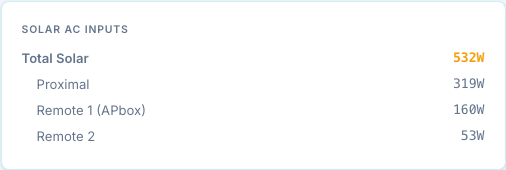
Solar power in watts, from FranklinWH extension registers.
| Row | Meaning |
|---|---|
| Total Solar | All solar inputs together. |
| Proximal | Solar connected at the aGate. |
| Remote 1 (APbox) | Solar on the first remote input (APbox). |
| Remote 2 | Solar on the second remote input. |
Solar Forecast
The solar forecast for today and tomorrow, from Open-Meteo (free, no key).
Needs a location
The card stays empty until you enter a latitude and longitude in Settings → Site & Gateways → Location & Solar. Until then it shows "Set your location … to enable the solar forecast" and an Open Settings button (admins only). The bridge needs internet access to fetch the forecast.

Once configured:
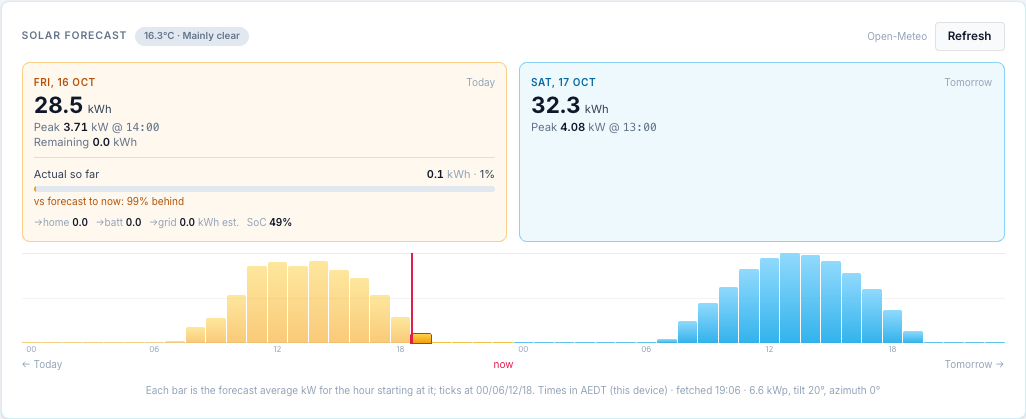
| Part | Meaning |
|---|---|
| Title chip | Current temperature and weather condition. A stale chip means the last fetch failed and the previous forecast is shown. |
| Today box | Forecast kWh for the day, the peak kW and when, and the kWh still to come. |
| Actual so far | Solar measured today in kWh, as a bar against the day's forecast. "vs forecast to now" compares it with what was forecast up to this hour. |
| →home / →batt / →grid | Where today's solar went, in kWh. Reconstructed from power samples (an estimate, not a meter). Then the current SoC. |
| Tomorrow box | Forecast kWh, peak kW and time. |
| Bars | Hourly forecast in kW from today to tomorrow. The current hour is outlined, with a red now line. Ticks at 00, 06, 12 and 18. |
| Battery band | Under today's bars: what the battery did each hour (charging, discharging, idle), estimated from the sampled battery power. |
| Footer | The bridge timezone, when the forecast was fetched, and the array size, tilt and azimuth used. |
Refresh fetches a new forecast now. The bridge otherwise caches it for 15 minutes.
The same data publishes the weather.* and solar_forecast.* sensors that schedules can
use as conditions.
Battery
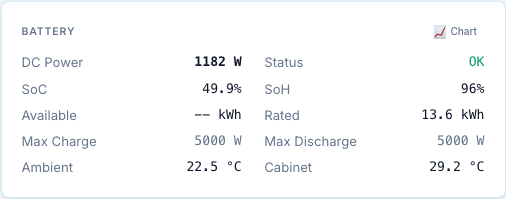
The battery's DC side and ratings. The title is the Battery Label, if you set one.
| Field | Source | Unit |
|---|---|---|
| DC Power | 714.DCW | W |
| Status | 713.Sta (battery health, for example OK) | — |
| SoC | 713.SoC | % |
| SoH | 713.SoH | % |
| Available | 713.WHAvail | kWh |
| Rated | 713.WHRtg | kWh |
| Max Charge | 702.WChaMax | W |
| Max Discharge | 702.WDisChaMax | W |
| Ambient | 701.TmpAmb | °C |
| Cabinet | 701.TmpCab | °C |
Note
Max Charge and Max Discharge here are what the aGate reports in Model 702. They are not the trusted rating that force commands use. See Battery power rating.
Chart opens the DC / Inverter metrics chart.
Lifetime Energy
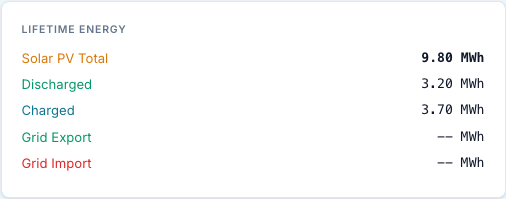
The aGate's own lifetime counters, in MWh: Solar PV Total, Discharged, Charged, Grid Export, Grid Import. These are metered by the aGate, not calculated by the bridge.
Energy Flow
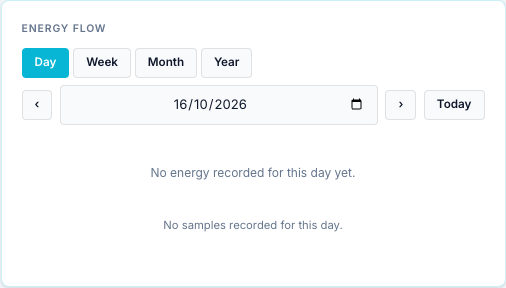
A Sankey diagram of where energy went (solar, grid, battery, home) over a period.
- Day / Week / Month / Year picks the period. Week, month and year are anchored on the chosen date, and the span is shown next to the buttons.
- ‹ › step one day. The date box picks any day up to today. Today jumps back.
- The line under the diagram says how reliable it is: "Derived from power samples; lifetime totals are metered", or "Partial data — the bridge recorded N% of this day" when coverage is under 95%.
The flows are reconstructed from the power samples in the metrics database, so they need the bridge to have been polling. The demo gateway does not store samples, so its card says No energy recorded for this day yet. Today's diagram updates every two minutes.
Battery Control and Operating Mode & Reserve
These two cards send commands to the aGate. They are described on their own page: Battery controls.
Live Points
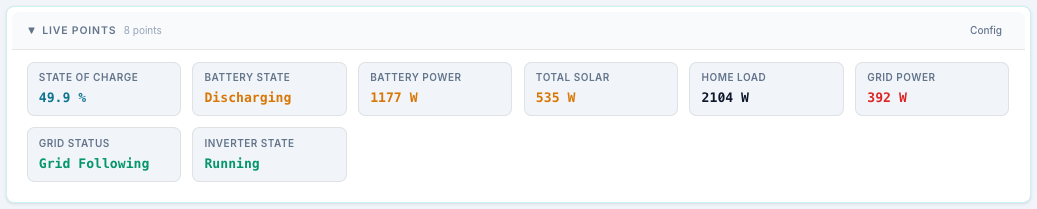
A grid of live values you choose. Click the ▶ Live Points header to collapse or expand it. By default it shows 8 points: State of Charge, Battery State, Battery Power, Total Solar, Home Load, Grid Power, Grid Status and Inverter State.
Config opens the point list:
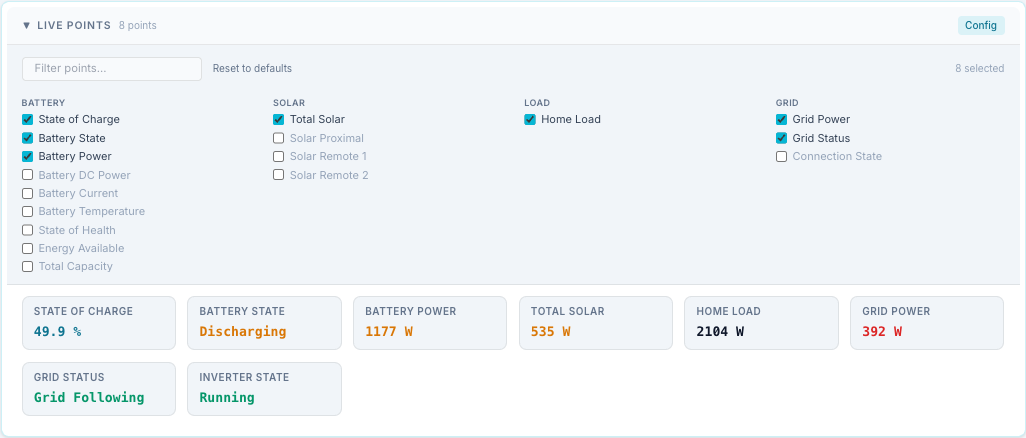
- Tick the points you want. They are grouped (Battery, Solar, Load, Grid, Inverter, AC, Control, Health, Energy).
- Filter points… narrows the list.
- Reset to defaults goes back to the 8 default points.
The choice is stored in this browser. With the SunSpec button on, each tile also shows its source register.
Power History
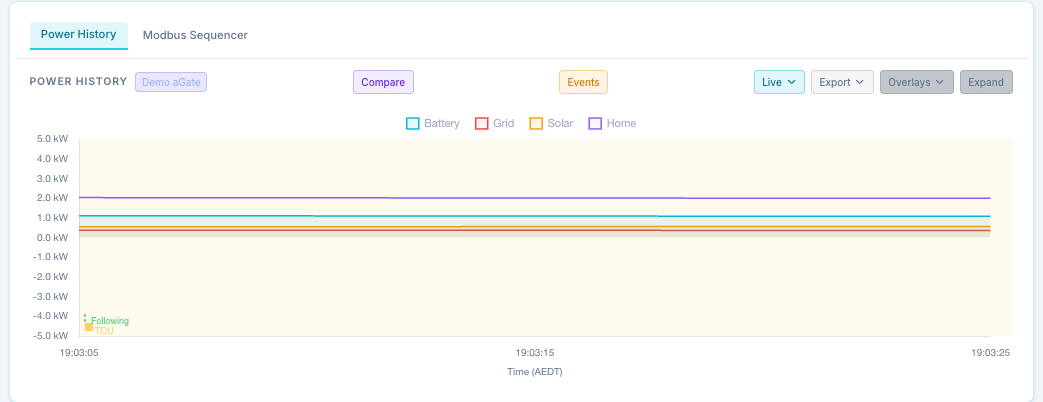
A chart of Battery, Grid, Solar and Home power. Click a legend entry to hide or show that line. The background is shaded by operating mode (TOU, Self, Backup), and dashed vertical lines mark grid-mode changes (Following, Forming, PV Clip) and alarms.
The badge next to the title is the gateway shown, or Combined for Site view.
Toolbar
| Control | What it does |
|---|---|
| Compare | Only with two or more enabled gateways. Opens one chart per gateway, stacked on a shared scale. |
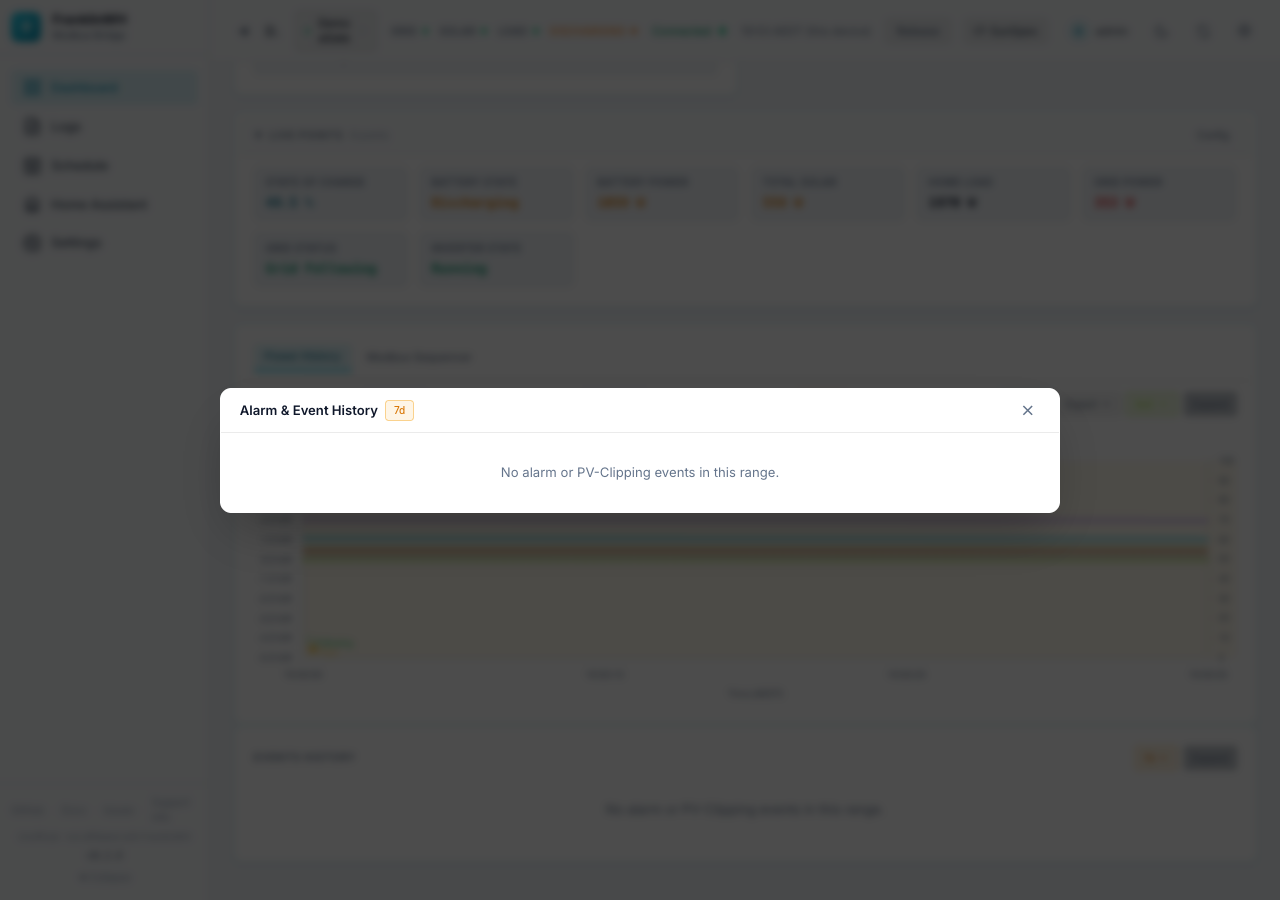
| Events | Opens the full alarm and event history. |
| Time span (shows Live, 24h …) | Live plots what the browser collects from now (updates every 2 s). Or a stored range: 30m, 1h, 2h, 4h, 6h, 8h, 12h, 18h, 24h, 3d, 5d, 7d, 30d. Range… opens From / To boxes for a custom range (in the bridge's timezone, up to 90 days); press Load. |
| Scale (Auto, 1m … 1d) | How samples are averaged into buckets. Hidden in Live. Auto picks one to suit the range. |
| Export | Downloads what the chart shows as CSV or JSON: time, battery, grid, solar, home, SoC, ambient, cabinet, mode and active reserve. |
| Overlays | Adds lines on a second axis: SoC %, Ambient °C, Cabinet °C. Any combination. The button then reads, for example, SoC+Amb. |
| Expand | Opens the chart full-size, with the same span, scale, export and overlay controls. |
On a phone these controls hide behind an Options button.
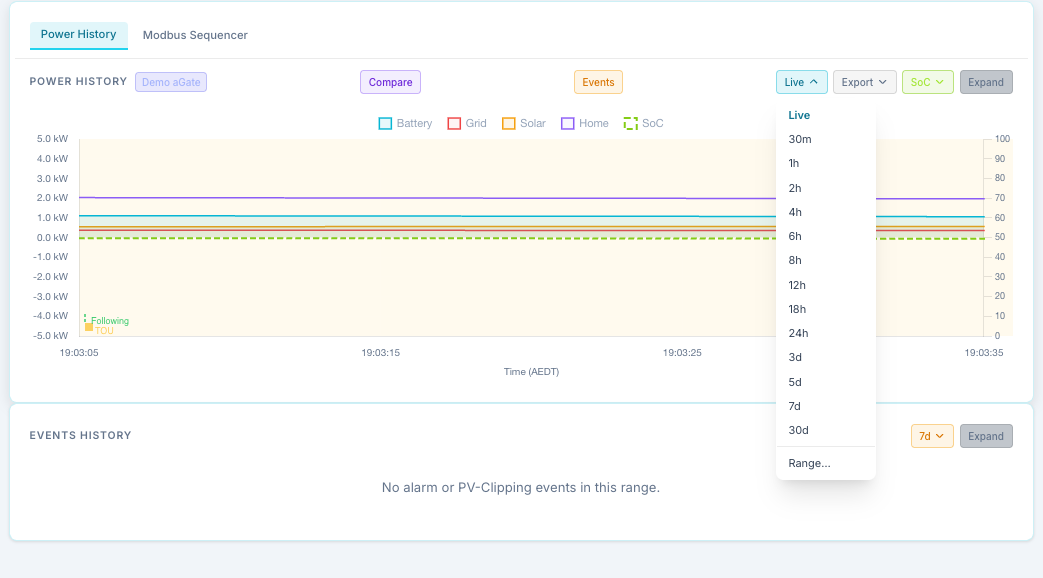
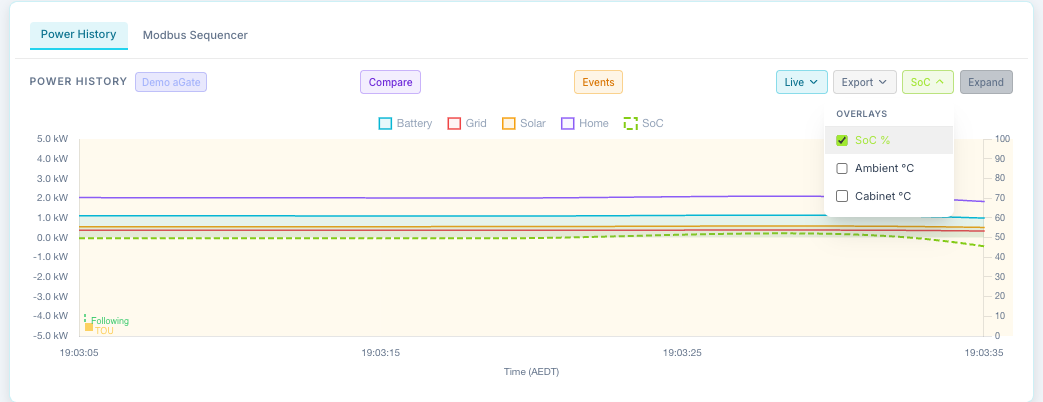
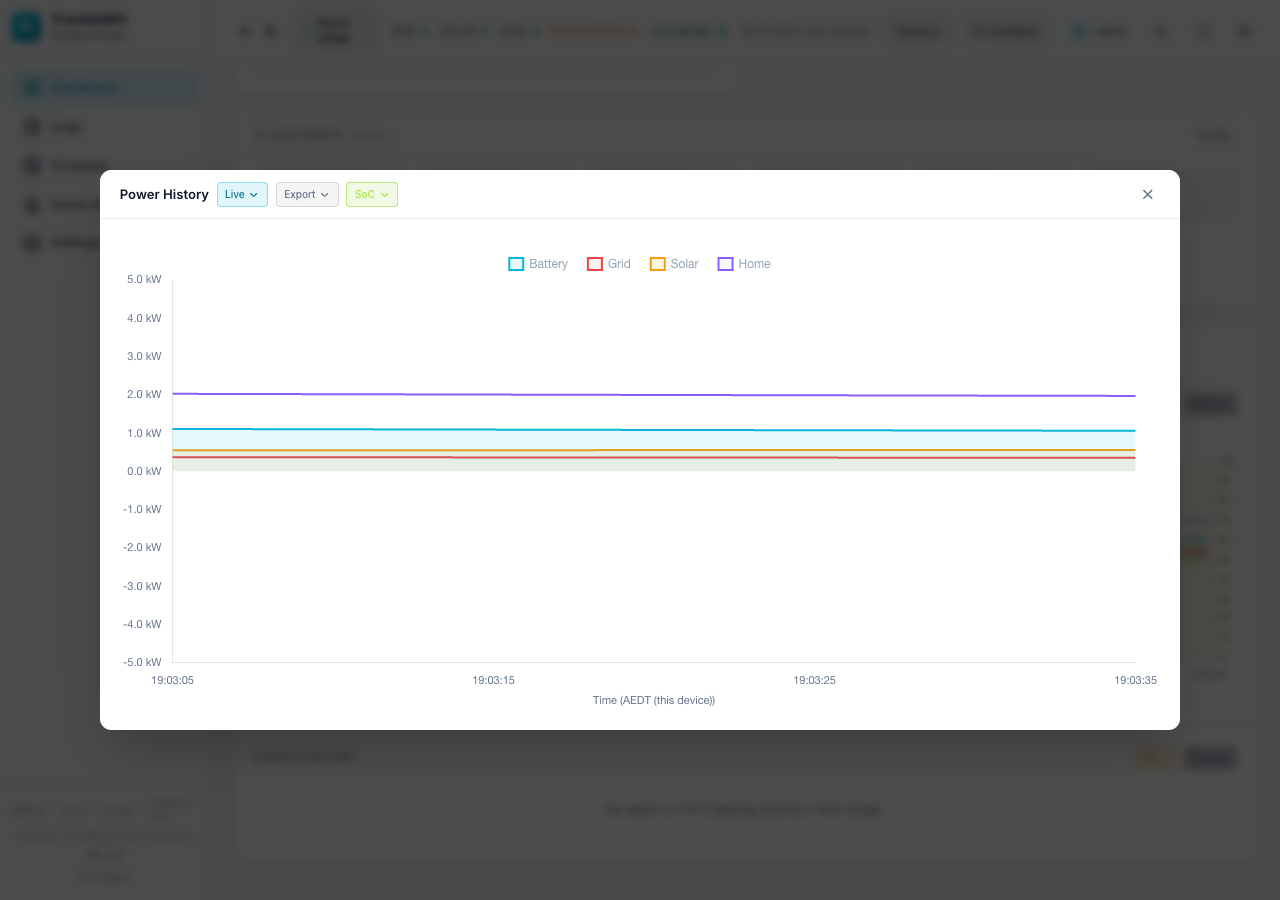
The default span is 24h, and the last one you chose is remembered in this browser. A custom range is not remembered.
Empty chart?
Stored ranges come from the metrics database. A mock or demo gateway's metrics are not recorded, so the chart says so: use Live to see it move. A real gateway shows "No history recorded for this gateway in this range" until it has polled for a while. How long history is kept is set in Data & Backup → Metrics Storage.
Compare
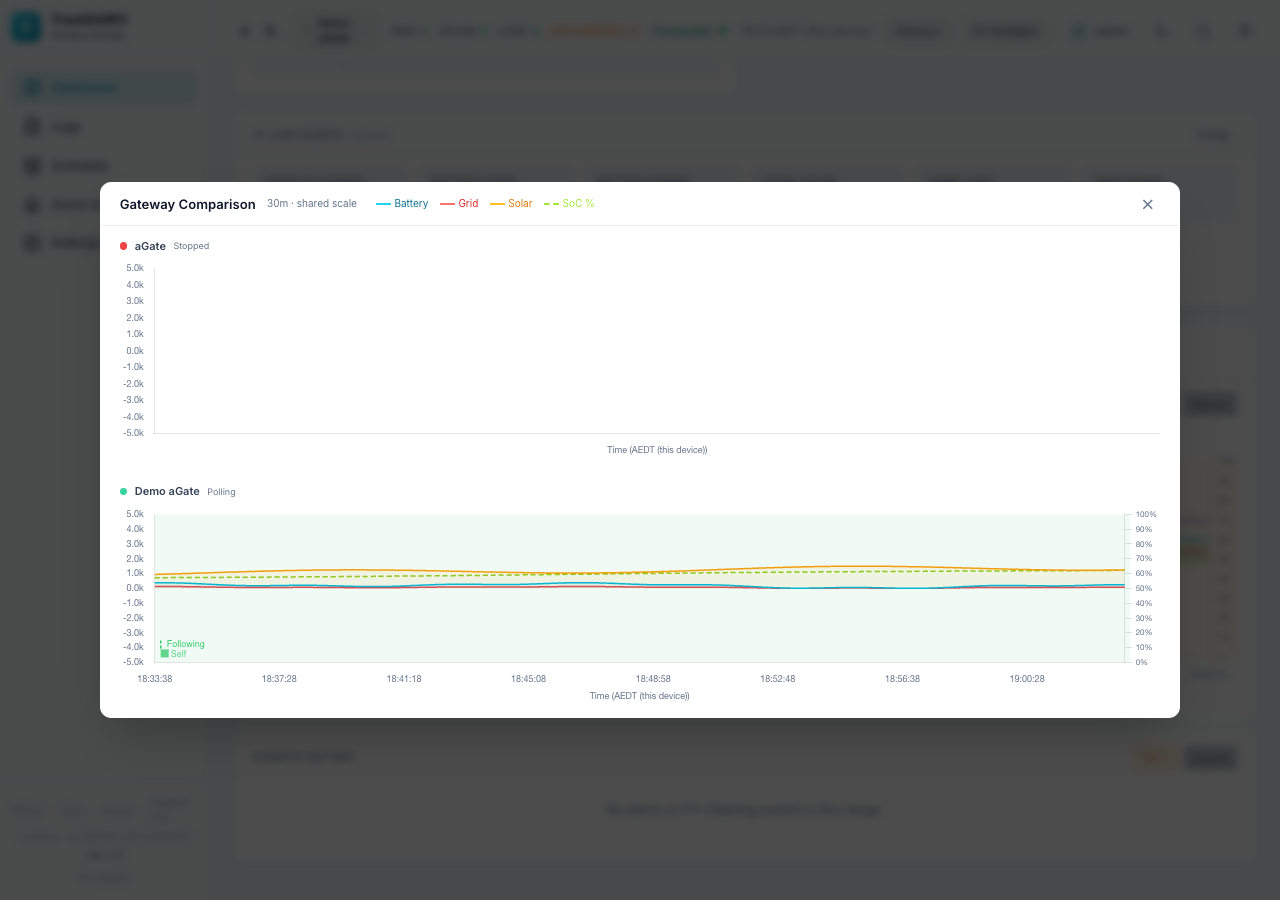
One row per enabled gateway, with its polling status, all on the same scale and span as the main chart. Mock gateways are drawn from synthetic data, since their metrics are not stored.
Modbus Sequencer tab
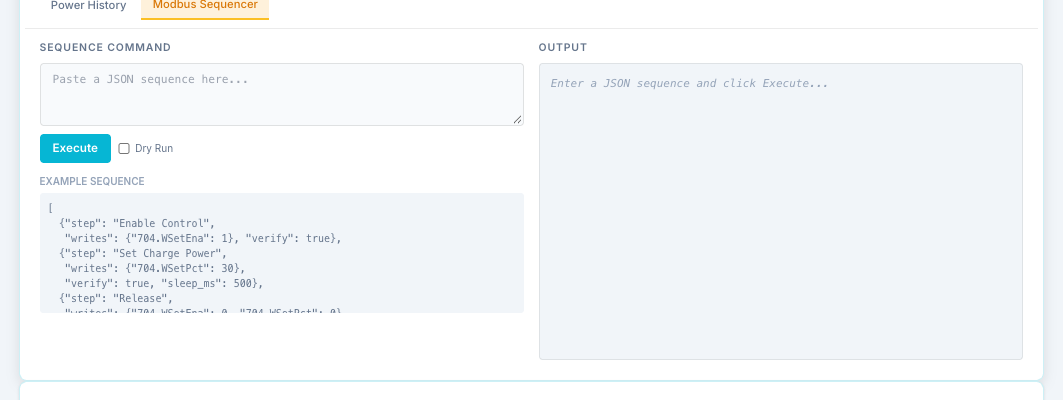
The second tab under the chart runs a JSON sequence of raw Modbus register writes and reads. It is the quick version of the Sequencer page.
- Paste a sequence, tick Dry Run to check it without writing, then Execute.
- The output shows each step.
Danger
A sequence writes registers on a live battery, bypassing the bridge's own safety
checks (including the trusted battery rating). The example writes 704.WSetPct. Use
it only if you know what each register does.
This tab shows on the Dashboard even when the Sequencer feature module is off.
AC and DC metrics charts
The Chart buttons on the AC Power and Battery cards open a chart you can configure.
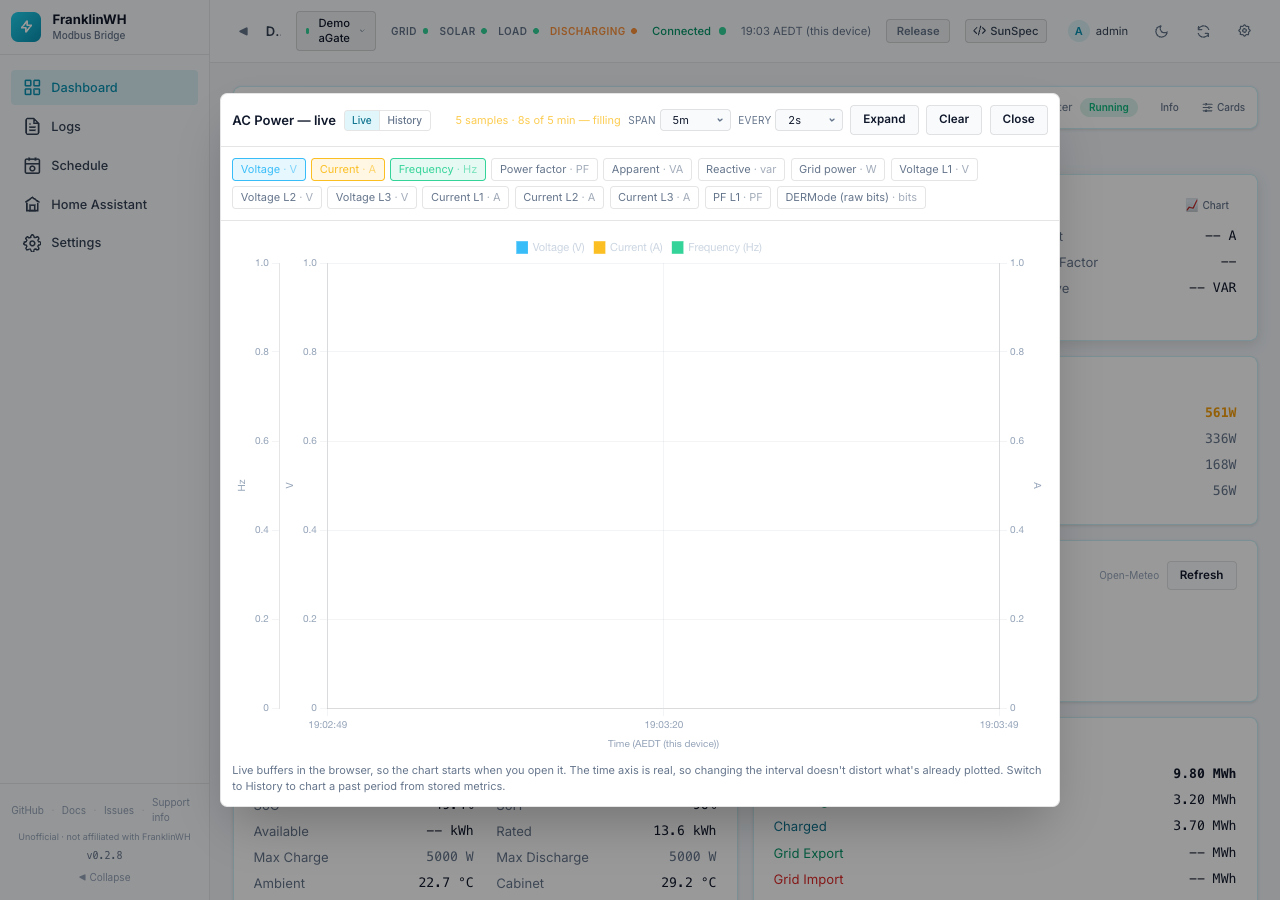
Live mode samples in the browser from the moment you open it.
| Control | Options | Default |
|---|---|---|
| span | 5m, 15m, 1h, 6h | 5m |
| every | 1s, 2s, 5s, 10s, 30s | 2s |
| Expand / Shrink | Larger chart | — |
| Clear | Empties the buffer | — |
History mode charts a past period from the bridge's stored point history.
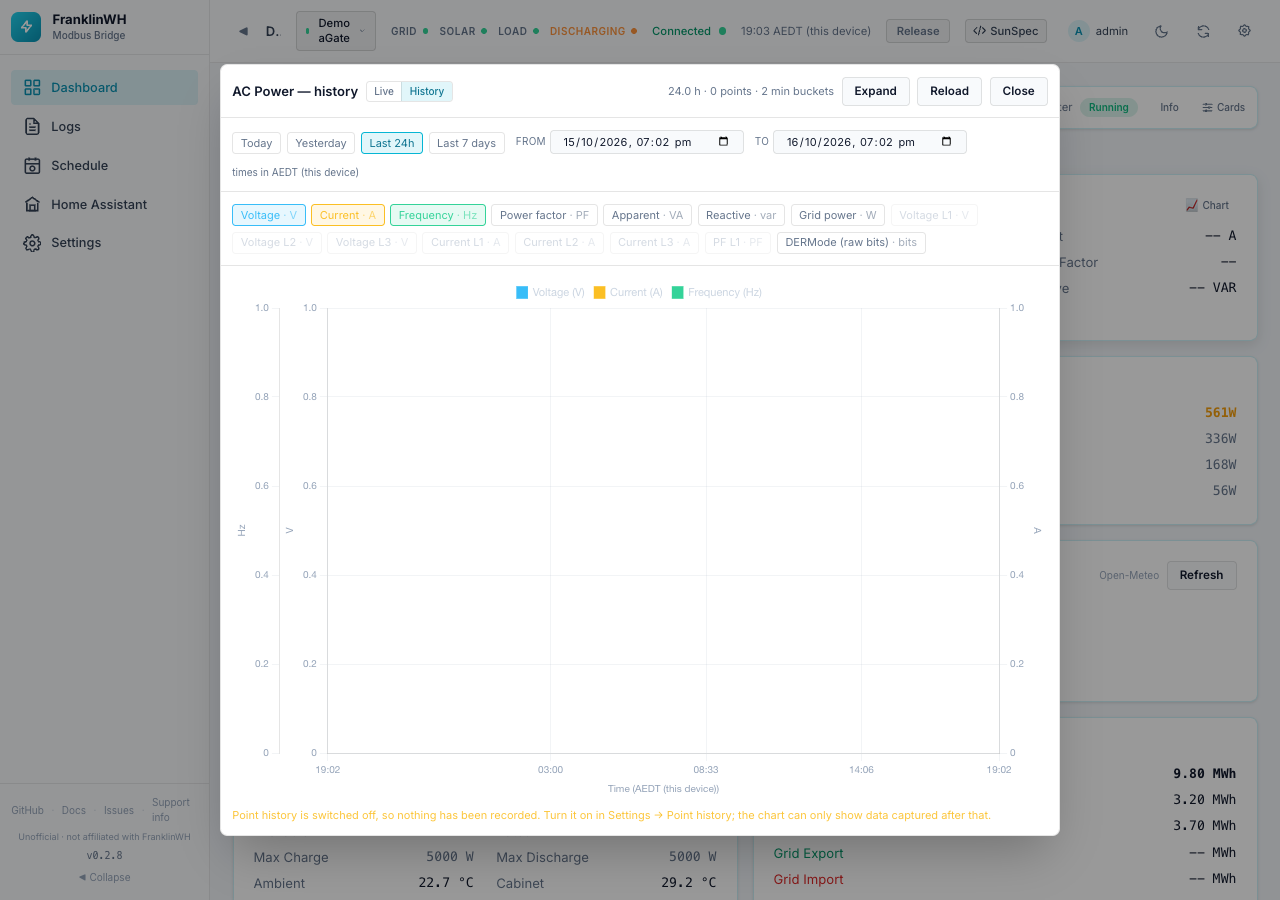
- Presets: Today, Yesterday, Last 24h, Last 7 days, or From / To in the bridge's timezone. Reload fetches again.
- Series buttons pick what to plot. Each unit gets its own axis, so volts, amps and hertz stay readable together.
| Chart | Series (default on in bold) |
|---|---|
| AC Power | Voltage, Current, Frequency, Power factor, Apparent, Reactive, Grid power, Voltage L1–L3, Current L1–L3, PF L1, DERMode (raw bits) |
| DC / Inverter | DC power, Battery DC, SoC, Battery volts, Battery amps, State of health, Cabinet temp, Ambient temp, three raw vendor registers (15013, 15035, 15016) |
History needs Point History
History mode is empty until you switch on Point History. The chart says so. Per-phase series (L1/L2/L3) are never recorded, so they are greyed out in History.
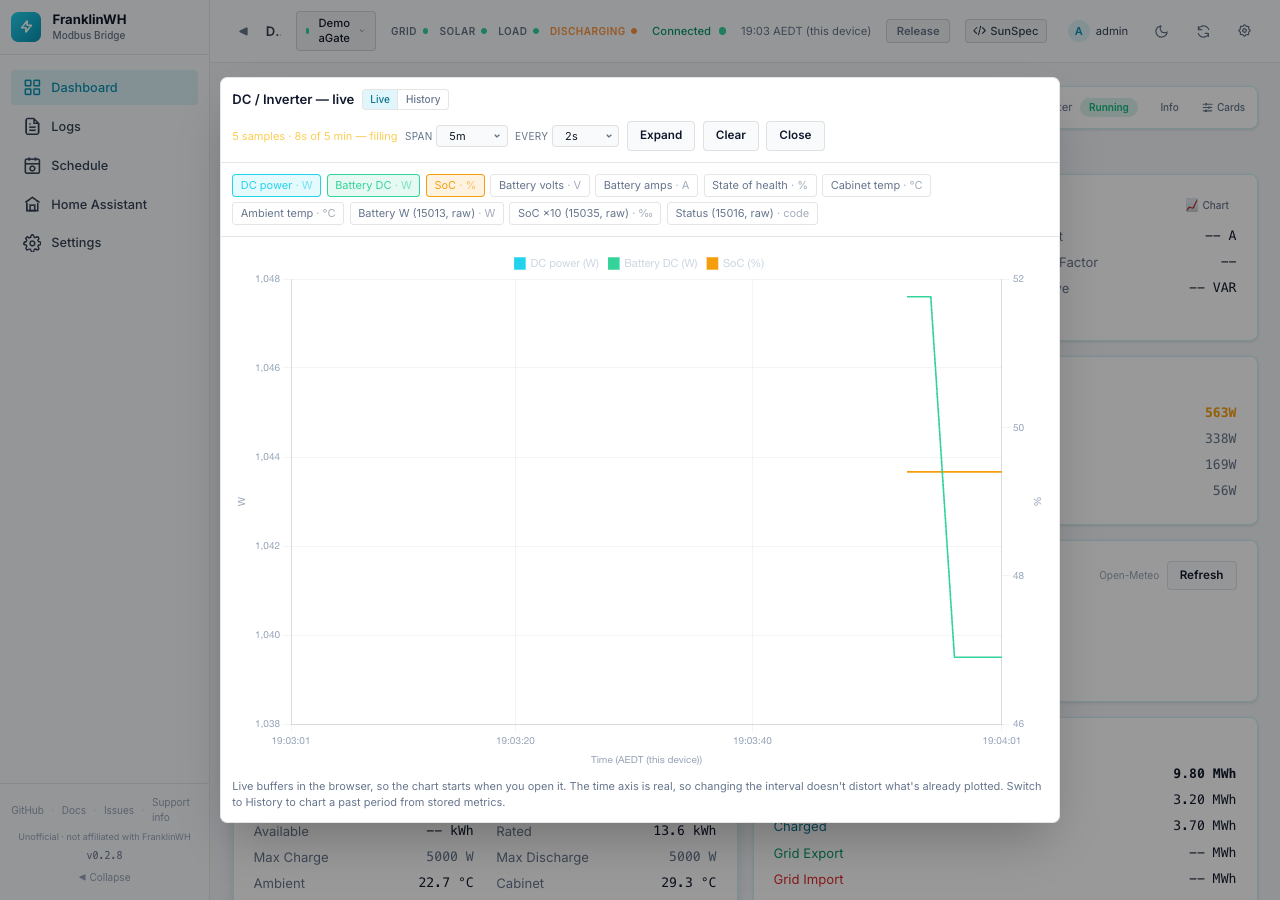
The span, interval and expand choices are remembered in this browser.
Events History

Alarms and PV-clipping events, with how long each lasted.
- Time span: 30m to 30d, or Range… for From / To. Default 7d, remembered in this browser.
- Fault / Warning / Info chips show counts and filter by severity. Click again to clear.
- All Sources filters by origin: M701 System Alarm, M714 DC Port Alarm, M713 Battery Health, M701 Grid Mode.
- Expand opens the same list, larger.
| Column | Meaning |
|---|---|
| Time | Start, in the bridge's timezone. Hover for the full date. |
| Register | The Modbus register. |
| SunSpec group.point | For example 701.Alrm. |
| Value | The alarm or event name. |
| Duration | How long it lasted, or (ongoing). |