Dashboards & Settings¶
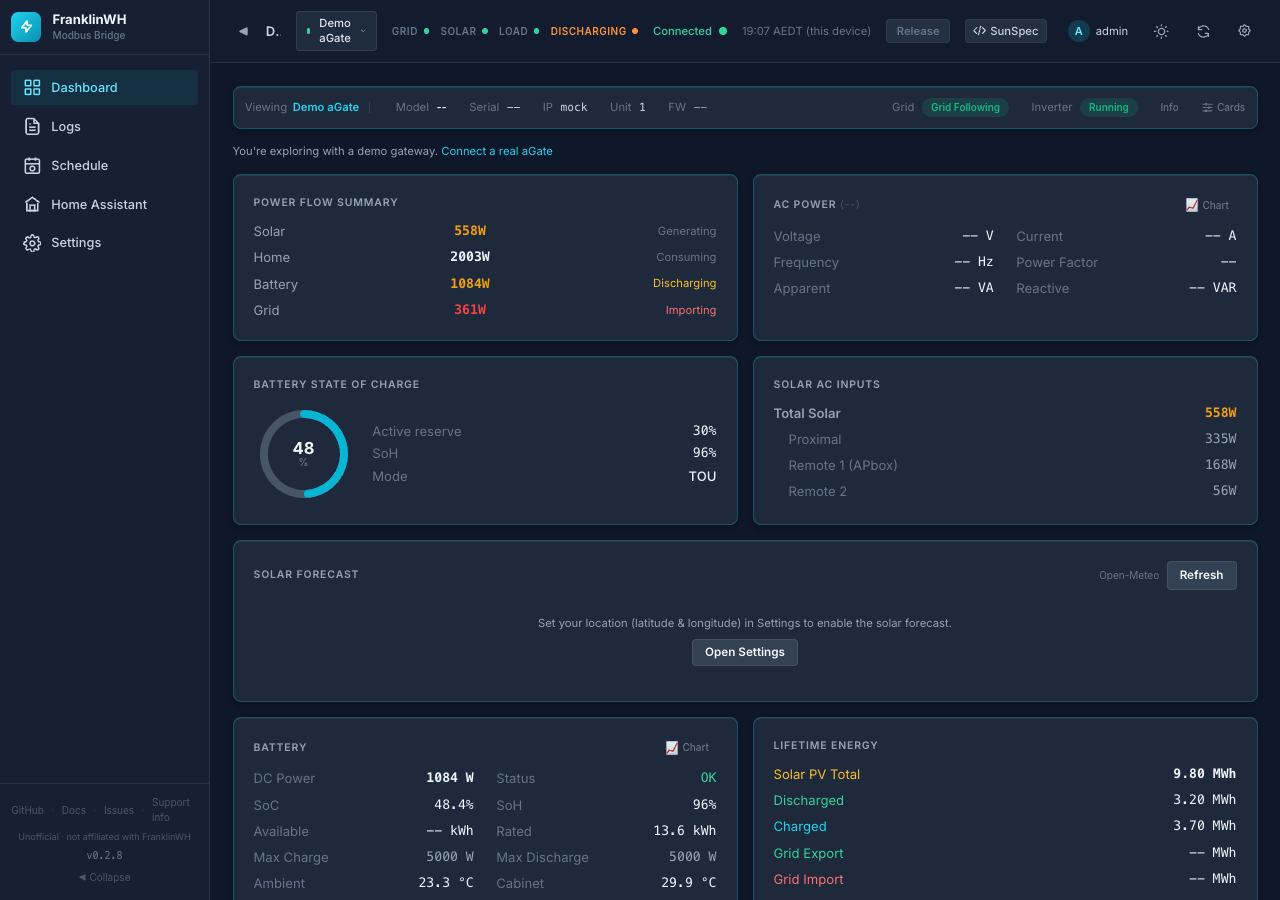
This section describes every page of the bridge's web UI: what each card shows, what each
option does, its default, and what it depends on. The screenshots come from a test bridge
running the demo gateway, so some values read -- where a real aGate would report one.
The layout¶
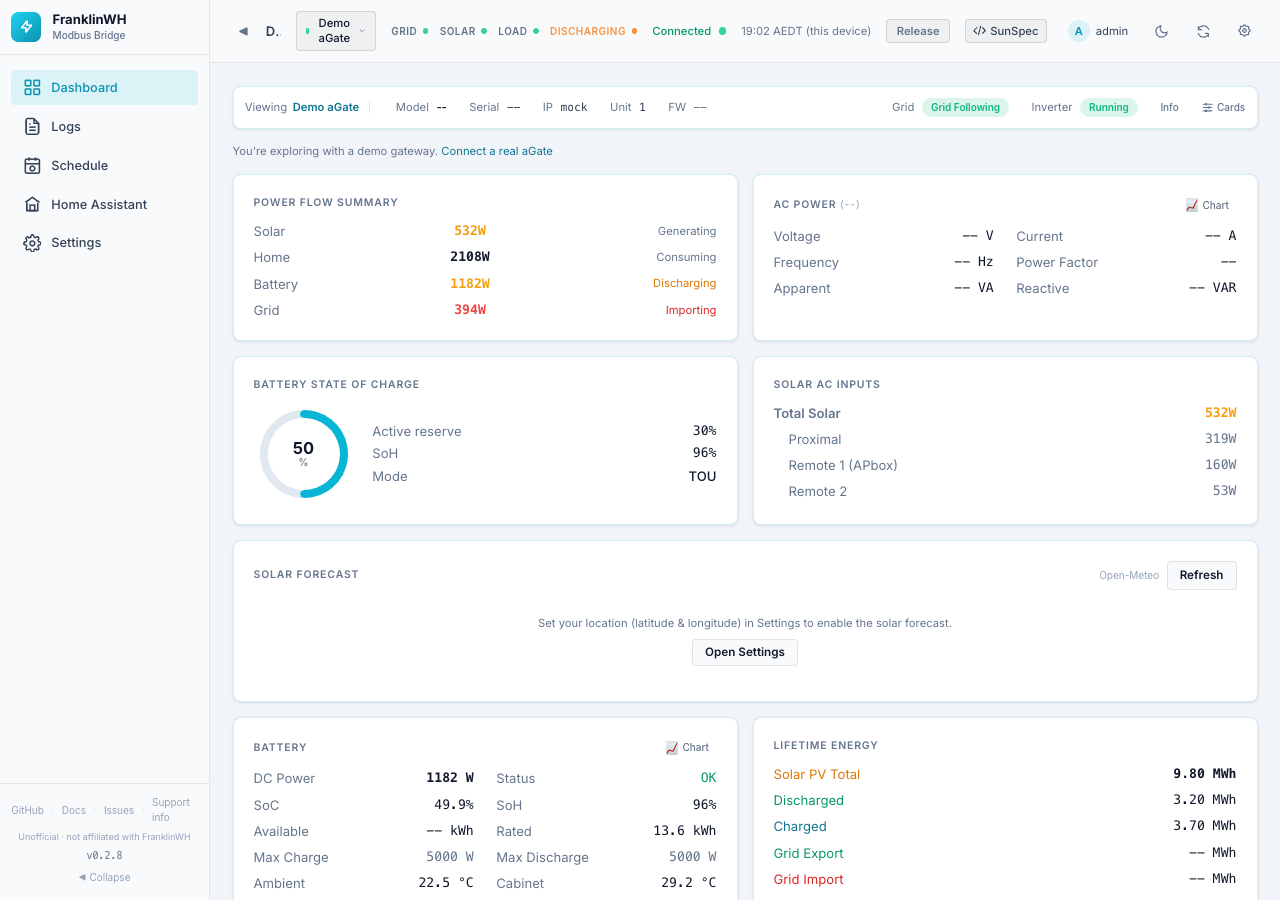
The UI has three parts:
| Part | Where | What it is for |
|---|---|---|
| Sidebar | Left | Moves between pages. Click the logo or ◀ Collapse to shrink it to icons. |
| Top bar | Top | Live status, the gateway selector, battery release, and display options. See Top bar. |
| Page | Centre | The page you picked in the sidebar. |
On a phone¶
At 699 px wide or less (most phones, including the Home Assistant app), the sidebar gives way to a bottom tab bar, as in the Direct Connect bridge:
- The bar shows as many pages as fit: Home, Schedule, HA, Logs, Settings, and so on, in that order. Switched-off pages are left out.
- More opens a sheet with the pages that didn't fit, plus Guide (this documentation, at the page for the tab you are on) and, for admins, Support (the Support info card).
- The top bar wraps: the page title and actions on the first line, the Grid / Solar / Load indicators below.
Wider screens (tablets, desktops) keep the sidebar.
The address bar always shows the page you are on, so you can bookmark or share it:
/?tab=dashboard, /?tab=settings§ion=home-assistant, and so on.
Pages¶
| Sidebar entry | Address | On by default | Page |
|---|---|---|---|
| Dashboard | ?tab=dashboard |
Always (core) | Dashboard |
| SunSpec Explorer | ?tab=explorer |
No (new installs) | SunSpec Explorer |
| Logs | ?tab=logs |
Yes | Logs |
| Sequencer | ?tab=sequencer |
No (new installs) | Sequencer |
| Schedule | ?tab=schedule |
Yes | Scheduler |
| Home Assistant | ?tab=ha_entities |
Yes | Home Assistant page |
| Energy Costs | ?tab=energy_costs |
No (new installs) | Energy Costs |
| Settings | ?tab=settings |
Always (core) | Five sections, below |
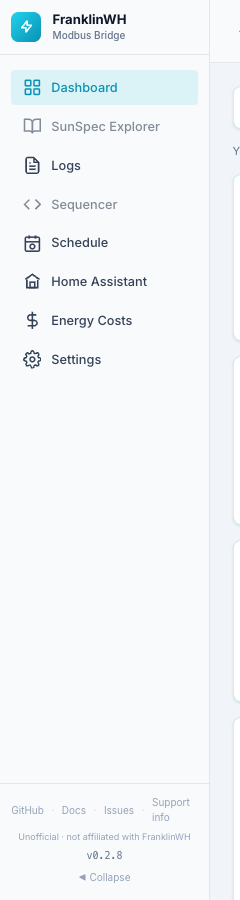
Pages marked No are switched off on a new install. Turn them on in Settings → Admin → Feature Modules. A switched-off page disappears from the sidebar, and its address opens the Dashboard instead.
There is also a separate, phone-sized page for household members: the
simple dashboard at /user. People with the user or viewer role
always land there.
The battery controls live on the Dashboard, in the Battery Control and Operating Mode & Reserve cards. See Battery controls.
Settings sections¶
| Section | Address | Page |
|---|---|---|
| Site & Gateways | ?tab=settings§ion=gateways |
Site & Gateways |
| Home Assistant | ?tab=settings§ion=home-assistant |
Home Assistant settings |
| Energy & Automation | ?tab=settings§ion=energy |
Energy & Automation |
| Data & Backup | ?tab=settings§ion=data |
Data & Backup |
| Admin | ?tab=settings§ion=admin |
Admin |
Who sees what¶
What you see depends on your role. Roles are set in Settings → Admin → Users.
| Role | Main UI (/) |
Simple dashboard (/user) |
Battery commands | Settings |
|---|---|---|---|---|
admin |
Yes, every page | Yes (via the user menu link) | Yes | Yes |
user |
No, sent to /user |
Yes | Yes (charge/discharge) | No |
viewer |
No, sent to /user |
Yes, read-only | No | No |
api |
No (REST API only) | No | Yes, via the API | No |
First visit¶
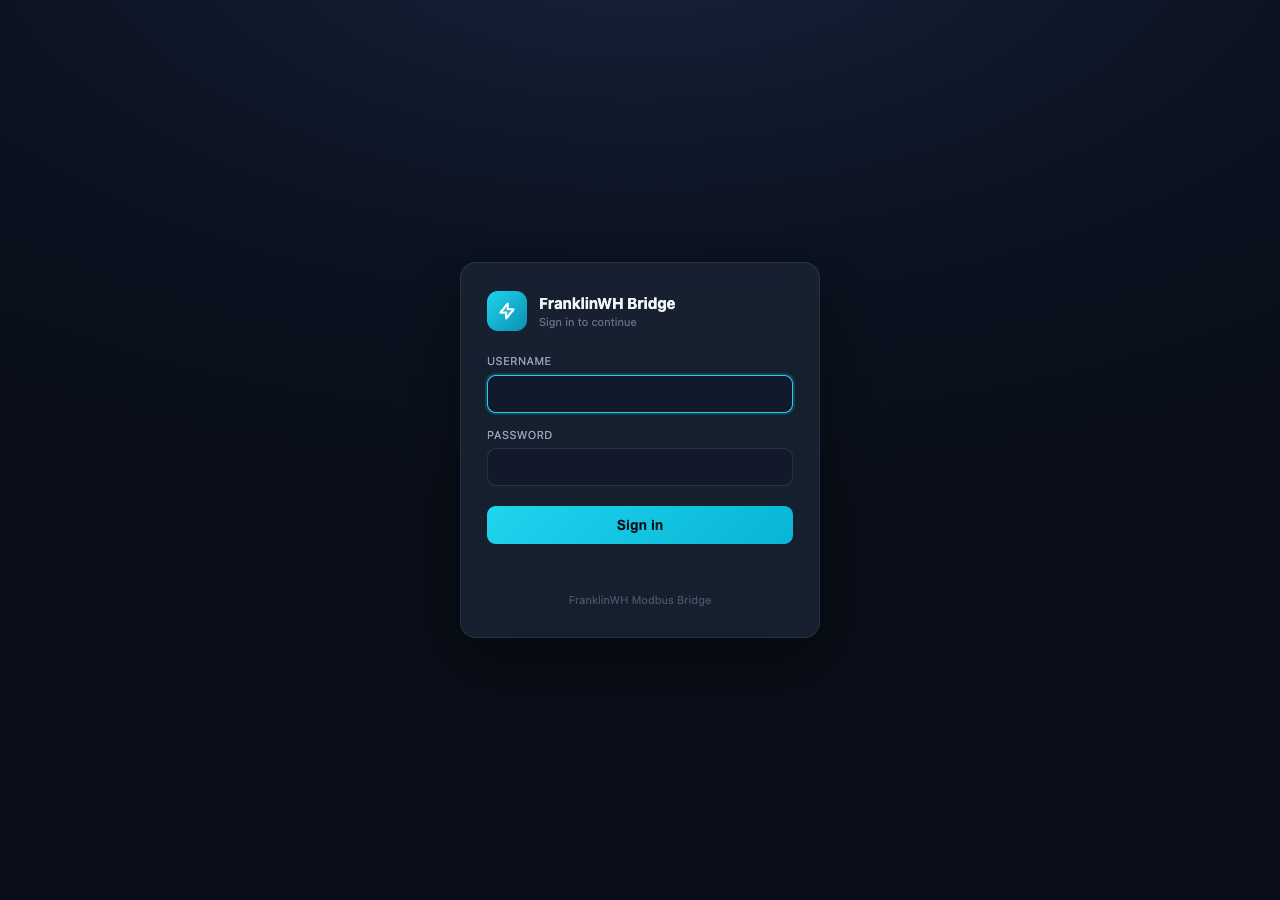
Sign in with your username and password. If your last login ended (expired, revoked or signed out elsewhere), the sign-in page says why.
Two things can appear the first time you open the UI.
"Unofficial software" notice¶
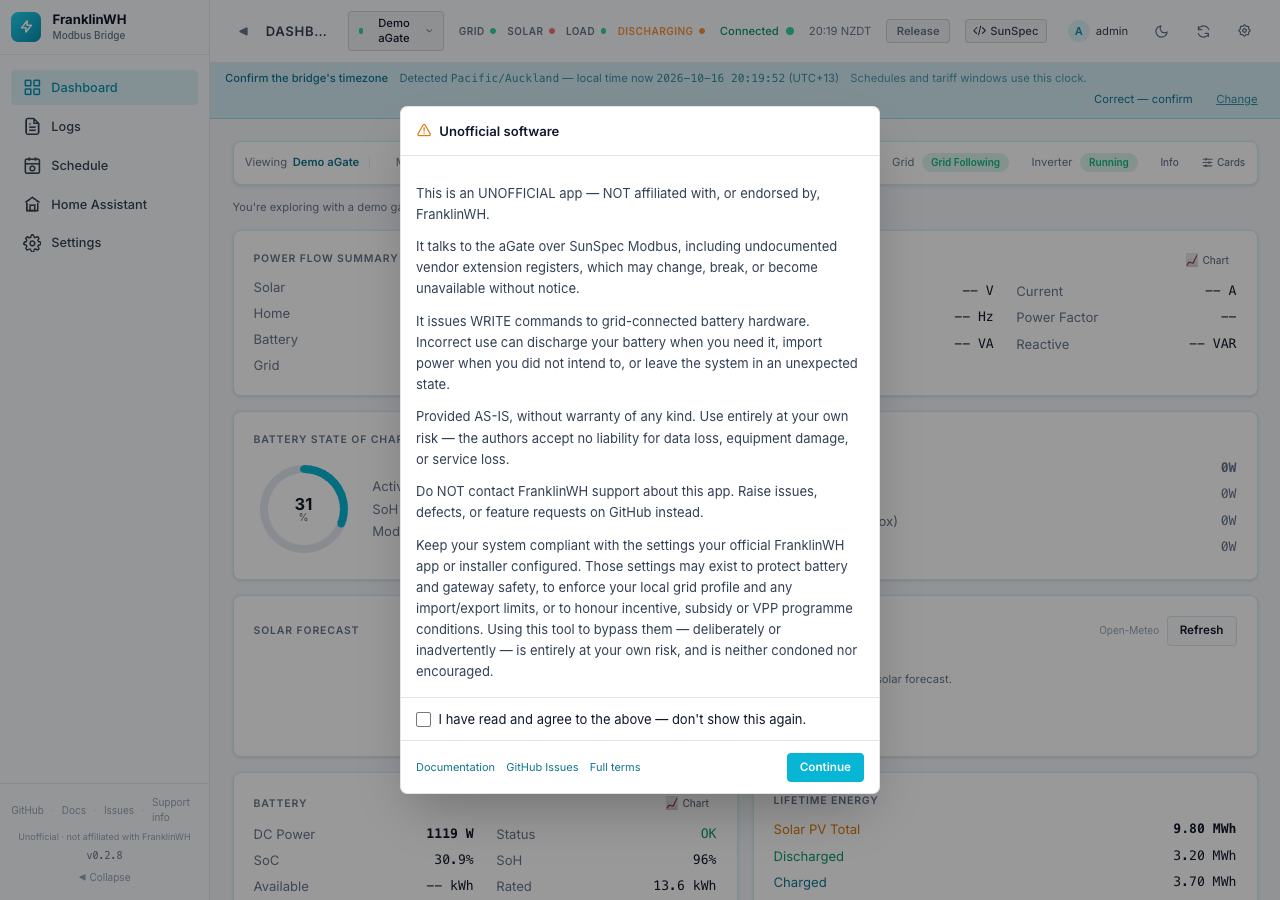
A full-screen notice that the bridge is not made or supported by FranklinWH. It cannot be closed by clicking outside it or pressing Esc. Tick I have read and agree to the above — don't show this again and press Continue. Press Continue without ticking and it comes back on the next page load. The links at the bottom open the documentation, GitHub Issues and the full terms.
Timezone confirmation¶

A blue banner asks you to confirm the bridge's timezone. Schedules and tariff windows run on the bridge's own clock. That clock comes from the container or host, not from a setting in this app. A container with no timezone set runs on UTC. If so, the banner says "That looks like a container default rather than a choice".
- Correct — confirm records the timezone, and the banner goes away for good.
- Change is meant to open Settings, but in 0.2.8 it does nothing. It would not help
anyway: the timezone is set where the bridge runs (the host for the add-on, the Docker
TZvariable), not in Settings. Fix it there, restart the bridge, then confirm.
Connection problems¶
If the browser loses contact with the bridge, an amber bar appears under the top bar: Can't reach the bridge — showing data from …. It retries every 10 seconds. More info explains the likely cause (this device offline, a VPN dropped, or the bridge stopped). Retry now tries straight away. Open forms keep what you typed.
If your login ends (expired, signed out elsewhere, or revoked by an admin), a You have been logged out dialog says why, when, and by whom. The bridge and your schedules keep running. Only the page has lost access. Log in again to continue.
Themes¶
The moon or sun button in the top bar switches between dark and light. The choice is stored in this browser only. The screenshots in this guide use the light theme.