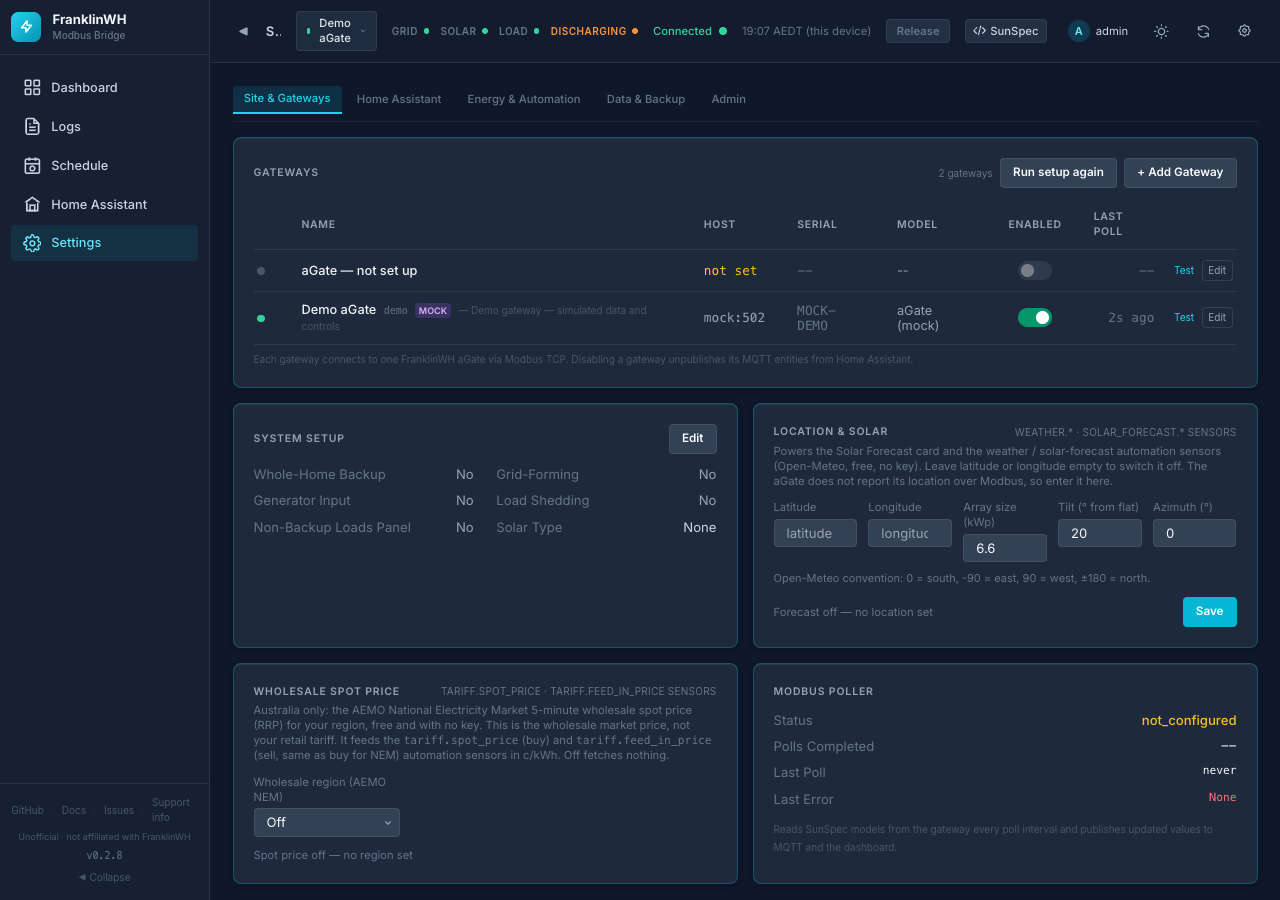
Settings → Site & Gateways¶
?tab=settings§ion=gateways — the aGates the bridge talks to, how your system is
built, where it is, and the wholesale price feed.
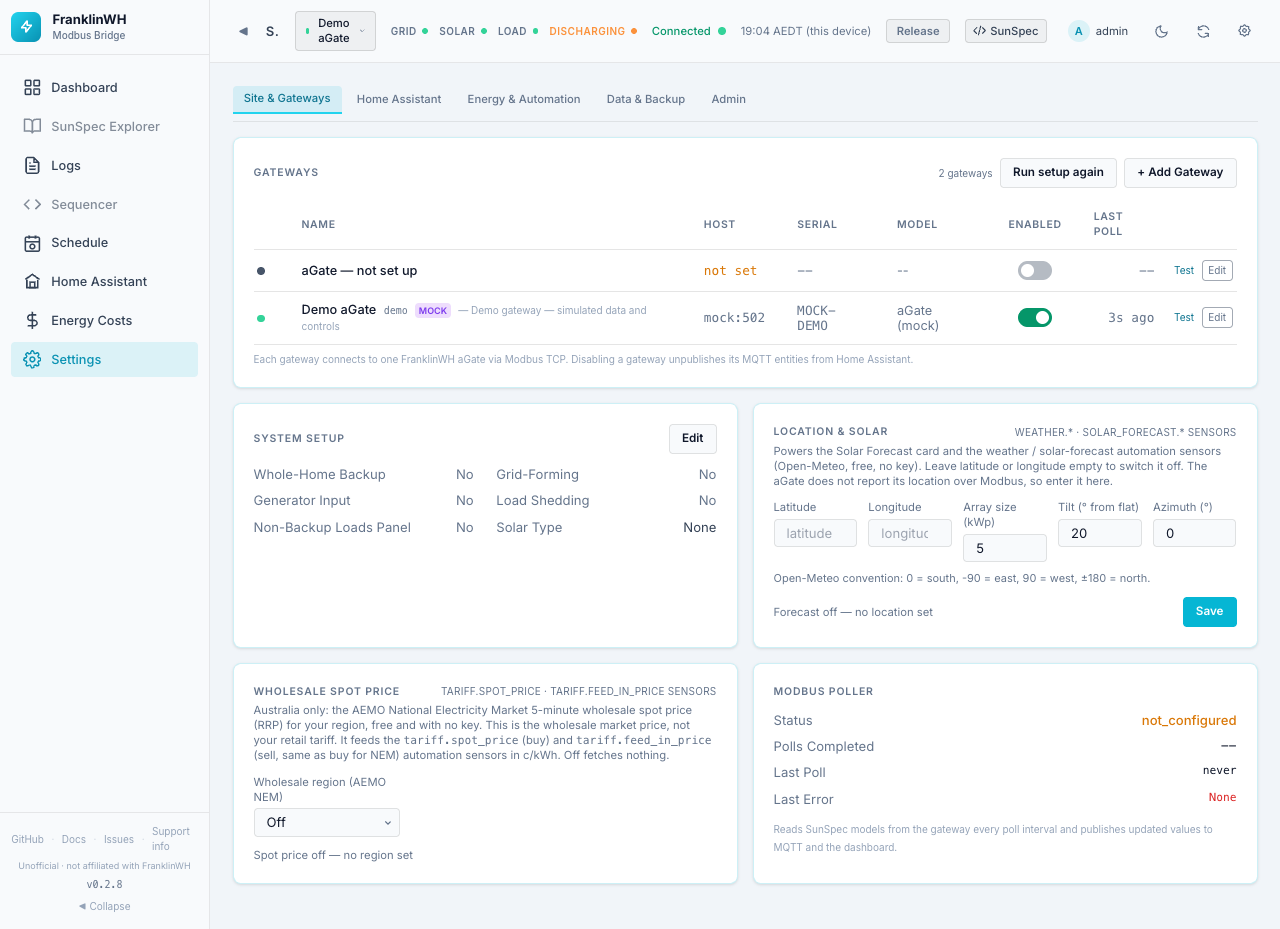
Cards on this page:
Gateways¶
Each gateway is one FranklinWH aGate reached over Modbus TCP, or a mock (simulated)
gateway. The first one, ID default, is the primary gateway. It always exists and
cannot be removed. On a new install its address is empty until you run the setup wizard
or edit it.
At the top of the card: the number of gateways, Run setup again (reopens the setup wizard, admins only) and + Add Gateway.
Gateway table¶
| Column | Meaning |
|---|---|
| Dot | Health: green = connected, amber = TCP only (port open, Modbus not answering), red = unreachable, grey = stopped, disabled or not set up. Hover for the word. |
| Name | The name, the ID (except for default), a mock badge, and the description. An unconfigured primary shows aGate — not set up. |
| Host | host:port, or not set. |
| Serial, Model | Reported by the aGate. |
| Enabled | A switch that starts or stops polling. Disabled for a gateway with no address. |
| Last Poll | How long ago the last poll was. |
| Test | Opens a TCP connection to the gateway and shows ✓ and the latency, or ✗ and the error. |
| Edit | Opens the Edit Gateway dialog. |
The Enabled switch stops polling, nothing more
Switching a gateway off with this switch stops it and keeps it stopped across restarts. It stays configured. It does not remove its entities from Home Assistant: they go unavailable. To remove a gateway's entities, switch off Publish this gateway to Home Assistant in its Edit dialog, or the gateway's switch in Settings → Home Assistant.
The note under the table, "Disabling a gateway unpublishes its MQTT entities", refers
to a gateway being disabled through the API (enabled: false), and is true only for
gateways other than default.
Add Gateway¶
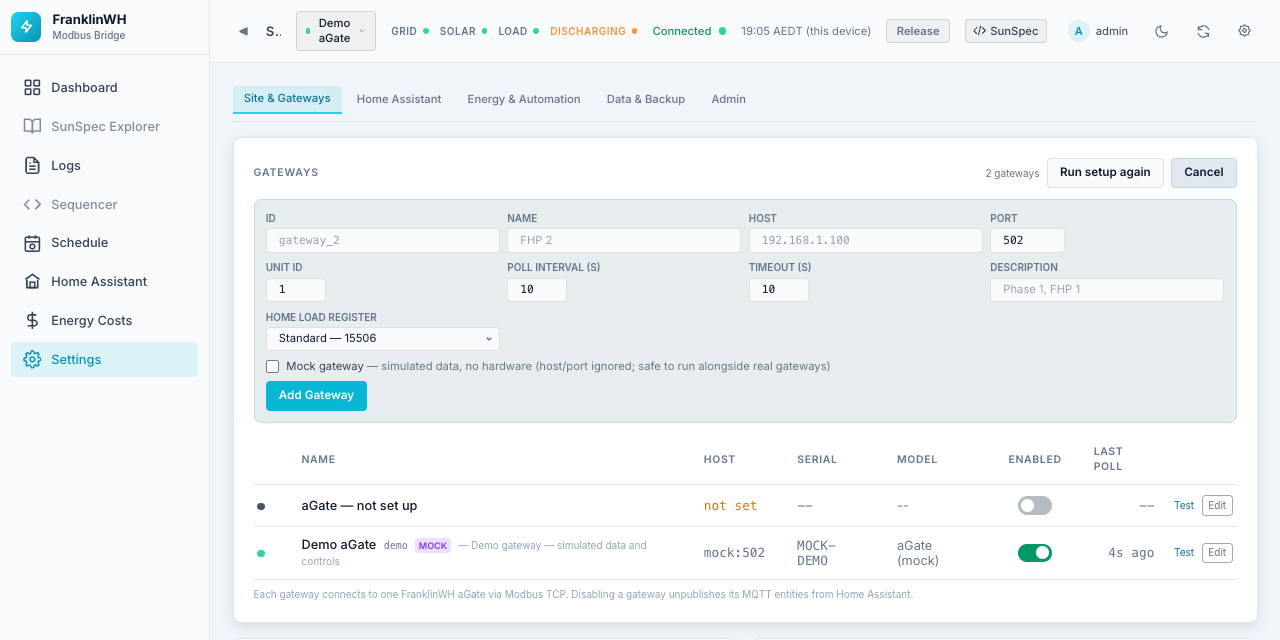
| Field | Default | Notes |
|---|---|---|
| ID | — (required) | Permanent. Used in MQTT topics and HA identifiers, for example gateway_2. |
| Name | — (required) | Display name. |
| Host | — (required for a real aGate) | IP address or hostname of the aGate. |
| Port | 502 | Modbus TCP port, 1–65535. |
| Unit ID | 1 | Modbus unit ID, 1–247. |
| Poll Interval (s) | 10 | How often the bridge reads the aGate, 1–300 s. |
| Timeout (s) | 10 | Modbus connect/read timeout, 1–60 s. Raise it on a flaky link. |
| Description | empty | Free text. |
| Home Load Register | Standard — 15506 | See Home Load Register. Hidden for a mock. |
| Mock gateway | Off | Simulated data, no hardware. Host and port are ignored. Safe to run beside real gateways. |
Add Gateway (or Add Mock Gateway) saves it and starts polling at once.
Two real gateways cannot point at the same aGate (same host, port and unit ID): the bridge refuses, because one aGate can only hold one Modbus session.
Adding a second gateway to Home Assistant
A new gateway is published to Home Assistant by default, as its own device. A mock gateway publishes synthetic values. Its energy sensors feed Home Assistant's long-term statistics, which outlive the entity. Use a test Home Assistant for mocks, or switch their publishing off.
Edit Gateway¶
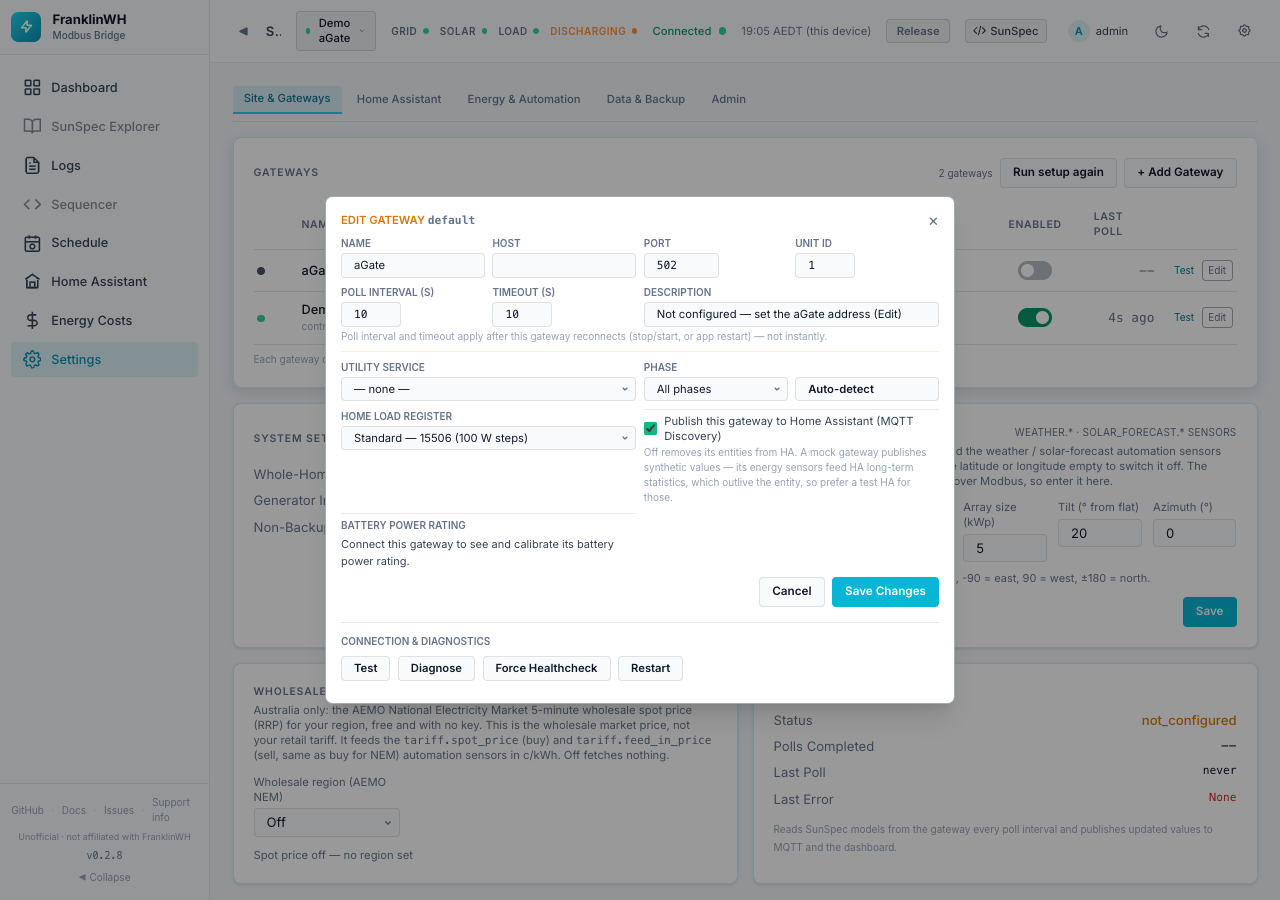
| Field | Default | What it does |
|---|---|---|
| Name | — | Display name. |
| Host | — | The aGate's address. Setting the address of an unconfigured gateway starts it straight away. |
| Port | 502 | Modbus TCP port. |
| Unit ID | 1 | Modbus unit ID. |
| Poll Interval (s) | 10 | 1–300 s. |
| Timeout (s) | 10 | 1–60 s. |
| Description | — | Free text. |
| Utility Service | — none — | Links the gateway to a utility service (meter and tariff). Schedules that act on a service act on its gateways. |
| Phase | All phases | Which phase(s) the gateway is on: All, L1, L2, L3, L1+L2, L1+L2+L3. Used to group gateways in the Site view. Auto-detect reads it from Model 701 and says whether it matches your choice. |
| Phase View | Both | Only for split- or three-phase aGates: publish aggregate + per-phase, aggregate only or per-phase values. |
| Home Load Register | Standard — 15506 | Which register gives home load. Standard 15506 is documented, in 100 W steps. High resolution 16000 is about 1 W, but undocumented and verified on one site only. The bridge checks it against 15506 every poll and uses 15506 while they disagree. Changing it changes the published Home figures, so it is logged. Hidden for a mock. |
| Publish this gateway to Home Assistant | On | Whether this gateway gets its own device and entities in Home Assistant. Off removes its entities from Home Assistant (rather than leaving them unavailable). The same switch is in Settings → Home Assistant. |
| Battery power rating | — | See below. Hidden for a mock. |
Save Changes saves. Poll interval and timeout take effect when the gateway reconnects (stop/start, Restart, or a bridge restart), not instantly. Everything else applies at once.
Connection & Diagnostics¶
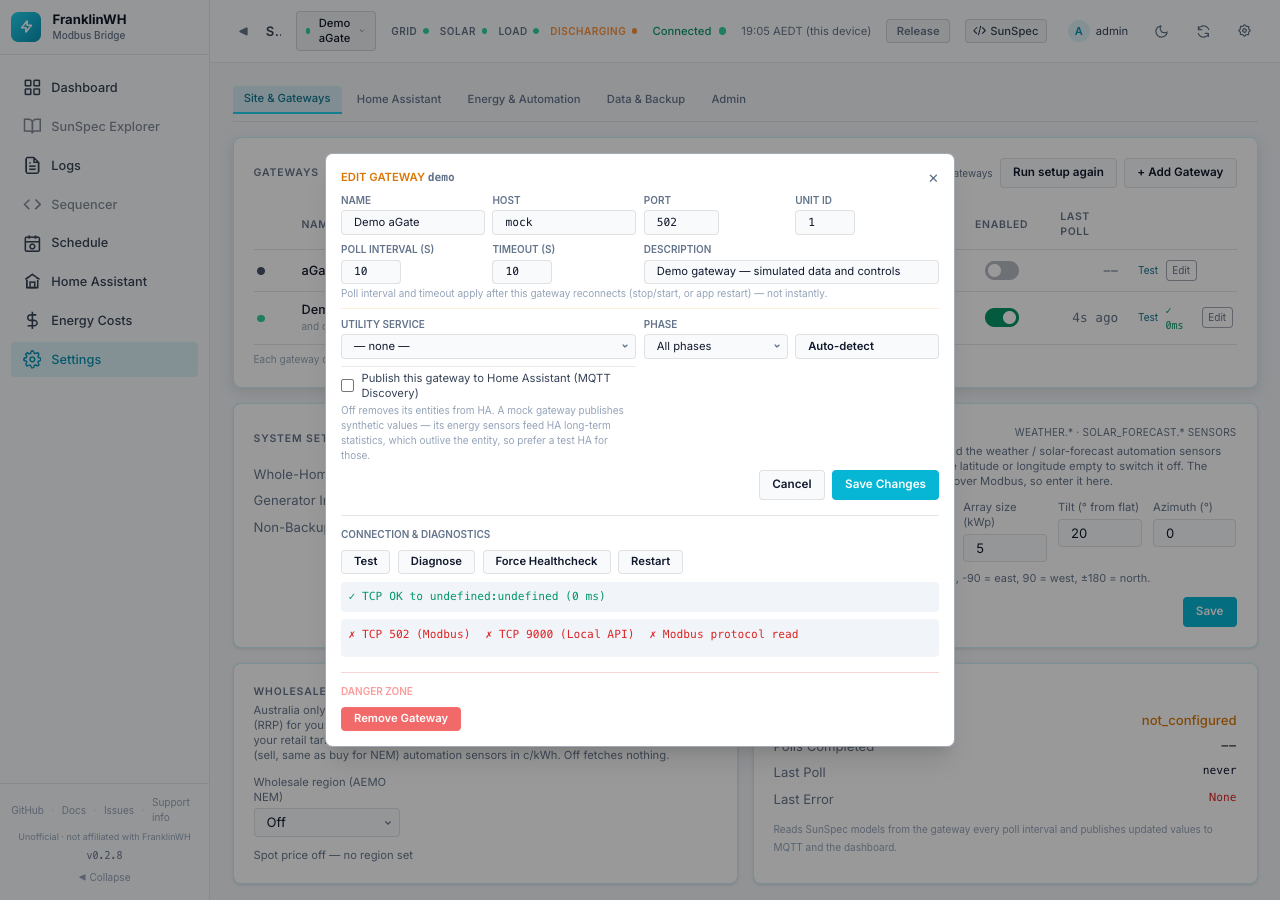
| Button | What it does |
|---|---|
| Test | A TCP connection test, with latency. |
| Diagnose | Three checks: TCP 502 (Modbus), TCP 9000 (the aGate's local API) and a Modbus protocol read, each ✓ or ✗ with latency and a verdict. Read-only. |
| Force Healthcheck | Re-checks health now instead of waiting for the next poll, and shows the result. |
| Restart | Drops the Modbus connection and reconnects from scratch, without restarting the bridge. Use it for a stuck session. |
Note
On a mock gateway, Test and Diagnose have nothing real to test, so their results are not meaningful (the screenshot shows ✗ marks for the demo).
Danger Zone¶
Remove Gateway (not offered for default) asks for confirmation:
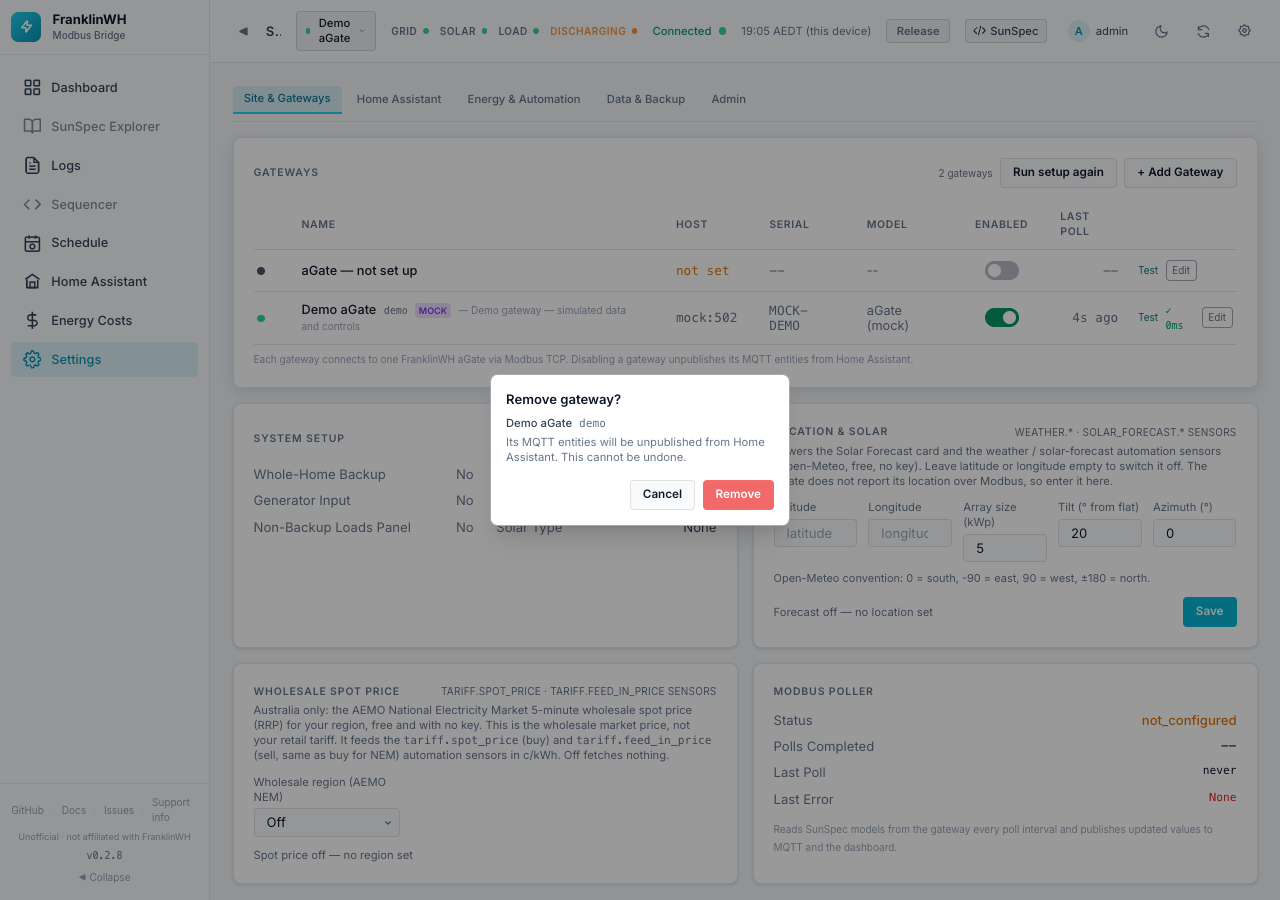
Switch Publish off before removing a gateway
The dialog says the gateway's MQTT entities will be unpublished. In 0.2.8 removing a gateway does not yet remove its entities from Home Assistant straight away (#151): they stay until the next time the bridge syncs its MQTT devices (for example after a restart). To remove them cleanly, first switch off Publish this gateway to Home Assistant, Save, then remove the gateway.
Battery power rating¶
Force charge and force discharge are sized against this rating: the aGate's SunSpec nameplate (Model 702) as reported, or the figure you calibrated. They are refused only when there is no rating or it has been contradicted. See Battery controls.
The section shows one line per direction:
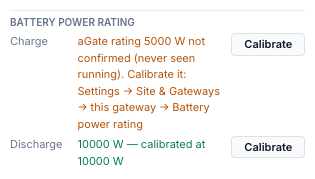
| Line text | Trusted? | Meaning |
|---|---|---|
| N W — calibrated at N W | Yes | You calibrated it. |
| N W — aGate rating N W, seen at M W | Yes | The aGate's Model 702 rating, confirmed: the battery has run at 80–115 % of it. |
| N W — aGate nameplate rating (SunSpec M702) N W | Yes | The aGate's Model 702 nameplate, as reported. |
| battery … seen at M W, above the aGate's rating of N W | No | Contradicted: the battery ran more than 15 % (plus 300 W) above the rating. |
| battery … power rating unknown | No | The aGate reports no rating. |
| Connect this gateway to see and calibrate its battery power rating | — | The gateway is not connected. |
A rating stops being used if the battery is later seen well above it, or if a command overshoots it. Force commands in that direction are then blocked until you calibrate.
Calibrating¶
Calibration records the battery's real full-rate power while you run a dispatch from the official FranklinWH app. The bridge sends nothing to the aGate.
- Make sure no force command is running from the bridge (release it first; the bridge refuses to start a calibration during one).
- Bring the battery to a middle SoC, so it can run at full power in the direction you test.
-
Press Calibrate next to charge or discharge. The panel shows instructions and live figures:
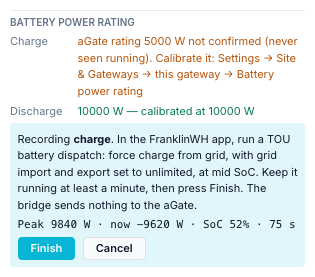
-
In the FranklinWH app, run a TOU battery dispatch: force charge from grid for the charge direction, or force discharge to grid for discharge. Set grid import and export to unlimited.
- Let it run for at least a minute at full power. Watch Peak and now (W), SoC and the seconds elapsed.
- Press Finish. The peak becomes the calibrated rating for that direction, and the section says Calibrated. Press Cancel to abandon it.
- Stop the dispatch in the FranklinWH app, and repeat for the other direction.
A calibration needs at least 60 seconds and a peak of at least 500 W, or Finish is refused.
About the screenshots
A mock gateway is always trusted and has no calibration section, so the rating and calibration panels above were rendered with example values on the demo gateway.
System Setup¶
Facts about how your installation is built. Mostly informational: they label the UI and describe the site.
Edit turns the read-only list into switches; Save or Cancel.
| Field | Default | Meaning |
|---|---|---|
| Full / Whole-Home Backup | No | The whole home is on backup. |
| Grid-Forming (Island-capable) | No | The aGate can island (run off-grid). |
| Generator Input | No | A generator is connected. |
| Load Shedding | No | Load shedding is installed. |
| Non-Backup Loads Panel | No | There is a separate non-backup panel. |
| Solar Type | None | None, AC-Coupled or DC-Coupled. |
| Solar kWp | 0 | Array size; shown when Solar Type is not None. |
| Battery Label | empty | A name for the battery, for example Franklin WHB13. Used as the title of the Battery and Battery SoC cards. |
Location & Solar¶
Worked example
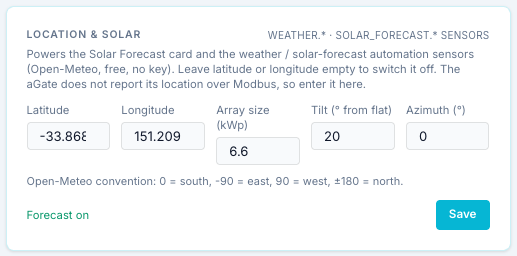
Powers the Solar Forecast card and the weather.* and
solar_forecast.* sensors that schedules can use. Data comes from Open-Meteo (free, no
key), so the bridge needs internet access. The aGate does not report its location over
Modbus, so enter it here.
| Field | Default | Range | Notes |
|---|---|---|---|
| Latitude | empty | −90 to 90 | Leave latitude or longitude empty to switch the forecast off. |
| Longitude | empty | −180 to 180 | |
| Array size (kWp) | 5 | 0.1–1000 | Your solar array's peak power. |
| Tilt (° from flat) | 20 | 0–90 | 0 = flat. |
| Azimuth (°) | 0 | −180 to 180 | Open-Meteo convention: 0 = south, −90 = east, 90 = west, ±180 = north. In the southern hemisphere a north-facing array is 180. |
The status line says Forecast on or Forecast off — no location set.
- Use Home Assistant's location (shown when a Home Assistant instance is set up) fills in latitude and longitude from Home Assistant's home location.
- Save saves the card. Only admins can edit it.
Wholesale spot price¶
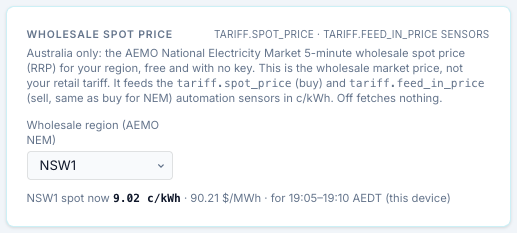
Australia only. The AEMO National Electricity Market 5-minute wholesale spot price (RRP) for your region, free and with no key. This is the wholesale market price, not your retail tariff.
| Field | Default | What it does |
|---|---|---|
| Wholesale region (AEMO NEM) | Off | NSW1, QLD1, SA1, TAS1 or VIC1. Saved as soon as you choose. Off fetches nothing. |
| Buy price from HA entity (optional) | None | Shown when Home Assistant has numeric entities exposed. A Home Assistant price sensor (for example from your retailer) used for the buy price instead of NEM. |
| Feed-in price from HA entity (optional) | None | The same for the sell (feed-in) price. |
It feeds the tariff.spot_price (buy) and tariff.feed_in_price (sell) sensors in c/kWh.
For NEM, sell equals buy. An HA entity, when set, wins over NEM for its side. A value in
$/kWh is converted to c/kWh; anything else is read as c/kWh.
The status line shows the region's price now in c/kWh and $/MWh, and the 5-minute interval it covers. stale means the last fetch failed and the last good price is shown.
Depends on: internet access to AEMO. For HA price entities: a Home Assistant instance and the entity exposed on the Home Assistant page.
A plan can also use this live price for its energy rates: see Dynamic (live) in the tariff editor.
Modbus Poller¶
Read-only status of the poller: Status, Polls Completed, Last Poll and Last Error. The poller reads the SunSpec models every poll interval and publishes the values to MQTT and the dashboard.
Note
This card reports the primary (default) gateway only. With the primary not set
up it says not_configured, even while another gateway polls. Each gateway's own
state is in the gateway table.
Dark theme¶