Home Assistant setup: instance and notifications¶
Installed as a Home Assistant app (add-on)? Skip steps 1 and 2
If you installed the bridge from the Home Assistant app store, it is already connected to the Home Assistant it runs in. There is no token to create and no instance to add: it appears in Settings → Home Assistant as auto. Start at step 3.
Steps 1 and 2 are only for the bridge running in Docker or Python, or for connecting a second Home Assistant.
This guide connects the bridge to a Home Assistant so that:
- your schedules can use Home Assistant entities as conditions (for example "only while away mode is on"), and
- the bridge can send notifications to your phone or to Home Assistant, from a schedule and when a scheduled battery command fails.
It is the reading direction. Publishing the bridge's own entities to Home Assistant is MQTT, covered in Settings → Home Assistant.
| Step | Where |
|---|---|
| 1. Create a long-lived access token | Home Assistant |
| 2. Add the instance and test it | Bridge: Settings → Home Assistant |
| 3. Expose the entities your schedules need | Bridge: Home Assistant page |
| 4. Add a notification device | Home Assistant (Companion app) |
| 5. Send notifications from a schedule | Bridge: Schedule |
| 6. Try it: an away-mode alert | Both |
Step 1: Create a token in Home Assistant¶
Not needed when the bridge is installed as a Home Assistant app (add-on): skip to step 3.
- In Home Assistant, click your name at the bottom of the sidebar, then the Security tab.
-
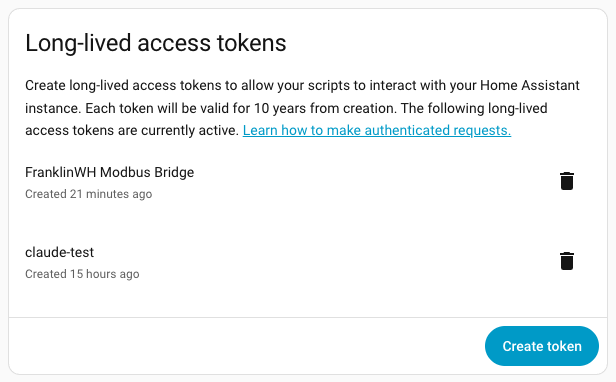
Scroll to Long-lived access tokens and click Create token.
-
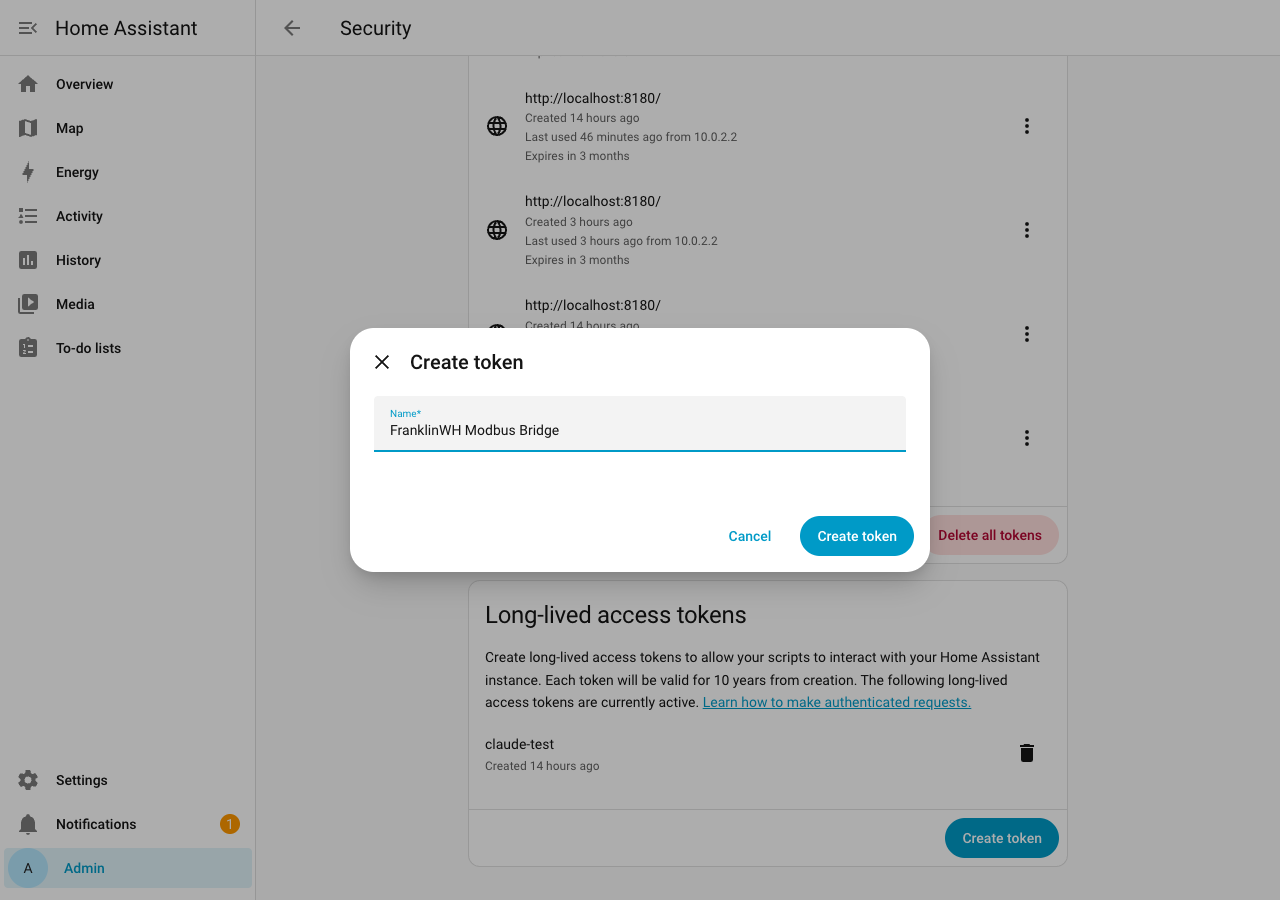
Name it after the bridge, for example FranklinWH Modbus Bridge, and click Create token.
-
Copy the token now. Home Assistant shows it once. (It is blurred here.)
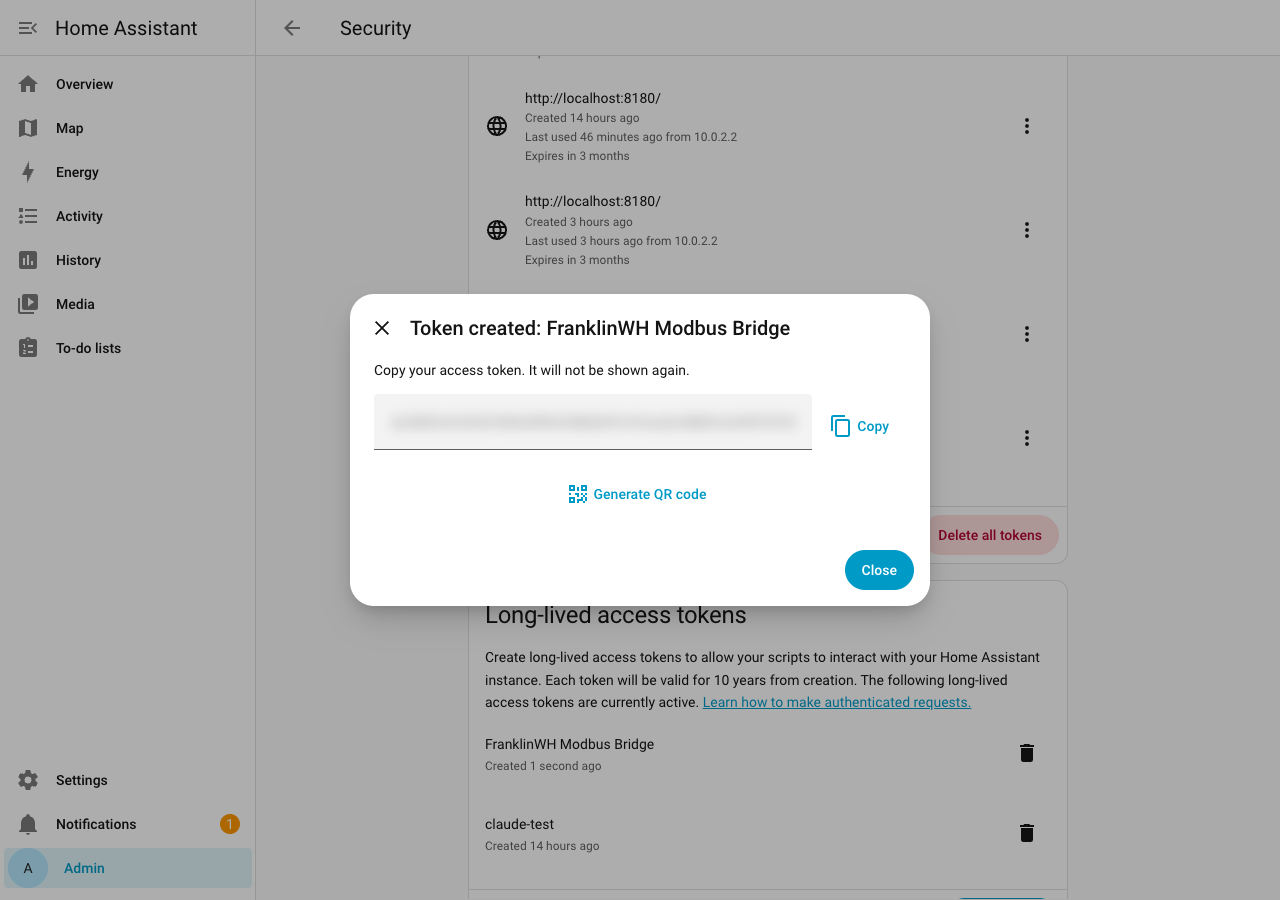
The token acts as you. To limit what the bridge can do, create a separate, non-admin Home Assistant user for it and create the token while signed in as that user.
Step 2: Add the instance in the bridge¶
Not needed when the bridge is installed as a Home Assistant app (add-on): skip to step 3.
Open Settings → Home Assistant (?tab=settings§ion=home-assistant), find the
Home Assistant card (entity access) and click + Add Home Assistant.
| Field | What to enter |
|---|---|
| Name | A short label, for example Home. It appears in sensor names: Home: Away mode. |
| Base URL | Home Assistant's address as the bridge sees it, for example http://192.0.2.20:8123 or http://homeassistant.local:8123. In Docker, localhost is the bridge's own container, not Home Assistant. |
| Long-Lived Access Token | The token from step 1. |
| Default | Tick for your main Home Assistant. Used for Use Home Assistant's location and the dashboard card. |
| Enabled | Leave ticked. |
Click Test Connection. Connected — N entities means the URL and token work. Then Save.
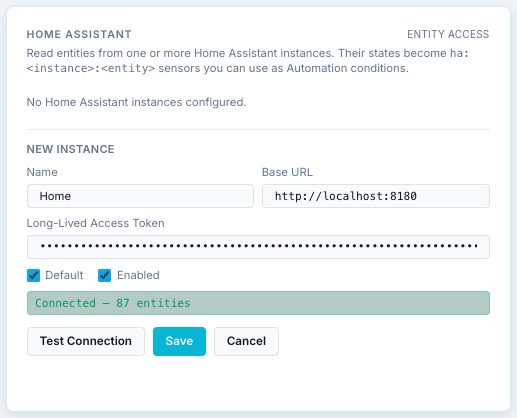
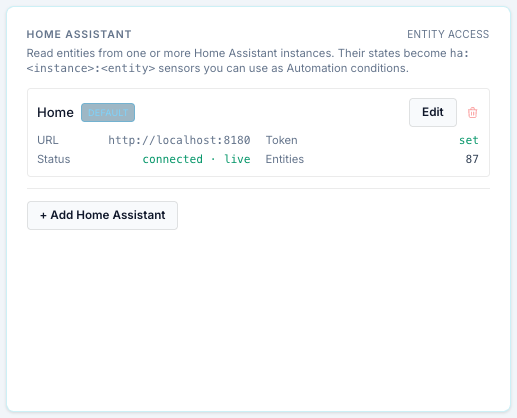
The card now lists the instance:
| Status | Meaning |
|---|---|
| connected · live | Subscribed to Home Assistant's WebSocket. Changes arrive within a second. |
| connected · poll | Reached over REST, the live connection isn't up yet. It retries by itself (1 s, rising to every 30 s). |
| offline + an error | Can't reach it, or the token was refused (401, auth_invalid). Check the URL from the bridge's machine and create a new token. |
The token is never shown again in the bridge. To replace it, Edit, paste the new one and Save. Leaving the field empty keeps the stored token.
Step 3: Expose the entities your schedules need¶
Open the Home Assistant page, search for the entity and turn on Expose.
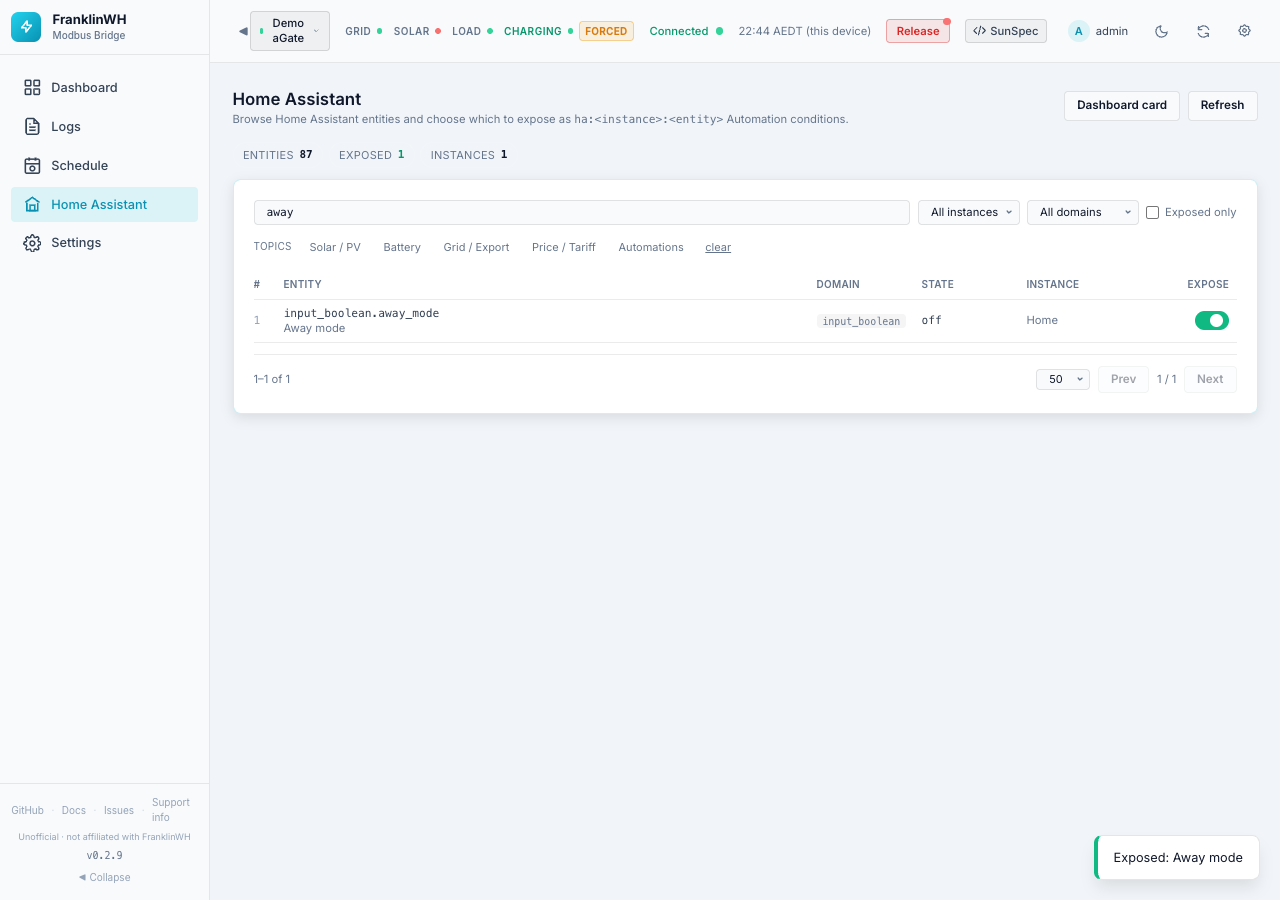
An exposed entity becomes a condition sensor named <instance>: <friendly name>, for example Home: Away mode, in the Schedule's condition picker. Exposing changes nothing in Home Assistant.
| Home Assistant state | Compare with |
|---|---|
| a number | a number |
on / off (also home/away, open/closed) |
1 / 0 |
| other text, such as an option of a select | that text |
unavailable or unknown |
nothing: the condition is false, so the schedule doesn't act |
Expose at least one controllable entity before adding notifications
In 0.2.9 the + add action link in a schedule's HA Actions only appears when at
least one controllable entity is exposed (a switch, light, select, number, button,
scene, script, or an input_boolean / input_select / input_number helper), even
if you only want a Notify action. If you have none to expose, create a helper in
Home Assistant (Settings → Devices & services → Helpers → Toggle) and expose it.
The away-mode toggle in step 6 does both jobs.
Step 4: Add a notification device¶
The bridge sends notifications through Home Assistant's notify services. Each notification device or method in Home Assistant is one service, and the bridge can use any of them.
A phone (recommended). Install the Home Assistant Companion app on the phone
(iOS or Android) and sign in to your Home Assistant. Home Assistant adds the phone under
Settings → Devices & services → Mobile App and creates a service named
notify.mobile_app_<phone name>.
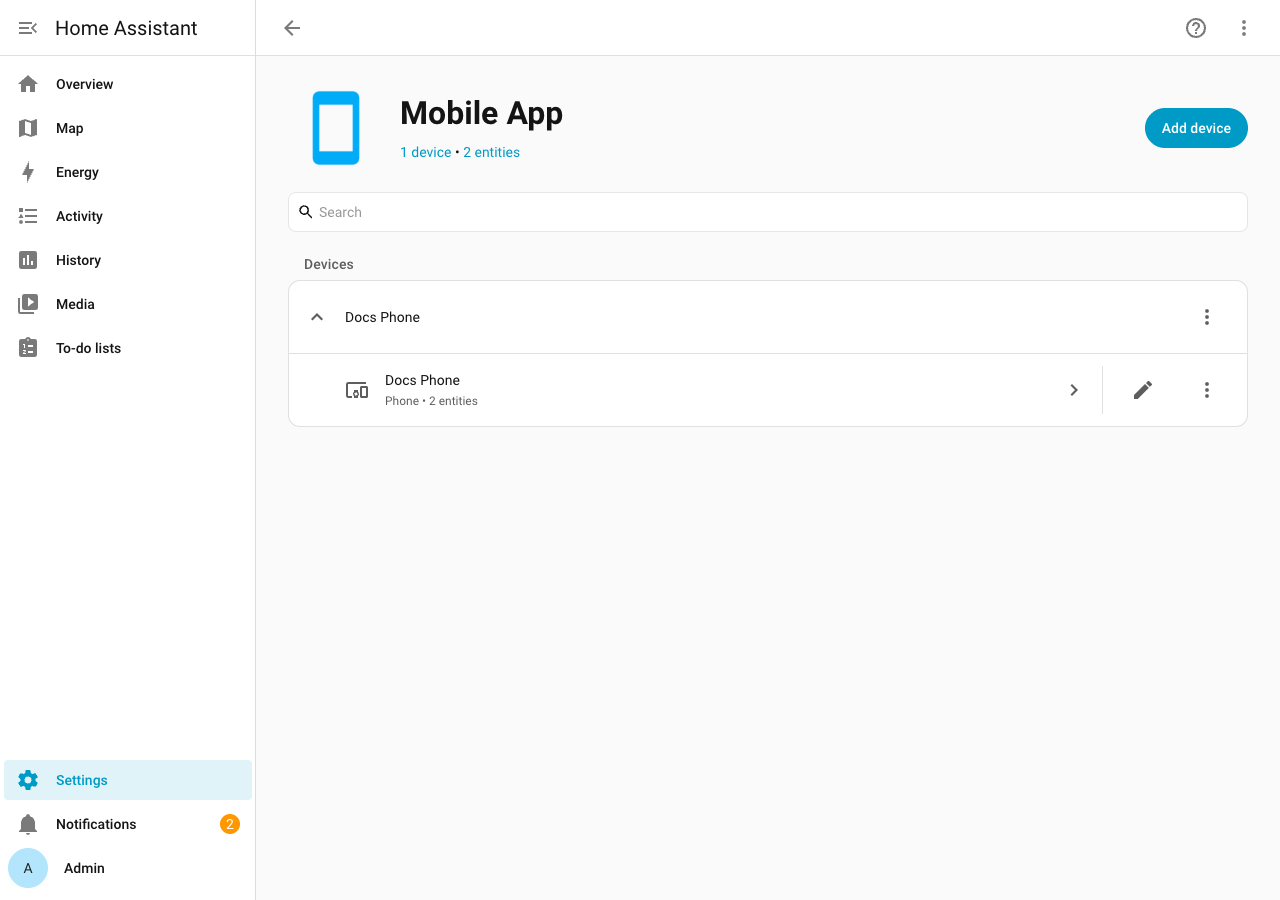
Allow notifications for the app on the phone, or nothing will appear on it.
Other targets that work:
| Target | Where it shows |
|---|---|
persistent_notification |
Home Assistant's own Notifications panel (bell, bottom of the sidebar). Built in; good for testing. |
notify |
Home Assistant's default notifier, if your configuration defines one. |
| a notify group, Telegram, e-mail … | Wherever that integration sends it. Any service in the notify domain is listed. |
Don't pick send_message
Home Assistant also lists send_message. It needs a notify entity, which the
bridge doesn't send, so it always fails (400 Bad Request in the Activity Log). Pick
a named service such as mobile_app_<phone>.
Step 5: Send notifications from a schedule¶
Notifications are actions on a schedule entry. There is no separate "notifications" setting: an entry notifies only if it has a Notify action.
Open Schedule, create or edit an entry, and under HA Actions click + add action:
| Field | What to choose |
|---|---|
| Kind | Notify |
| When | on fire (when the entry starts), on exit (when its run ends) or entry & exit |
| Notify target | mobile_app_<phone> (Home) and so on. The list is read from Home Assistant when the Schedule page opens: reload the page after adding a phone. |
| Title | Optional. |
| Message | Required. %sensor.id% inserts a live value, for example %battery.soc_pct%. |
| + guard | Optional: send only if a condition is true at that moment. |
Add one row per target to notify several devices. The details are in Scheduler → Actions → Home Assistant actions.
Failure alerts: scheduler notifications you don't write¶
Once an entry has any Notify action, the bridge also sends its own alerts about that entry's battery command to every notify target on the entry. They come with the title FranklinWH bridge:
| Message starts with | When |
|---|---|
FAILED: <entry> — <reason>. Retrying. |
The first failed attempt in a window, including a refused command (for example Refused Force Charge: … Calibrate it). The bridge retries after 15 s, 30 s, then every 60 s. |
FAILED: <entry> — window ended without a successful dispatch |
The window closed and no attempt succeeded. |
FAILED: <entry> — setpoint lost 3 times |
The aGate kept dropping the setpoint; the bridge stops re-sending for this window. |
NOT EFFECTIVE: <entry> — battery at … W |
The battery wasn't moving the commanded way even after a re-send. |
Recovered: <entry> dispatched after N failed attempt(s) |
A retry succeeded. |
So to be told when a schedule fails, give it a Notify action, even one that only runs on exit. An entry without one logs skipped — no notify target on this entry in the Activity Log instead.
Nothing else sends notifications in 0.2.9: not manual commands from the Dashboard, not a gateway going offline, not a bridge restart.
Step 6: Try it: an away-mode alert¶
A notification-only entry: while the Away mode toggle in Home Assistant is on, send a reminder with the battery's state, once an hour.
- In Home Assistant, create a Toggle helper named Away mode
(
input_boolean.away_mode). Expose it in the bridge (step 3). -
In the bridge, Schedule → + Add Entry:
Field Value Name Away mode alert Trigger Type Every N minutes, every 60 Action No battery action (HA only) Entry conditions Home: Away mode ==1HA Actions Notify, on fire, mobile_app_<phone>, title Away mode, messageAway mode is on. Battery at %battery.soc_pct%%, mode %mode.name%.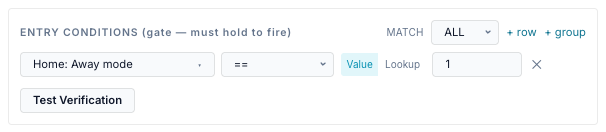
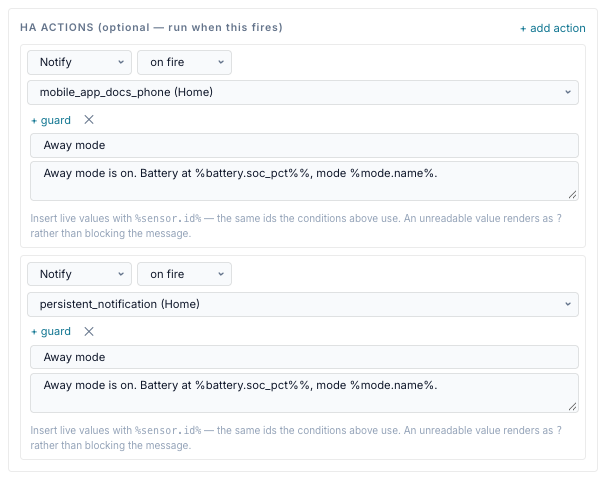
(
%%after a placeholder prints a literal%.) This example also notifiespersistent_notification, so the message shows in Home Assistant too. -
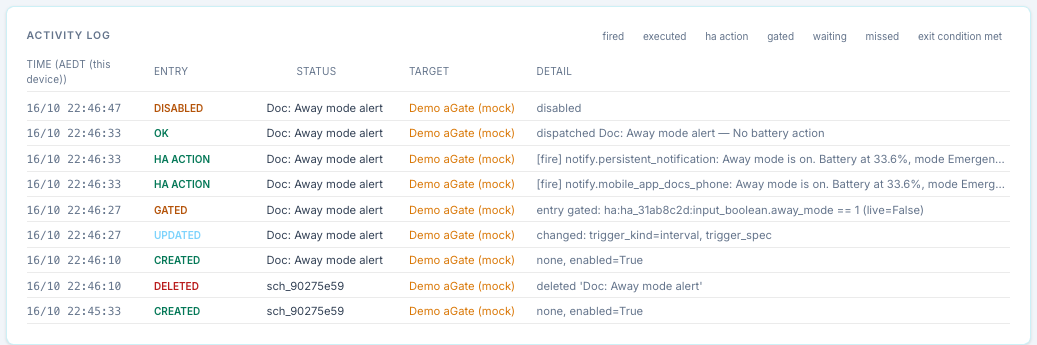
Turn Away mode on in Home Assistant. At the next fire time the entry passes its gate and sends. The Activity Log shows each send as ha action, and gated while the toggle was off:
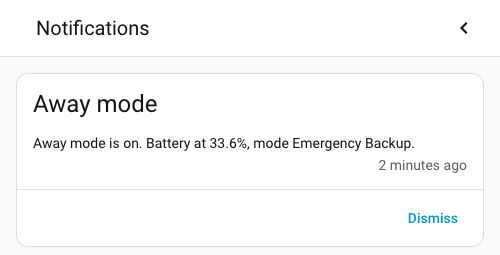
And in Home Assistant's notification panel:
To test sooner, set the interval to 1 minute, then put it back.
If it doesn't work¶
| Symptom | Likely cause |
|---|---|
| Test Connection: 401 or auth_invalid | Wrong or deleted token. Create a new one. |
| Test Connection: connection refused or timeout | The URL isn't reachable from the bridge. In Docker use the host's LAN address, not localhost. |
| No + add action link | No controllable entity is exposed (see the note in step 3). |
| Notify target list empty | The instance is offline, or Home Assistant has no notify services. Reload the Schedule page. |
| Activity Log: failed with 400 Bad Request | The target is send_message. Pick a named service. |
| Activity Log: failed with 404 | The phone was removed or renamed in Home Assistant. Pick the target again. |
| Activity Log: ha action, but nothing on the phone | Home Assistant accepted it; check the Companion app's notification permission on the phone. |
| Activity Log: skipped — no notify target on this entry | A failure alert for an entry without a Notify action. Add one. |
| The condition never passes | The entity is unavailable, or you compared on with true: compare with 1. Use Test Verification in the entry form. |
Related: Home Assistant page, Scheduler → Conditions, Developer Guide → Data in: HA WebSocket.