Guide: site location, weather and solar forecast¶
This worked example sets the site location so the bridge can fetch weather and a solar forecast from Open-Meteo. It uses FranklinWH's Sydney office as the address, because it is a public business address. Use your own home's coordinates.
| Setting | Example value |
|---|---|
| Latitude | -33.78667579056473 |
| Longitude | 151.12532799651834 |
| Timezone | Australia/Sydney (AEST, UTC+10 / AEDT, UTC+11) |
| Array size | 6.6 kWp (example) |
| Tilt | 20° (example) |
| Azimuth | 180° (north-facing, example) |
What you get¶
- The Solar Forecast card on the Dashboard.
- Weather and forecast sensors that schedules can use as conditions:
weather.temp_c,weather.condition,weather.code,solar_forecast.today_kwh,solar_forecast.today_peak_kw,solar_forecast.remaining_kwh,solar_forecast.tomorrow_kwh,solar_forecast.day_pctandsolar_forecast.vs_expected_pct. - The "actual so far" comparison, which uses the bridge's own solar samples.
Needs: internet access from the bridge to api.open-meteo.com. No account or key.
Step 1 — Find your coordinates¶
The aGate does not report its location over Modbus, so you enter it.
- Right-click your house in Google Maps and click the coordinates to copy them, or
- in Home Assistant use Settings → System → General → Location. If the bridge is connected to Home Assistant, Use Home Assistant's location fills them in for you.
Latitude is negative in the southern hemisphere. Four decimal places (about 10 m) is plenty; extra digits do no harm.
Step 2 — Enter the location and array¶
Open Settings → Site & Gateways → Location & Solar (?tab=settings§ion=gateways)
and fill in the fields.
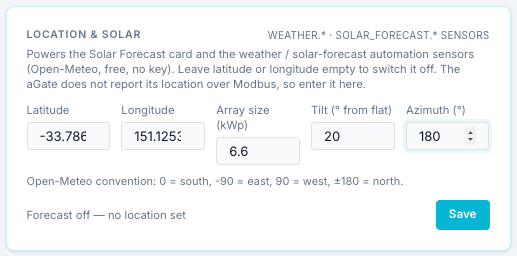
| Field | What to enter |
|---|---|
| Latitude, Longitude | The coordinates from step 1. |
| Array size (kWp) | The DC size of your solar array, from your installer's paperwork. Default 5. |
| Tilt (° from flat) | The roof pitch. 0 = flat, 90 = vertical. Default 20. |
| Azimuth (°) | Which way the panels face, Open-Meteo convention: 0 = south, −90 = east, 90 = west, ±180 = north. |
Azimuth in Australia
The default is 0, which means south-facing. Most Australian arrays face north, which is 180 here. With the default left in place, a Sydney forecast comes out low and peaks late in the afternoon. For an east/west split array, pick the side with more panels or an average; the bridge models one array.
Press Save. The status changes to Forecast on:
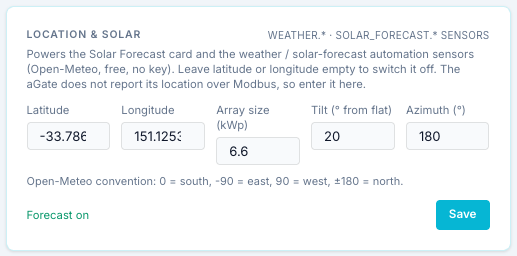
The forecast is fetched in the background and cached for 15 minutes. It may take a few seconds to appear.
Step 3 — Check the Solar Forecast card¶
Go to the Dashboard. The Solar Forecast card now shows today and tomorrow:
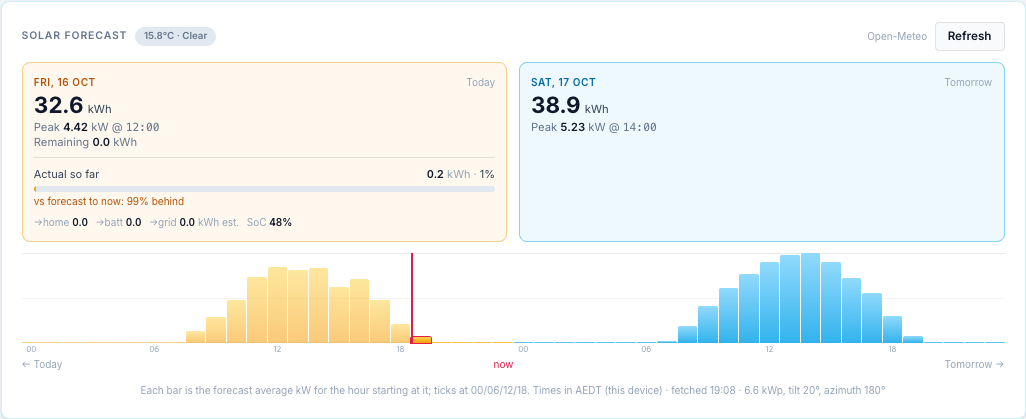
- The chip next to the title is the current weather at the site (temperature and condition).
- Today and Tomorrow give the forecast kWh and peak kW. Day boundaries follow the site's local midnight (the bridge asks Open-Meteo for the site's own timezone).
- Actual so far compares the solar the bridge measured today with the forecast. On the demo gateway it is small, because the demo's solar is simulated.
- The bars are labelled in the bridge's timezone. On the test bridge used for these screenshots the bridge runs in New Zealand time, so the times read two hours later than Sydney time. On a real install in Sydney, the bridge's timezone is Australia/Sydney and the two agree. (See the timezone banner.)
The forecast model is simple: Open-Meteo's global tilted irradiance for your tilt and
azimuth, × kWp, × 0.85 for losses (gateway/solar_forecast.py). It does not know about
shading, clipping or an export limit. Treat it as a guide.
Step 4 — Check the sensors¶
The same data becomes condition sensors in the Scheduler. To see
their live values, open Schedule → + Add Entry, add rows under Entry conditions
with these sensors, and press Test Verification. Each row shows live: and its value.
(Cancel the entry afterwards if you were only looking.)
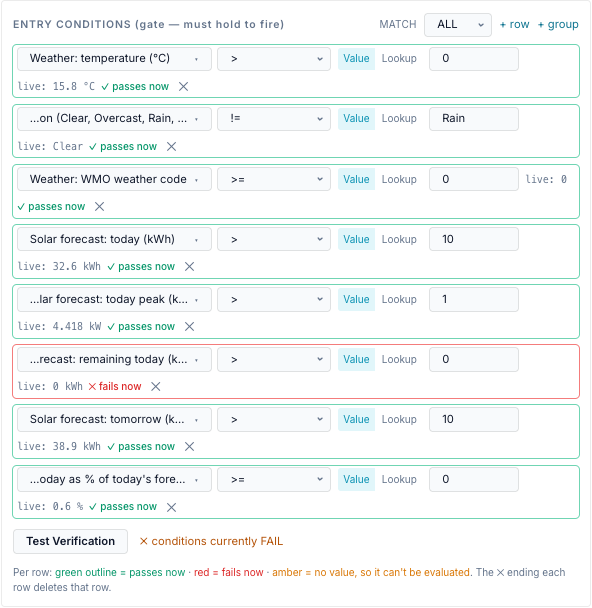
| Sensor | Example value | Meaning |
|---|---|---|
weather.temp_c |
16.2 °C | Temperature now. |
weather.condition |
Mainly clear | Weather in words: Clear, Mainly clear, Partly cloudy, Overcast, Fog, Drizzle, Rain, Thunderstorm … |
weather.code |
1 | The WMO weather code behind it. |
solar_forecast.today_kwh |
34.9 kWh | Forecast for today. |
solar_forecast.today_peak_kw |
5.167 kW | Today's forecast peak. |
solar_forecast.remaining_kwh |
0.3 kWh | Forecast still to come today. |
solar_forecast.tomorrow_kwh |
37.5 kWh | Forecast for tomorrow. |
solar_forecast.day_pct |
3.1 % | Actual solar today as a share of today's forecast. |
solar_forecast.vs_expected_pct |
— | Actual vs forecast up to now; 100 = on track. |
For how to use them in rules, for example "fill the battery overnight if tomorrow is forecast under 10 kWh", see Conditions, Solar Forecast sensors and the storm forecast example.
If it doesn't work¶
| Symptom | Likely cause |
|---|---|
| Status stays Forecast off — no location set | Latitude or longitude is empty, or Save wasn't pressed. |
| Card says Could not load the forecast or Forecast unavailable | The bridge can't reach Open-Meteo. Check its internet access and DNS. |
| A stale chip | The last fetch failed; the previous forecast is shown. |
| Forecast far too low, peak in the late afternoon | Azimuth left at 0 (south) for a north-facing array. |
| Sensors show no value | The feature is off, or the first fetch hasn't finished. |
Switching it off¶
Clear latitude or longitude and press Save. Nothing more is fetched, and the
weather.* and solar_forecast.* sensors have no value, so any schedule condition using
them can't pass.